


















Prezi vs Sway: Features, Pricing, and AI Compared
- Final Verdict and Recommendations Prezi, Sway, and Decksy solve different problems. The choice comes down to what you’re making and how much control you want once the first draft is ready.
- Choose Prezi if: Zoom effects and visual layouts matter most. It also makes sense for presentations with charts or data that need more design control.
- Choose Sway if: You’re making a web-based report, newsletter, class project, or simple presentation. It works well when detailed slide editing and PPTX export aren’t important.
- Choose Decksy AI if: You want to turn a prompt, PDF, Word file, or notes into slides quickly. It also works well when you need to edit single slides and export the deck for more changes later.
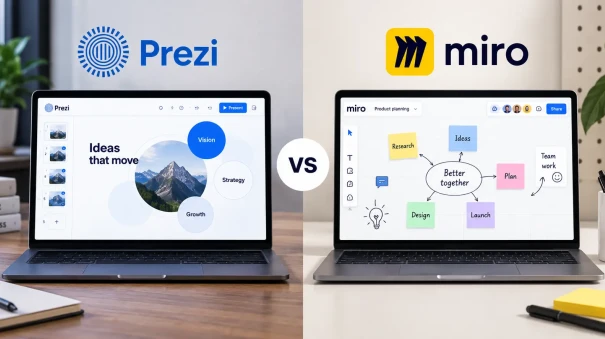
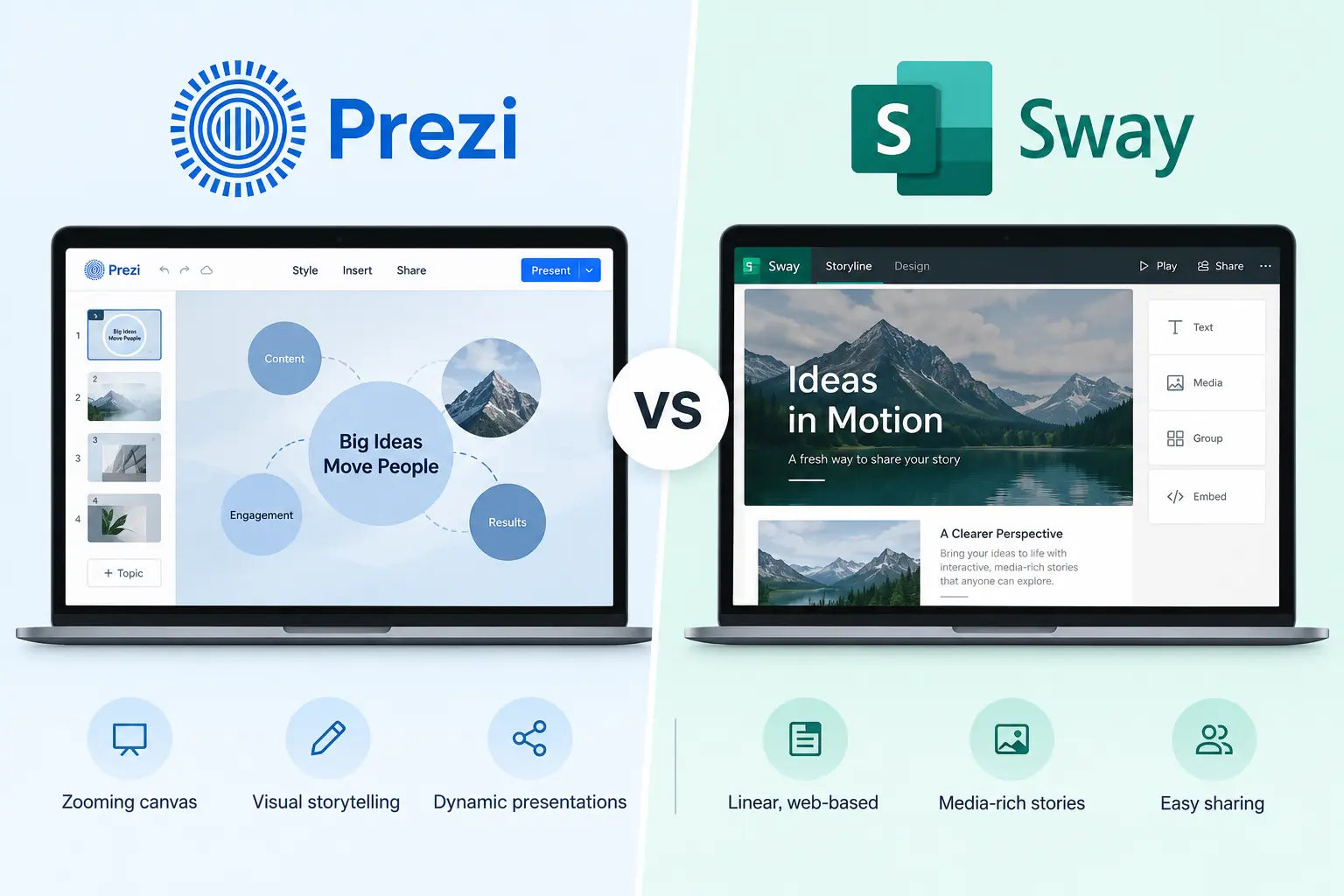
You need to make a presentation, and the choice has come down to Prezi and Microsoft Sway. They can both handle text, images, and other media, but that’s where much of the similarity ends. Prezi works around a zoomable canvas, while Sway builds content into a scrolling, web-based presentation. So, which is better Prezi or Sway, when you actually need to get the work done?
This Prezi vs Sway comparison looks at what matters in practice: pricing, AI features, templates, editing, sharing, and export options. We’ll also give both tools the same content and compare the results. That should show how much work each one requires, where you have more control, and what each tool does well.
| Feature | Prezi | Sway |
| Pricing | Free plan. Paid from $7/month | Free with a Microsoft account |
| AI | Creates presentations from prompts and files | Basic AI tools |
| File Import | PDF, Word, and PowerPoint | PDF, Word, and PowerPoint |
| Design | More editing options | Simple layouts |
| Charts | Built-in chart tools | Uses Excel or Power BI |
| Export | PPTX and PDF | Word and PDF |
Plans, Features, and Limits
You can use both tools for free, though you’ll run into limits fairly quickly with some features. Prezi puts tools such as offline access, PDF export, and unlimited AI use behind its paid plans. Sway works with a free Microsoft account, while Microsoft 365 raises the content limits and unlocks a few extra options. For Sway vs Prezi, pricing really comes down to what you need to create and which features you’ll actually use.
Prezi
The free Basic plan is enough to see how Prezi works. You get the online editor, templates, PowerPoint import, Prezi Video, and 500 AI credits. The credits cover things like creating a presentation, generating images, and rewriting text with AI. There’s a catch: they don’t reset each month.
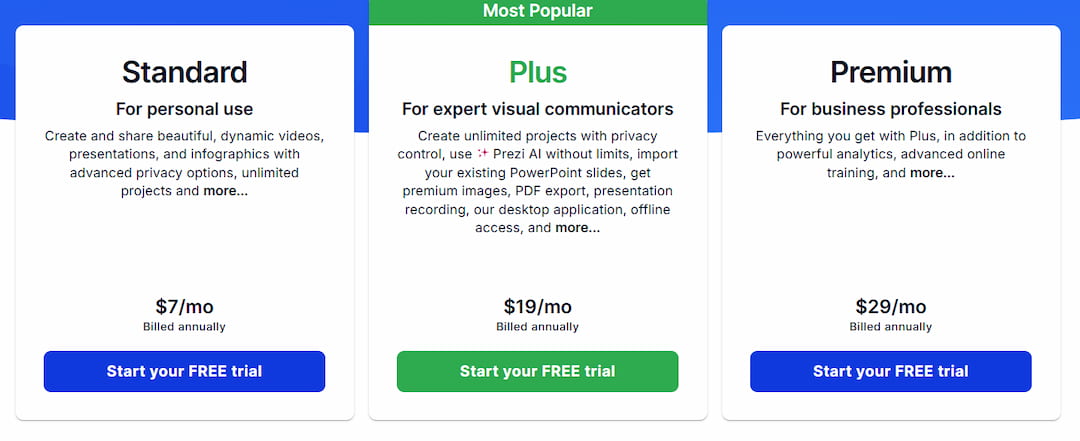
Paid plans open up more tools. Standard starts at $7 a month when billed annually, while Plus costs $19 a month and gives you unlimited AI, PDF export, recording, premium images, the desktop app, and offline access. Premium goes up to $29 a month, mainly adding analytics and priority support.
Prezi for Education and Business
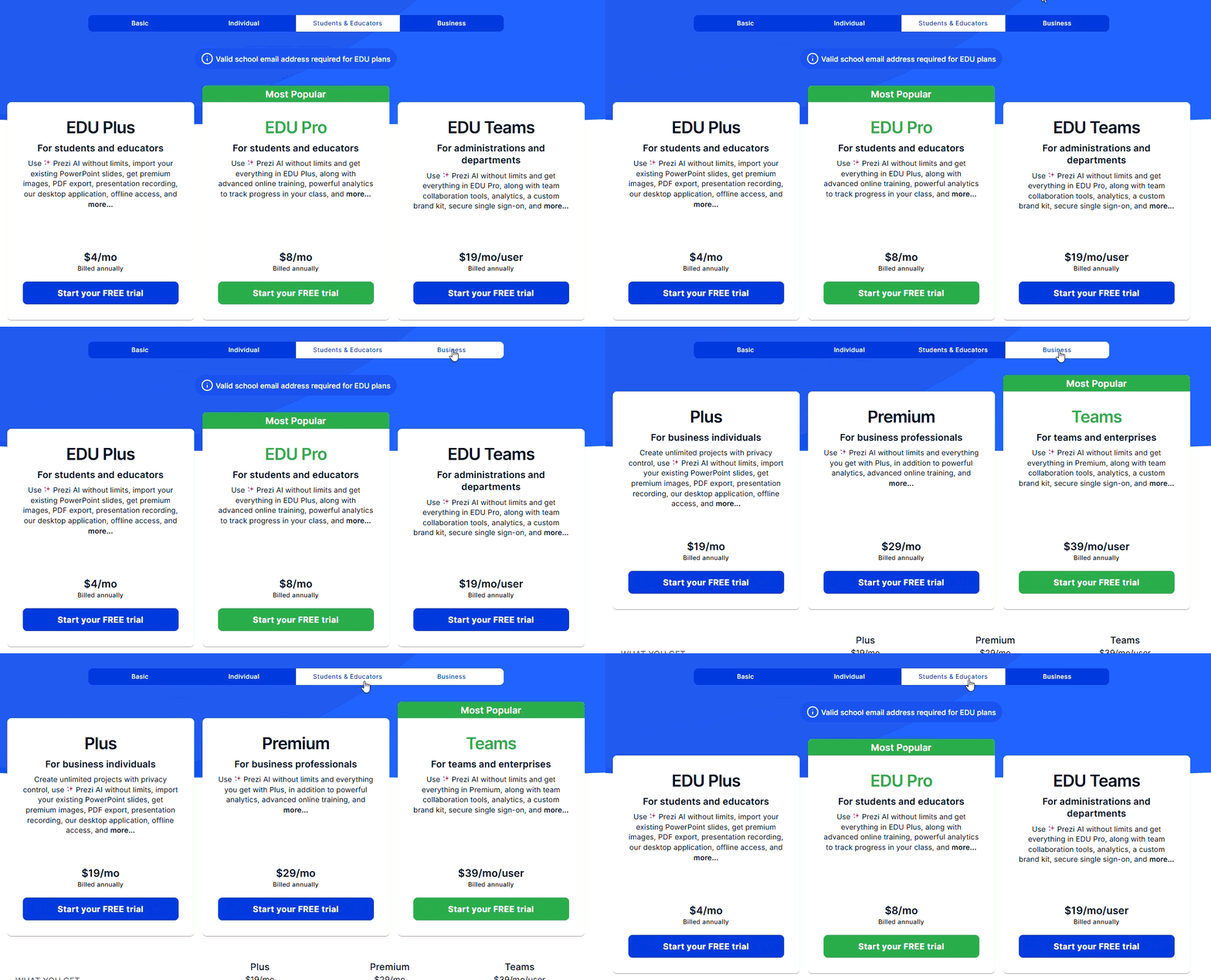
Prezi has cheaper plans for schools. EDU Plus is $4 a month, EDU Pro is $8, and EDU Teams is $19 per user, with annual billing. The higher plans add things like analytics and team tools. Business pricing is higher. Plus costs $19 a month, Premium is $29, and Teams is $39 per user. Paid plans also give you unlimited Prezi AI. You can use it as an AI pitch deck generator to build a deck from a prompt or existing content.
Sway
Sway is free with a Microsoft account. There’s no separate subscription for it. The free version covers the basics, though there are limits on how much content you can add to one Sway. Microsoft 365 gives you more room and unlocks extras such as analytics, autoplay, password protection, and custom branding.
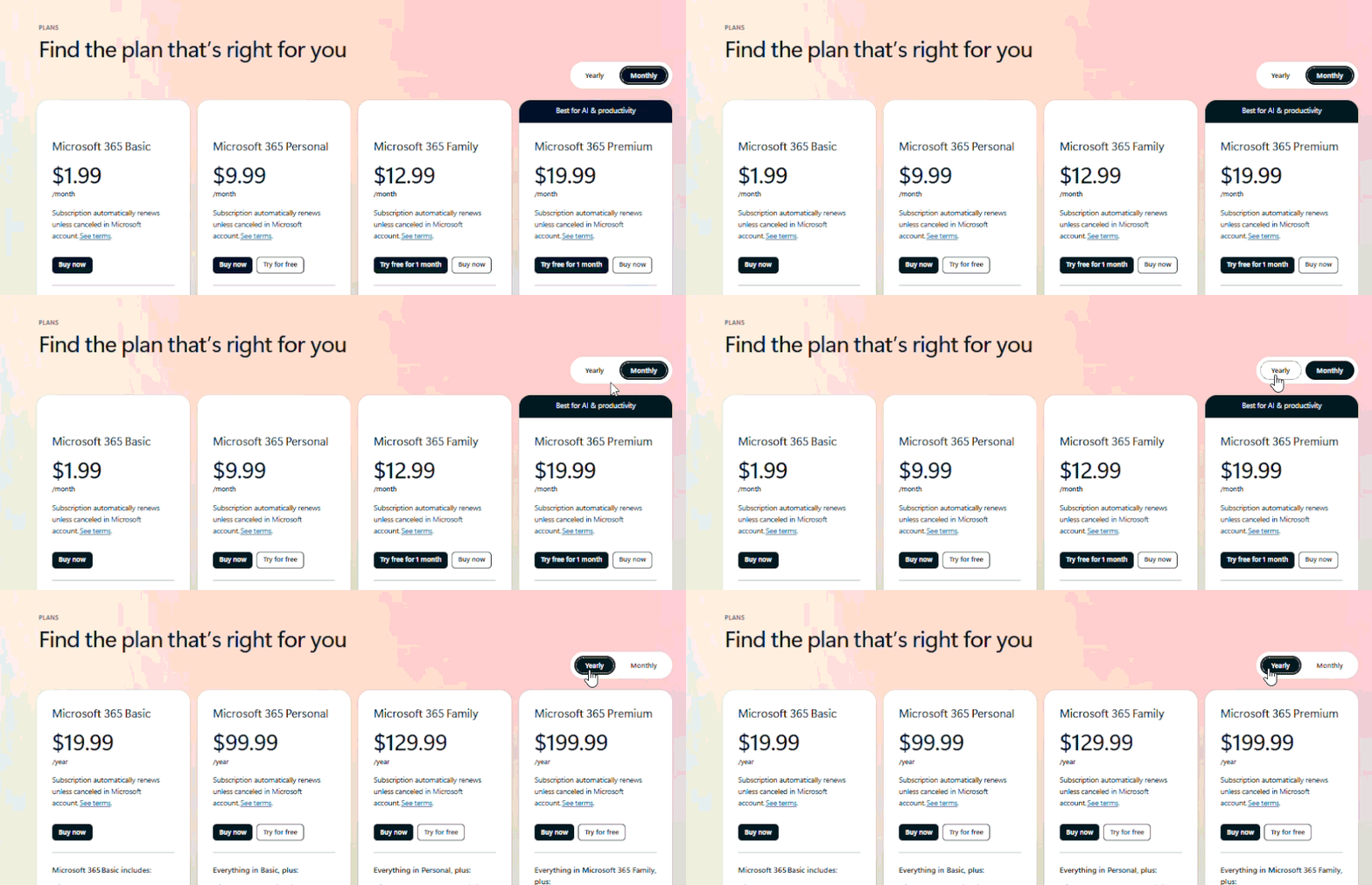
For personal use, Microsoft 365 Personal costs $99.99 a year in the US. Family costs $129.99, while Premium is $199.99. You’re paying for much more than Sway here, since these plans also include Microsoft apps, cloud storage, and other features. Business and education plans are sold separately.
But export options can make a tool more expensive than it first looks. Some services keep certain formats for higher-priced plans. Decksy AI is simpler here. The $2 trial includes access to its features, while the regular price is $10 a month with annual billing. PowerPoint, PDF, and Google Slides exports are included, so there’s no need to move to a more expensive plan just to download the deck in another format.
Design Options and Template Quality
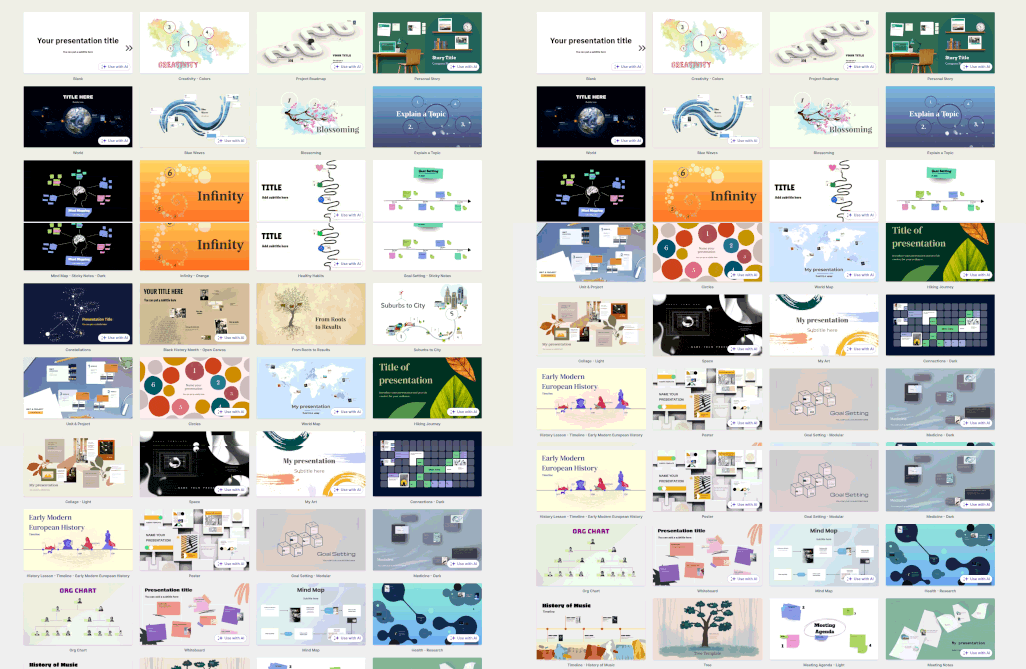
If you compare Prezi and Sway on design, the difference shows up pretty quickly. Prezi has templates for sales pitches, reports, lessons, marketing plans, and project updates. There are also more than 20 frame layouts for changing how individual sections look. Its AI presentation maker can build the first draft from your content, then you can change the layout yourself.
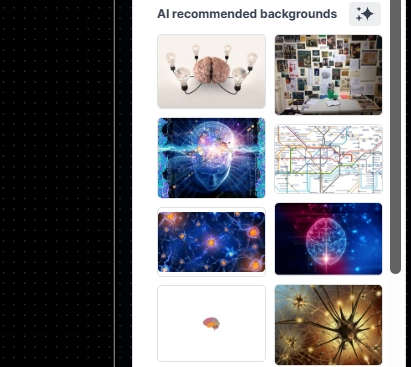
Prezi has more options for images too. It connects directly to Unsplash, accepts your own uploads, and can generate images with AI. Google Fonts are available as well. Team accounts go further. Brand Kit can store logos, colors, and text styles, while admins can upload TTF and OTF fonts and create more than one brand kit.
This is one of the bigger differences between Prezi vs Sway for business. Sway keeps design controls fairly basic. You choose between vertical scrolling, horizontal scrolling, and slides, then adjust the style, colors, and fonts. There’s also a Remix! button that changes the design automatically. It’s quick, but you give up a lot of control.
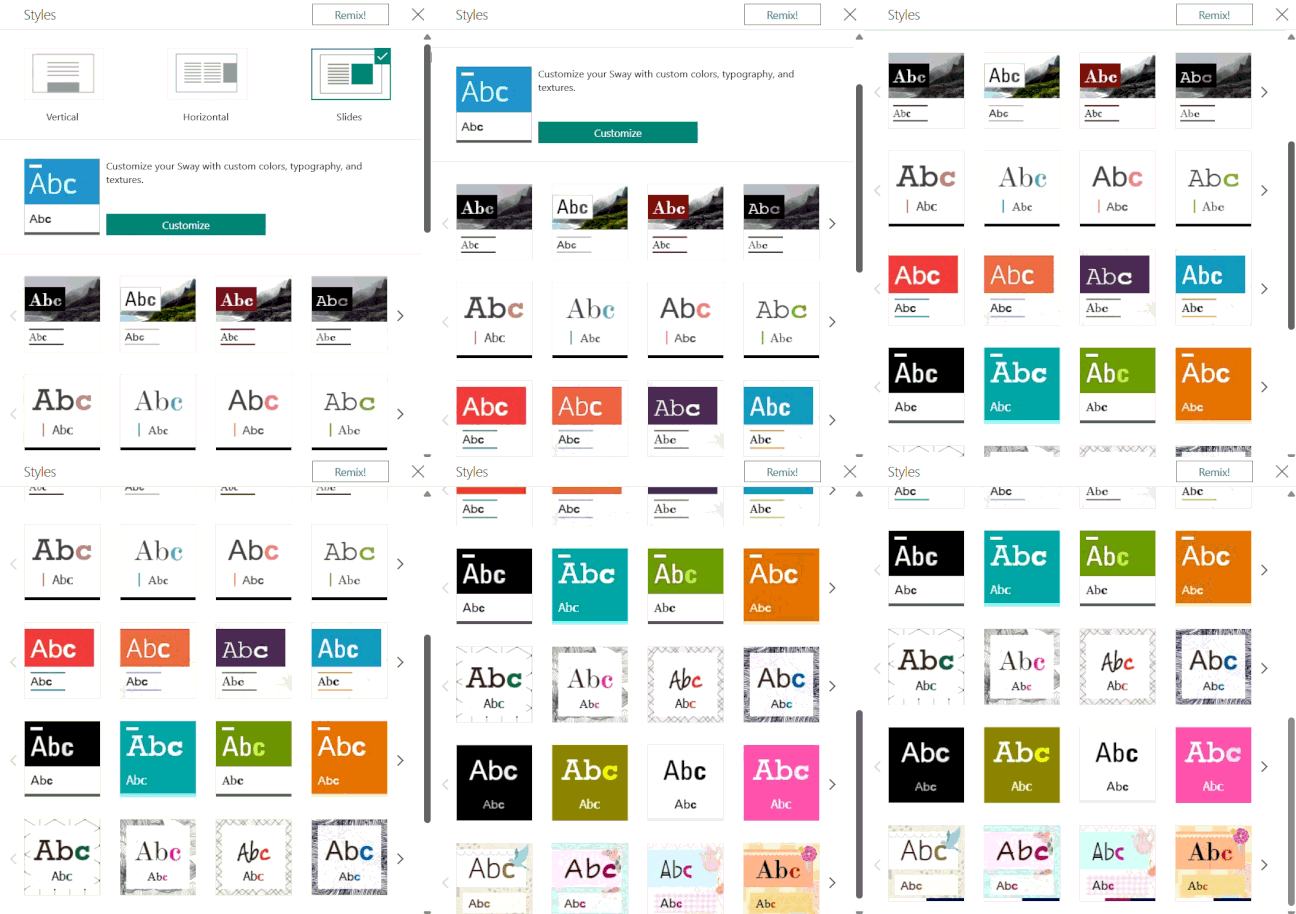
Sway gives you fewer branding options. There’s no equivalent to Prezi’s Brand Kit for uploading company fonts and saving branded templates. Its ready-made designs can also feel a little old for sales decks or company presentations. For reports, newsletters, and schoolwork, they make more sense. Prezi takes longer to set up and edit, but you can change far more of the design.

Charts, Data, and Spreadsheet Support
Reports, budgets, and sales decks often come with a lot of numbers. That makes chart tools and spreadsheet support worth checking before picking between Sway vs Prezi. Prezi lets you create charts inside the editor and import spreadsheet data. Sway works differently. Most charts are made in Excel or Power BI first and then added to the presentation.
Prezi
Prezi lets you work with charts without entering every number one by one. Prezi Present has 18 chart types, including bar, line, pie, scatter, funnel, and mixed-axis charts. Data can be typed in, pasted into the chart sheet, or uploaded from CSV, XLS, and XLSX files.
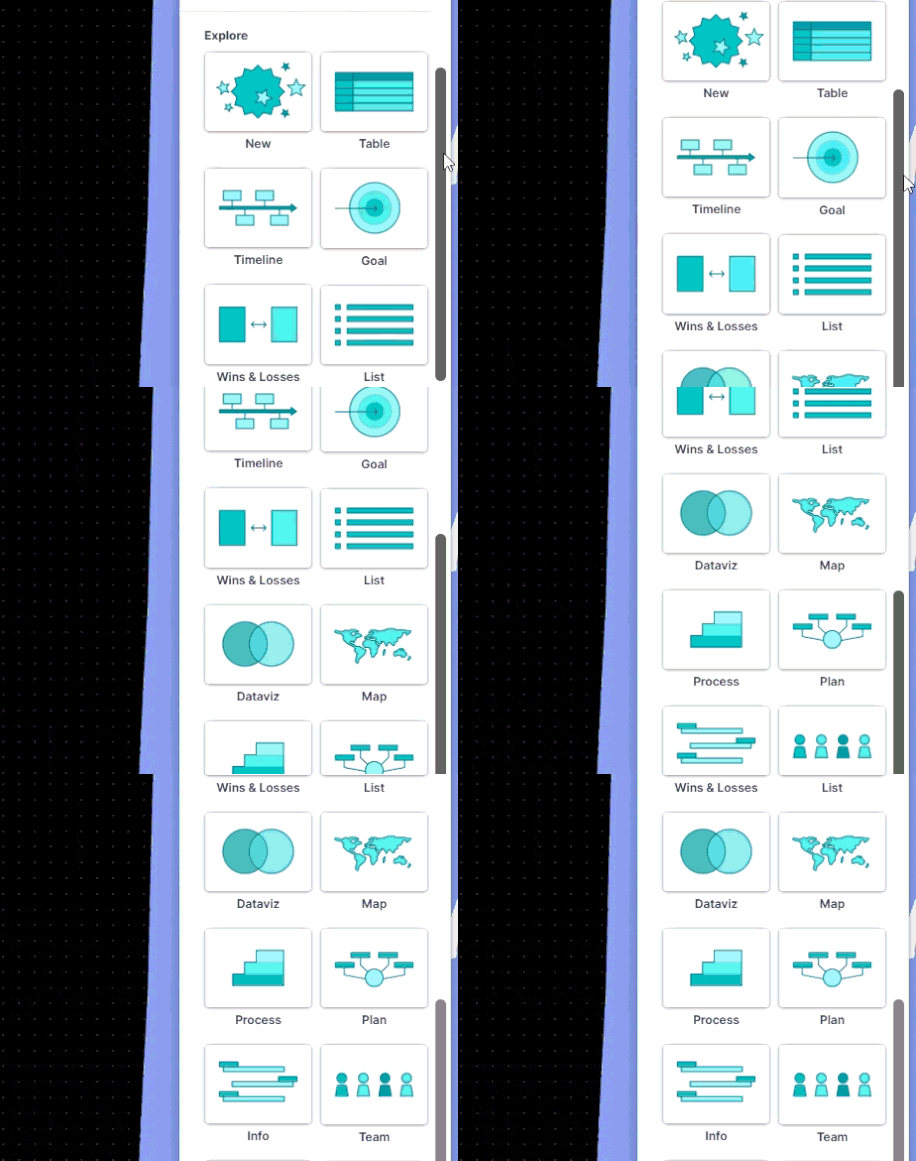
Prezi Infographics comes with over 40 chart types, from Gantt charts to treemaps. Data doesn’t always have to be entered by hand. You can connect sources such as Google Drive documents, JSON feeds, and online databases instead. Prezi also supports imported presentation content. It’s less useful as a PDF to PPT AI tool, though, since it isn’t designed to turn PDF pages straight into editable PowerPoint slides.
Sway
Sway doesn’t have its own chart maker. You’ll usually build the chart or table in Excel first, then embed it from OneDrive. If the numbers change later, update the source file and the embedded content can show the new data too.
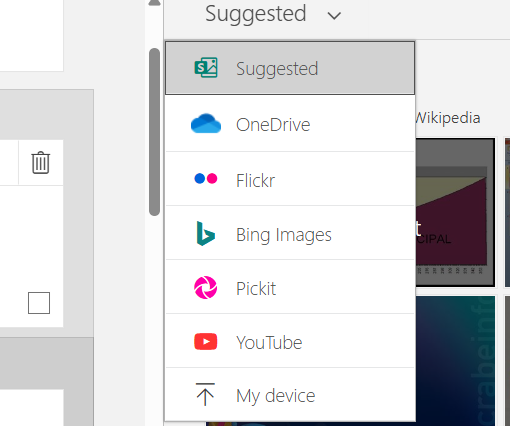
You can also embed Power BI reports in Sway. The catch is that all the real chart work happens elsewhere. You can’t type a few numbers into Sway and turn them into a bar or pie chart on the spot. It also works very differently from an AI PowerPoint generator, since it won’t take raw figures and build a full slide deck around them.
Prezi vs Sway AI: A Hands-On Test
Feature lists don’t show what happens once you start building something. For this Prezi vs Sway comparison, both tools got the same content and instructions. Then we looked at the finished results: how the information was organised, what the layouts looked like, how each tool dealt with source files, and how much work it took to make changes.
Narrative Logic
Prezi gave the content a clearer order. It built an outline first, then moved from the main problem to the AI plan, rollout, costs, risks, and final recommendations. The sections felt connected rather than like separate blocks of text. This is also worth considering in a Plus AI vs Gamma comparison, since building that structure manually can take extra time.
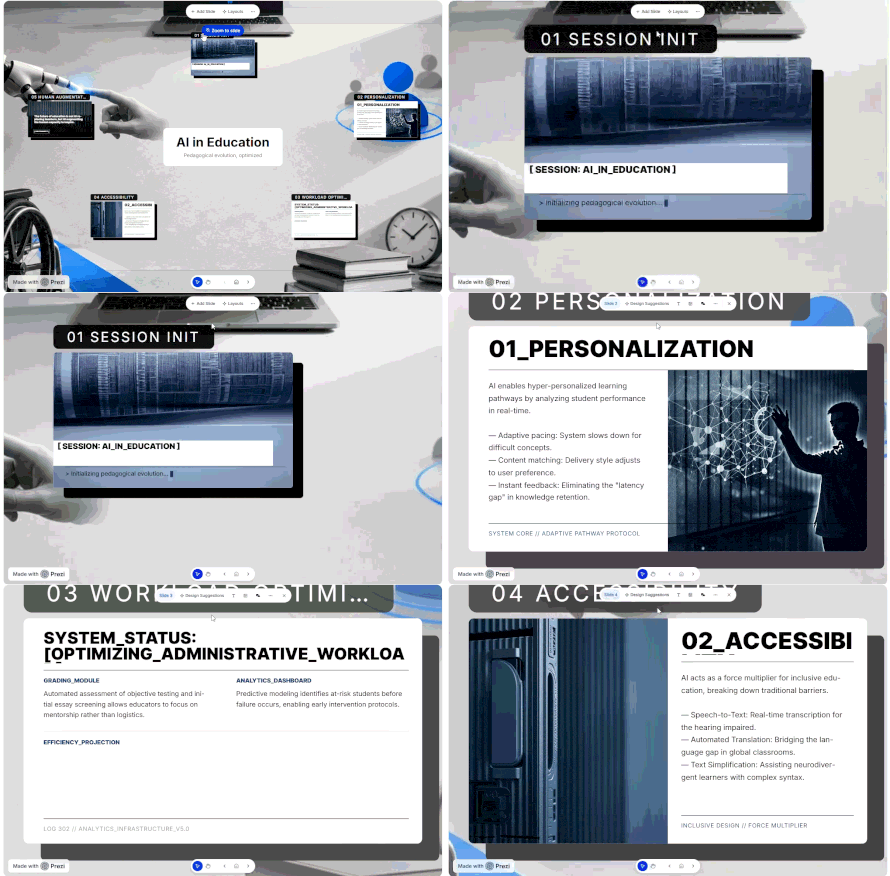
Sway followed the brief more closely. It kept most of the original order and split the content into Storyline cards. That was about it. The points didn’t really build into a clear story, so a few sections had to be moved around and some of the longer parts cut down.
Layout Quality
Prezi gave a better first result. The text was split into shorter sections, with images added between them, so most parts were easy to read. Sway looked more basic. Some cards had too much text, and there wasn’t much room to change where things went. The same kind of layout control often comes up in Google Slides vs PowerPoint comparisons.
Document Processing and Speed
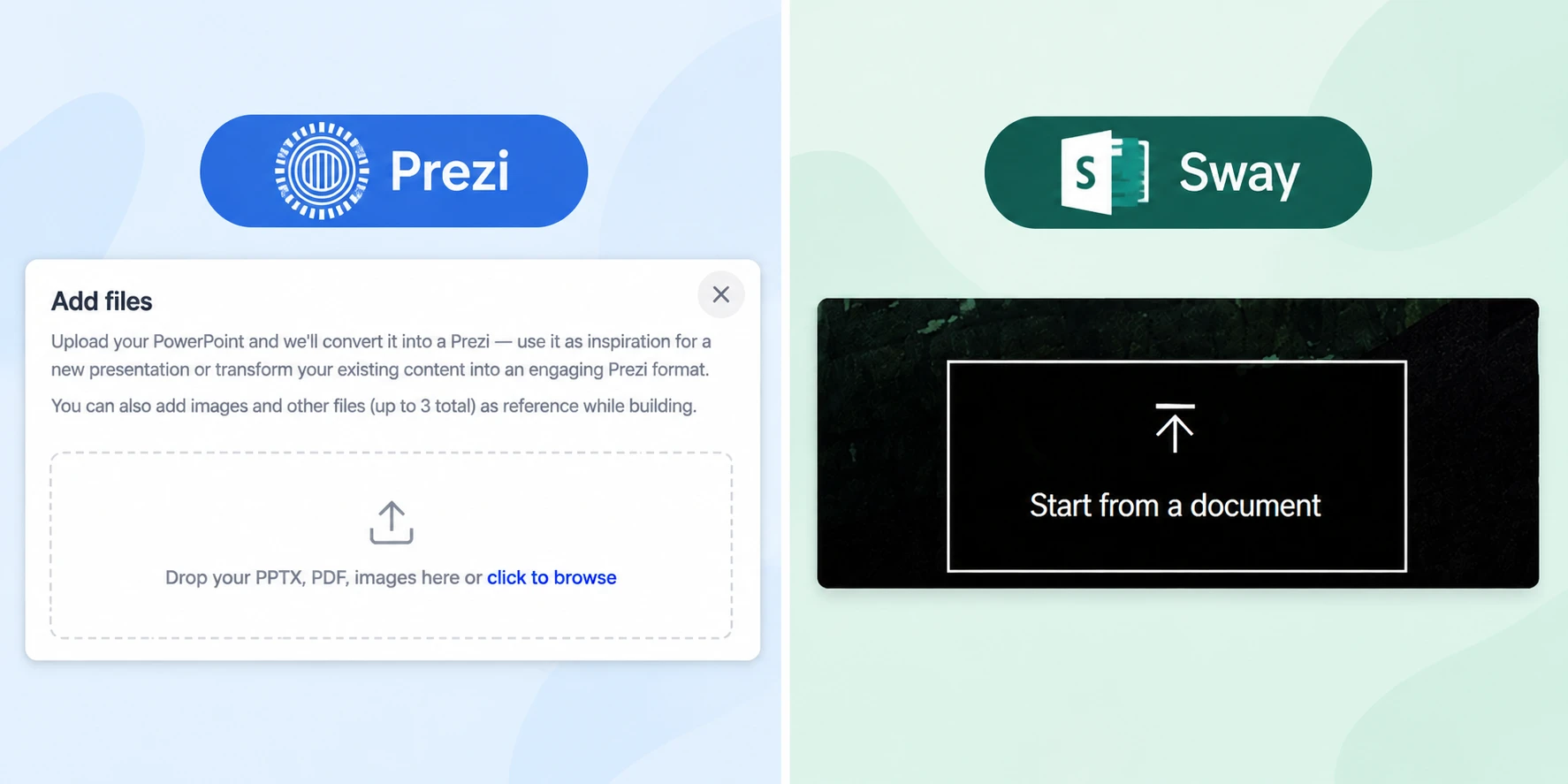
The same document gave quite different results. Prezi pulled out the text, made an outline, and built the presentation from it. It was quick, though some images and formatting were lost along the way. Sway mostly moved the original content into cards, so longer parts needed more work afterward. This kind of file handling also matters in Canva vs PowerPoint, especially when the presentation starts with an existing document.
Editing Flexibility
Prezi gave more room to make changes. One section could be edited without changing everything else. Text was easy to rewrite, images could be swapped, and layouts could be adjusted when something didn’t look right.
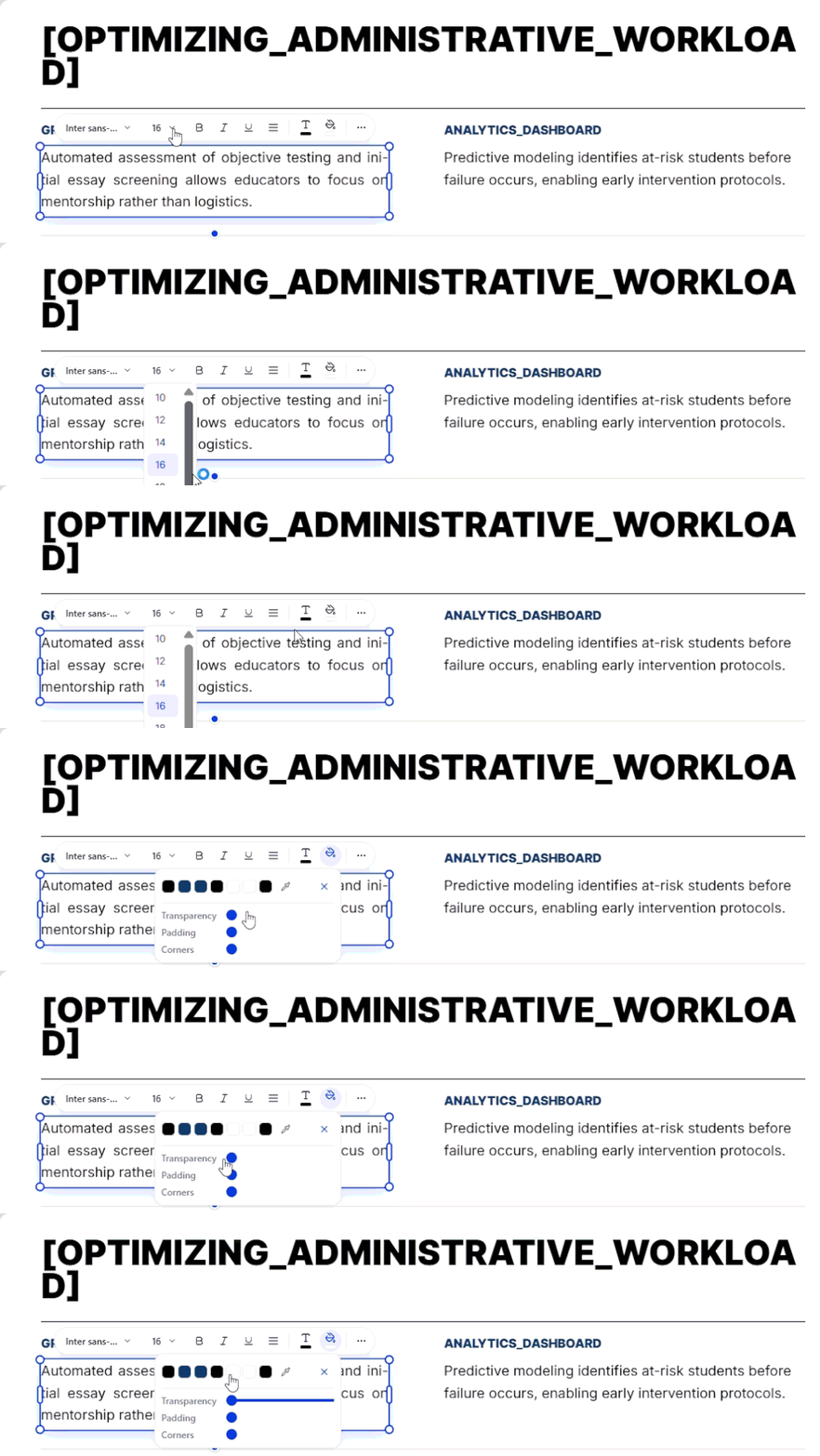
Sway felt more limited here. Moving or deleting a card was simple, but there were fewer ways to change its layout. That’s a useful difference to keep in mind with Power Point vs Keynote too, especially when a presentation needs several small edits before it’s ready.
However, Decksy starts with the structure. It sorts the main points into a clear order first, then works on the design. If one slide doesn’t work, you can regenerate just that slide in seconds instead of creating the whole deck again.
The same problem comes up in Gamma vs PowerPoint comparisons. Slides can end up with too much text, and a small change may require more work than expected. Decksy lets you fix one slide without changing the rest of the deck.
Export Options and Ecosystem Compatibility
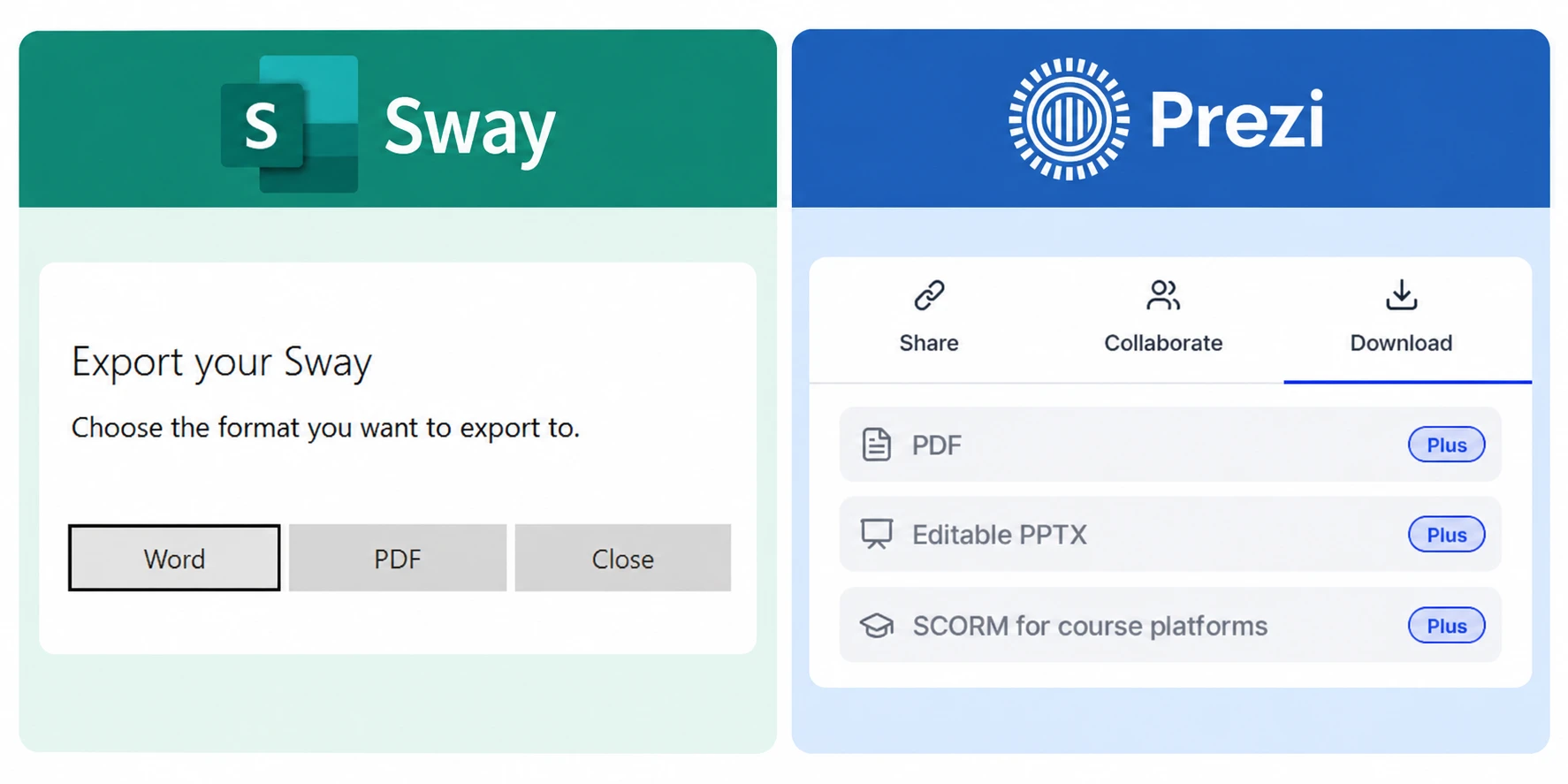
Once the presentation is finished, Prezi lets you download it as PPTX or PDF. The PPTX option turns each frame into a PowerPoint slide, but Prezi’s zoom effects and original structure don’t transfer in the same form. Sway is more limited. It exports to Word or PDF, with no direct PPTX option, and presenting a Sway still depends on an internet connection.
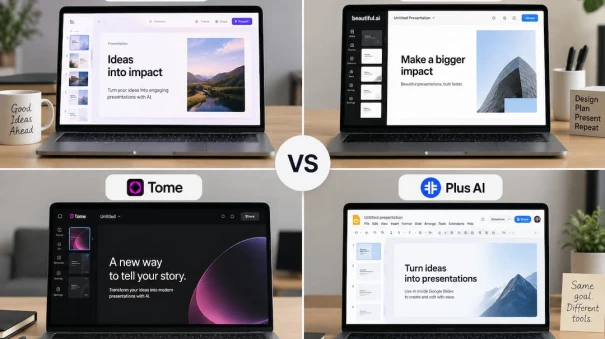
Decksy handles exports differently. Text, charts, shapes, and icons remain editable in PowerPoint, so the file can still be changed after download. That flexibility is worth considering in comparisons such as Gamma vs Tome vs Beautiful vs Plus AI, where moving a deck between tools can affect how much editing is possible later.
The Smart Alternative: Decksy AI
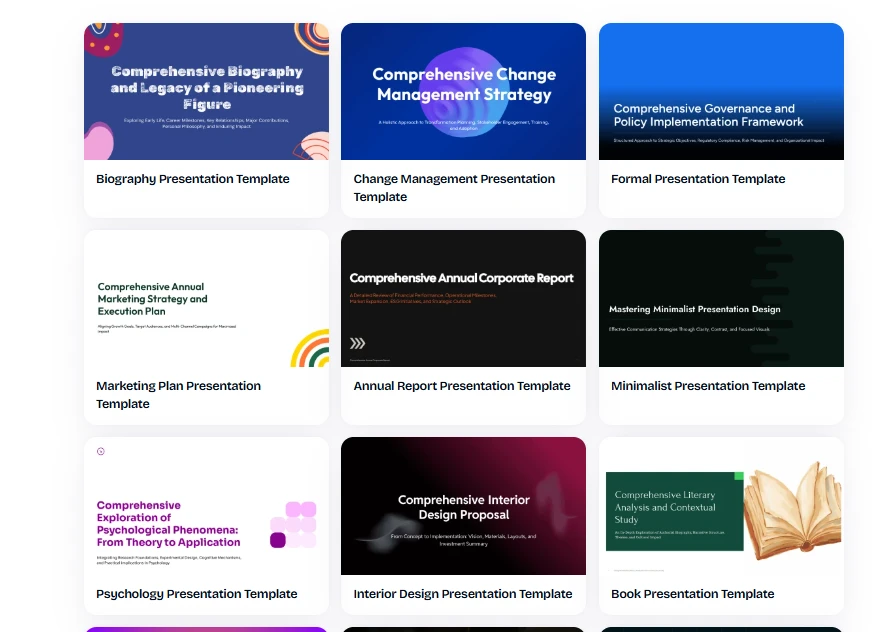
There’s another option if neither Prezi nor Sway quite fits the job. Decksy AI can take a prompt, PDF, or Word file and organise the main points before building the slides. That makes it a useful alternative to Prezi and Sway when you want less manual work on the structure.
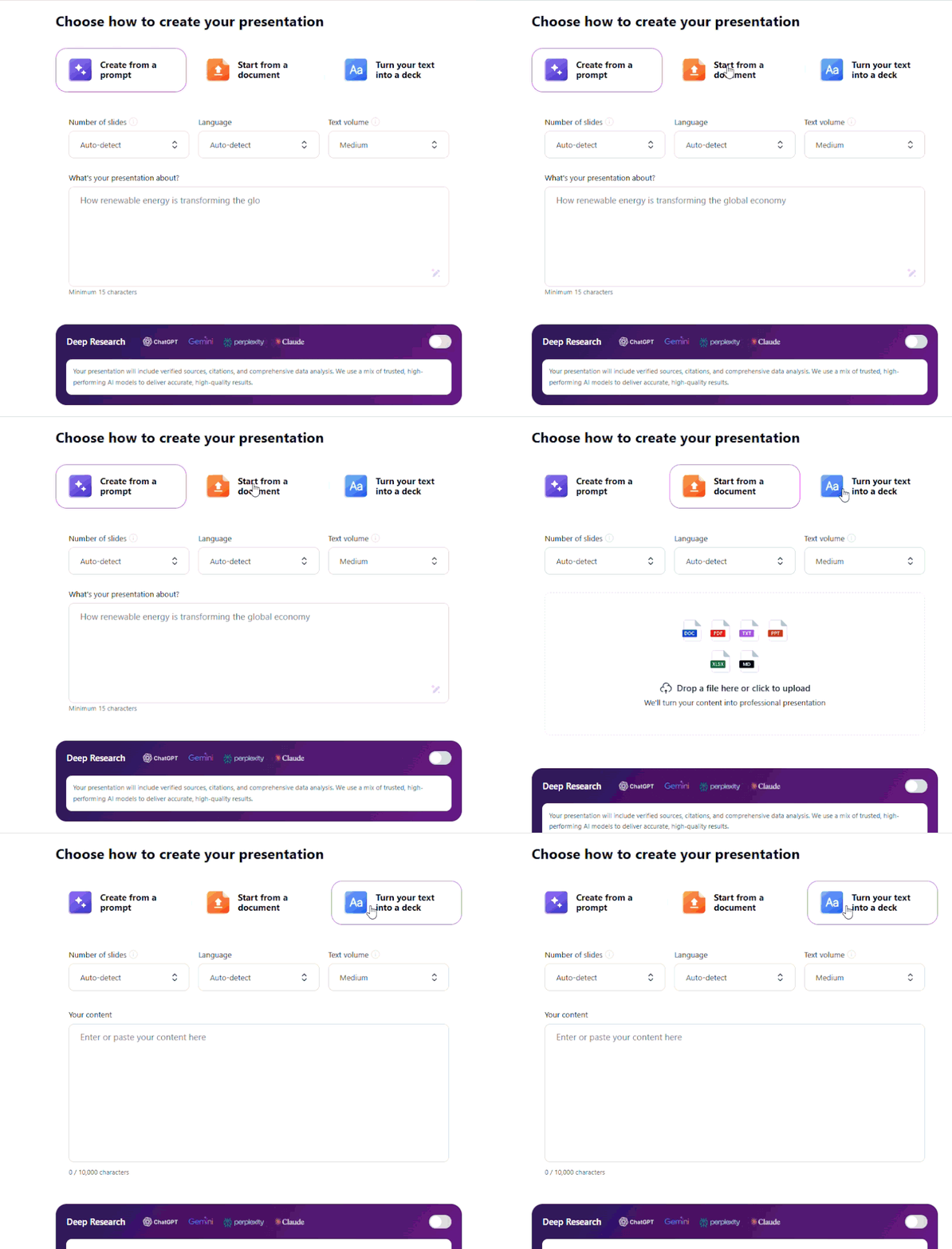
You’re also free to change the result. A bad slide can be edited or regenerated on its own, while the rest of the deck stays as it is. Exports remain editable, so the work can continue outside Decksy instead of being tied to one tool.

Sarah Michelle Carter is the Chief Human Resources Officer at Decksy, and the person most likely to remind you that a company's culture is built in the small decisions, not the mission statement on the wall. She's pragmatic about AI — not an evangelist, not a skeptic, just someone who's watched it quietly clear out the repetitive parts of the job so there's more room for judgment and attention. Known for asking better questions than she answers, she's a go-to voice on culture, leadership, and where AI genuinely helps teams versus where it gets in the way.