

















Canva vs PowerPoint: Which Presentation Tool Should You Choose?
- Choose Canva if you want to create attractive presentations quickly and value modern templates.
- Choose PowerPoint if your presentations include business reports, financial data, or advanced formatting.
If you need to create a presentation, you’ve probably wondered which program to use: the classic PowerPoint or the more modern, design-focused Canva. The answer isn’t obvious.
Recently, Canva has focused on AI and ready-to-use templates, making it easy to create beautiful presentations even for those who aren’t familiar with graphic design. On the other hand, PowerPoint has focused on Copilot, deeper Microsoft 365 integration, and greater control over individual elements such as layout and charts.
Both can automatically generate a presentation from a prompt using AI, but each performs better in different areas. In this hands-on comparison, we tested both programs and analyzed how they handle data, design, and workflows.
So, is PowerPoint or Canva better for your presentation needs? Let’s find out!
| Feature | Canva | PowerPoint |
| Best for | Design-focused presentations | Business and corporate presentations |
| Pricing | Free plan + paid subscription starting at $144 a year | Free web version + paid Microsoft 365 subscription |
| AI tools | Fast generation | More advanced with Copilot |
| Export types | PPTX, PDF, MP4, PNG, GIF and more | PPTX, PDF, JPG, PNG, WMV, TIF, and more |
| Ease of use | Very beginner-friendly | More options mean more things to learn |
Canva vs PowerPoint: Who Are They for and How Much Do They Cost
Canva and PowerPoint both offer free presentation tools, but their paid models differ. Canva unlocks more AI features, premium assets, and collaboration tools across higher tiers, while PowerPoint reserves the full desktop app and most Copilot features for Microsoft 365 subscribers.
These subscriptions can even be quite expensive, but fortunately, there are several alternatives available online. For example, Decksy AI presentation generator offers an affordable $2 trial and a $10/month subscription that includes full PowerPoint export rights.
Canva: Several Tiers and Many Advantages
Canva is widely known as a presentation maker, but it also supports social media graphics, videos, documents, whiteboards, websites, and other visual content. Its free plan includes enough features for creating basic presentations, while premium subscriptions unlock more design options, all the AI features, branding options, and collaboration capabilities.
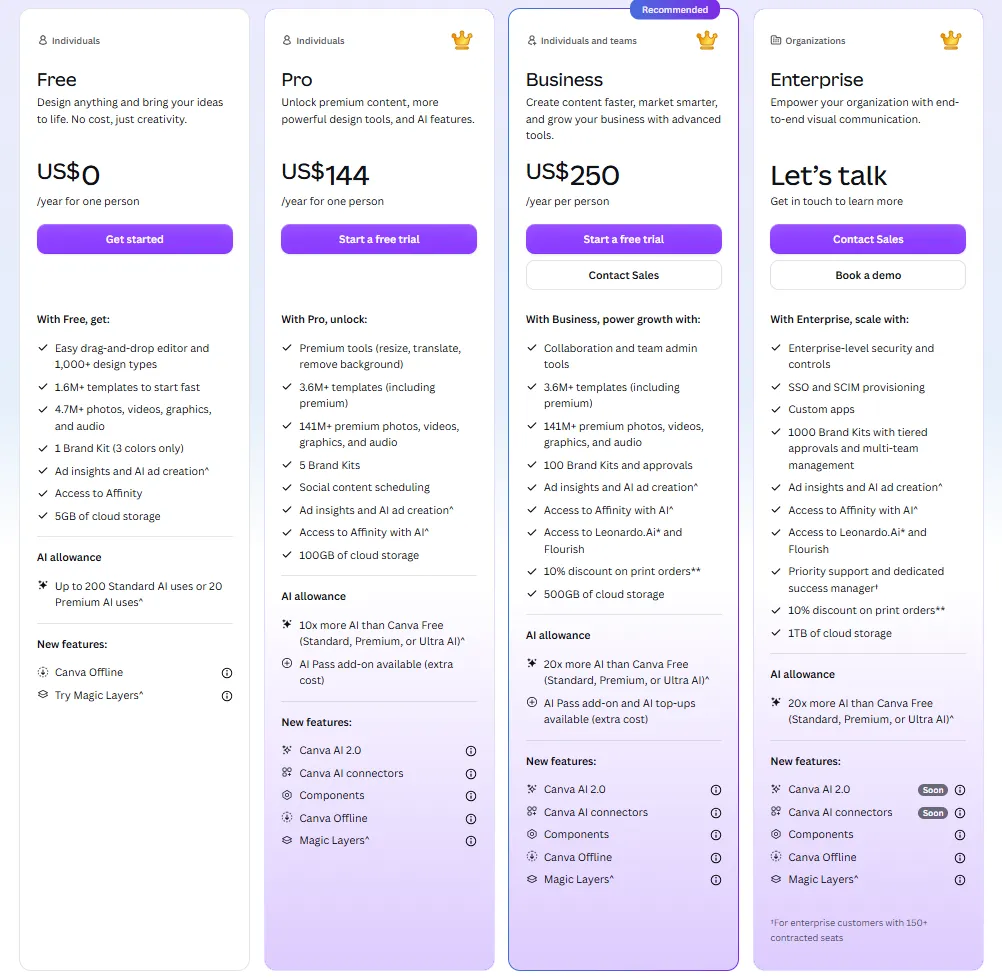
Canva currently offers four plans: Free, Pro, Business, and Enterprise. Let’s see each of them in detail.
Canva Free
The Free plan includes:
- More than 1.6 million free templates, including presentation layouts.
- Access to 4.7 million free photos, videos, graphics, and audio assets.
- One Brand Kit, limited to three brand colors.
- Up to 200 Standard AI uses, or 20 Premium AI uses.
It covers basic presentations, but premium templates, AI tools, branding features, and advanced editing require a paid subscription. It’s ideal for those who need to use the tool often but don’t need to rely on AI tools or on too many templates and Brand Kits.
Paid Options
The price of Canva Pro is $144/year per person and includes a 7-day free trial. It expands the presentation toolkit with many more templates and premium photos, as well as a 10x higher AI usage compared to the free plan, and five different Brand Kits available.
On the other hand, Canva Business costs $250 per person per year and also includes a 7-day free trial. It adds several tools designed for collaborative presentation workflows and is therefore perfect for teams. The Brand Kits are up to 100, while the AI usage is 20x higher than the free plan.
Finally, Canva Enterprise is ideal for larger organizations, and its price is disclosed only upon contacting the sales team. It includes enterprise-level security, SSO, and administrative controls, as well as up to 1,000 Brand Kits with tiered approval workflows.
PowerPoint: Free Options, Microsoft365 and Licenses
PowerPoint can be used for free on a computer, but only through the browser-based version. This includes basic templates, formatting tools, online collaboration, and OneDrive storage. The full desktop application is not free and requires either a Microsoft 365 subscription or a separate one-time license.
Personal, Family and Premium
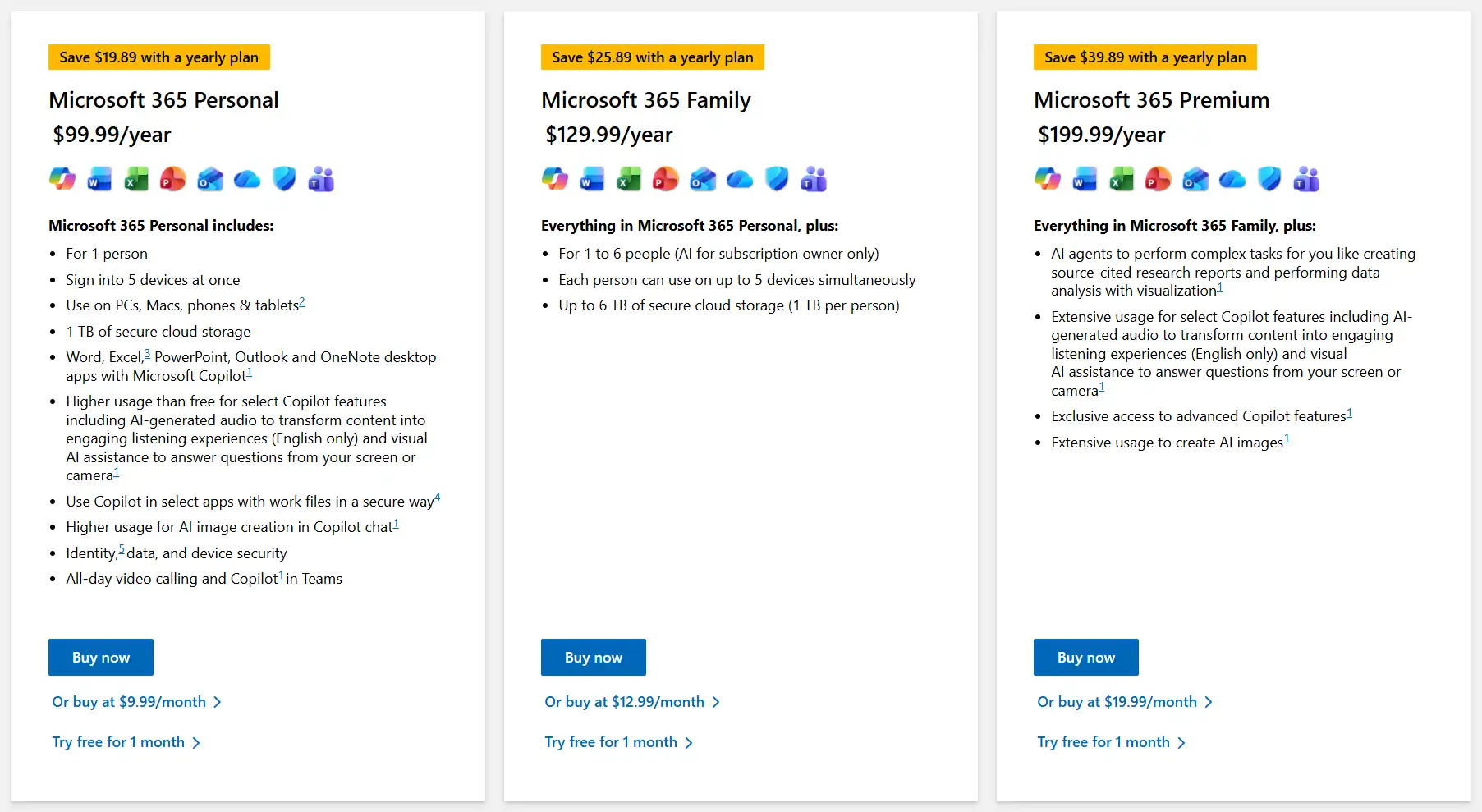
The first paid tier, Microsoft 365 Personal, comes at $99.99/year or $9.99/month. It includes the following:
- The full PowerPoint desktop application for Windows and macOS
- Word, Excel, Outlook, and OneNote desktop apps
- 1TB of OneDrive cloud storage
- Microsoft Copilot inside selected Microsoft 365 apps
It is ideal for those who need to use PowerPoint professionally and for those who want to make the most of Copilot’s AI potential. On the other hand, if more people, such as family members, coworkers, or simply friends, want to access Microsoft 365 services, they can opt for the Family subscription at $129.99 per year for up to 6 users.
Finally, those who need to make extensive use of Copilot should opt for Microsoft 365 Premium, which comes at $199.99 per year. With it, you can take advantage of AI agents that handle tasks for you and many other AI features.
Standalone PowerPoint License

PowerPoint is also available as a one-time desktop purchase for US$179.99 on one Windows PC or Mac. This avoids a recurring subscription fee but does not include other Microsoft 365 apps, 1TB of OneDrive storage, or full Copilot features.
Canva vs. PPT: Templates, Design Assets, and Customization
Both options allow users to create and customize presentations by modifying the overall structure and individual slide elements. Canva focuses on simplicity and a large collection of ready-made visual assets, while PowerPoint offers more traditional tools and greater layout control. Both also include AI features for generating and editing presentations.
Canva: Modern Templates and a Customizable Brand Kit
In the Templates section, Canva offers a large number of visually appealing designs that are ready to use and customize. Almost every element on the page, from text and fonts to shapes and colors, can be edited or moved. However, the vast majority of these templates are only available to Canva Pro and Canva Business subscribers.
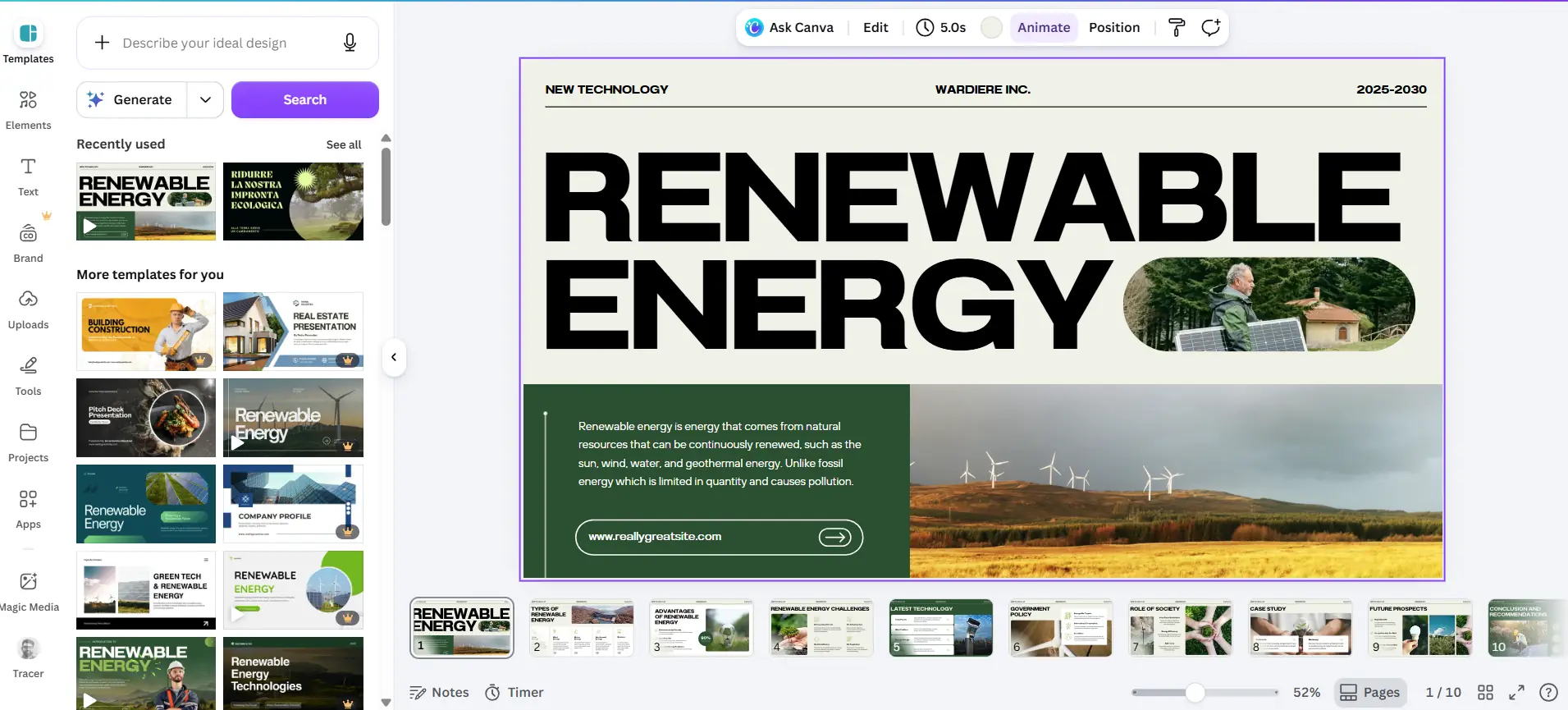
Among the most interesting sections is the one dedicated to recent templates, but the most notable one is by far “Generate”. Here, Canva’s AI allows you to create a presentation based on your instructions. The clearer and more detailed your prompt is, the closer the generated presentation will be to what you had in mind.
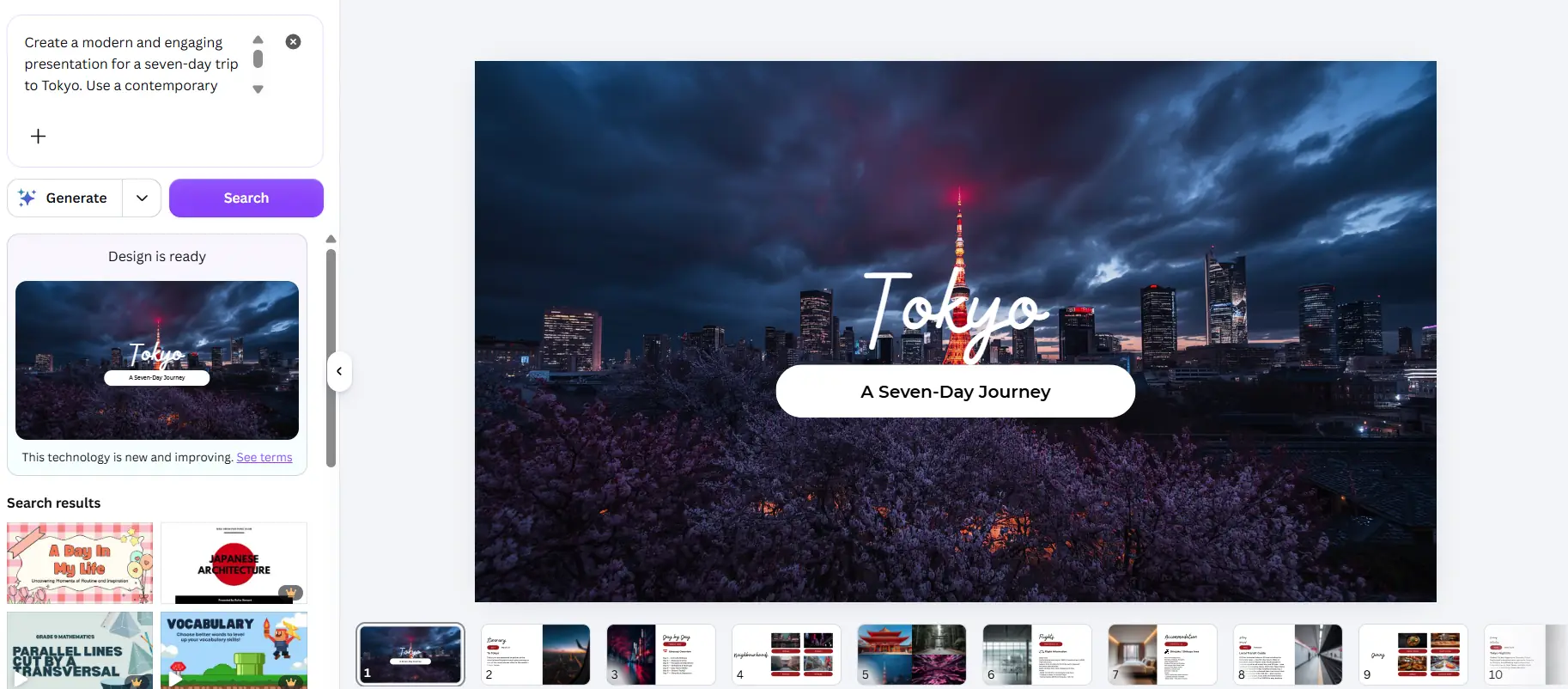
In the example above, we generated a presentation from a prompt about a seven-day trip to Tokyo, specifying the desired color palette, the types of photos to include, the icon style, and the key information to appear on each slide. In this case, too, once the presentation has been created, every element remains selectable and editable.
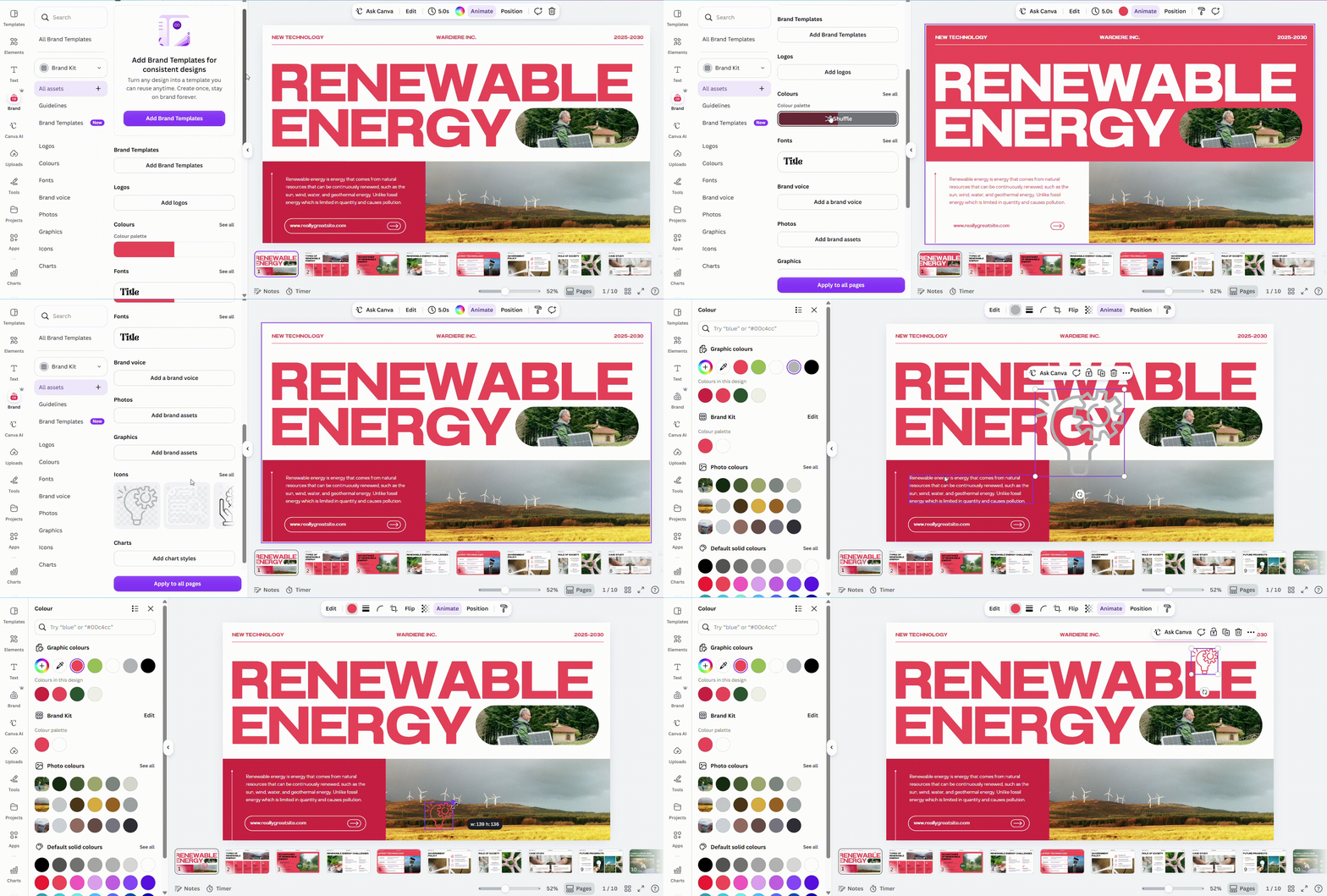
Another useful feature for Canva subscribers is the Brand Kit section. It is designed specifically for brands and their visual identity. Users can personalize different elements by adding brand assets such as templates, fonts, color palettes, icons, and much more. Having everything stored in one place makes it much faster to create presentations that remain visually consistent.
PowerPoint: Templates and Customization with Copilot
PowerPoint also offers a wide selection of free templates for creating presentations. They are divided into categories such as Celebrate, Creative Design, Photo Albums, Trip Planning, and Business. Compared to Canva, these templates generally have a more traditional design and may feel less modern to younger audiences.
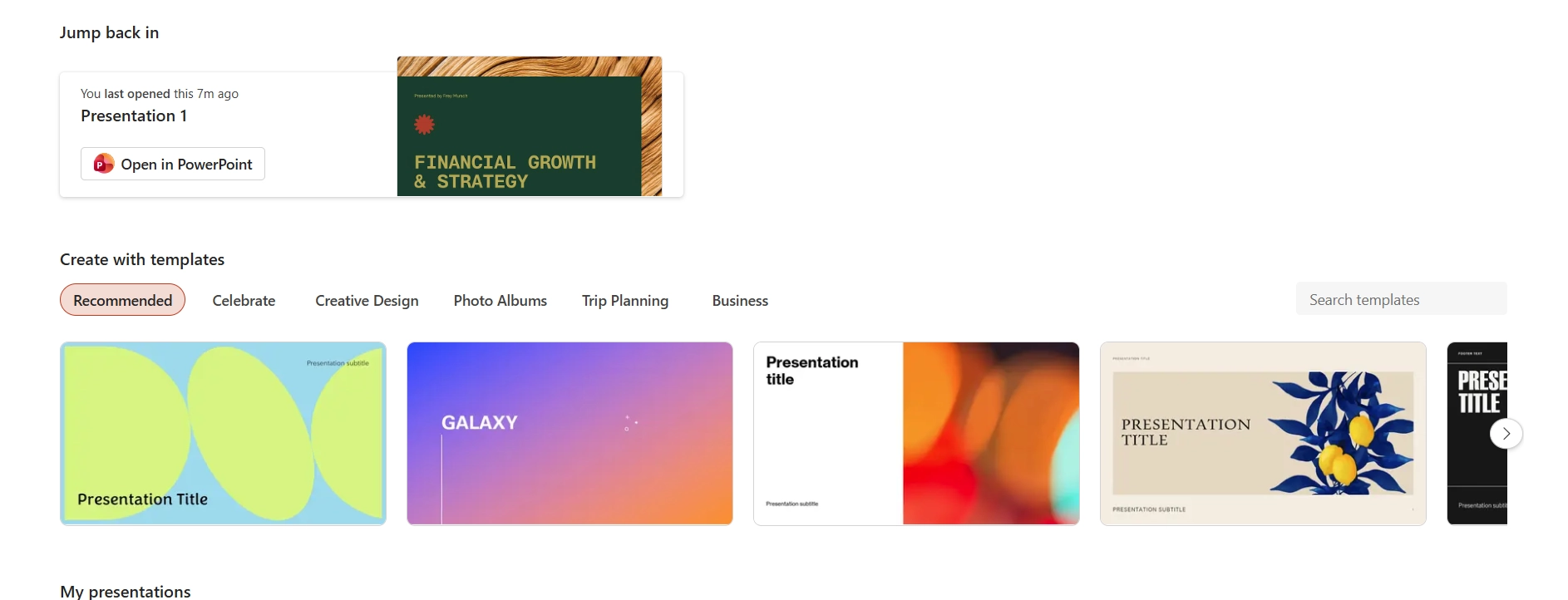
A search bar is also available, allowing users to find the most suitable template by entering keywords. In our example, we searched for a portfolio template. After selecting the preferred design, only the text needed to be edited to adapt it to our content.
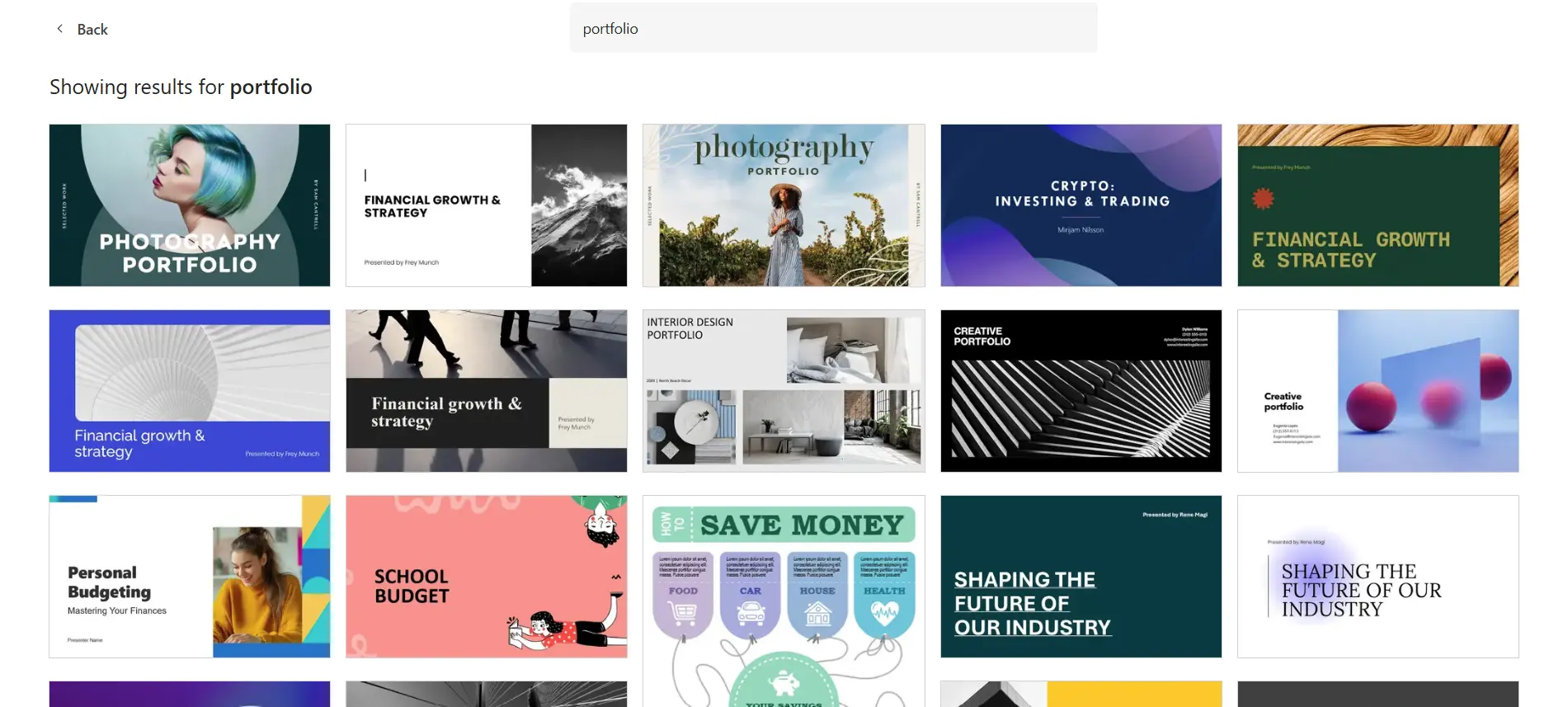
Unlike Canva, however, many of these templates are not fully customizable. Users can change the fonts, text, and, in some cases, the images, but not the geometric shapes that make up the template. In addition, some templates include only the title slide or presentation cover.
Copilot: PowerPoint’s Game Changer
Thanks to Copilot, PowerPoint also allows users to generate presentations with AI.
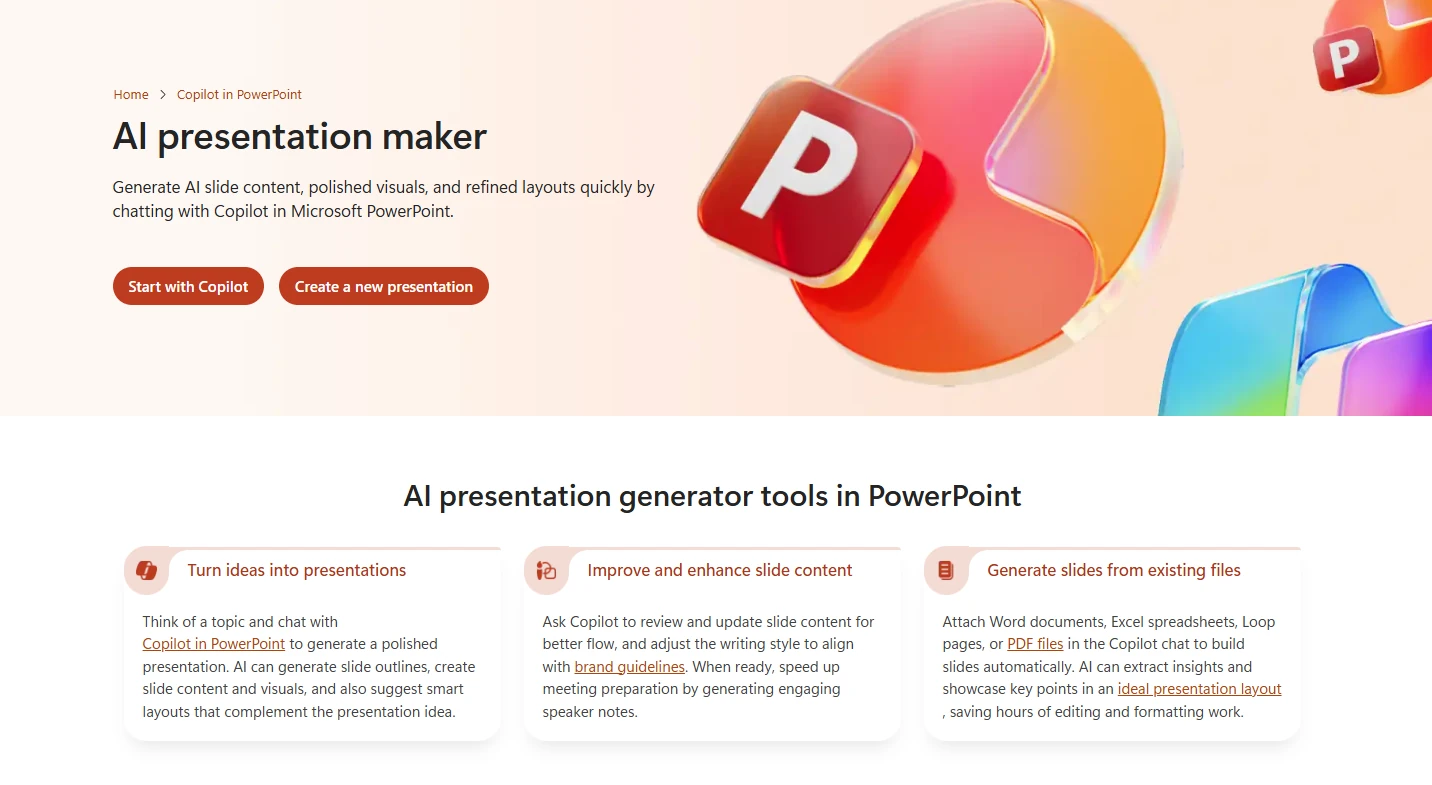
Within Copilot, users can choose from several Claude and GPT models and generate images directly inside the software. After opening the AI chat, they enter a prompt describing the presentation, and Copilot asks multiple-choice questions to gather more details.
The more information included in the prompt, the more accurate the result. Once generated, users can continue chatting with Copilot to request changes, while every presentation element remains selectable and editable.
Is Canva or PowerPoint Better with Data and Charts?
When comparing Canva vs PowerPoint for business presentations, it’s crucial to understand how they treat data and charts. In fact, both let users create and edit charts directly inside a presentation, but they handle data input and spreadsheet connections differently. Canva keeps most of the process inside its editor and supports several external data sources, while PowerPoint relies more heavily on Excel for chart creation and editing.
Canva’s Simple System
Adding a chart to a Canva presentation is simple. Users can select “Charts” from the left-hand menu and choose from several chart categories, including:
- Bar charts
- Line charts
- Pie and donut charts
- Area charts
- Scatter and dot charts
- Infographic charts
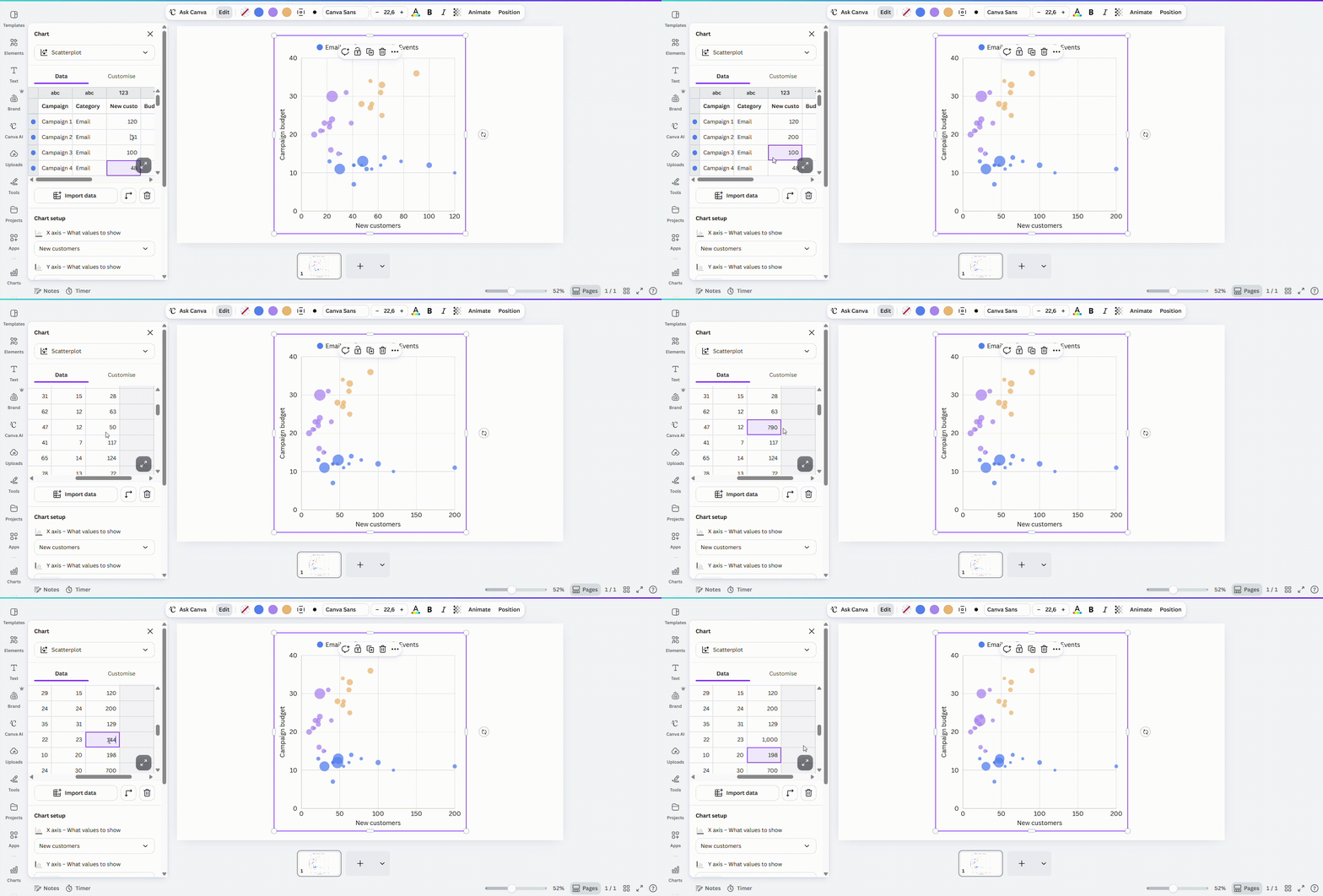
Each chart can be edited in a dedicated section, where users can enter data manually or automatically import it from various software and applications. These include Excel files, Google Analytics, Meta Catalog Data, World Bank data, and other sources.
PowerPoint and Its Excel Integration
Creating charts in PowerPoint works in a slightly less intuitive but more complete way than in Canva. Here too, users can choose from many chart types, including column, line, pie, and bar charts, as well as combinations of different options.
However, when it is time to create the chart, Microsoft 365 moves the user from PowerPoint to Excel after the preferred chart type has been selected. In Excel, users can enter all the required data and choose how the statistics should be displayed. While they work in Excel, the chart is also updated directly on the presentation slide where it was inserted. We also have a great Excel data to PPT automation tool for this kind of tasks.
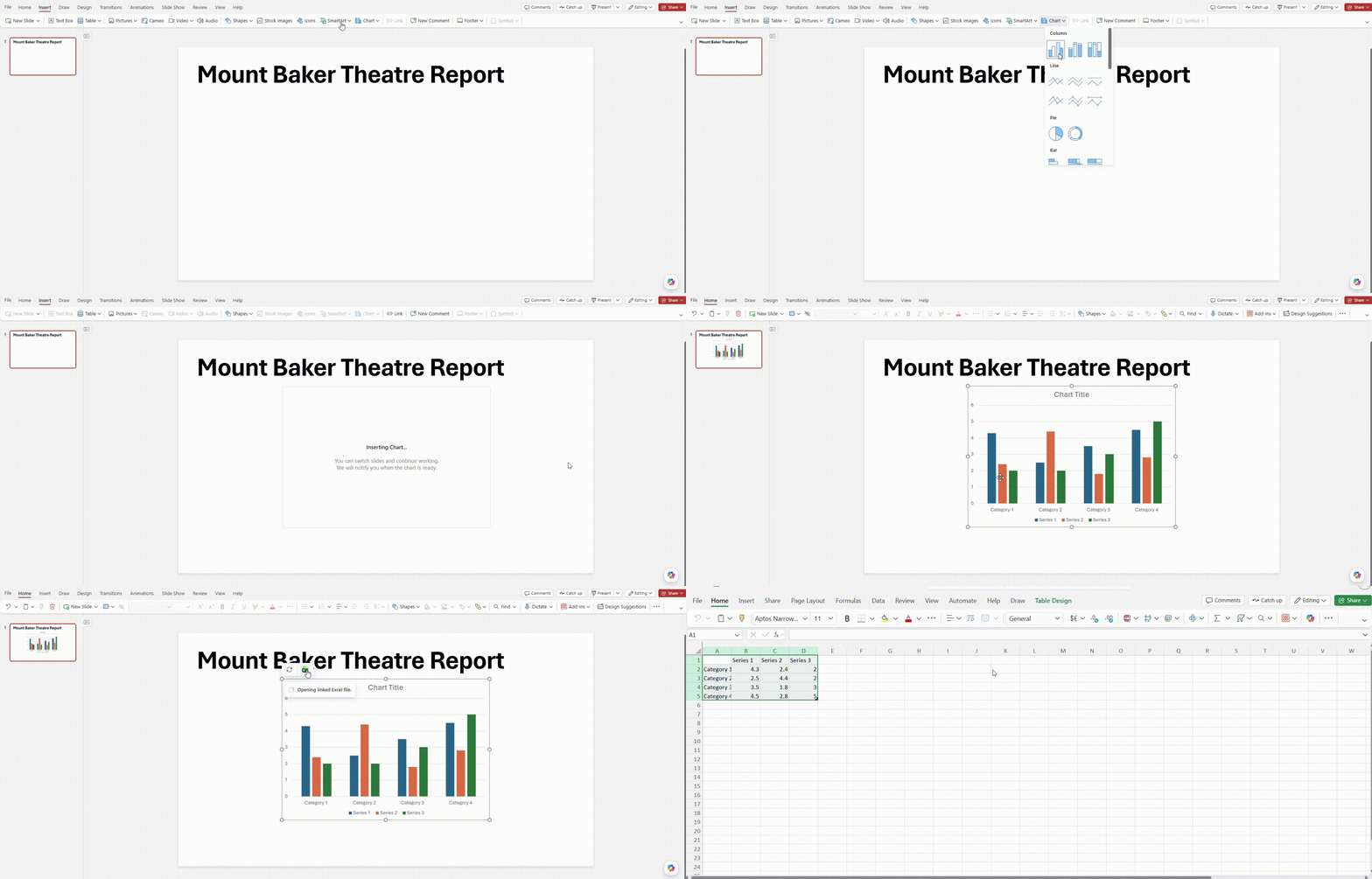
In short, the process does not take place entirely in the same place, but the high level of customization helps compensate for this.
Canva vs PowerPoint for Presentations: Detailed Comparison
To evaluate the AI presentation capabilities of Canva vs PowerPoint Copilot, we gave both tools exactly the same prompt and compared the presentations they generated. The prompt was based on a six-page report and asked the AI to create a concise, board-ready presentation about AI implementation for company stakeholders and senior leadership. We also mentioned various style elements.
The first thing we noticed was a big difference in processing speed. While Canva took less than a minute, PowerPoint took well over five minutes. In any case, both tools adhered to our guidelines in terms of both colors and content, albeit with significant variations. This also means that both perfectly interpreted our prompt and the attached PDF converted to PPT.
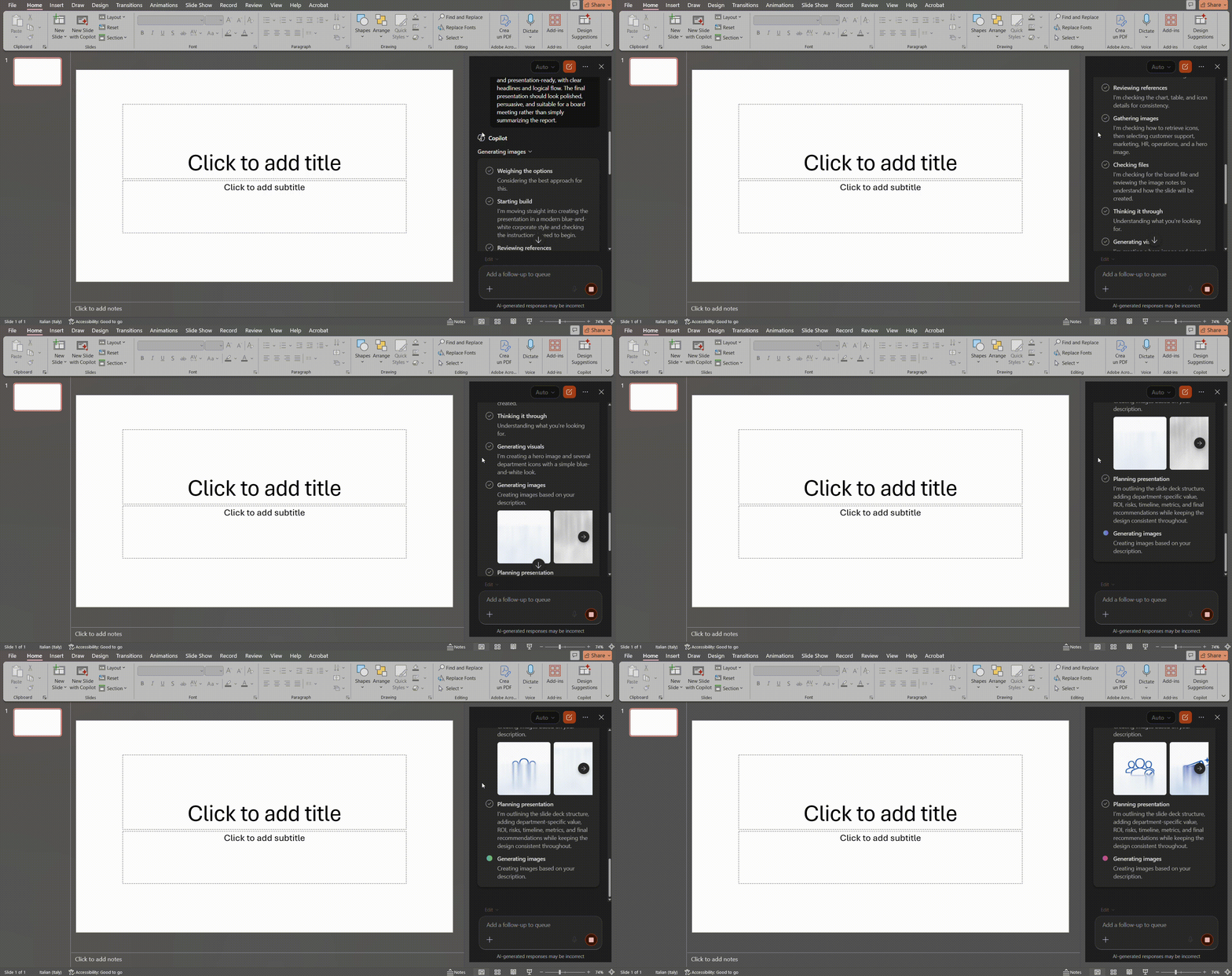
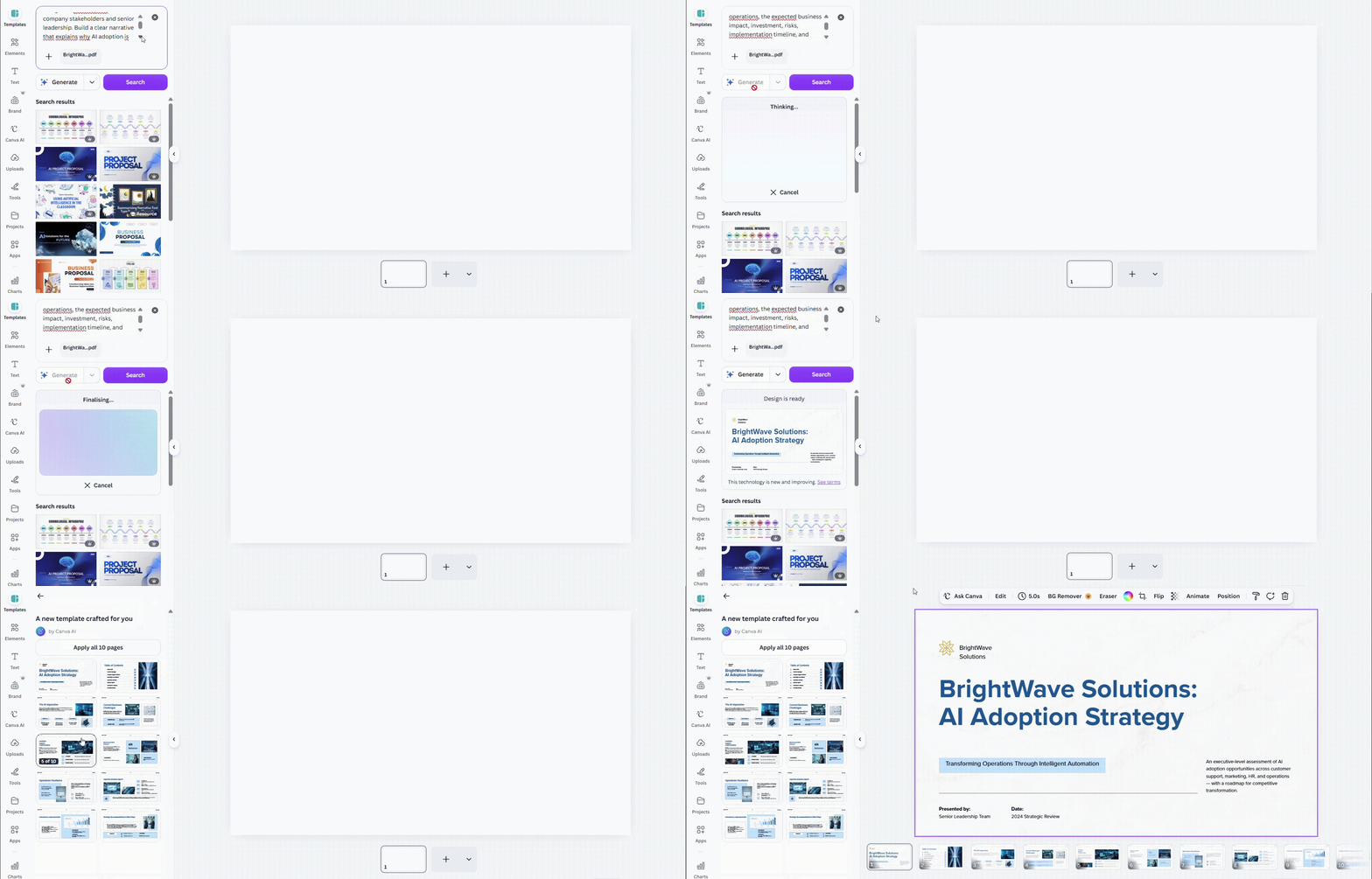
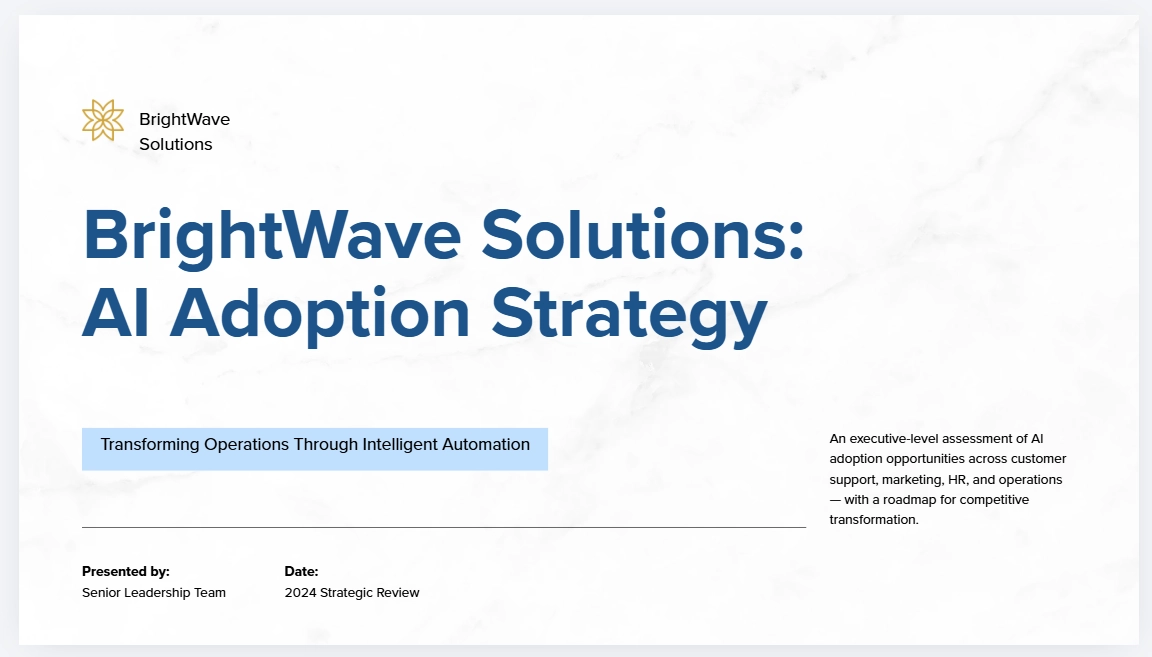
Canva made the presentation more narrative-driven, with a clear table of contents and a fairly engaging introduction to the context. Then comes a focus on the challenges, followed by numerous solutions to the problems presented. Finally, there is a concluding section with recommendations. PowerPoint, on the other hand, had a weaker narrative: the emphasis placed on data was stronger than that on concepts.
This difference is also reflected in the visual design. On one hand, every Canva slide is packed with text presented in very small fonts, making it difficult to read. While there’s also a lot of content in PowerPoint, it’s all much more schematic and clear to the viewer. It’s important to note here that a good presentation must leave room for the speaker to say what the slides don’t, so it’s pointless to have walls of text.
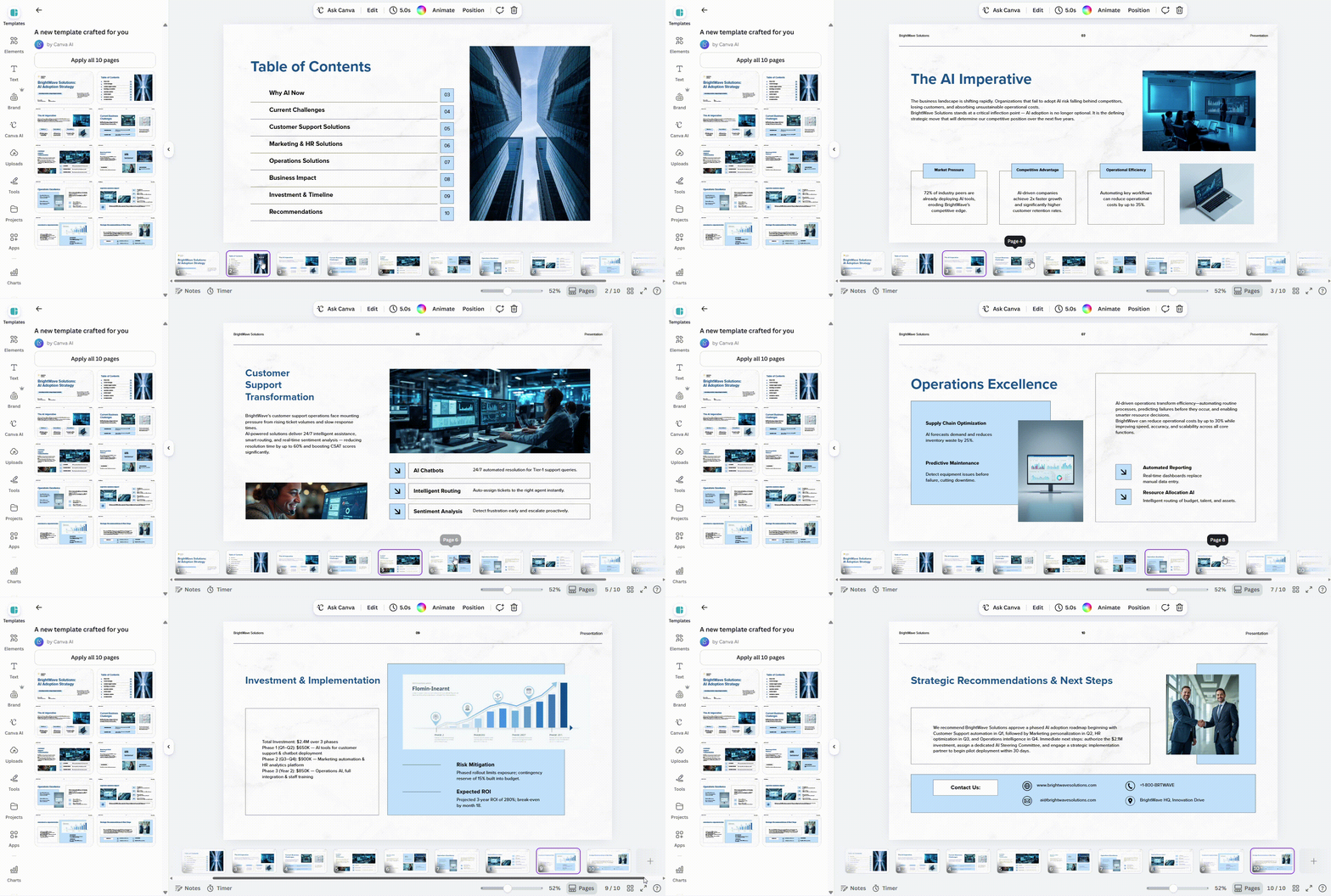
Overall, the PowerPoint slides are cleaner, but it must be said that neither stands out for its originality. In the prompt, we had specified, “The final presentation should look polished, persuasive, and suitable for a board meeting rather than simply summarizing the report.” Yet, the PowerPoint presentation turns out to be nothing more than a summary of the report.

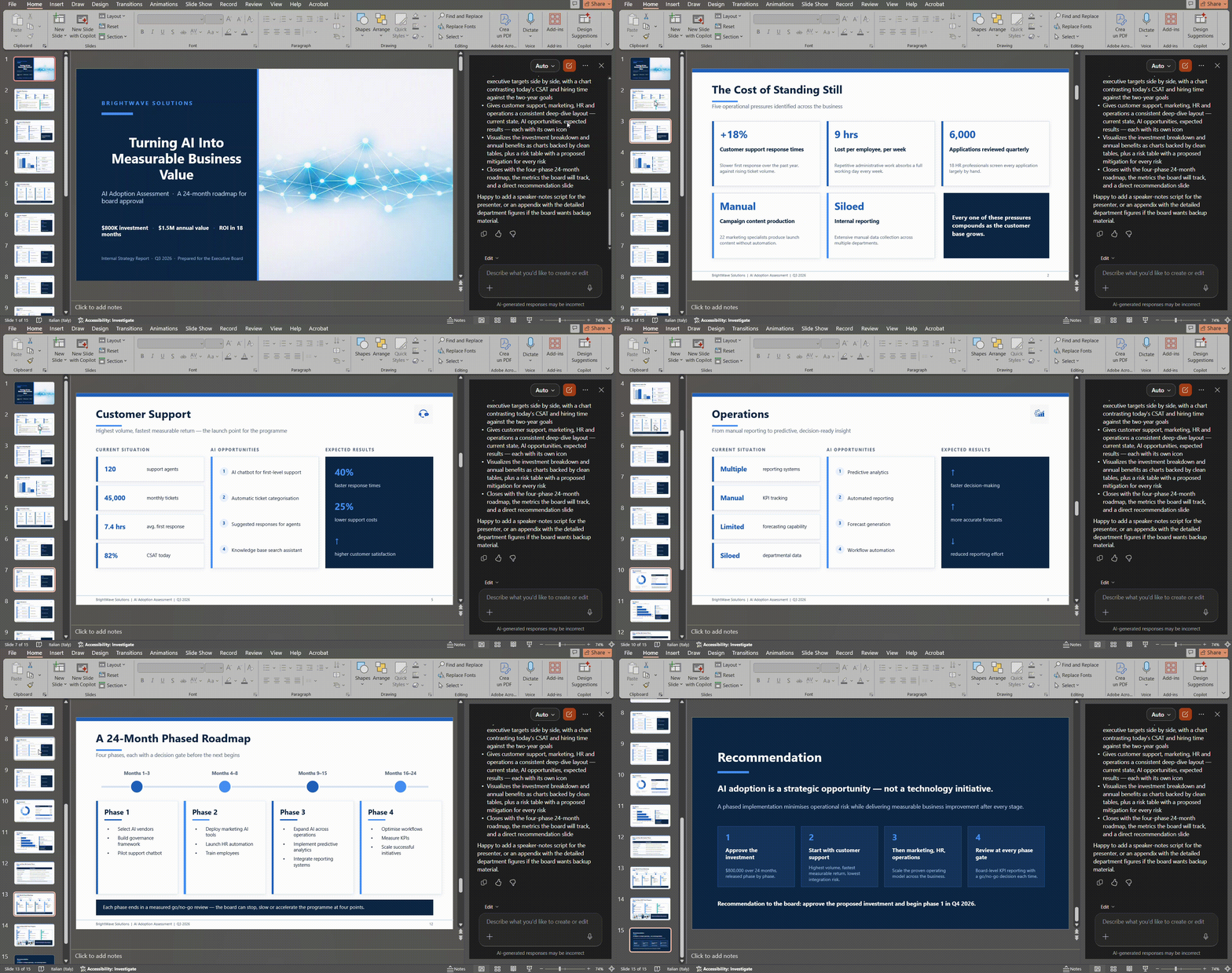
In both cases, however, the editing flexibility is excellent. Any text or visual element can be easily edited, enlarged, or removed. In short, it’s just like when you create a presentation yourself and have full control over your file.
The issue with the Canva file here is that every single slide would need to be edited to make the text larger or more concise, thereby altering the overall balance of the slide. In this case, we’d likely opt for a complete redesign, providing a bit more guidance on the amount of text to include on each slide and on overall readability.
Of course, not every tool works this way. For example, Decksy AI PowerPoint maker starts with the presentation logic, shaping the structure and flow of the story before applying the visual design. This can help avoid decks that look polished but still feel like a simple summary of the source material. It also allows users to regenerate a single slide in seconds, which is useful when only one part needs to be improved and a full-deck regeneration would be unnecessary.
Export Options: PowerPoint vs Canva
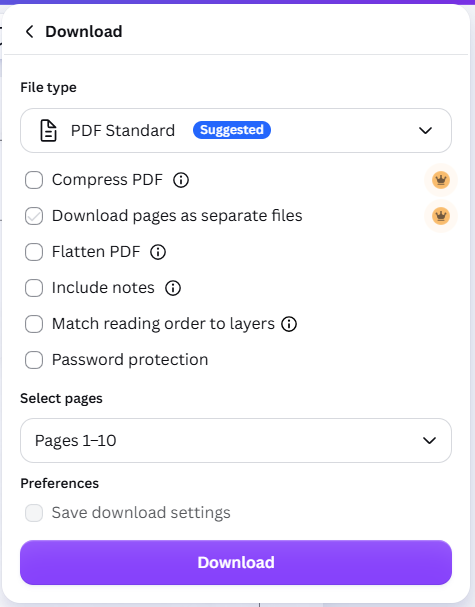
Canva allows users to export presentations in several formats, including PDF, PPTX, MP4, GIF, PNG, and other options reserved for paid subscribers, such as SVG and compressed PDF. It is also possible to download presentation pages individually as separate files. During export, users can choose the page range they want to save, exclude specific slides, keep speaker notes, or add a password to the file.
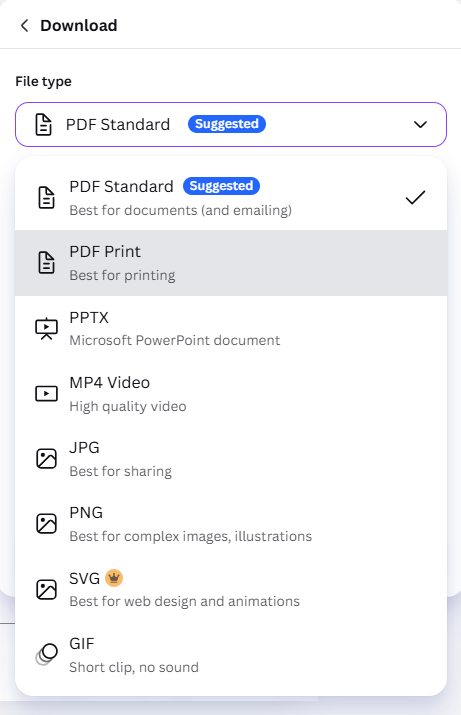
After exporting to PPTX, text, shapes, and images generally remain in place and can still be selected and edited.
PowerPoint, by contrast, offers a much longer list of export formats. These range from common options such as PPTX, JPG, and PNG to less widely used formats such as WMV, TIF, and many others, including several PowerPoint-specific file types.
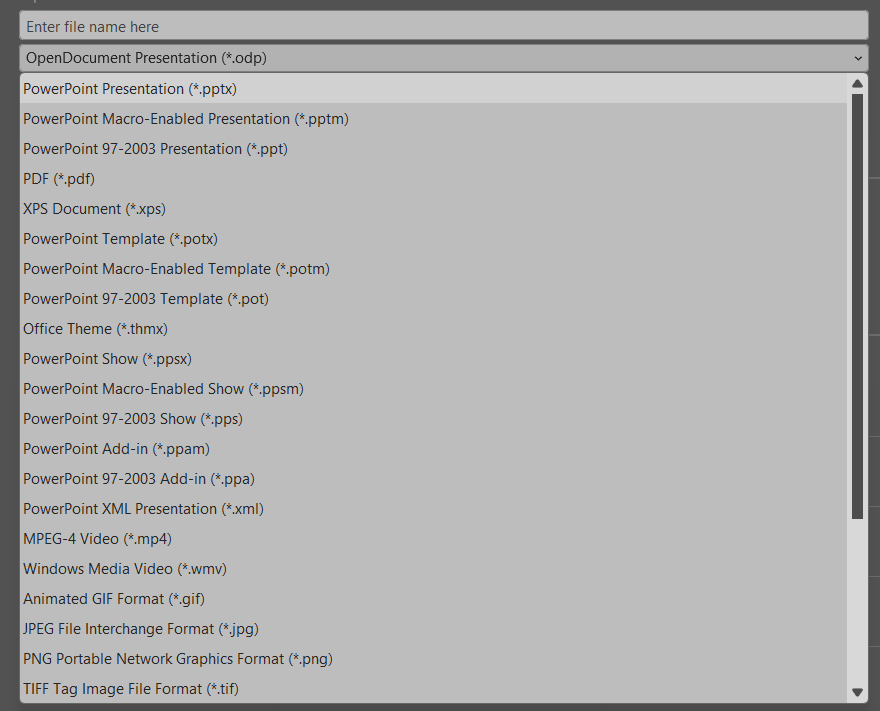
Naturally, PowerPoint already creates presentations in PPTX format. This means the file remains fully faithful to the original presentation, with layouts, text, visuals, animations, and editable elements preserved as they were created.
It must be noted here that some AI presentation tools flatten slides into images, group elements together, or restrict editable PPTX exports. An option like Decksy avoids this lock-in by exporting fully editable, ungrouped files, so text boxes, shapes, images, and charts can be modified separately in PowerPoint or Google Slides.
A Smart Alternative: Decksy AI
Canva and PowerPoint are the two biggest names in presentation software, but they are not the only options available. In recent years, a new generation of presentation tools has emerged, built around AI rather than adding AI features to existing presentation editors.
One example is Decksy AI. Instead of starting with a blank slide and filling it with generated content, Decksy begins by organizing the presentation’s structure and narrative. Only once the overall story has been defined does it apply the visual design, helping create presentations that feel more coherent and less like a collection of disconnected slides.

This approach also makes editing more flexible. While many tools require users to regenerate an entire deck after changing the prompt, Decksy can regenerate a single slide in seconds. This makes it easier to refine one section without affecting the rest of the presentation or repeating the entire generation process.
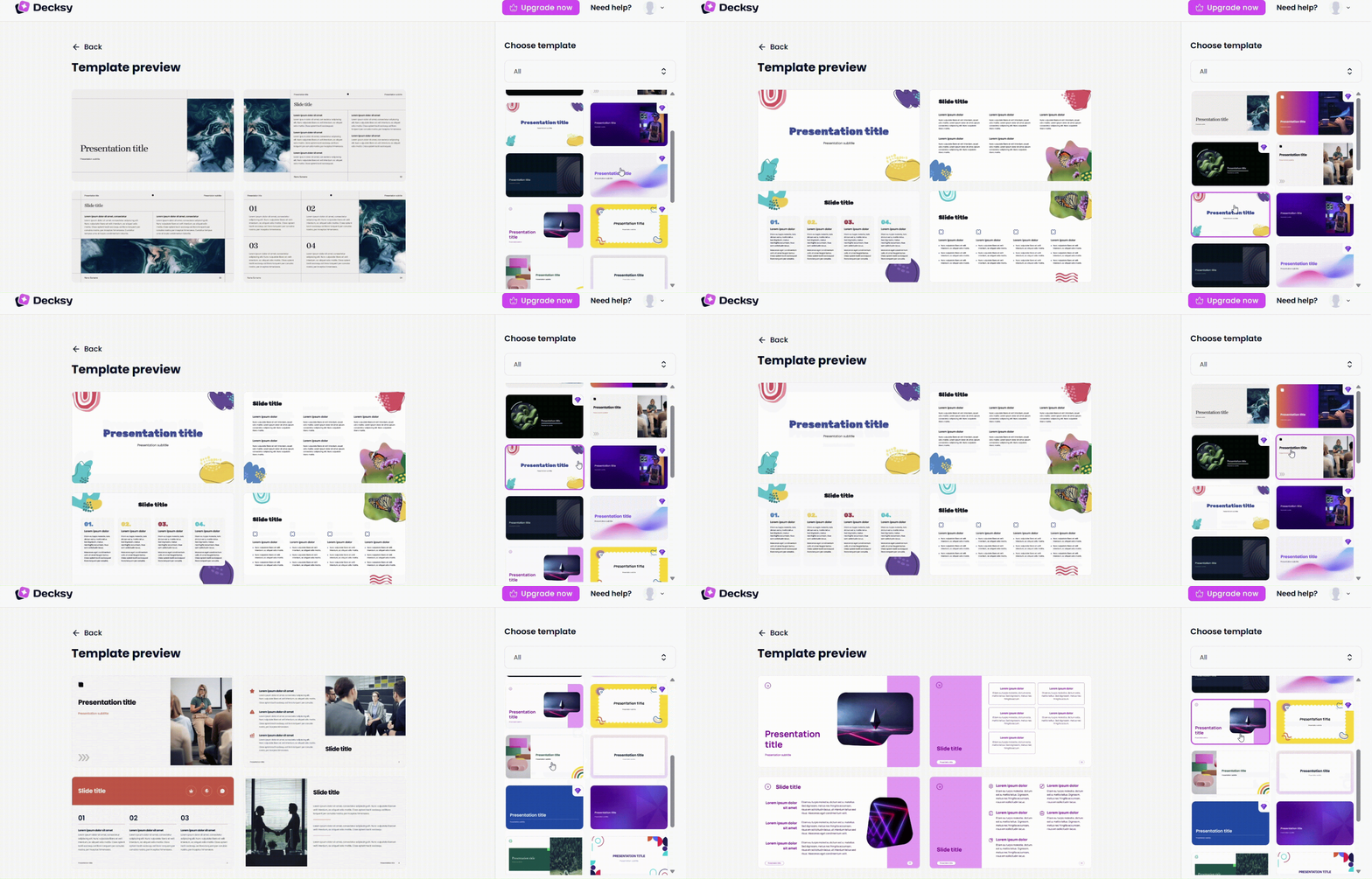
Finally, Decksy follows a zero-lock-in philosophy. Presentations can be exported as fully editable, ungrouped PPTX files. This way, every text box, image, shape, and chart remains individually selectable. The resulting presentations open seamlessly in Microsoft PowerPoint and Google Slides, and users can continue editing them just as they would with a presentation created manually.
For Keynote users interested in a comparison like this one, we have a separate PowerPoint vs Keynote article.
Canva vs PowerPoint Advantages & Disadvantages: The Final Verdict
This Canva vs PowerPoint comparison shows that both tools create strong presentations but suit different needs. Canva is best for fast, visually polished decks built from modern templates, although its AI often produces too much text and the features available for free are limited.
PowerPoint is better for business presentations and financial reports. It offers greater control over charts and formatting despite weaker narrative output from Copilot. The pricing for AI features remains too expensive for many, who would have to pay for the whole Microsoft 365 suite or for a lifetime license.
Decksy AI, on the other hand, remains a strong choice for turning prompts, notes, or long documents into structured, editable PowerPoint decks with less manual work. It’s easy to use and has a very competitive price, which means it’s perfect for those who need to create presentations with AI often but would rather opt for an easy-to-use platform rather than having all the options of other tools.

On decksyai.com, where people come looking for clarity wrapped in a bit of personality, Julia leans into the details that make a message land: the pause between two ideas, the subtle shift in spacing, the moment a visual finally clicks.