

















Google Slides vs PowerPoint: Which One Deserves Your Deck?
- The better option between PowerPoint and Google Slides depends on where you already spend most of your working day and what the deck needs to accomplish once it leaves your hands.
- Choose Decksy AI if you need to transform a long document or rough meeting notes into a structured, professional deck quickly. It’s also a good option if you want to regenerate a single weak slide without disturbing the rest of the deck.
- Select PowerPoint if you are operating within a traditional enterprise environment using complex Excel spreadsheets live-linked, and offline is more important than instant browser collaboration.
- Choose Google Slides as your presentation software if your entire team already uses Gmail and Drive, and you need to co-edit in real-time with a remote collaborator. This is also a good choice if you want to avoid a desktop install entirely.
- Whether you choose Google Slides or PowerPoint, and whichever way you'd answer a cold PowerPoint or Google Slides question from a client, the deciding factor should not be the software’s aesthetics.
- Instead, ask whether AI inside the tool truly understands the narrative you’re trying to convey and whether just fixing that one stubborn slide will cost you five minutes or an entire afternoon.
Deciding between Google Slides and Microsoft PowerPoint for your next presentation can be quite the undertaking, since both are well-loaded with powerful features.
Google Slides vs PowerPoint: which one actually finishes your deck faster? This present comparison covers cost, design, data handling, and how each tool’s AI performs.
Results at a glance
| Feature | Google Slides | PowerPoint |
| Free tier | Full editor free with any Google account | Free web version; desktop app requires Microsoft 365 |
| Entry paid price | $19.99/mo (Google AI Pro, adds Gemini) | $19.99/mo (Microsoft 365 Premium, adds Copilot) |
| Business AI tier | $12.52/user/mo (Workspace Business Standard, annual) | $18 to $21/user/mo (Copilot Business add-on) |
| AI slide generation | Gemini, prompt-to-deck, Drive-grounded | Copilot, prompt-to-deck, doc-grounded |
| Doc-to-PPT conversion | Uploads PDFs and Word files via Gemini (paid); converts to multi-slide deck | Uploads PDFs and Word files via Copilot (paid); converts to multi-slide deck with outline review |
| AI output quality | Cleaner visual balance by default; occasional awkward image cropping on smaller slide sizes | Coherent story arc via outline step; tends toward text-heavy slides that require manual trimming |
| Native export | Slides, PDF, PPTX (via download) | PPTX native; PDF, ODP |
| Best suited for | Collaborative teams working live in a browser | Desktop-first users with existing Office licenses |
Pricing, free plans and which platform suits you best
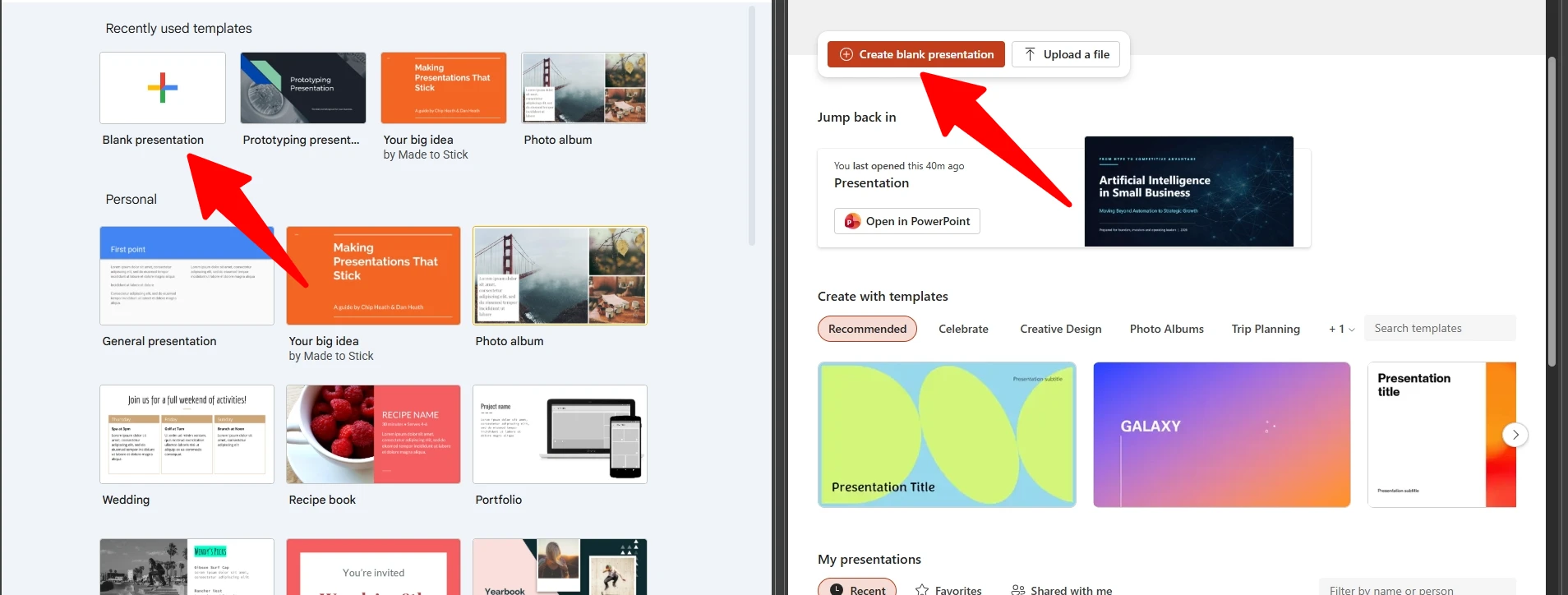
There’s almost an inverse relationship between the free experience of each platform. Google Slides’ core editor is entirely free with any Google account; it doesn’t apply watermarks to your presentations and places no feature wall on editing. AI functionality is a different matter, however.
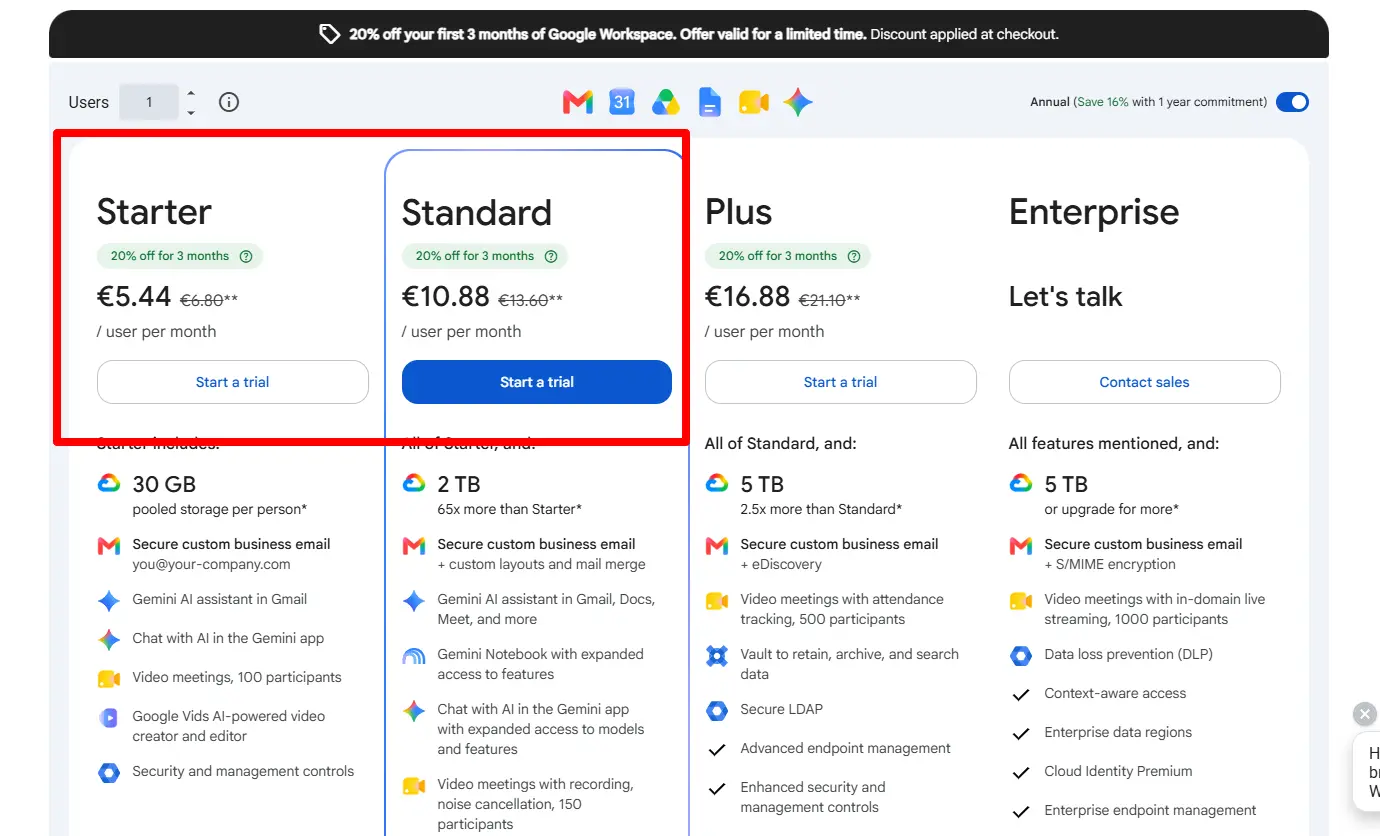
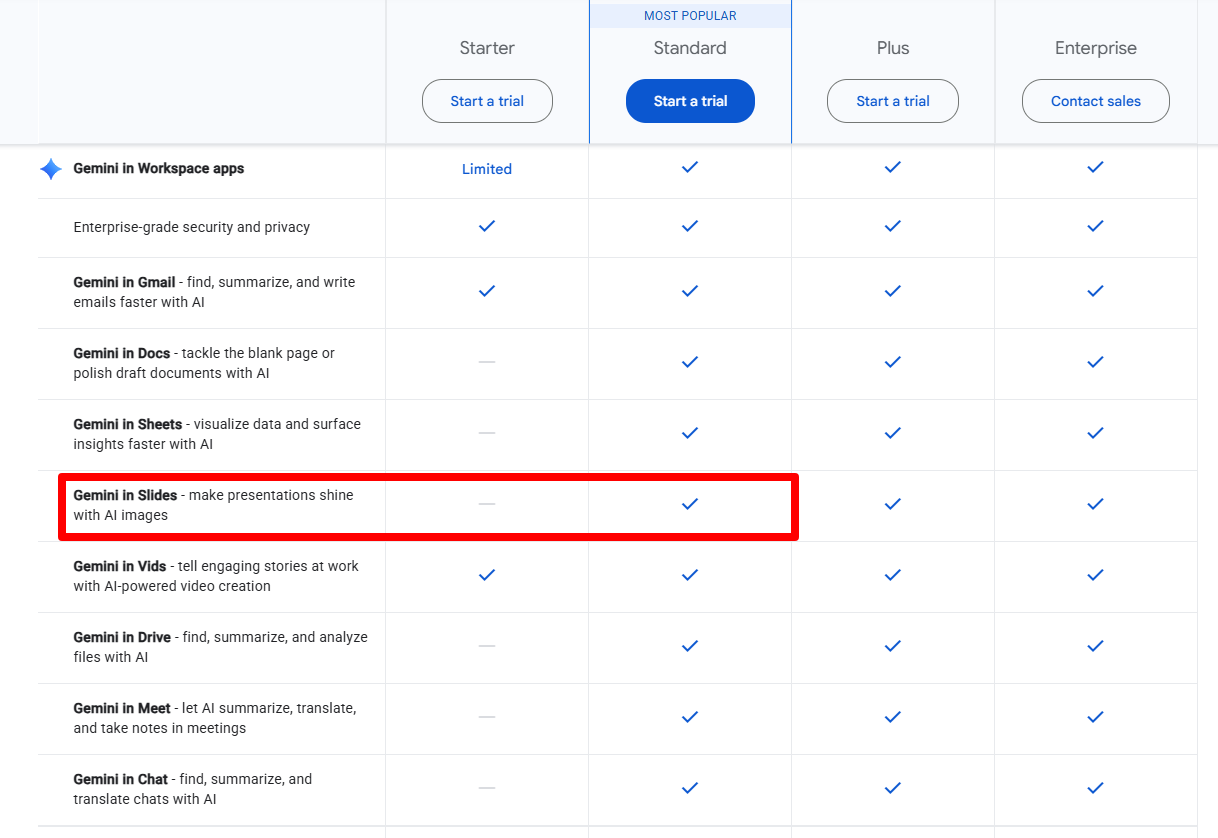
So, is Google Slides or PowerPoint better on the free tier specifically? Google Slides wins when it comes to editing, but you need a Google AI Pro subscription at $19.99 per month for Gemini’s multi-slide generator to work. A Google Workspace Business Standard plan costs $12.52 per user per month on an annual commitment, which is a cheaper entry point for teams than the individual consumer option.
PowerPoint changes things here. The free web version, available at PowerPoint.com, supports light editing but pushes you toward a Microsoft account pretty quickly. The full desktop application requires a Microsoft 365 subscription, and Copilot carries an additional cost on top of that base license. The Microsoft 365 Premium plan at $19.99 per month unlocks Copilot across Word, Excel, and PowerPoint.
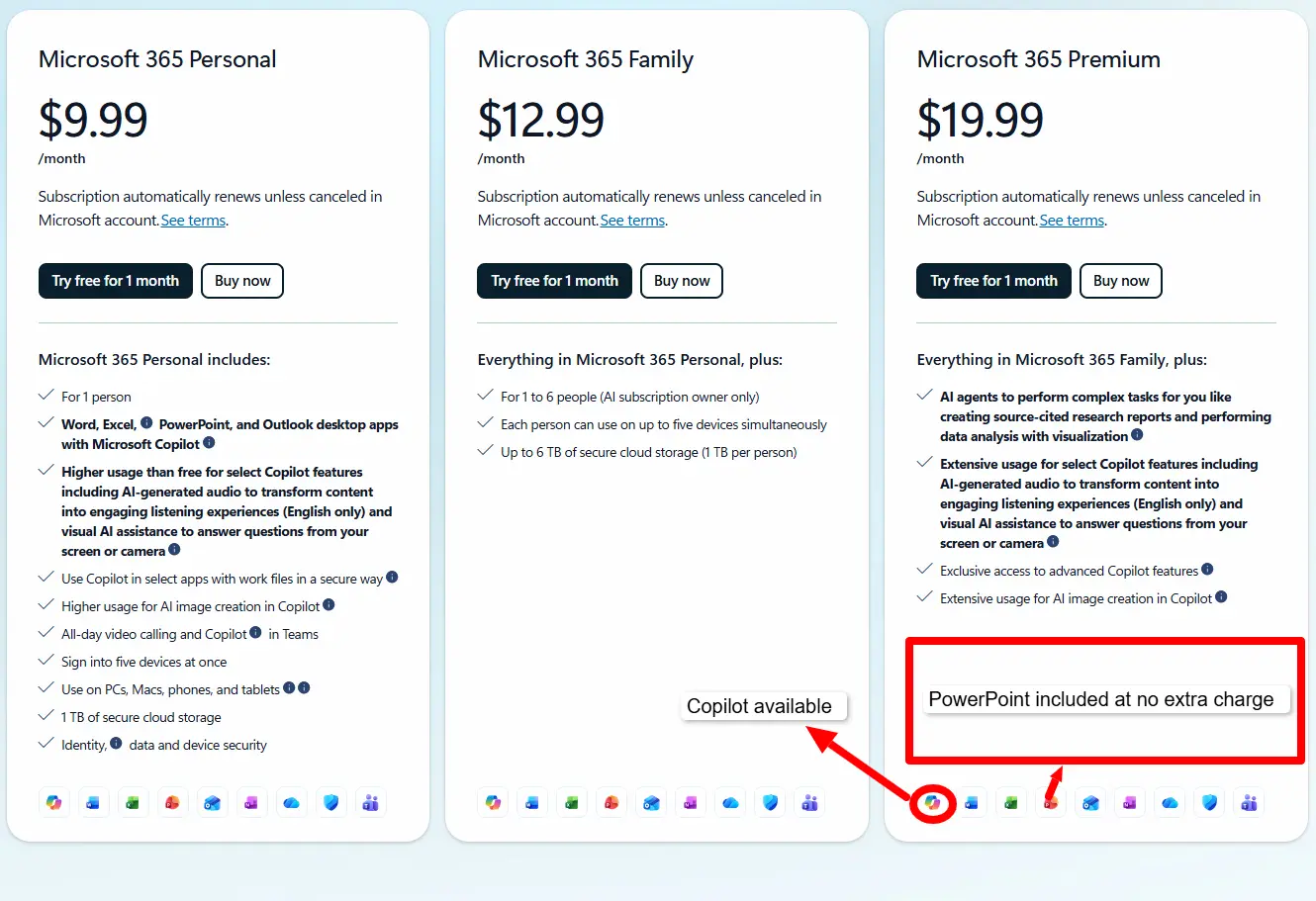
For organizations, the Copilot Business add-on costs anywhere from $18 to $21 per user monthly, and this is tied to a Business Standard or Premium license starting at $12.50. Combining both licenses can push a fully AI-enabled seat to up to $30 per user a month, which is a steep commitment for a small or early-stage team.
So which tool fits where?
Many freelancers juggling five or more clients tend to go for Google Slides because they can collaborate with clients instantly through a shared link without worrying about version conflicts.
Corporate teams already embedded in Microsoft’s ecosystem usually prefer PowerPoint because of its offline reliability and enterprise compliance controls.
Educators sit somewhere in the middle, depending on whether their institution runs Google Workspace for Education or Microsoft 365 Education licenses. Plus, IT departments evaluating Google Slides vs Microsoft PowerPoint at scale often care less about features and more about whichever license their existing device-management stack already supports.
On the raw PowerPoint vs Google Slides pricing question, both platforms keep their strongest AI for paid tiers. As shown above, those tiers range from $12.52 per user per month at the lower business end up to $19.99 per month for individual plans and as high as $30 per user per month for a fully unlocked enterprise seat. Neither platform offers unlimited slide generation on a free plan.
That gap is why a flat $10 a month, with a $2 trial from a tool like Decksy AI slideshow generator, makes sense.
Decksy includes full export rights at that price, meaning you own the PPTX or Google Slides file outright with no downstream restrictions on how you use or share it.
Design assets, templates and customization
One important consideration to keep in mind when comparing your choices is how each platform performs in terms of design and how much room it allows for customization.
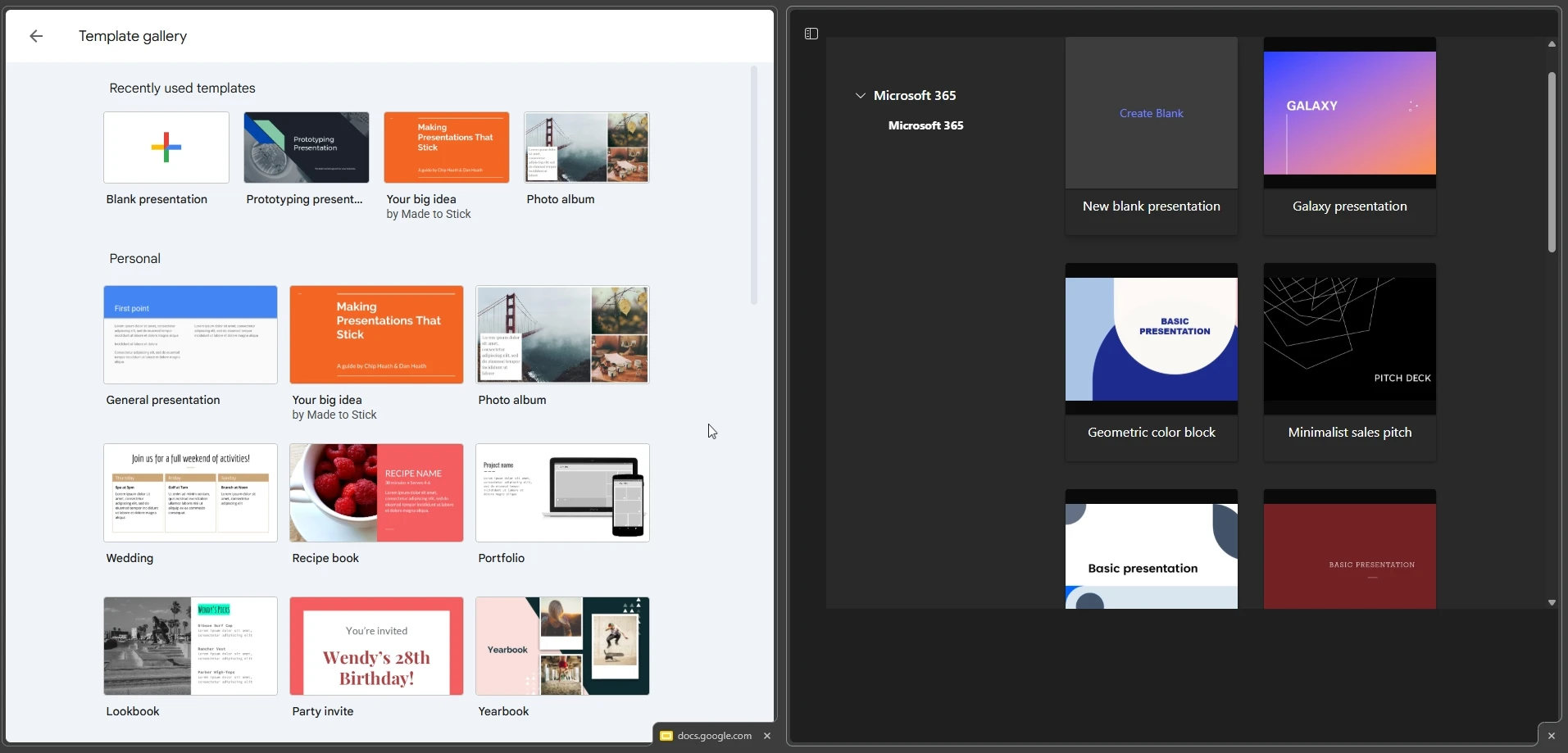
The Designer feature inside PowerPoint is by far one of its strongest assets. You simply paste content in bullet points, and it recommends professional layouts almost immediately from its library of 200+ professionally built templates. The templates feature niche themes and deep-editing tools. PowerPoint’s depth here is hard to match natively.
Templates from Google Slides are much more minimal and cleaner by comparison, though a growing third-party marketplace has filled most of the gaps left by the native library. For teams that simply need something serviceable and quick, the built-in options are adequate. For teams with specific aesthetic requirements, third-party sources are likely necessary.
Stock photo libraries
PowerPoint users can access Microsoft Designer’s integration with stock imagery, which pulls from a curated library of photos, icons, and illustrations directly inside the editor without leaving the application. The library is substantial and covers most common business and educational subjects.
Google Slides does not include a built-in stock photo library in the same way. The insert menu surfaces a Google Image Search integration that pulls results from the open web, licensed for reuse where indicated, rather than a vetted, curated in-product collection. For production presentations that require airtight image licensing, PowerPoint’s native stock library provides more certainty. For casual or internal use, Google’s web-search integration is usually sufficient.
Both platforms upload fonts smoothly, though PowerPoint is more powerful at handling embedded fonts across devices. This avoids the headaches that typically come with font substitution, especially when the presentation is opened on another device.
While Microsoft PowerPoint supports thousands of custom and system fonts, Google Slides limits that choice to roughly 1,000 Google Fonts. This is no deal-breaker, as PowerPoint fonts absent from Google’s catalog are substituted automatically. The only downside is that there’s a slight modification to the layout.
Google Slides allows administrators to create locked master templates stored in shared Drive folders. Once a template is distributed, collaborators can work within it but cannot alter the master slide structure without permissions. This makes visual consistency easier to maintain across a large team without a dedicated design manager reviewing every file.
By contrast, PowerPoint offers Slide Master functionality that works locally within a file and supports theme colors, fonts, and logo placement at the master level. However, enforcing that master across an organization requires that every team member starts from the approved template file.
Compare PowerPoint’s superior template depth and stock-image access against Slides’ collaboration-focused consistency controls, and neither wins outright on the Slides vs PowerPoint design debate.
Data visualization, charts and spreadsheet links
PowerPoint runs a native chart engine, which can pull data directly from a linked Excel sheet. Change a number in your spreadsheet, and the chart on the slide automatically updates. This saves plenty of time when you have to prepare a quarterly report.
Google Slides can also link to Sheets and pull data directly from it, so this feature is not unique to PowerPoint. However, it’s much smoother on Slides, since they both live in the same browser tab. One area where Slides falls short is chart variety. The options here are quite basic. For example, waterfall or Mekko charts typically require that you build them manually or pull in an add-on to assist.
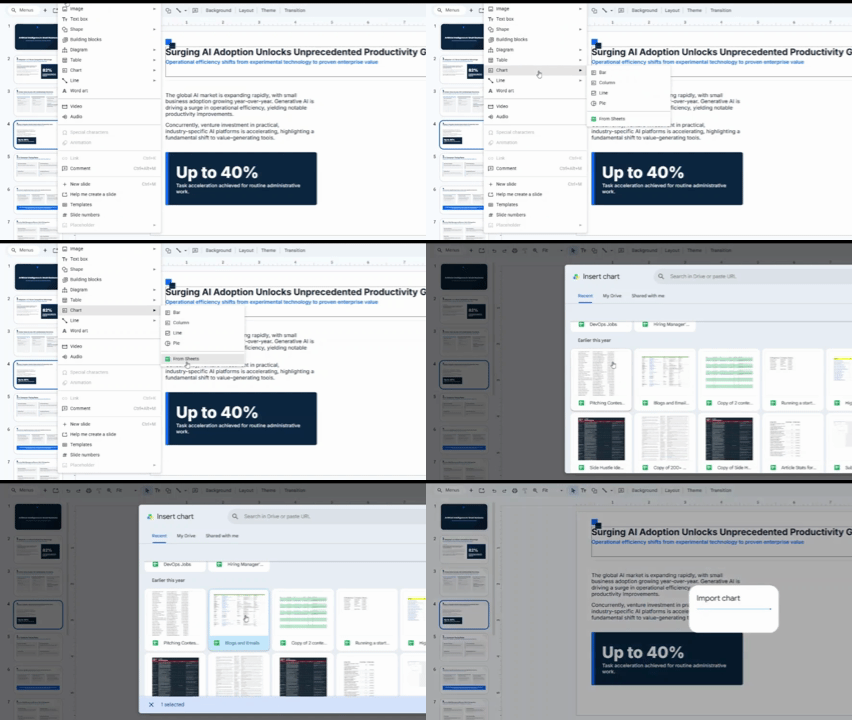
On the specific Google Slides vs PPT question when reporting with heavy data, PowerPoint has an edge, but Slides wins on collaborative editing.
The deep 1-to-1 AI test
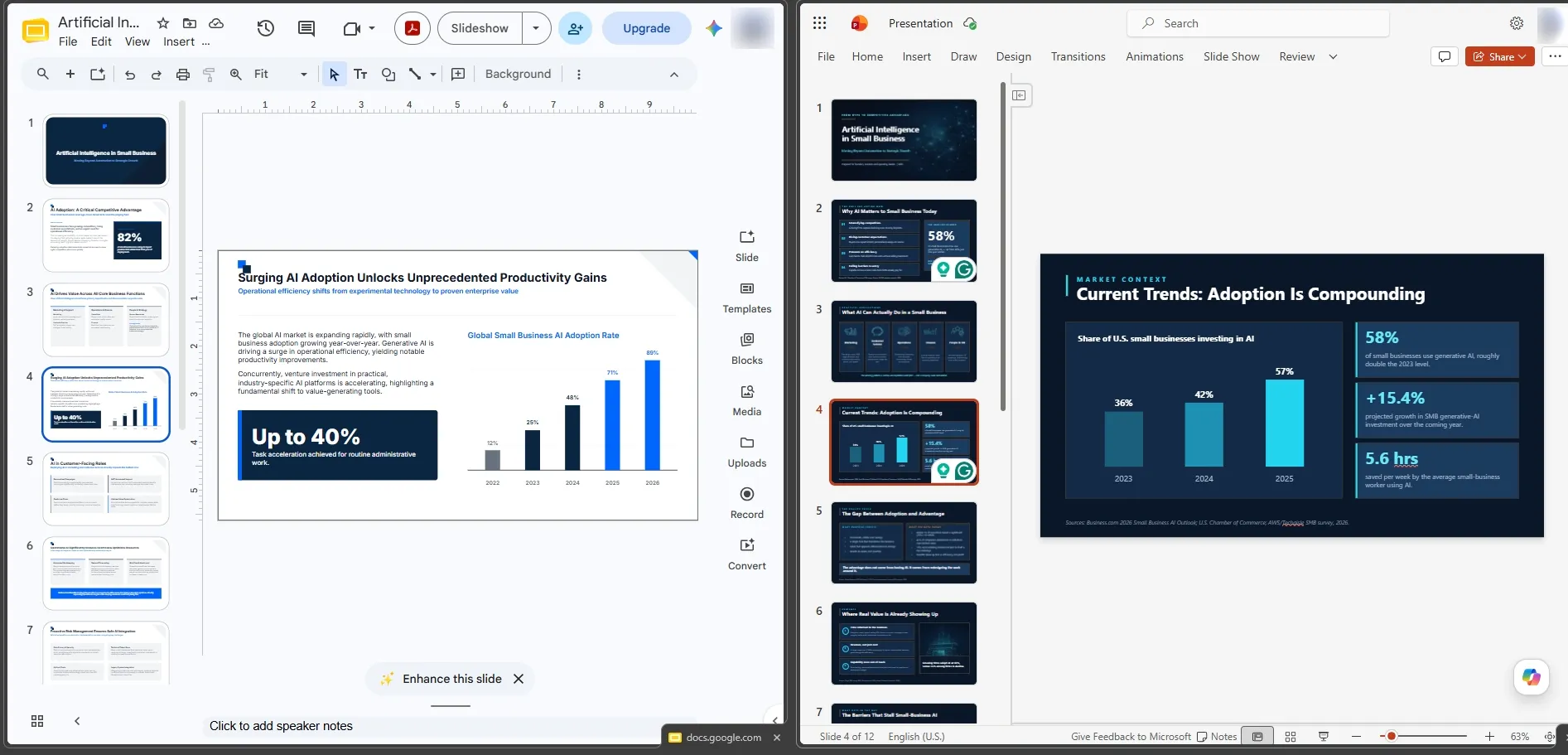
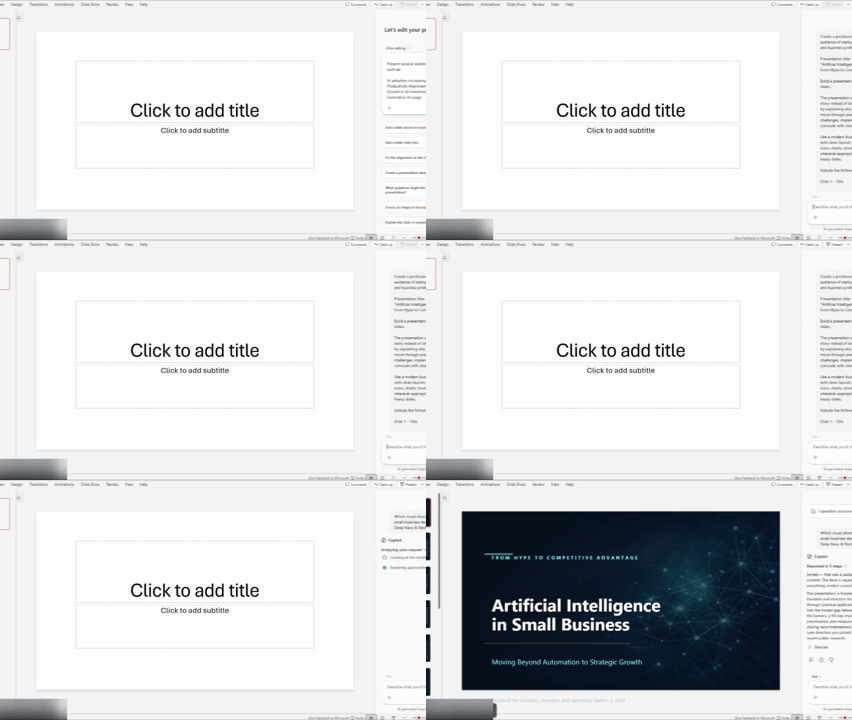
This comparison won’t be fair without a test, so we ran a prompt through Copilot and Gemini to judge both outputs across these four criteria. Here’s what we found:
Narrative logic
Copilot starts by producing a detailed outline and allows you to edit or approve it before generating slides. That review step gives the AI a cleaner brief to work from and tends to produce a more coherent story arc in the finished deck.
Gemini has recently added a comparable outline-review step, and the improvement in output coherence compared with earlier versions of the tool is noticeable. Both tools present an editable outline and allow you to rearrange topics or rename sections before committing to slide generation.
Layout quality
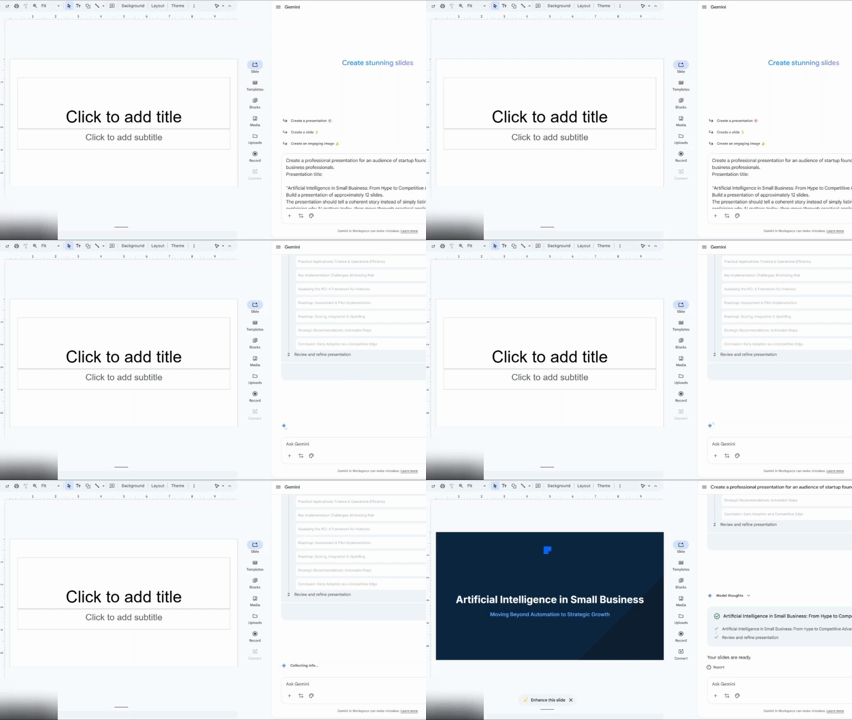
By default, the slides generated by Copilot are a little text-heavy, and you’d have to trim the bullets more often than not. In contrast, Gemini produces cleaner visual balance by default. We observed during testing that Gemini awkwardly cropped AI-generated images on slides with smaller dimensions.
Document processing and speed
Now, both tools allow paid members to upload PDFs and Word files. In our assessment, it takes Copilot 45 seconds to generate a 10-slide deck, one of the fastest we’ve seen. Gemini was just as quick, but uploading larger documents tends to slow the two tools down in much the same way. So speed isn’t really the deciding factor in this case.
Editing flexibility
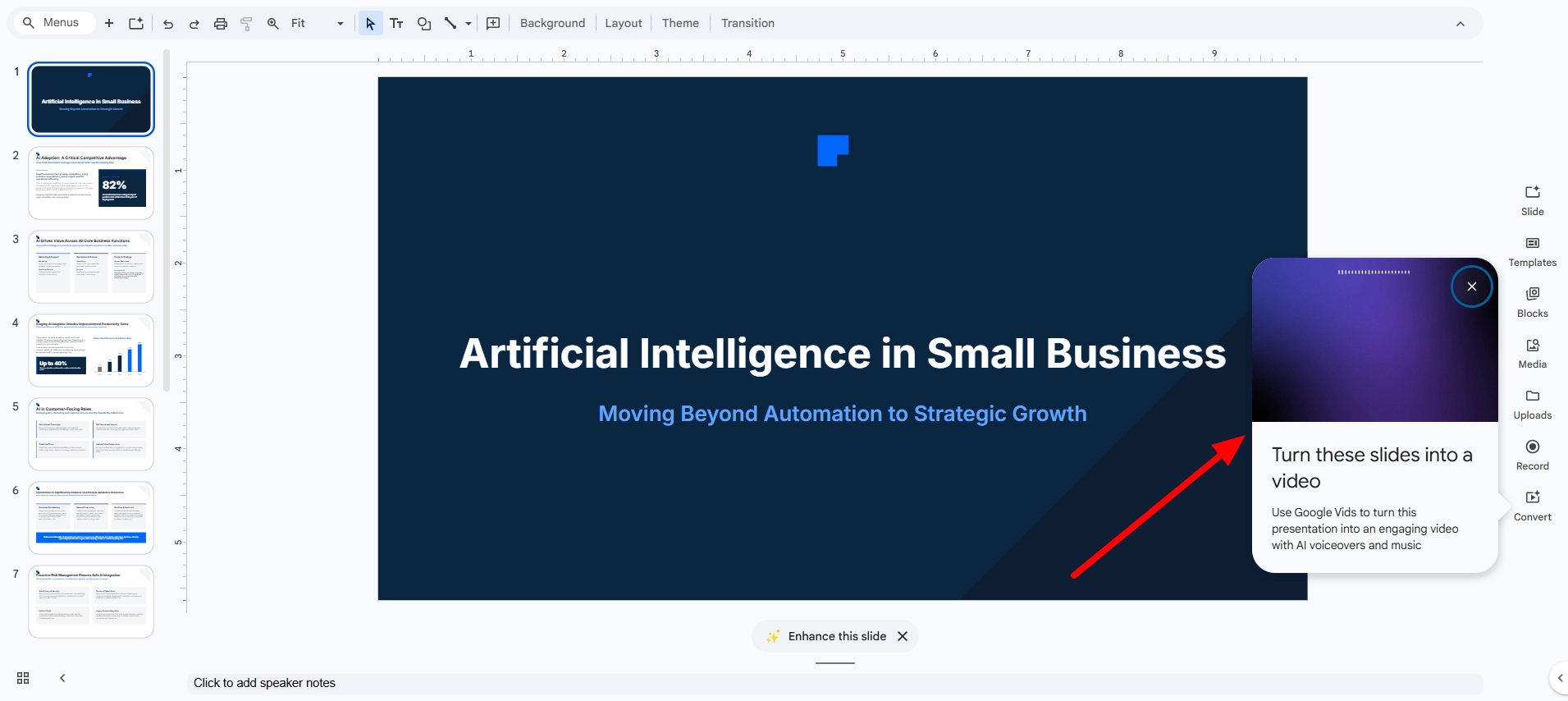
We attempted to regenerate or edit a single underperforming slide in each platform without disturbing the rest of the deck.
In PowerPoint, there’s no native option to target one slide for AI regeneration. When we tried to prompt Copilot to rewrite a specific slide, the tool regenerated the full deck from scratch.
In Google Slides, the experience was similar, as Gemini does not currently offer a single-slide regeneration mode. Asking it to fix one slide within an existing deck required exiting the AI flow entirely and rebuilding that slide by hand.
Targeted, isolated AI editing at the slide level is not available in either platform as tested.
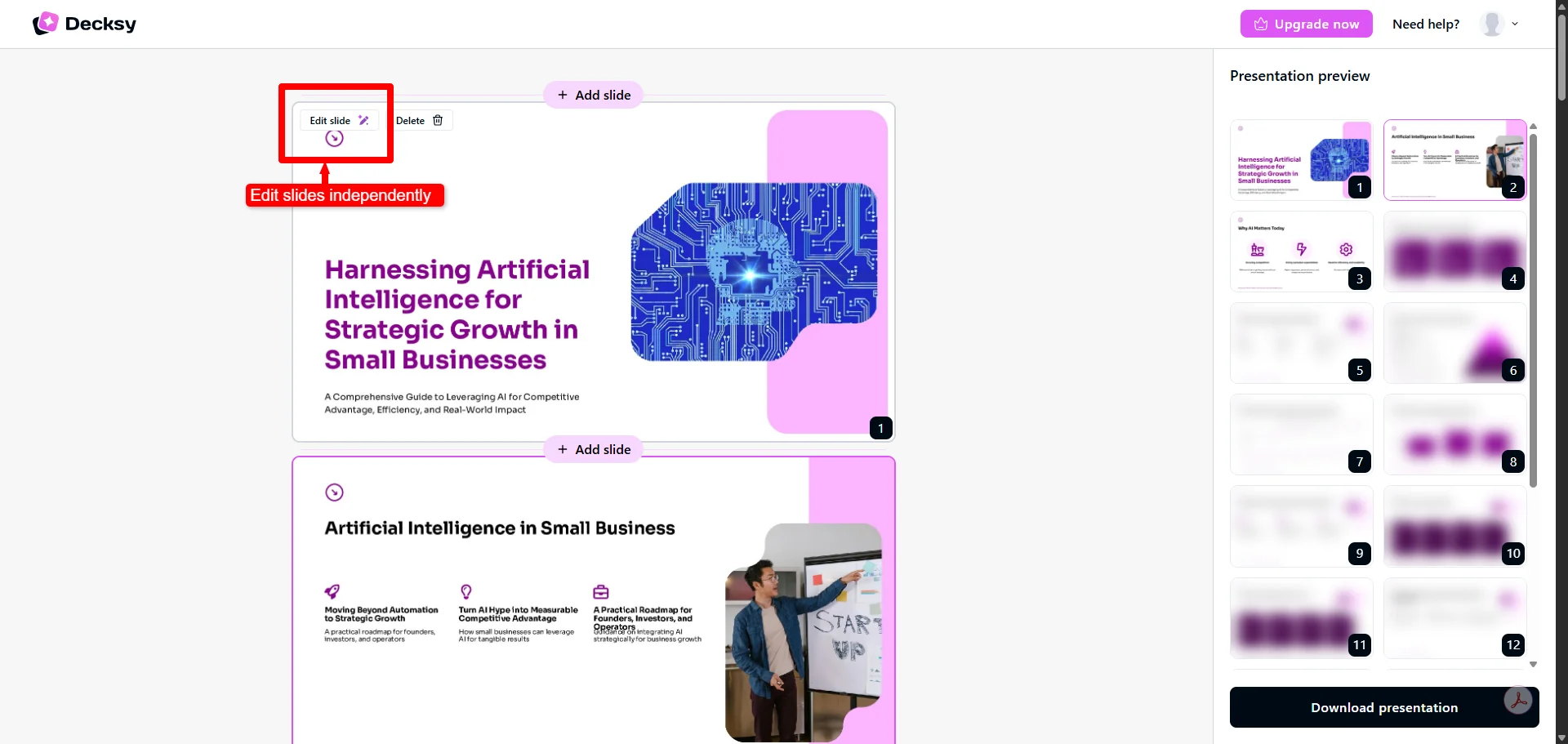
The one-slide restriction, interestingly enough, is the exact gap Decksy AI is built around. Instead of haphazardly putting content onto a blank page and hoping for the best, Decksy QBR slide deck generator creates the narrative logic first and then applies design upon the structure. This way, if there’s one weak slide that needs fixing, you only have to recreate that slide without affecting the other slides.
Export options and ecosystem compatibility
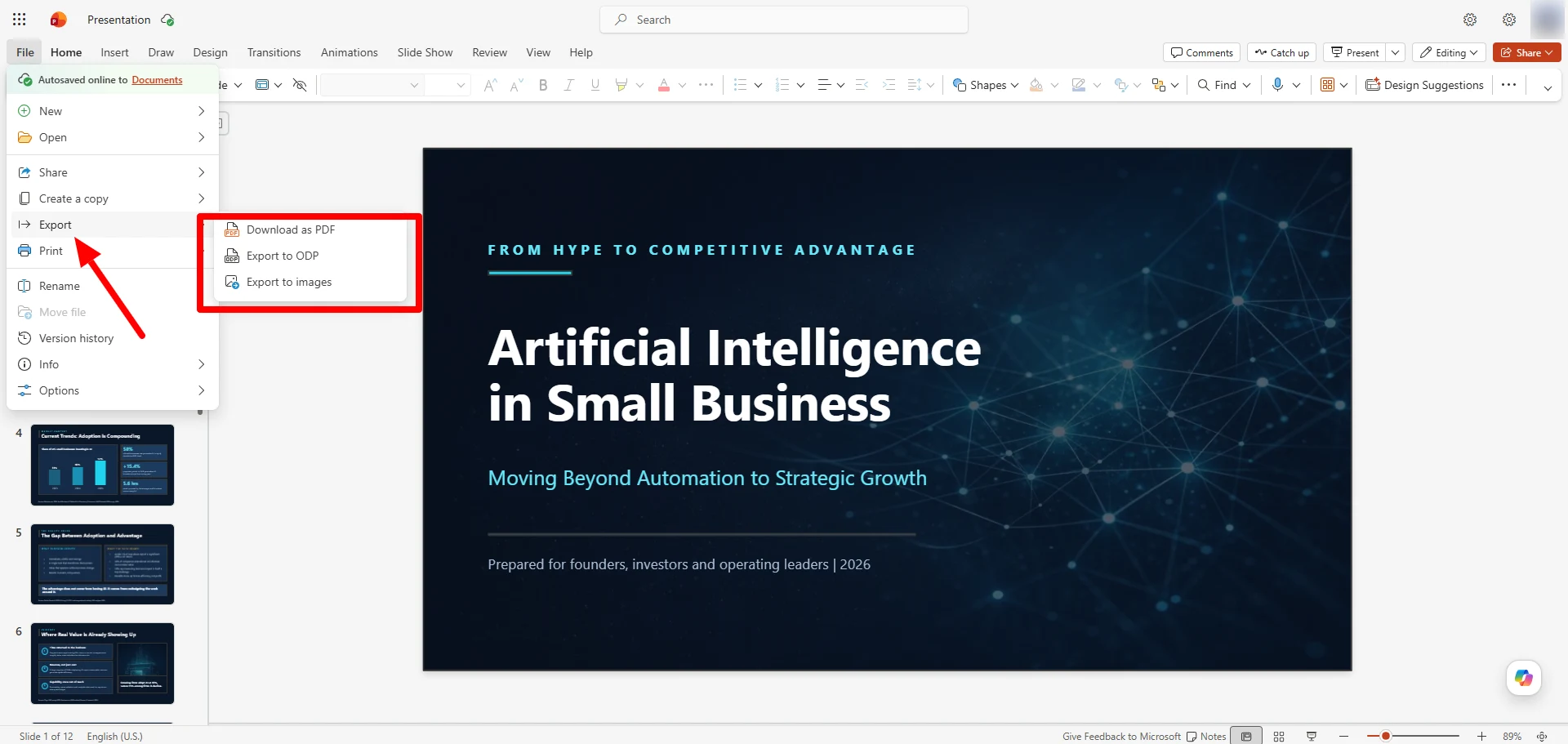
Generating a beautiful, professional presentation would be almost useless if you can’t export it into the format you need. PPTX is Microsoft PowerPoint’s native format, so when you export to PPTX, it works perfectly. In most cases, you only need to save the presentation, and you’re good to go. You can also export to PDF and other formats.
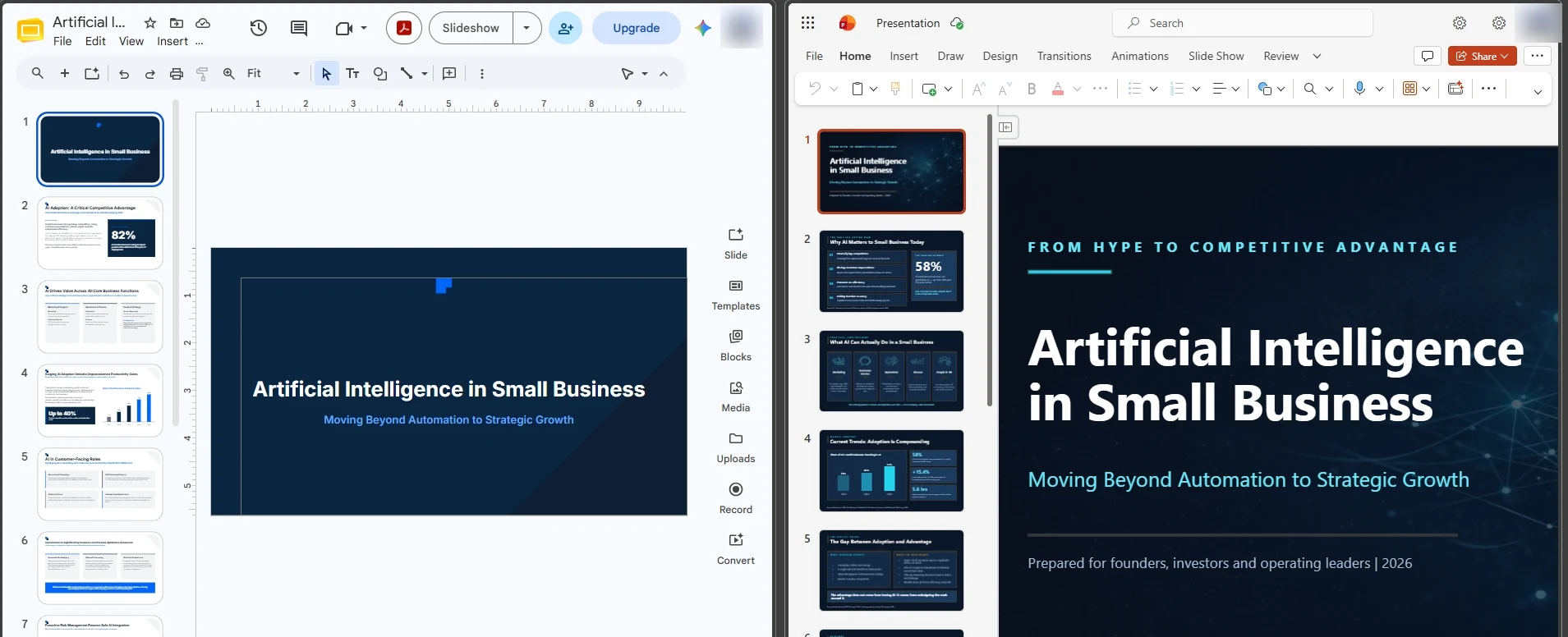
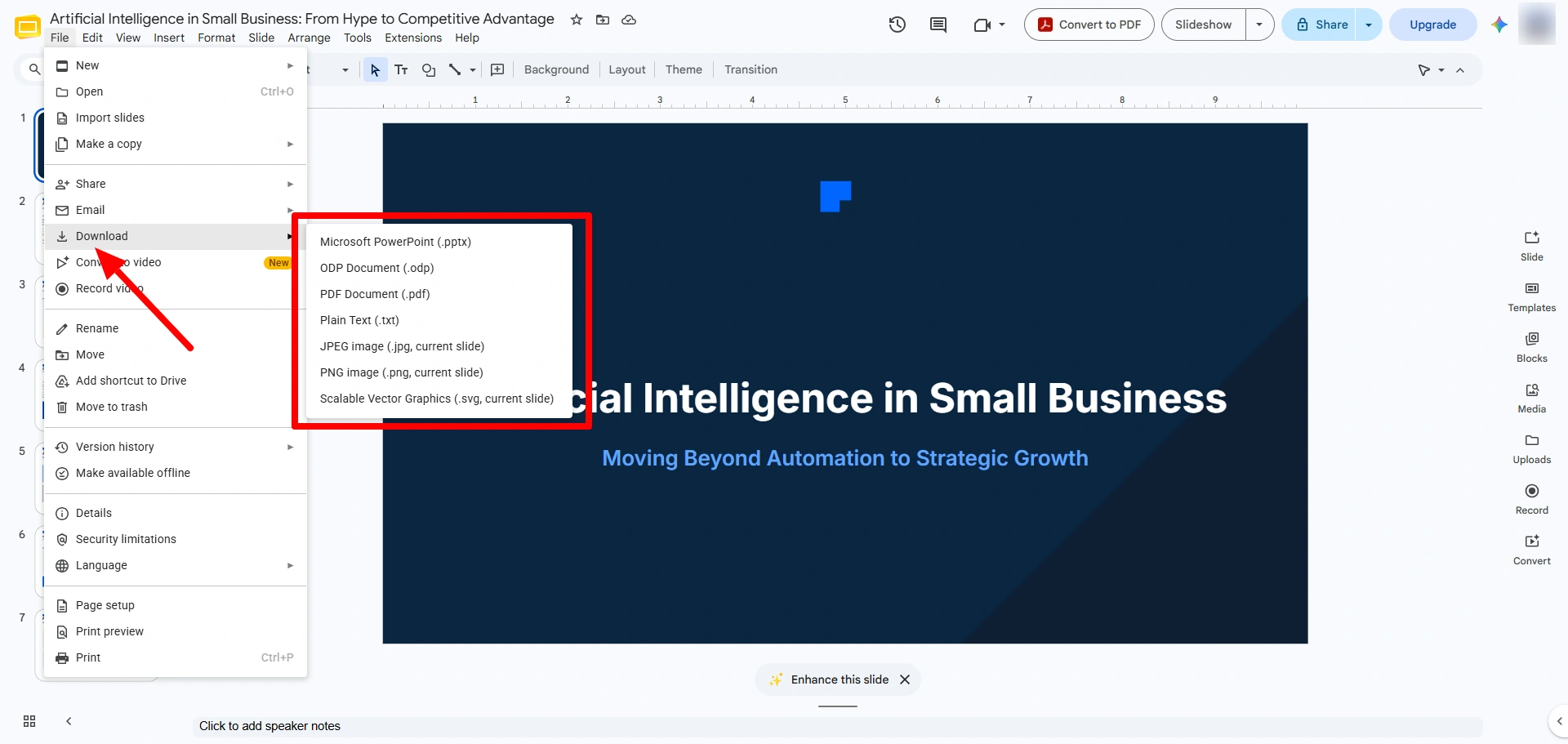
Google Slides exports to PPTX and PDF. In our test, we opened a Copilot-generated PowerPoint file inside Google Slides and found that several elements did not survive the conversion cleanly. Custom SmartArt objects and certain grouped graphic elements produced by Copilot’s AI layout engine were flattened into static images.
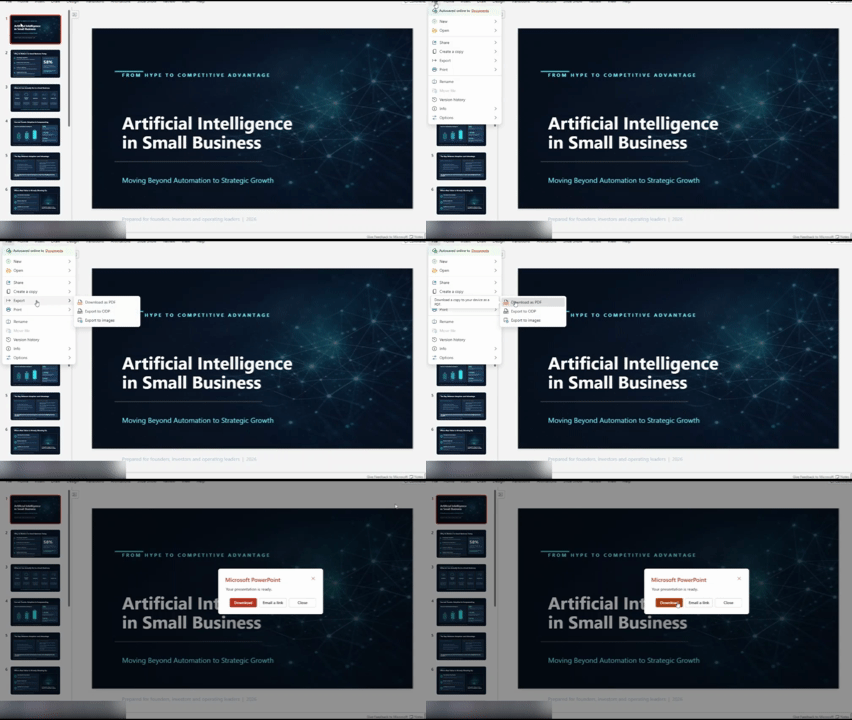
Exporting Google Slides to PPTX works just fine as well, but that’s a conversion, not a native format. Plus, certain animations or transitions simply don’t carry over when exported. When you open the converted file back in PowerPoint, you may find some unexpected font substitutions or minor distortions.
One thing that stands out about Google Slides is its animations (move, appear, disappear) that convert to equivalent PowerPoint animations. While basic transitions like fade and wipe carry over smoothly, all YouTube videos embedded in the slides become clickable links instead of playing natively within the slide.
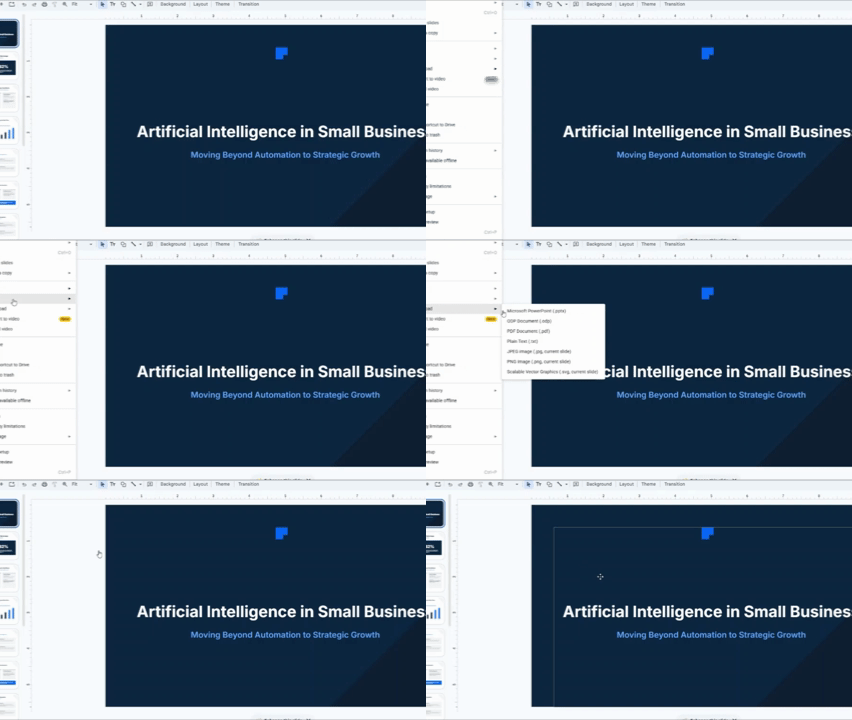
When comparing Microsoft PowerPoint vs. Google Slides, both platforms play nice with each other. Nonetheless, neither guarantees 100% pixel-perfect results across a full round trip, from prompting to exporting. If you’ve ever opened a client’s PPTX in Slides and seen the chart shift half an inch, you know what we mean.
The rule of thumb is to always test it yourself before trusting either tool blindly. Start by running a small PowerPoint vs Slides export experiment with one chart (including all variants of 2D and 3D), one custom font (using an uncommon font), and one animated transition (using an uncommon effect), and then round-trip that same file through both tools twice. You’ll definitely see the cracks.
Instead of skirting this issue entirely, Decksy exports from the start into fully ungrouped, truly editable PPTX files. So, you don’t get those flattened text boxes hidden behind an image layer and no browser lock-in forcing you to present from a specific tab. It allows you to open a presentation in both Google Slides and PowerPoint, because it was designed to easily move between them.
The smart alternative worth knowing about
If you find it difficult to manage PowerPoint’s licensing stack, or you’re spending nights manually resurrecting graphs because of Slides’ chart limitations, there’s an alternative worth trying.
With Decksy AI, you can upload any rough prompt of two sentences, raw PDF, Word, or even an Excel data and it will create a slide deck from it for you. Moreover, this deck is not a static draft that you will have to wrestle into shape. In fact, it builds a clear narrative arc around your content and produces an entirely editable PowerPoint deck in just a few seconds.
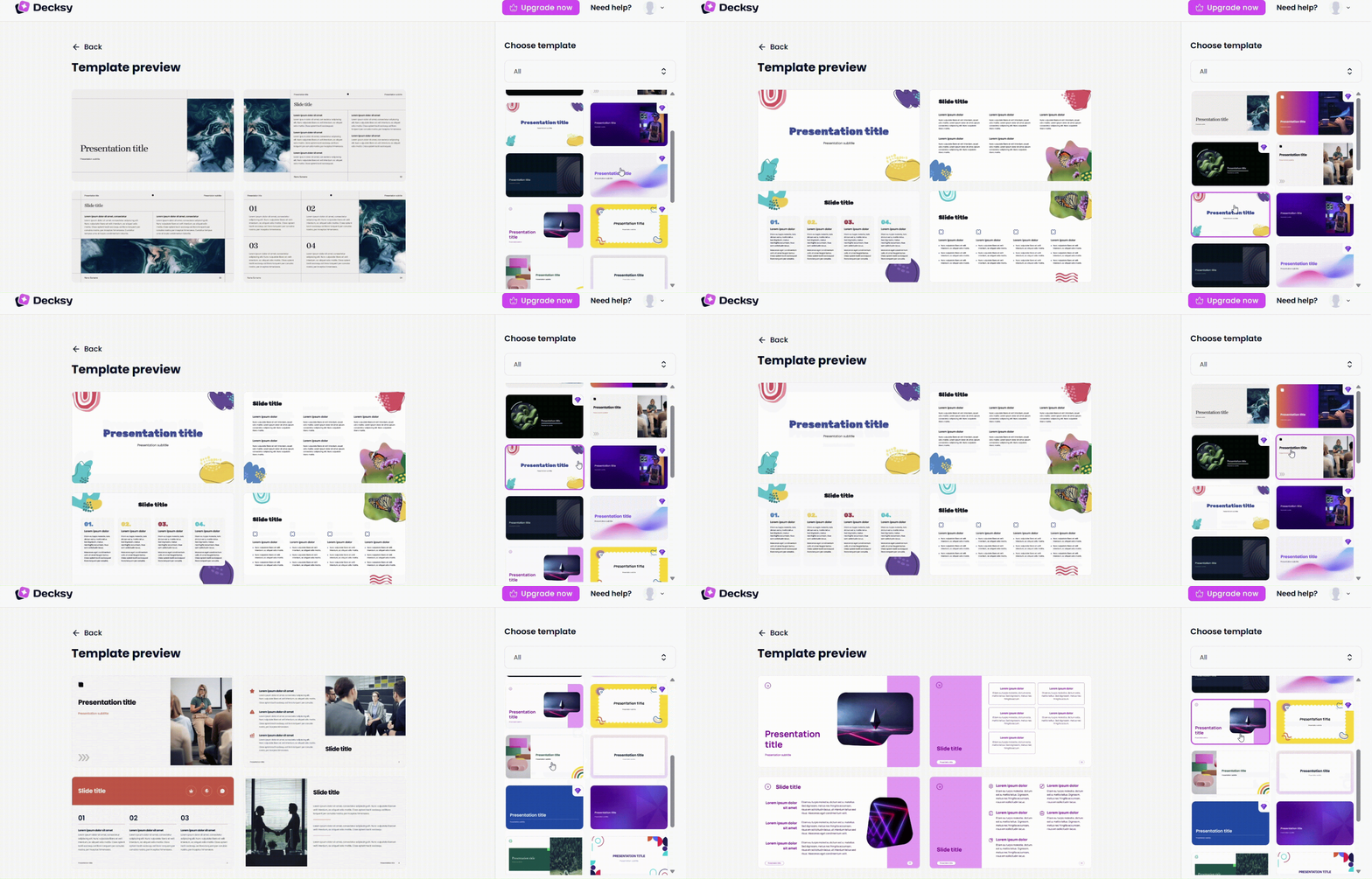
Decksy AI presentation software for business has a straightforward pricing structure. There’s one free presentation generation to get you started. After that, a $2 trial gives you access to the full platform, followed by a flat $10 per month that includes full export rights.
By comparison, like Prezi and Visme, tools like PowerPoint and Google Slides both also reserve their AI features for paid tiers.

On decksyai.com, where people come looking for clarity wrapped in a bit of personality, Julia leans into the details that make a message land: the pause between two ideas, the subtle shift in spacing, the moment a visual finally clicks.