

















Figma Make vs Canva Magic Design: Which AI Design Tool Fits Your Workflow?
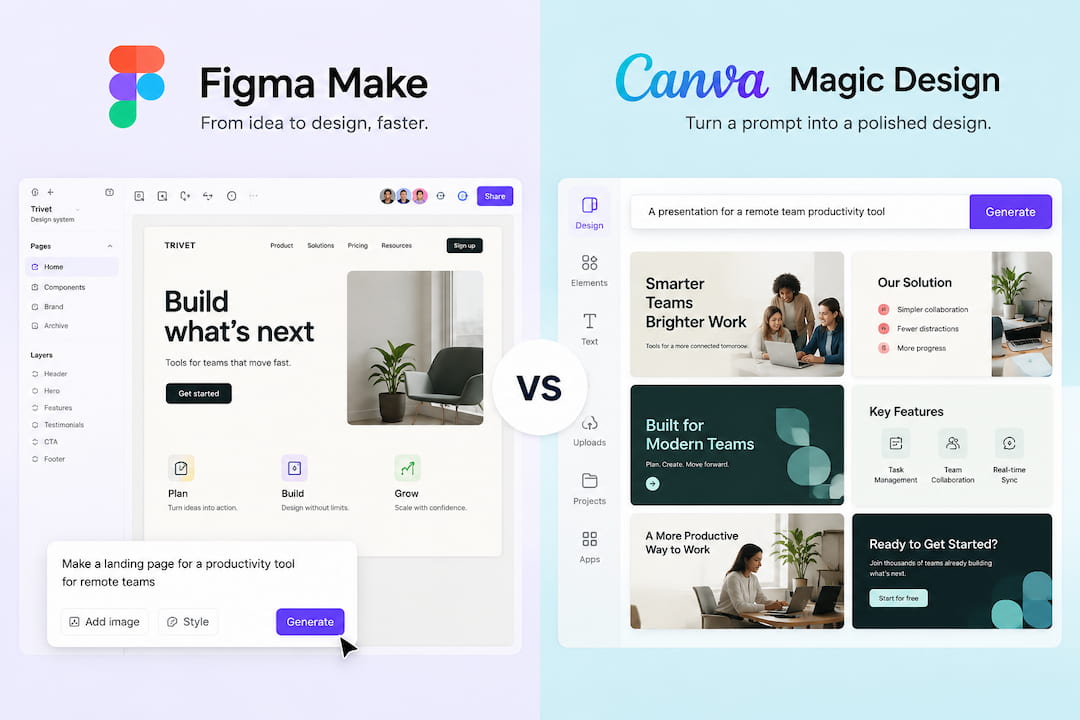
- The choice in Canva Magic Design vs Figma Make is pretty simple. Each tool works better for a different type of task.
- Choose Canva Magic if: You want quick slides, lots of templates, stock images, and easy editing.
- Choose Figma Make if: You already use Figma and need more control over layouts, components, and UI.
- Choose Decksy AI if: You want to turn PDFs, Word files, notes, or prompts into organised slides and edit them later in PowerPoint or Google Slides.
A good AI design tool should save time after the first prompt, not leave you fixing half the result by hand. That is where the Figma Make vs Canva Magic comparison gets interesting. Both generate designs from written instructions, but the output, editing process, and amount of cleanup can differ quite a lot.
So feature lists are not much use here. The better test is simple: give both tools the same brief and see what comes back. That is what we did. We compared the generated designs, checked how easy they were to edit, timed the process, and looked at how much work was still left once the AI stopped generating.
| Feature | Canva Magic Design | Figma Make |
| Price | Free plan, Pro $18/month | Free plan, Pro from $16/month |
| AI | Good for quick slides | Good for custom designs |
| Templates | Large library | Smaller library |
| Documents | PDF, DOC, DOCX | PDF, DOCX |
| Editing | Easy | More detailed |
| Charts | Built-in charts and Sheets | Files and data connections |
| Export | PPTX, PDF, PNG, JPEG | PPTX, PDF |
| Best for | Quick presentations | Custom design and Figma teams |
Pricing, Free Plans and Key Features
Free plans can cover basic use, though the limits show up pretty quickly once you start working with AI more often. In the Canva Magic vs Figma comparison, the listed price does not tell the whole story. AI credits, storage, premium assets, publishing options, and team features all affect the final cost. It makes sense to check these limits before choosing a plan.
Figma Make
The Starter plan is free and includes unlimited drafts, templates, UI kits, and up to 500 AI credits per month. You can use these credits for prototypes and other AI tasks, including an AI grant proposal generator. Professional starts at $16 per month for a Full seat with annual billing and gives you 3,000 AI credits. Monthly billing is also available, but costs a little more.
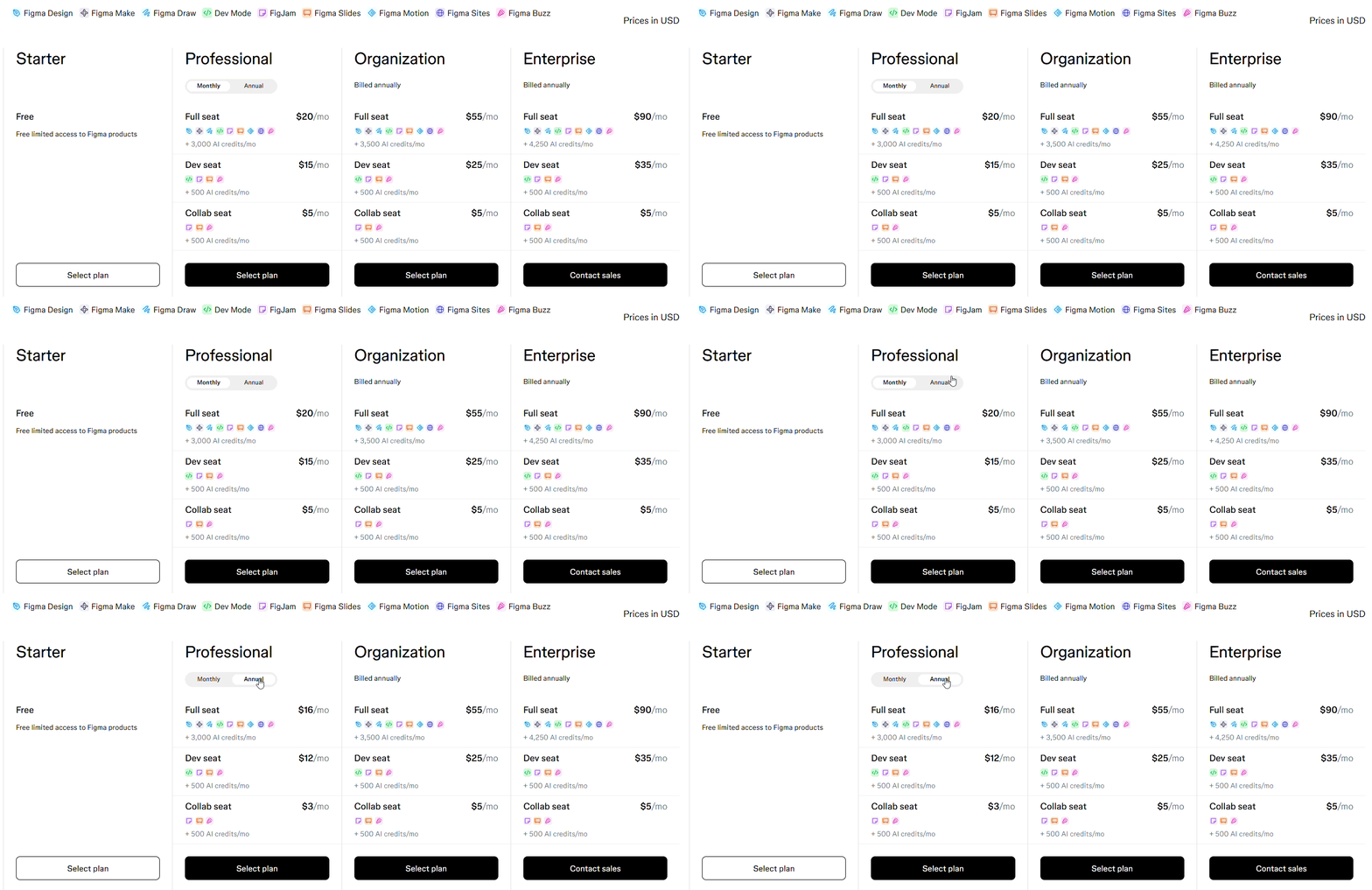
For teams, Organization costs $55 per month per Full seat and includes 3,500 AI credits, shared libraries, fonts, and admin tools. Enterprise costs $90 per month per Full seat with 4,250 credits. It also includes custom workspaces, APIs, SCIM seat management, and more security options. Both plans are billed annually.
Canva Magic Design
Canva has four plans. Free costs $0 and includes 1.6M+ templates, 4.7M+ stock assets, 5GB of storage, and up to 20 AI uses. Pro costs $144 per year for one person. It gives you 10x more AI use, more templates and stock content, five Brand Kits, and 100GB of storage. Monthly billing is available too, while paying annually saves around 16%.
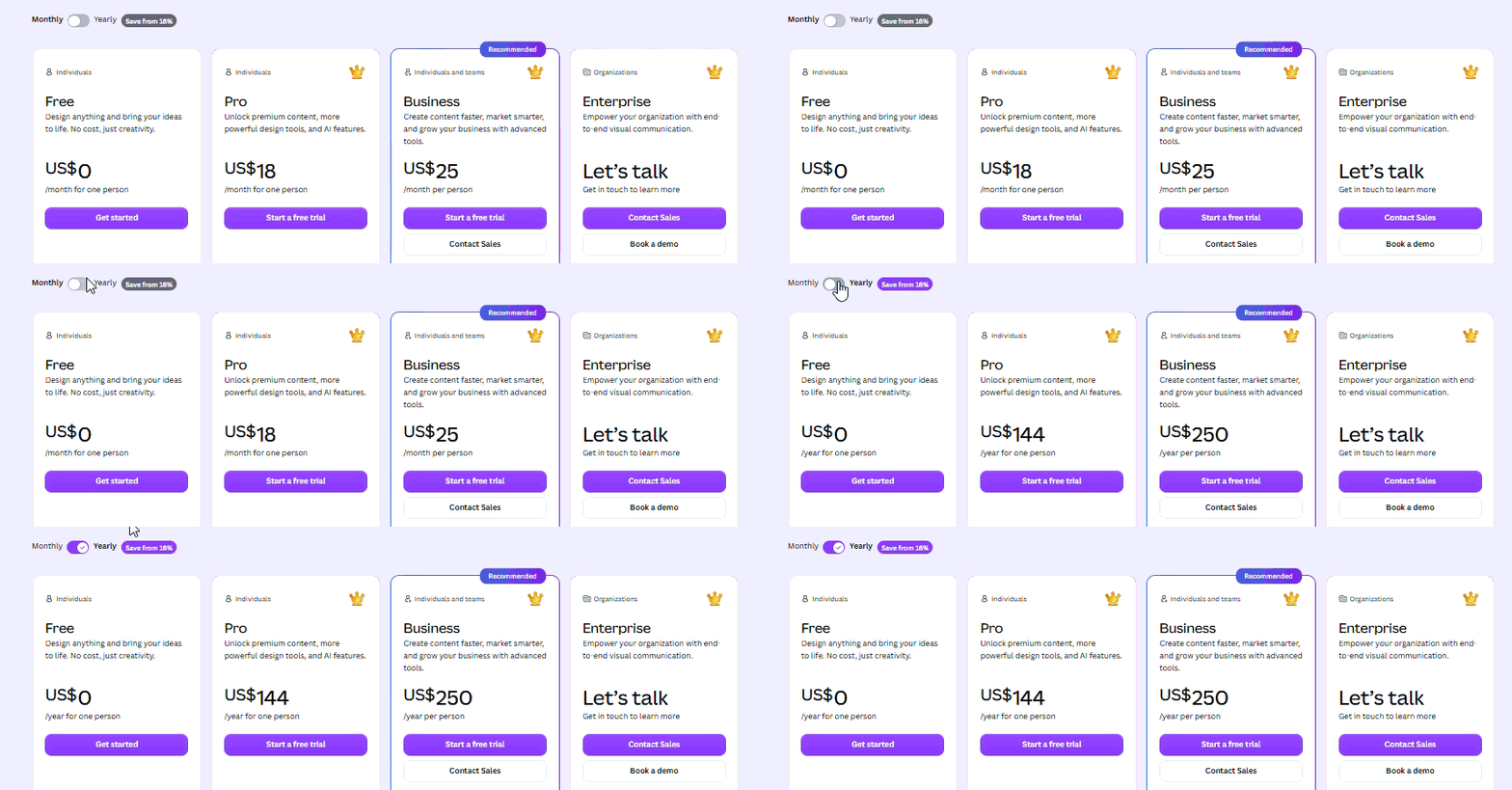
Business costs $250 per year per person and includes 20x more AI use than Free, 100 Brand Kits, team tools, and 500GB of storage. You can also pay monthly. Enterprise has custom pricing and comes with SSO, SCIM, custom apps, up to 1,000 Brand Kits, and 1TB of storage. Extra AI use is available through AI Pass and AI top-ups.
Canva for Education
Canva Education is free for eligible K-12 teachers, students, schools, and districts. You get AI tools, templates, premium features, LMS connections, and 1TB of storage. Schools can also manage accounts and permissions from one place. Colleges and universities have a separate Canva Campus plan with custom pricing. Students get premium access, while staff have SSO, Brand Kits, admin controls, and other Enterprise tools.

However, the free plans have their limits. More AI use or better export options can quickly mean paying for a higher tier. Decksy AI keeps things simpler. Trial access is $2, followed by $10 per month with annual billing. Full export rights are already included. Presentations can be downloaded as editable files and changed later, with no extra plan needed just for exporting.
Design Quality and Customization Options
Compare a few design tools, and the gap in templates shows up fast. The same thing happens with Gamma vs PowerPoint. Canva Magic Design has far more ready-made options. Presentations, reports, ads, social posts, business documents, there is a template for almost everything. Many look current. A few older designs feel dated, and some layouts start to look repetitive once you have used Canva for a while.
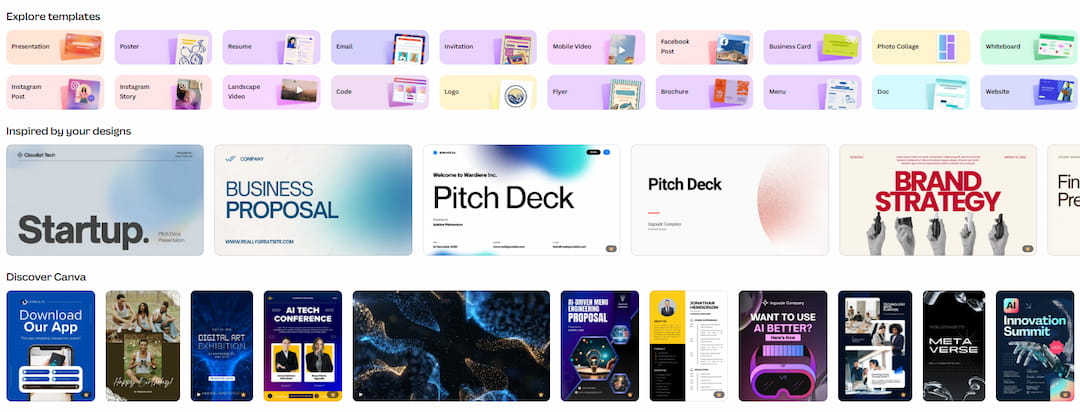
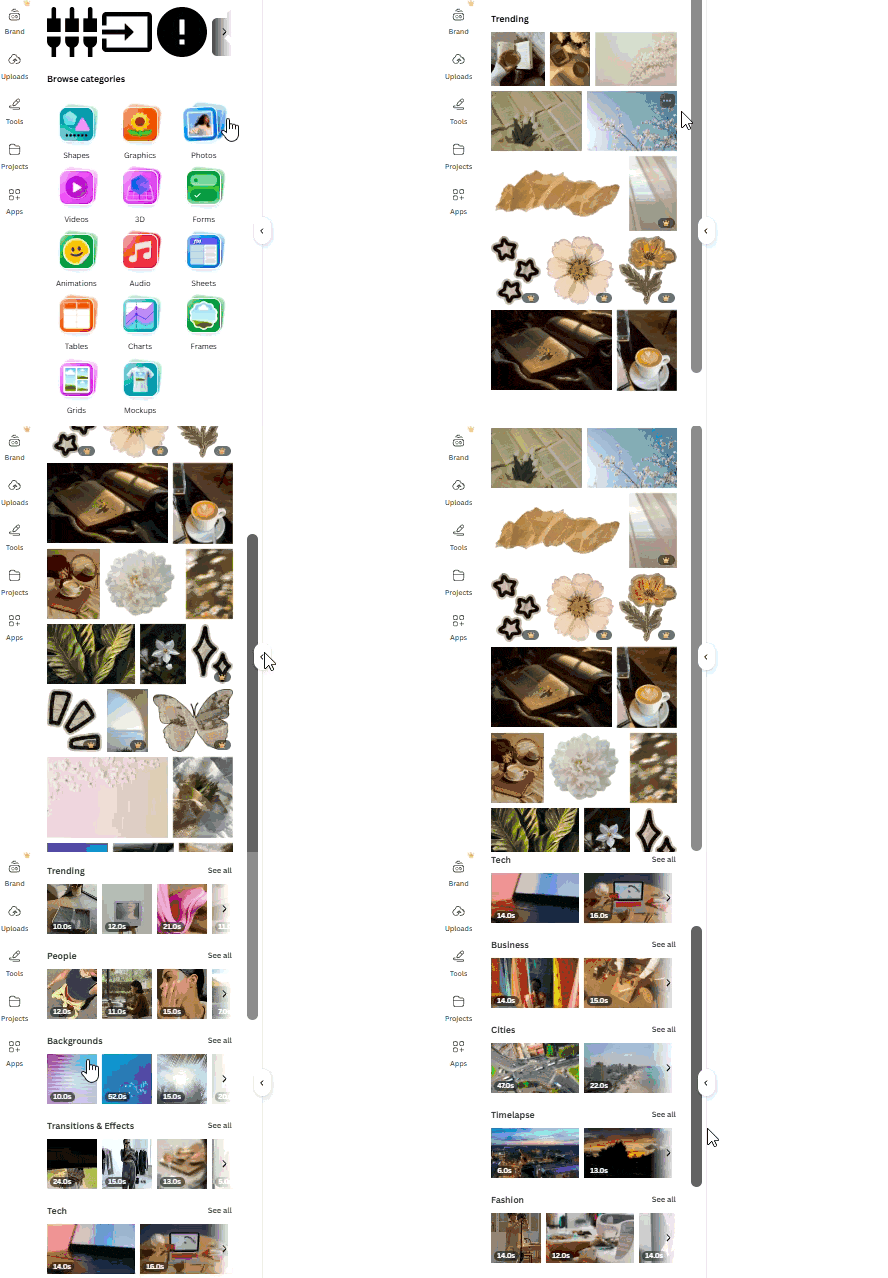
There is plenty of stock content too. Canva keeps photos, videos, icons, graphics, and audio inside the editor, so there is less need to hunt for visuals elsewhere. That can save quite a bit of time with an AI annual report presentation maker, where one deck may need photos, charts, icons, and several other elements. Paid plans also let you upload fonts and build Brand Kits with company logos, colors, and other assets.
Figma Make is much lighter on ready-made content. Its template collection is smaller, and stock media is not really the main attraction here. The interesting part is how much of your own Figma setup you can bring in. Existing frames can guide the AI. The same goes for components, variables, styles, and shared libraries. Teams can build their own Make templates and set rules for what others can edit. WOFF and WOFF2 fonts work with published Make projects as well.
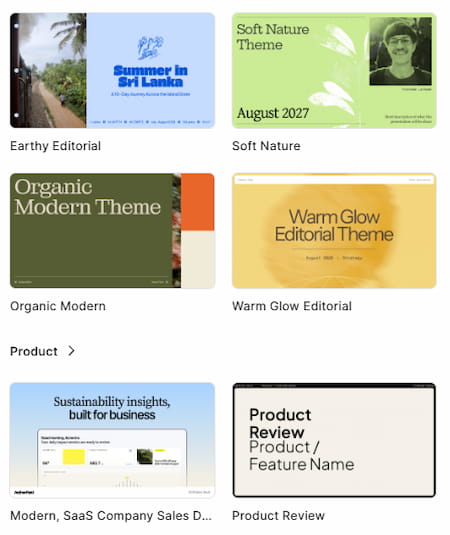
As an AI presentation maker, Canva gets you to a usable design faster when you want plenty of choices from the start. Figma Make takes more work upfront. For a team that already keeps its design system in Figma, though, that extra control makes sense. The AI has actual components and design rules to follow instead of relying mainly on a ready-made template.
Data Visualization and Live Spreadsheet Links
Once real numbers enter the picture, things get more complicated. Financial reports can contain hundreds of figures, and some may change every week or month. With Canva Magic Design vs Figma, the key point is how those numbers get into the design. Spreadsheet links, automatic updates, chart tools, and external data sources can save a lot of manual work, especially with reports that need regular updates.
Figma Make
Figma Make also works well for team projects. People can leave notes, add feedback, and work in the same file, so there is less back-and-forth with separate versions. If a report needs input from a designer, manager, and another department, everyone can keep their comments and changes in one place.
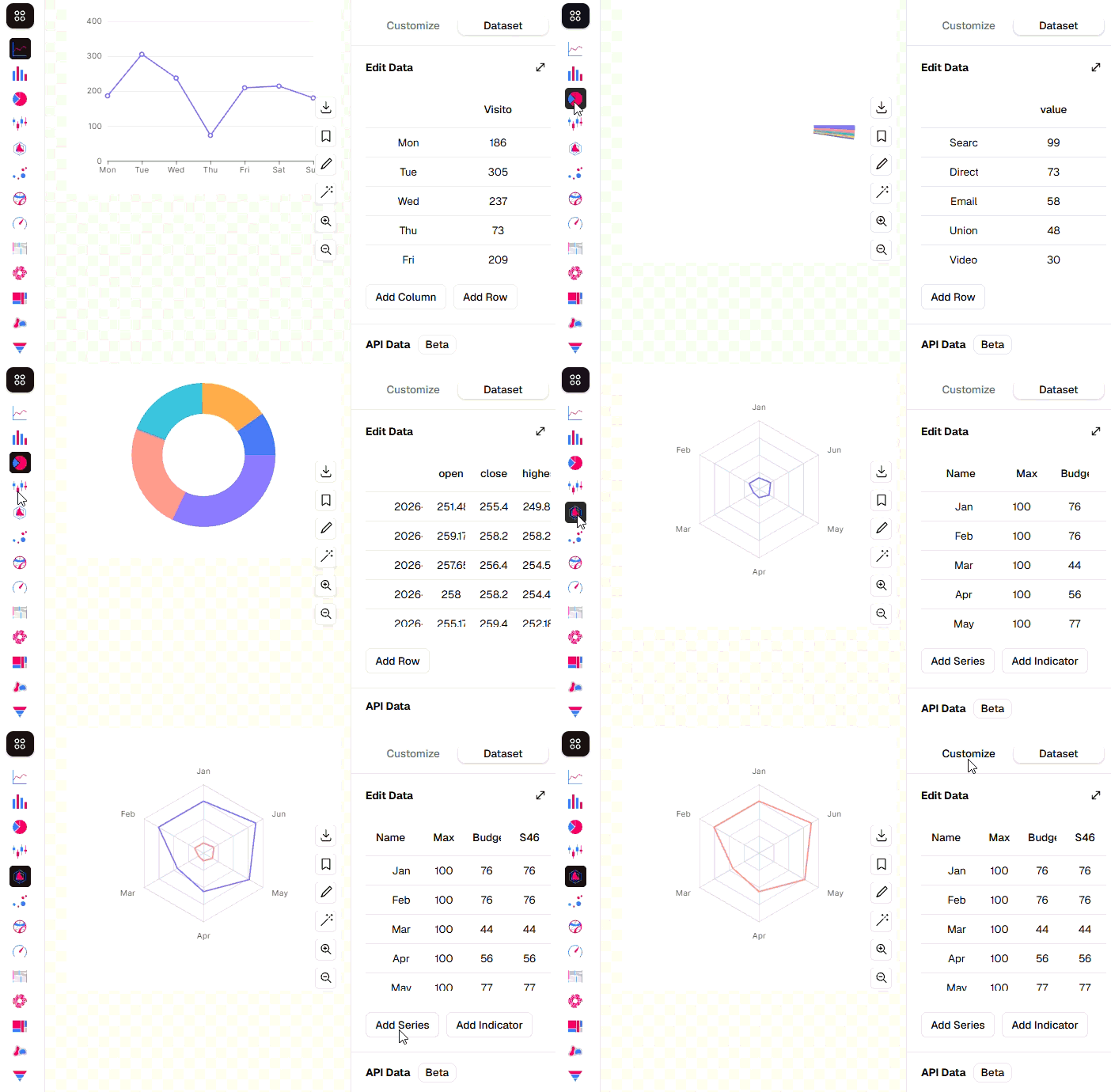
Live data takes a little more work. Figma Make can build dashboards with filters and pull data from outside sources through APIs. This can make sense for AI presentation software for healthcare, especially when reports use figures from several sources and need regular updates. For a basic report, though, uploading a spreadsheet is much quicker.
Figma Slides also has a built-in Table tool. You can use it for budgets, results, or financial figures. It works well for basic tables, but regular updates may still need to be made by hand unless you connect the project to another data source.
Canva Magic Design
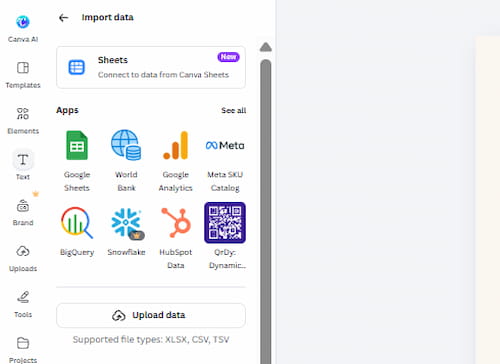
Charts are easy to make in Canva. Add your numbers to the chart editor and choose a bar, line, pie, scatter, or another chart type. You can also import an Excel file into Canva Sheets. For Canva Magic Design vs Figma, this works well when you need to turn a lot of numbers into charts without entering each value separately.
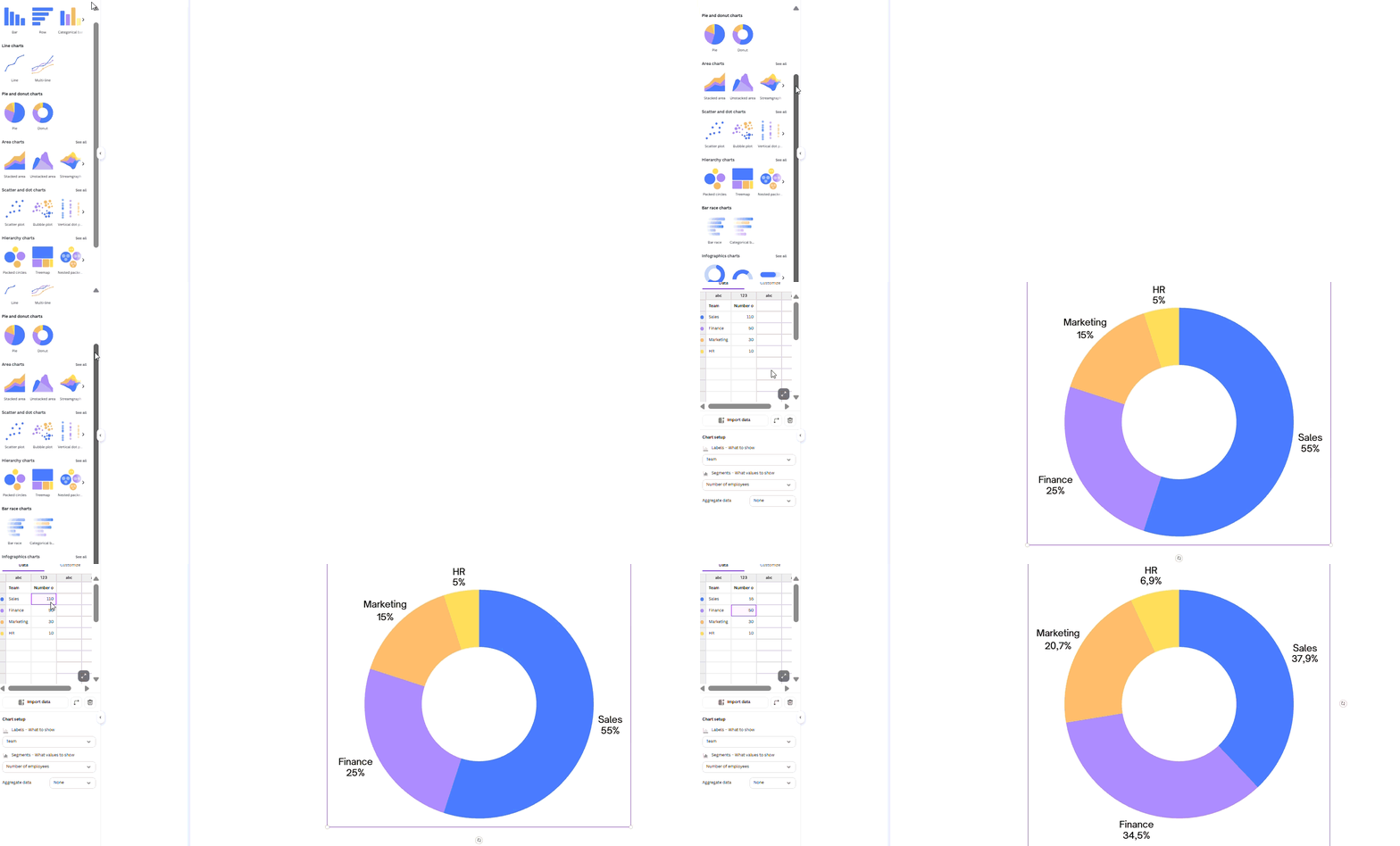
Google Sheets can be connected too, which helps with larger files. Charts can also use data from Canva Sheets and update when that data changes. Excel has one clear limit. Once you import an XLSX file, Canva does not keep a live link to the original workbook. If the numbers change in Excel later, you need to bring the new data into Canva again.
Canva Magic vs Figma: Side-by-Side AI Design Test
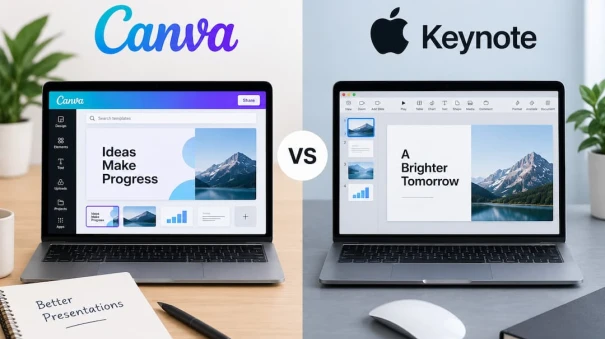
Specs alone do not show how these tools work on a real task. For the Figma Make vs Canva Design test, we used the same prompt, document, and design instructions in both. Then we timed each one and checked the results side by side.

We focused on four things: how the content was organised, what the layouts looked like, how well each tool handled the source file, and how easy it was to edit the result. We also counted how much work was still needed before the final design was ready.
Narrative Logic
The difference showed up pretty quickly. In Canva vs Figma Slides, Canva organised the main points into separate slides, but the order did not always feel connected. Some ideas appeared too early, while a few related points ended up several slides apart. The content was there. The story needed work.

Figma put the ideas in a better order. The deck opened with the main problem, then moved to the plan, costs, risks, timeline, and final recommendations. A few slides were too wordy, so we cut some text. Still, there was much less to move around. The flow made sense from the start.

Layout Quality
The first results were quite different. In Canva vs Figma Slides, Canva already had images, clear headings, and enough space between elements. There was less to fix. Figma Make looked much more basic. Several pages were mostly text, with few visuals. We had to add images, change the spacing, and move things around before the deck looked ready.

Document Processing and Speed
Canva got through the source file faster and turned the main points into slides with little setup. Figma Make took more time, especially with a longer document, though it gave us more control over what the AI should use from the file. Neither result was ready to trust without checking. A few details were missed or shortened, so dates, numbers, and other important information still had to be checked against the original document.
Editing Flexibility
Canva was easier to edit after the first draft. Almost everything on a slide can be changed directly, from text and images to charts, fonts, colours, and spacing. Small fixes take seconds. This mattered when testing AI presentation software for life science teams, since numbers, medical terms, and sources sometimes needed quick corrections. Figma Make also lets you change individual parts, though we spent more time prompting it and adjusting the result by hand.
This is where Decksy works differently. Figma Make can leave you with basic screens that still need images, spacing fixes, and more design work. Canva often gets closer to a finished slide, but the story may need rearranging. Decksy sorts out the logic first, building the slide order around the main points before working on the design. Fixing one weak slide is simple too. You can regenerate that slide in seconds without touching the rest of the deck.
Export Options and Ecosystem Compatibility
Exporting works a little differently in Figma Slides vs Canva Magic. Canva supports PPTX, PDF, PNG, and JPEG, while Figma Slides supports PPTX and PDF. The PPTX files can still be edited, though a few things may shift after export. Figma may replace missing fonts, turn gradients into solid colours, or save interactive parts as images. Similar problems can show up in Google Slides vs PowerPoint when the same file is opened in another editor.

Decksy gives you an editable PPTX with separate elements. A text box stays editable. The same goes for images, charts, and other slide content. You can open the file in PowerPoint, change one part, or import it into Google Slides and keep working there. There is no need to return to Decksy every time the deck needs a small change.
The Smart Alternative: Decksy AI

If Canva feels too limited and Figma Make takes too much manual work, Decksy AI gives you another route. The same issue often comes up with Tome vs Gamma AI. Making slides quickly is easy enough. Getting the content into the right order takes more work. Decksy starts there. Give it a prompt, PDF, or Word file, and it pulls out the main points, builds the slide order, and then works on the design.
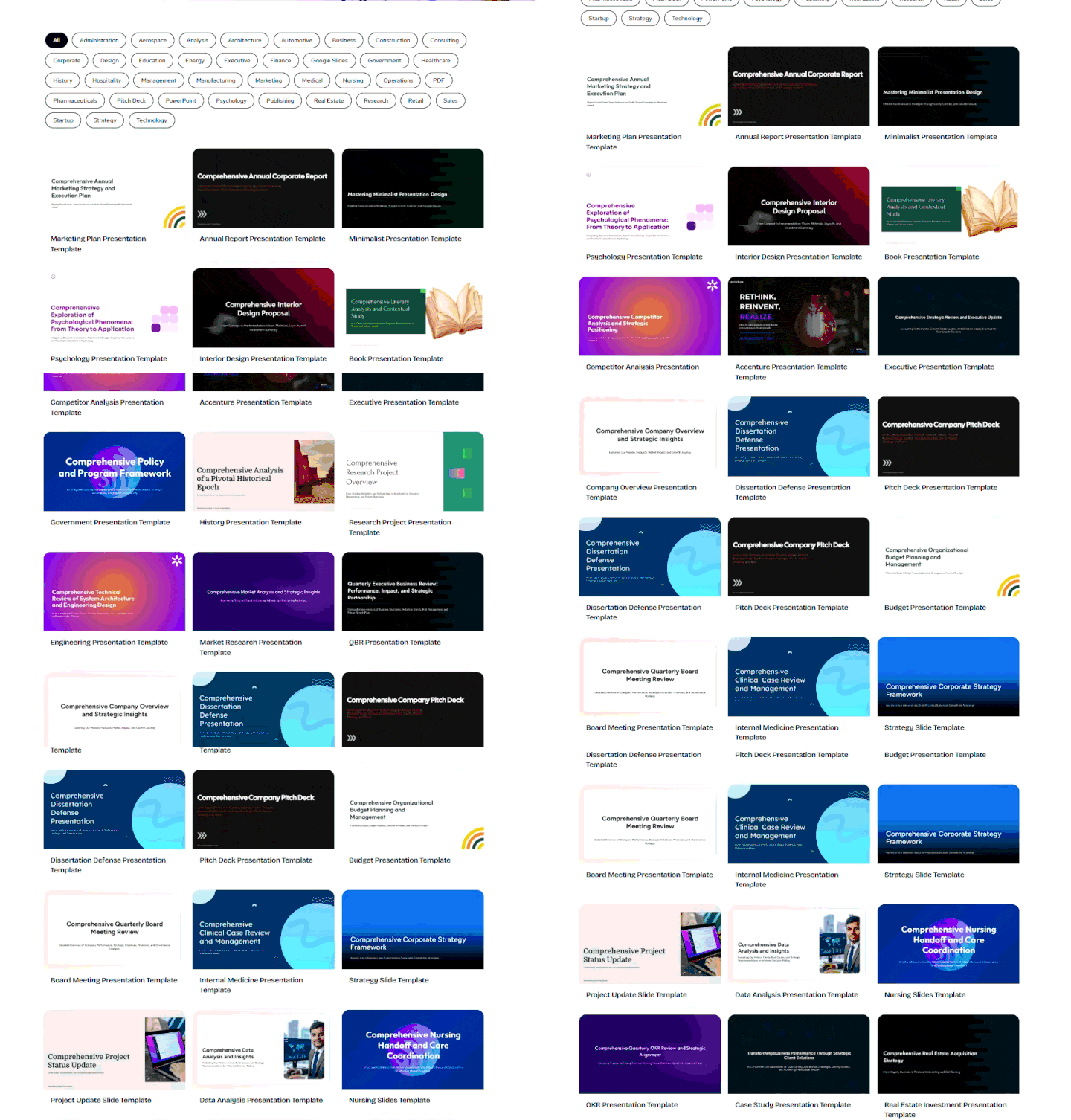
You still have control once the deck is ready. A weak slide can be regenerated on its own, so the rest of the presentation stays as it is. You can also edit the content and export the deck for more changes in PowerPoint or Google Slides. This saves time when the AI gets most of the presentation right and only a few slides need work.

On decksyai.com, where clarity still matters, but results matter just as much, Alyssa Johnson, Chief Revenue Officer, looks at messaging through a growth lens. She pays attention to how structure drives action, how a well-timed pause improves conversion, and how AI is reshaping all of it — without ever replacing the human instinct behind the message.