

















Canva vs. Keynote: Features, Pricing, and Key Differences
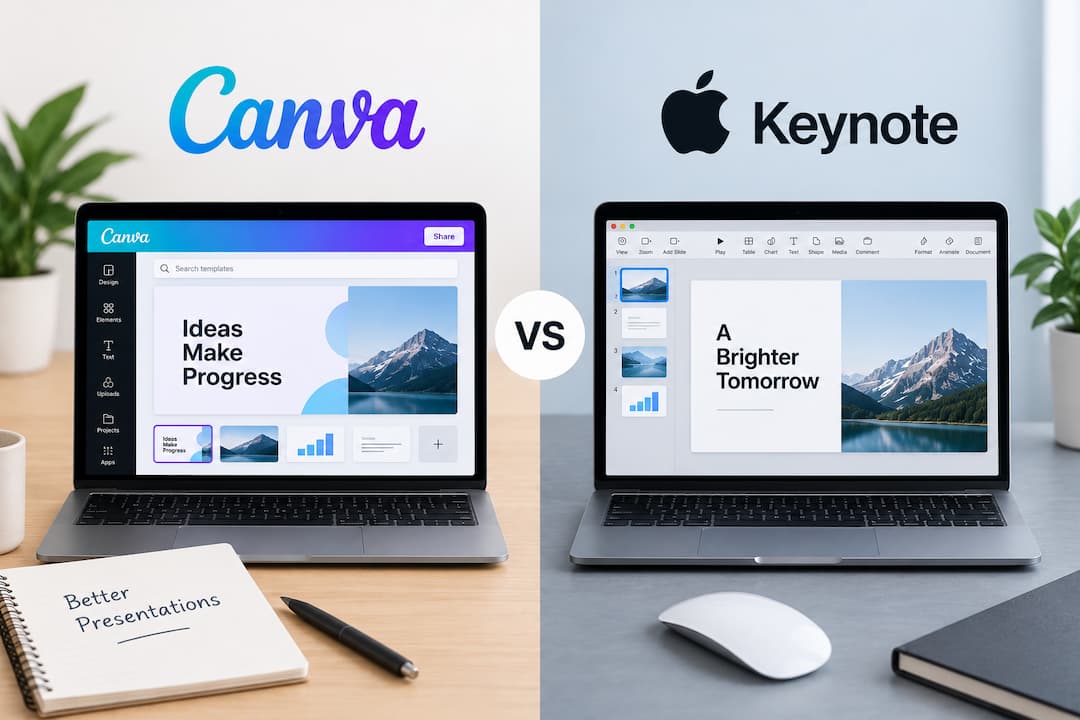
- Canva, Keynote, or Decksy AI? Based on reviews Canva vs. Keynote mainly comes down to how much design work you want to do yourself.
- Choose Canva if: you want lots of templates and often create presentations, reports, social posts, or teaching materials. Canva gives you more templates, stock media, and editing tools, so it works well for people who create different types of visual content.
- Choose Keynote if: you mainly work on a Mac or iPad and prefer simple designs with strong animation tools. Keynote is a better fit for Apple users who want clean slides, good animation controls, and a simpler setup.
- Choose Decksy AI if: you start with PDFs, reports, notes, or prompts and want AI to organize the content and build the slides. You can also redo one slide without starting the whole deck again.
- Canva is usually the better pick for visual work and quick edits. Keynote makes more sense when most of the work stays inside Apple apps. Decksy AI fits people who want to spend less time turning raw content into a clear deck and still keep the final file editable in PowerPoint or Google Slides.
You already have the content and a deadline. Now you need to turn those ideas into slides without spending hours fixing layouts, moving text boxes, or testing the wrong tool.
Canva and Keynote take very different approaches to presentations. Canva gives you ready-made templates and quick editing tools, while Keynote puts more focus on slide control, animations, and presenting on Apple devices. So the Canva vs Keynote choice really depends on how you like to work.
We’ll compare design tools, features, teamwork, charts, animations, pricing, exports, and ease of use. We’ll also look at what each tool does well and where it starts to feel limited.
| Feature | Canva | Keynote |
| Price | Free; Pro $18/month | Free; Creator Studio $14.99/month for extra AI tools |
| AI | Builds slides from prompts | Builds slides from outlines |
| Templates | Millions of options | Smaller library |
| PDFs | Imports PDFs | Mainly uses text and outlines |
| Charts | 25+ chart types | 2D, 3D, interactive charts |
| Editing | Edit each element | Edit each element |
| Team work | Live online editing | Live editing through iCloud |
| Export | PPTX, PDF, video, images | PPTX, PDF, video, GIF, images |
| Best for | Quick design and teams | Apple users and animations |
Free Plans, Paid Features, and Best Uses
When choosing Keynote or Canva, price is one of the clearer differences. Both have free options, but Canva puts many AI tools, premium templates, extra storage, and team features behind paid plans. Keynote keeps its main presentation tools free, while some newer AI features and premium content come through Apple Creator Studio.
That makes the Keynote vs Canva price comparison less simple once you move past the basic tools. If presentations are your main focus, Decksy AI is another option worth looking at. It starts with a $2 trial, followed by a $10 monthly plan that includes full presentation export rights.
Canva
Canva has a free plan, and for basic presentations, it gives you quite a lot. There are more than 1.6 million templates, 4.7 million photos, videos, graphics, and audio files, plus 5GB of cloud storage. AI use is limited to 200 Standard uses or 20 Premium uses, and the single Brand Kit only lets you save three colors.
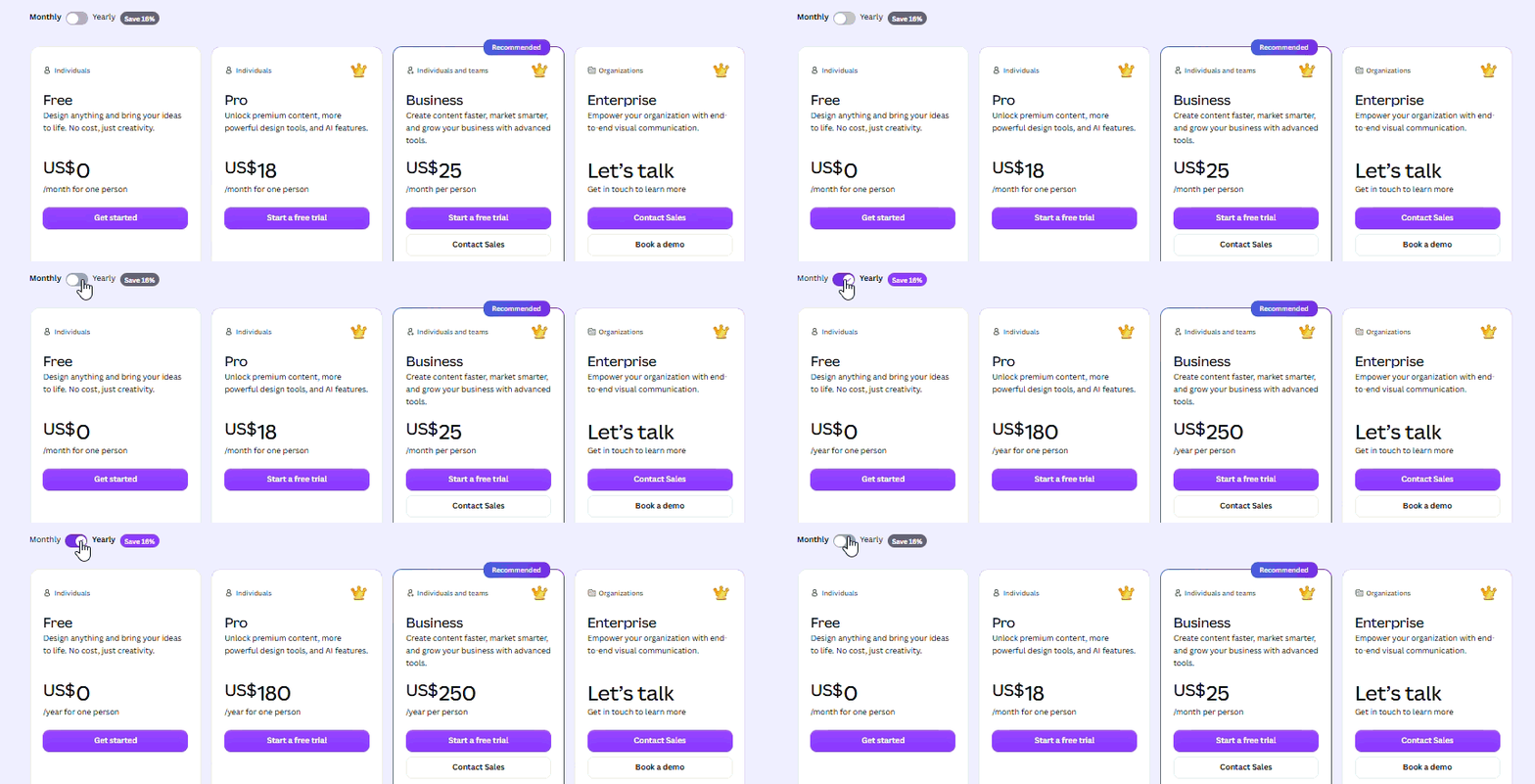
For more regular use, Canva Pro costs $18 a month. It bumps storage up to 100GB, includes more than 3.6 million templates and 141 million premium assets, and gives you tools like background removal, resizing, and translation. Teams may need Canva Business instead. It costs $25 per person each month and comes with 500GB of storage, 100 Brand Kits, approval tools, and higher AI limits. Larger companies have to contact Canva for Enterprise pricing.
Canva for Education
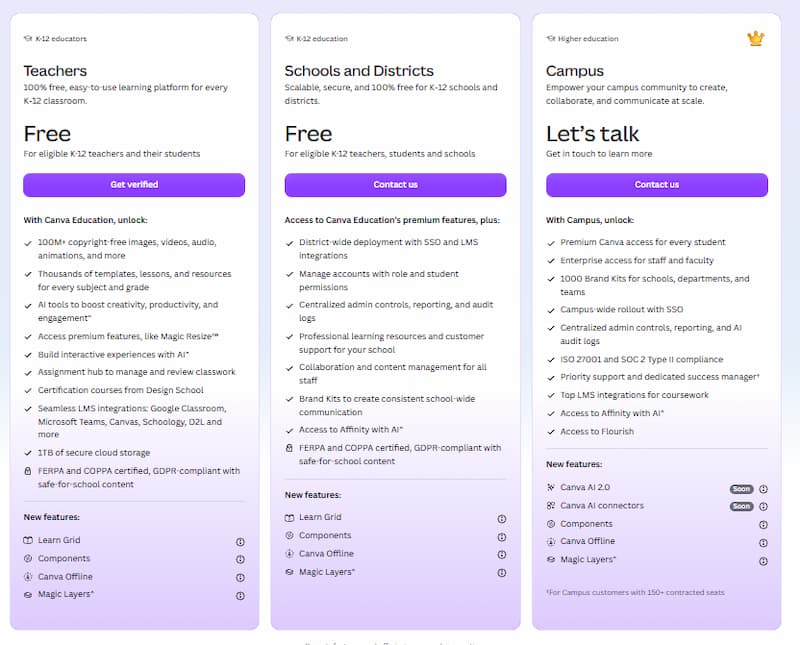
Eligible K–12 teachers, students, schools, and districts can use Canva Education for free. This plan will offer you classroom tools, top-quality design features, and a lot more storage than the standard free plan. Key features include:
- 1TB of cloud storage space.
- 100M+ images, videos, audio files, and animations
- Thousands of lesson and presentation templates
- Selected AI tools and Magic Resize
- Integrates with Google Classroom, Microsoft Teams, Canvas, Schoology, and D2L
- Compliance with FERPA, COPPA, and GDPR.
Schools and districts are also eligible for SSO, reporting, user permissions, admin controls, and Brand Kits. Colleges and universities use Canva Campus instead. Students have access to premium Canva tools, and staff have access to enterprise-level access to Canva.
Keynote
On a Mac, iPhone, or iPad, you get the main slide tools without another subscription. You can build presentations from themes, add charts and animations, work with others, and export files to PowerPoint or PDF. There’s also a web version on iCloud, so using Keynote on a Windows computer is possible without paying.
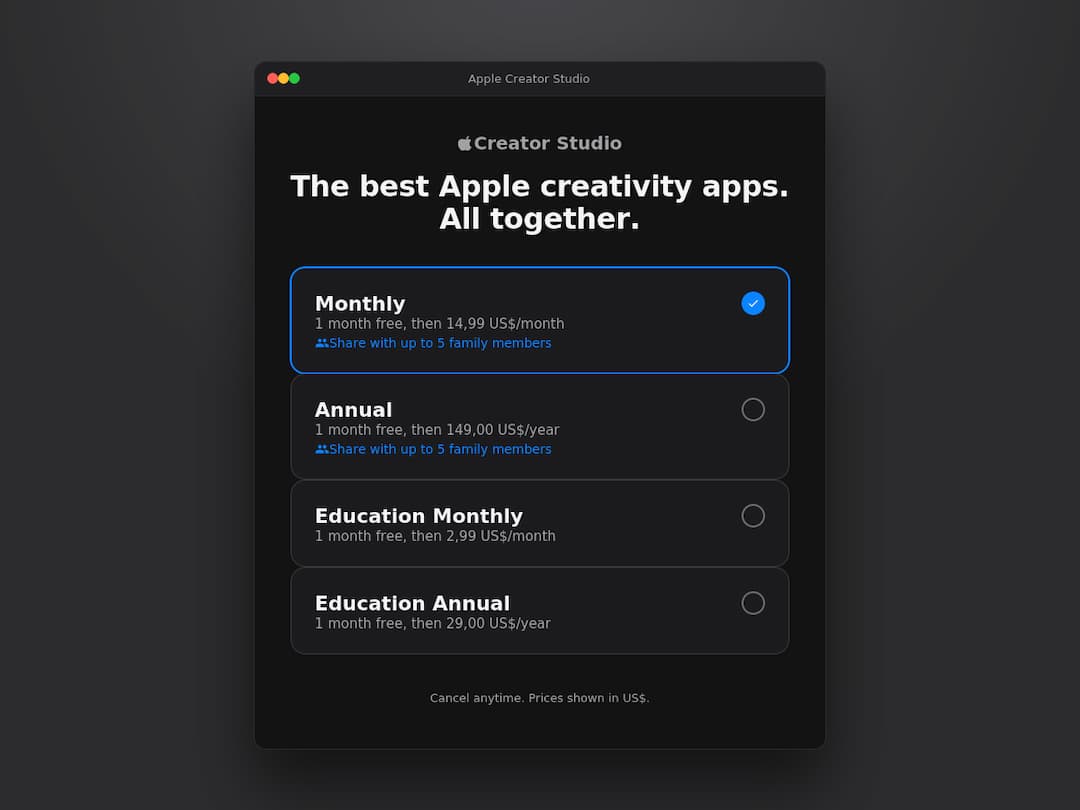
However, Apple Creator Studio is where some of the newer extras now live. After a one-month free trial, it costs $14.99 a month or $149 a year. Education pricing is much lower at $2.99 a month or $29 a year. For Keynote, the subscription adds premium themes, Content Hub media, and newer AI features. For example, you can create an initial set of slides from a text outline and generate presenter notes.
Canva vs Keynote: Which One Fits Your Needs Better?
So, which is better: Canva vs. Keynote? If you’re an Apple user and you need a presentation app that you don’t have to pay for, then Keynote is for you. You can make slides, use charts and animations, collaborate, and export your slideshow for free. There is also a free plan, but many of the templates, AI, and team features require a paid plan in Canva. It’s perfect for those who also make social posts, images, and more.
Decksy AI is more suited for individuals looking to create a presentation more quickly by using their own material. It begins with the structure and then converts it to slides. Can be handy for pitch decks, reports, and work presentations. Moreover, full export rights are included, including Google Slides.
Templates, Design Assets, and Customization
Both options give you templates, fonts, images, and tools for editing slides, but they approach design differently. In the Canva or Keynote comparison, Canva gives you more ready-made choices, a much larger stock library, and stronger brand controls, while Keynote keeps things simpler with fewer themes and more room to shape the slide yourself.
The difference becomes even clearer once you look at template quality, custom fonts, brand settings, and how much control you get over each element.
Canva
The easiest way to describe Canva is choice. Its template library covers pitch decks, lesson plans, sales reports, project updates, proposals, portfolios, and regular team meetings. Pro users get access to more than 3.6 million templates across Canva’s design types. That amount of choice is a clear difference in a Gamma vs Canva comparison. Quality varies, though. Some templates look basic or overused, while others need only a few edits before they are ready.
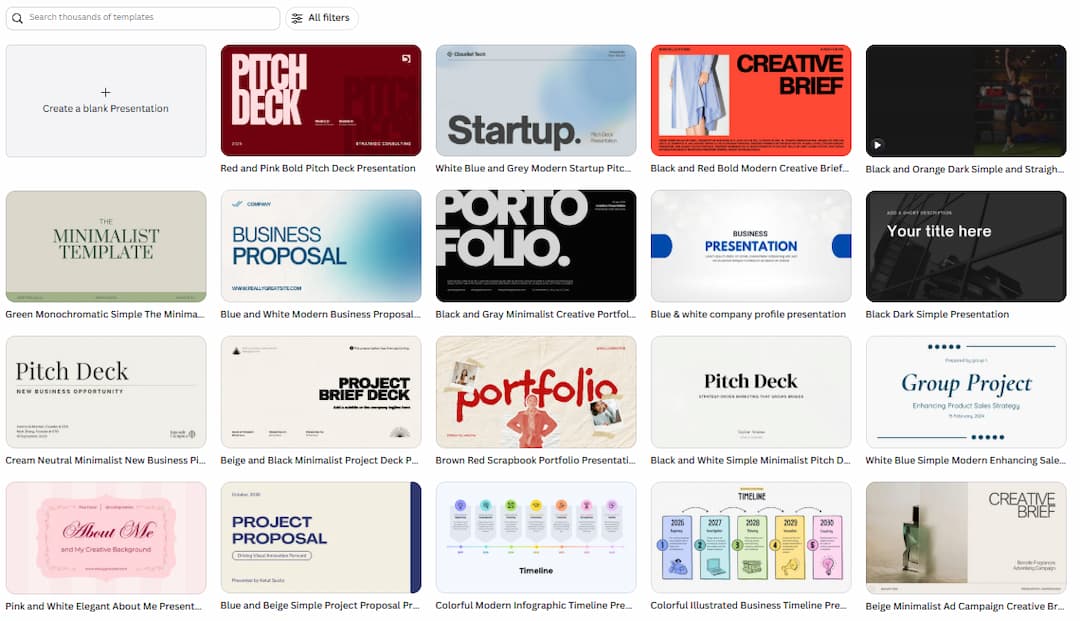
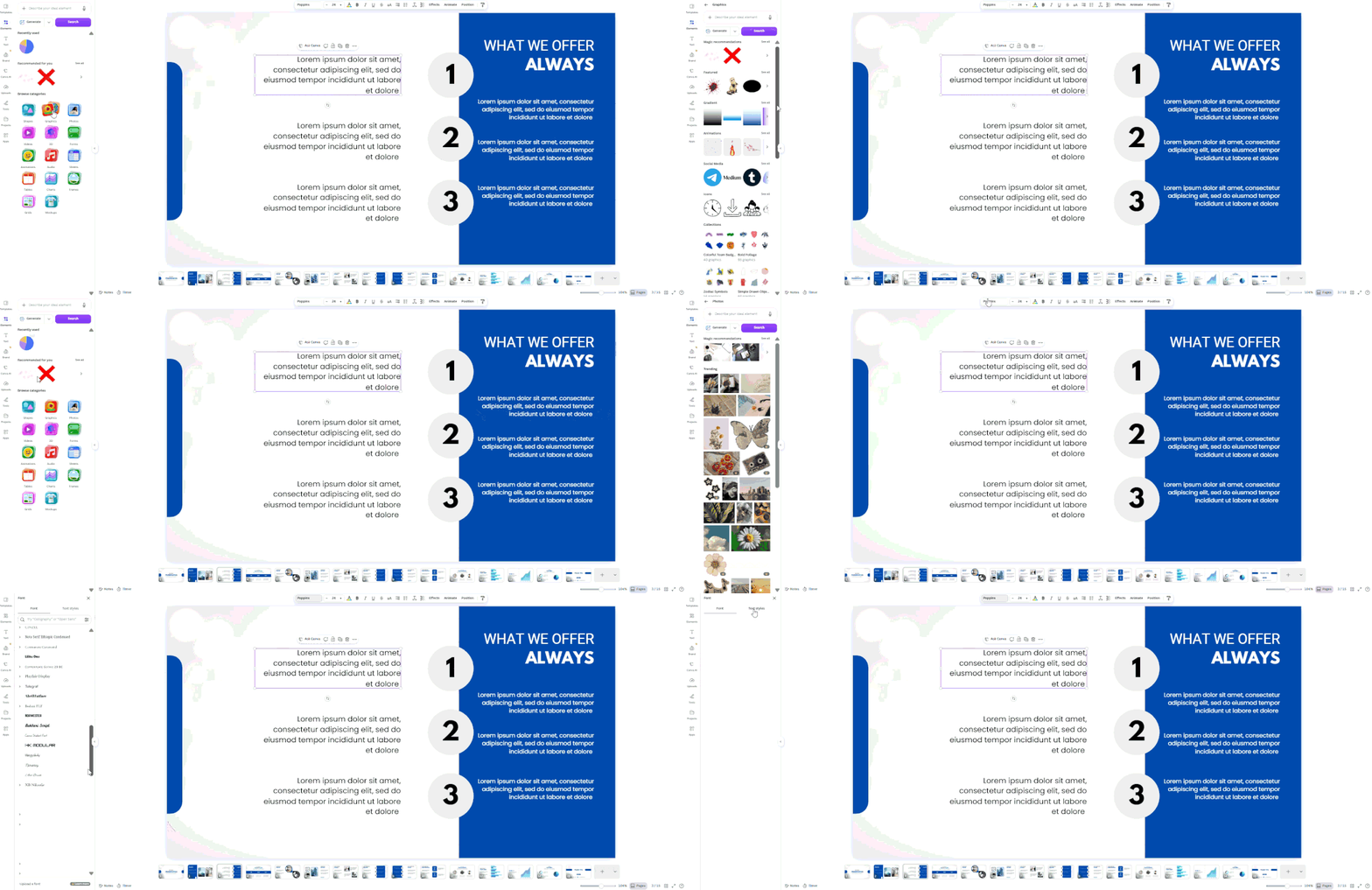
Editing is flexible. Fonts, colors, spacing, images, charts, icons, backgrounds, and slide layouts can all be changed. You can also move, resize, group, and lock separate elements. Pro users get access to more than 141 million premium photos, videos, graphics, and audio files, so there is usually enough built-in media for a full deck without looking elsewhere.
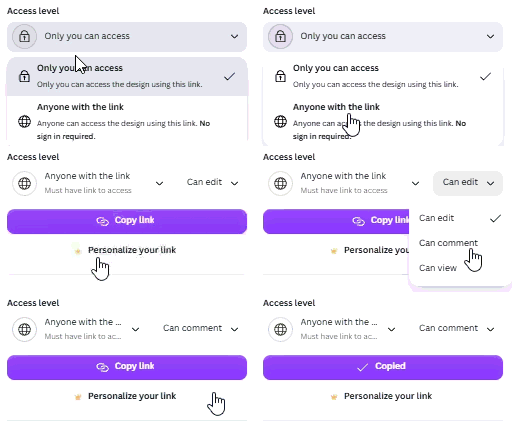
Canva’s Brand Kit is useful for repeat work. Pro supports up to five Brand Kits, while Business raises that limit to 100 and adds approval tools and team controls. Logos, fonts, colors, images, and other brand assets can be saved once and reused across presentations. That matters most when several people are working on the same company material.
Keynote
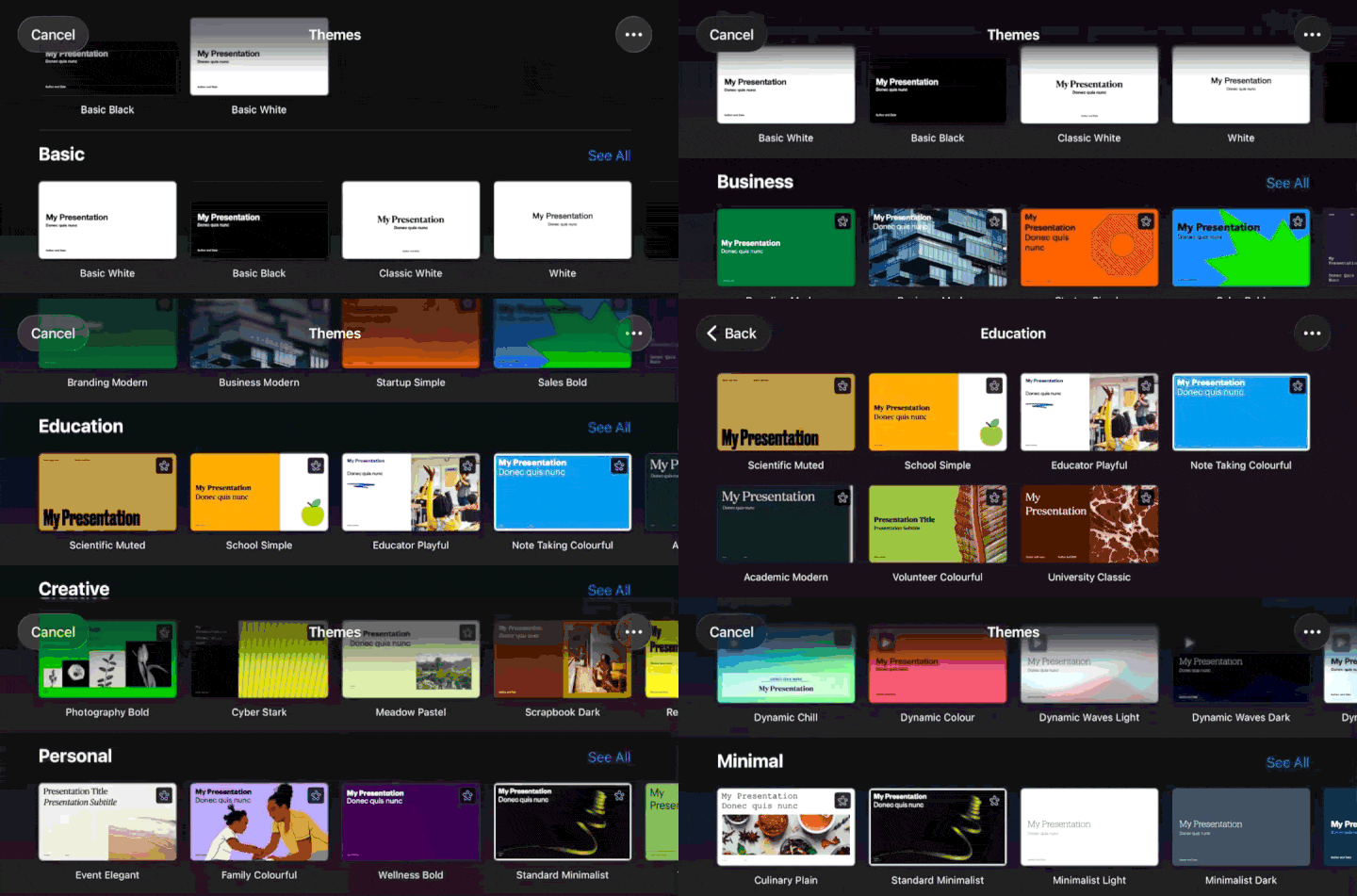
Keynote has a smaller theme library than Canva, but the layouts are clean and easy to adapt. You get options for business decks, portfolios, reports, and photo-led presentations. Each theme also comes with different slide layouts for titles, charts, quotes, images, and text, so you can change the structure without rebuilding every slide.
The editor gives you a lot of control. You can change fonts, colors, backgrounds, shapes, tables, charts, image masks, and object positions. Custom fonts work too, as long as they are installed on the device. Apple Creator Studio adds more themes and Content Hub assets such as photos, illustrations, graphics, and backgrounds.
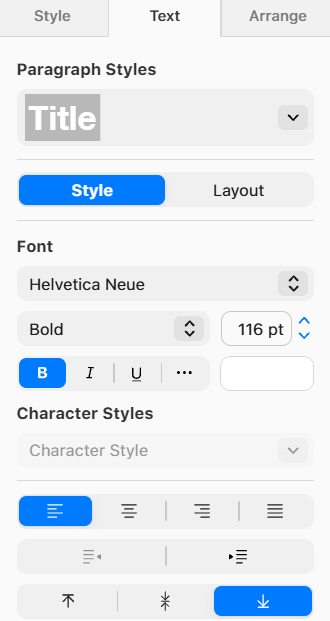
Branding takes more manual work. You can build a custom Keynote theme with your own logos, colors, fonts, and layouts, then reuse it later. What Keynote does not have is a Canva-style Brand Kit with shared brand assets, locked elements, approval steps, and central team controls. For solo work, that may be enough. For larger teams, it can become limiting.
Data Visualization and Spreadsheet Tools
Charts are easy to add in both tools. The bigger question is what happens when the numbers change. Keynote and Canva both cover common chart types, but Canva gives you more options for bringing in outside data, while Keynote keeps most of the work inside its own editor and Numbers.
Canva can import CSV, TSV, and Excel files and connect to sources such as Google Sheets, Salesforce, HubSpot, and Google Analytics. Keynote uses its own Chart Data editor and works with Numbers, so repeated updates usually take more manual work.
Canva
Canva gives you plenty of chart types to work with. The usual bar, line, and pie charts are there, along with donut, area, scatter, bubble, histogram, funnel, and radar charts. Canva Sheets pushes this further with 25+ chart types, and Magic Charts can look at selected data and suggest a suitable way to display it.
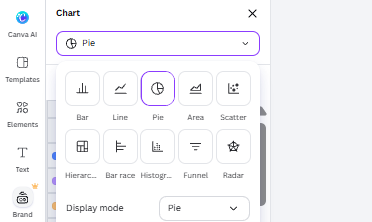
You can type numbers into a chart, though you do not have to. Canva accepts CSV, TSV, and XLSX files, with chart imports supporting up to 1,000 rows and 100 columns. It can also connect to Google Sheets, Salesforce, HubSpot, and Google Analytics, although some outside data connections require Business or Enterprise. Link a chart to Canva Sheets, and changes to the sheet appear in the chart automatically.
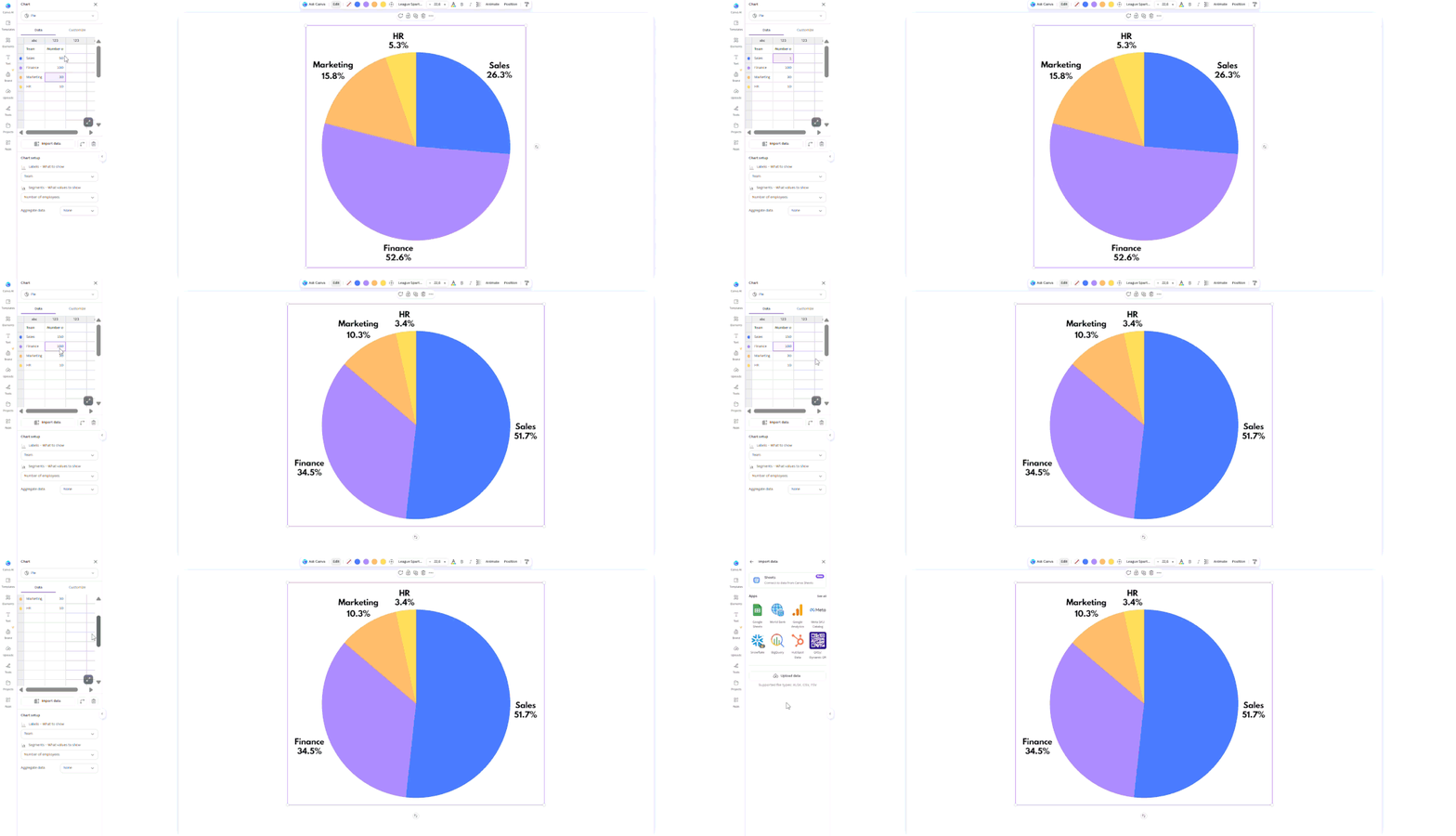
Canva provides handy chart controls in one location for financial reports. Values could be displayed as currency, percentages, or decimals; then the labels, legends, gridlines, colors, and axes can be adjusted. In a Canva vs Google Slides comparison, this means less switching between separate tools when working on budgets, sales reports, or regular updates.
Keynote
Keynote holds everything in the presentation when creating charts. Add 2D, 3D, and interactive charts such as bar, line, area, pie, donut, radar, scatter, and bubble charts. Interactive charts are helpful when you want to move to a set of numbers, but not to a new chart each time.
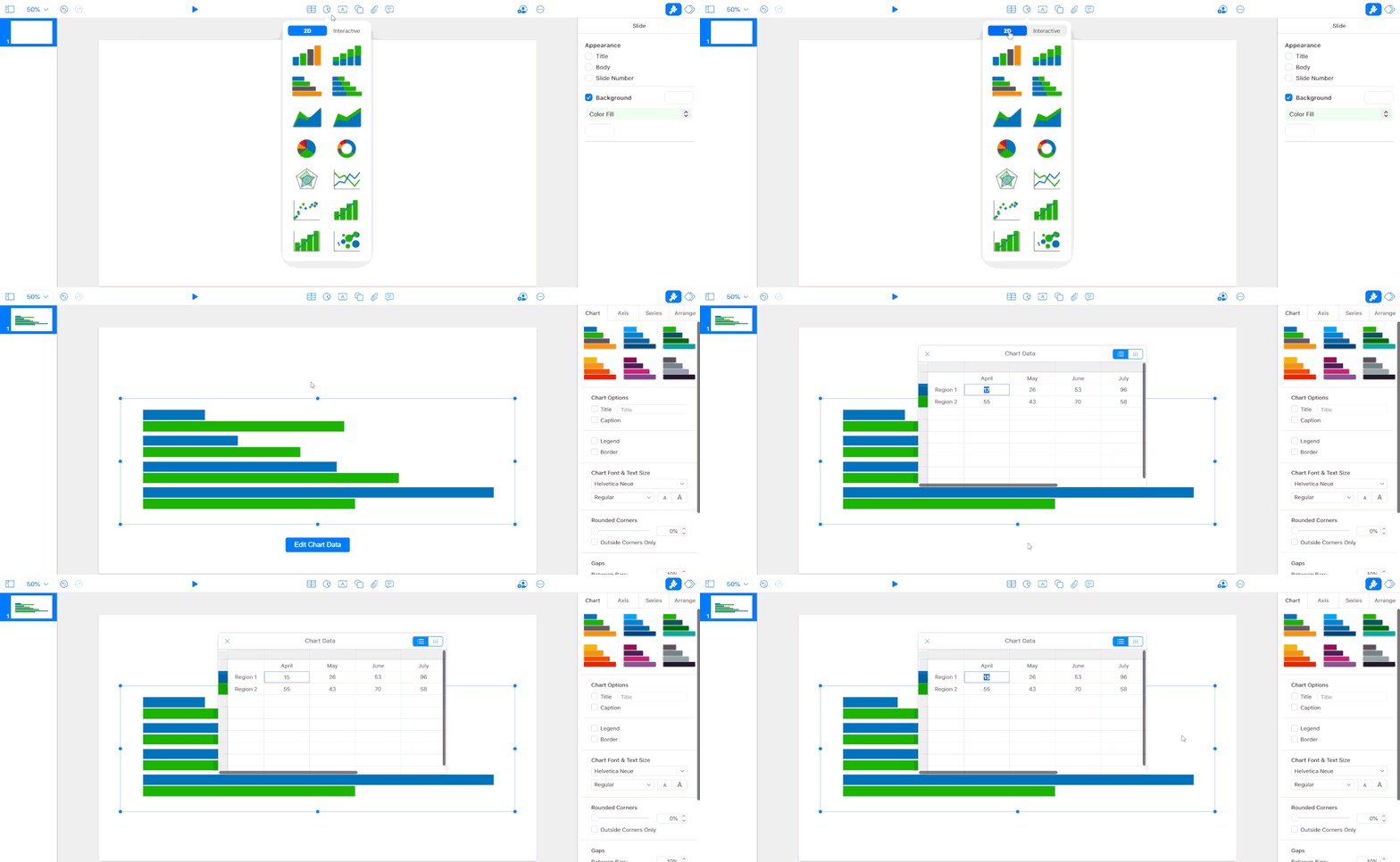
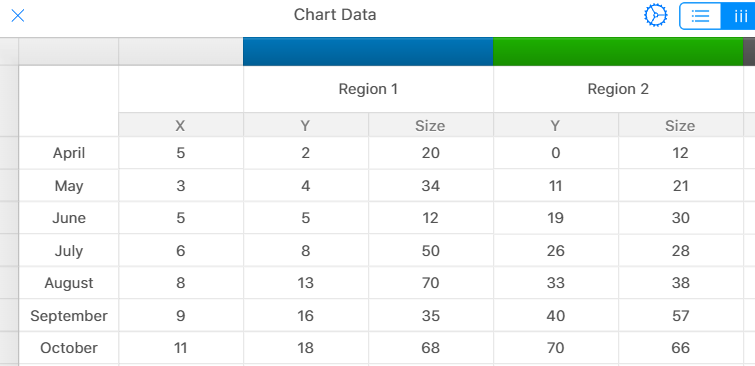
The data is edited through Keynote’s Chart Data editor. You can change labels, axes, colors, gridlines, and number formats, then show values as currencies or percentages. Some charts also support trendlines and R² values. For more complex calculations, it is usually better to prepare the numbers in Apple Numbers first and then bring the results into Keynote.
Canva vs. Keynote: AI Presentation Test
We gave Canva and Keynote the same source material and the same prompt, then compared what each tool produced before touching the slides ourselves. That kept the test simple and made the differences easier to spot. We focused on four things: how well each tool built the story, how clean the slides looked, how it handled longer source material, and how easy it was to fix one weak slide without reworking the whole deck.
Narrative Logic
It is important to note that the two tools were very different in how they interacted with the content. Canva identified the key points of every slide and distributed them around the deck, though some slides didn’t flow smoothly into the following slides. It was also edited to include some helpful bits of information. This can make the final product feel like a series of summaries, rather than one story, for an AI pitch deck generator.
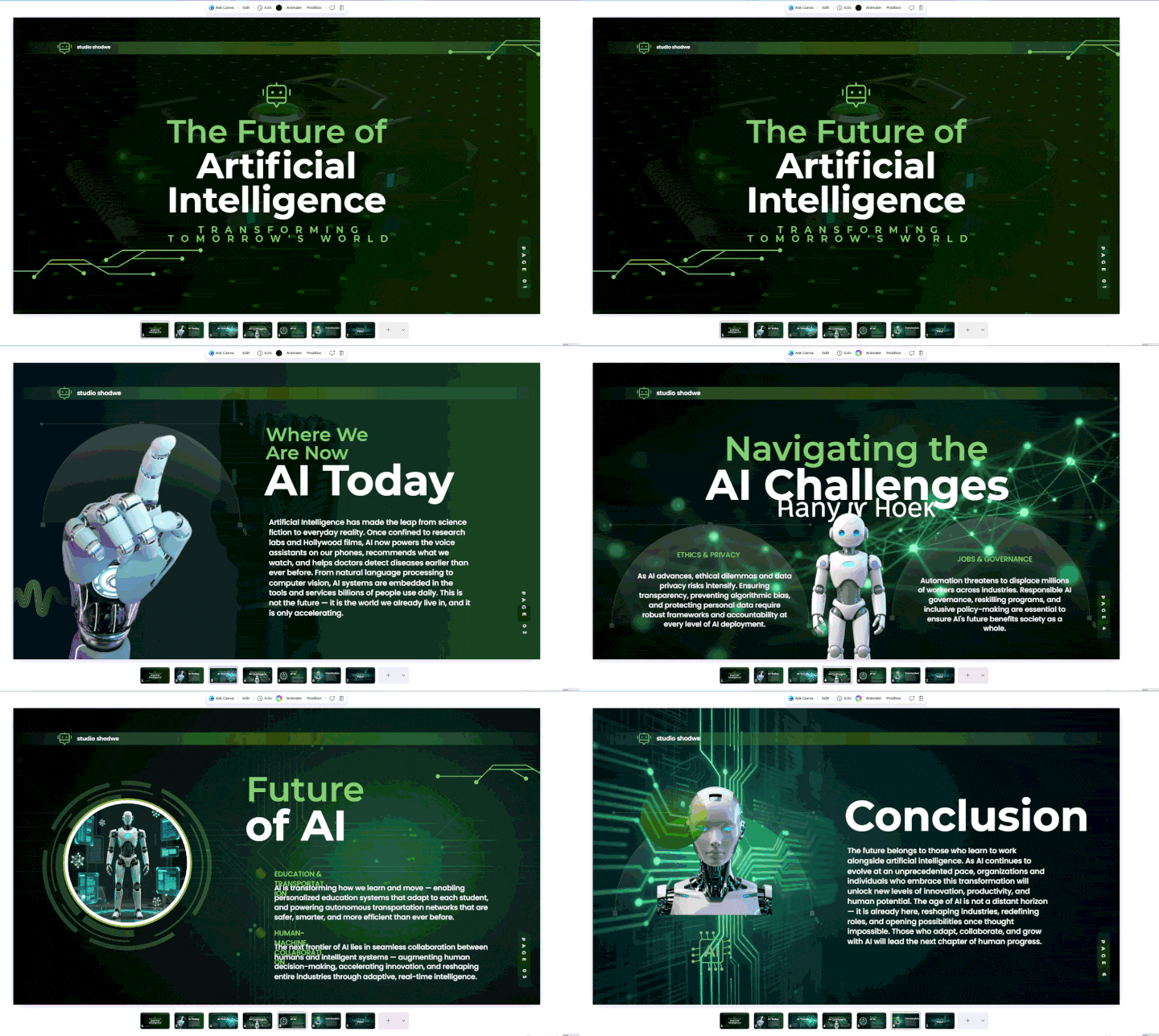
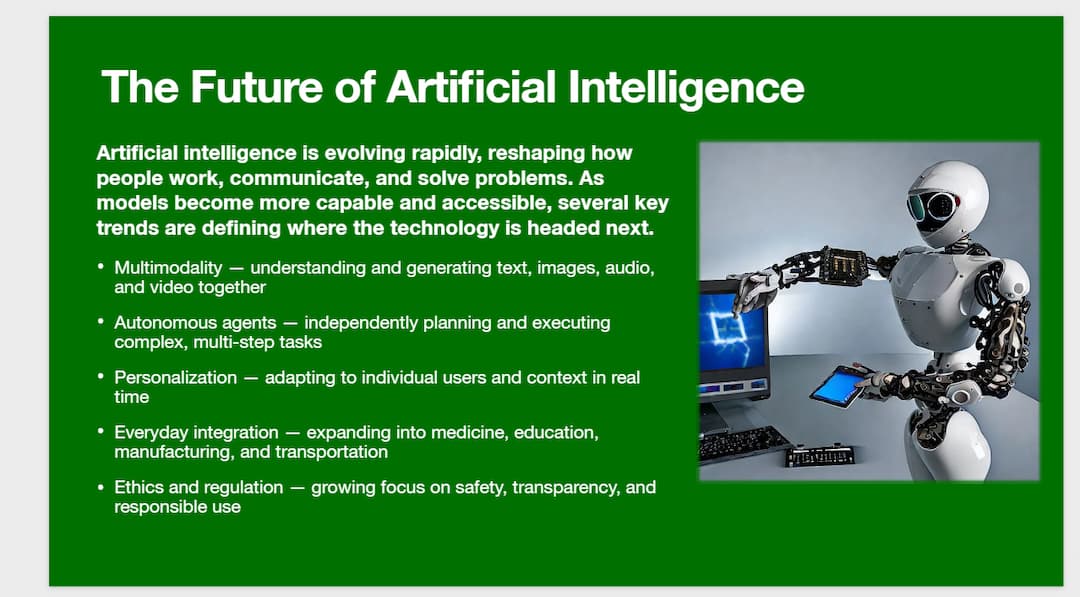
Keynote was much more on script. It was easy to follow the main points. But it couldn’t correct weaknesses in the structure or swap ideas for different locations where they would be better suited. The quality of the outcome very much hinged on the outline we gave.
Layout Quality
For an AI PowerPoint generator, the first draft should already be readable without much cleanup. Canva gave us more layout styles, images, and graphics, but longer sections sometimes made the slides feel crowded. A few text blocks also ended up too small. Keynote went in the other direction. It used shorter text blocks and more space, so the slides were easier to scan, but some looked a little bare when there was less content to work with.
Document Processing and Speed
Canva is quicker when you already have a document to work from. For PDF to PPT AI tasks, you can import a PDF directly, and Canva turns its pages into editable designs rather than flat images. Text, images, and other elements can then be changed separately, though tables and dense pages may still need manual fixes. Keynote takes a different route. Its AI slide generator works from an outline with a description and key points, so a long PDF or Word report needs to be summarized or copied into an outline first.
Editing Flexibility
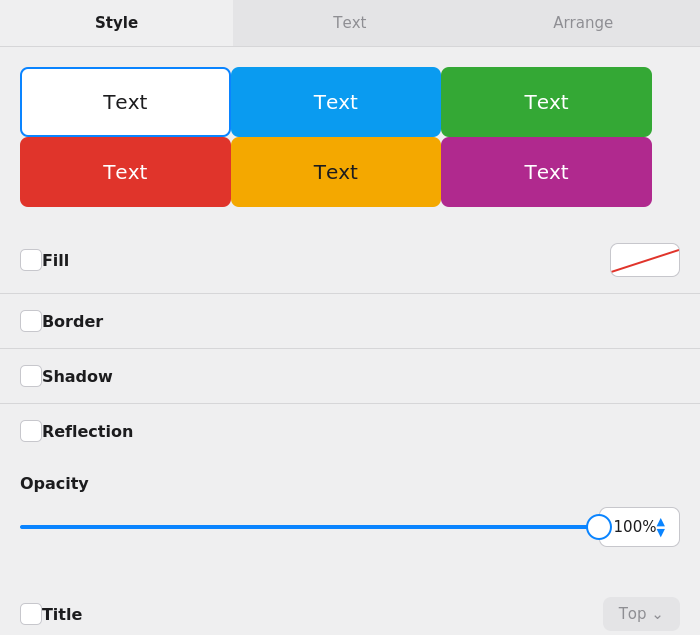
Fixing a weak slide is fairly easy in Canva. Each text box, image, chart, shape, and graphic stays editable, so you can move, resize, group, lock, or replace elements one at a time. You can also change the layout, fonts, colors, or background on a single slide without changing the rest of the presentation.
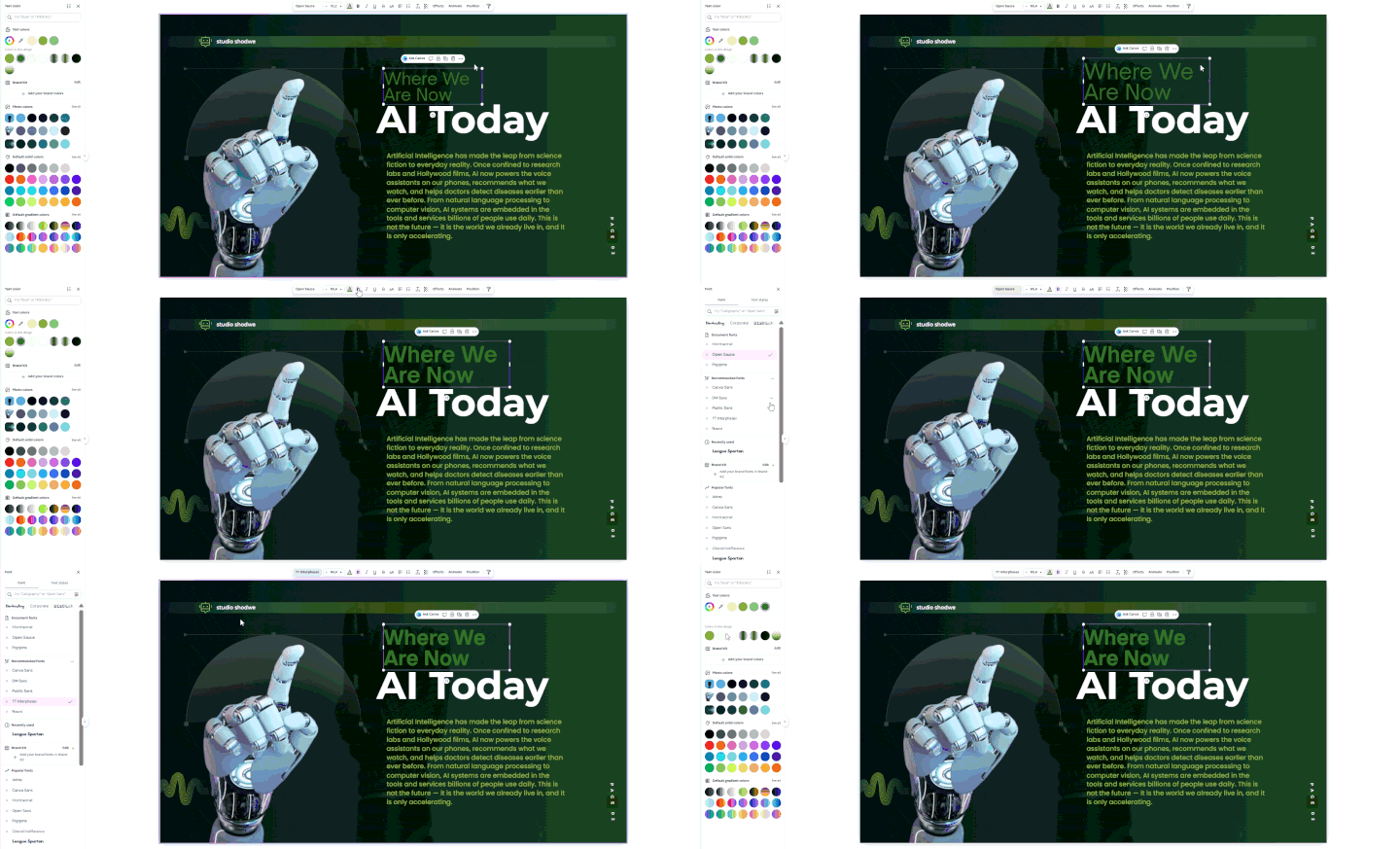
You can get the same manual controls with Keynote. It has Slide Clean Up, which can fix spacing, alignment, typography, and object placement, and Creator Studio can create a new slide within a slide deck. AI editing is still more limited. If the information or format is incorrect in one slide, it is often necessary to reword the slide or make a new slide.
This is where Decksy AI takes a different route. It works out the story and the role of each slide before moving on to design, rather than simply placing content into a ready-made layout. That becomes useful when only one part of the deck needs work. You can regenerate a weak slide on its own, change its message or layout, and leave the other slides and edits untouched.
Export Options and Compatibility
Exporting can cause problems once a presentation leaves the tool where it was made. Canva supports .pptx, PDF, and video, and you can still edit the PowerPoint file. The result is not always identical, though. Fonts may change, spacing can move, and some effects may look different after export.
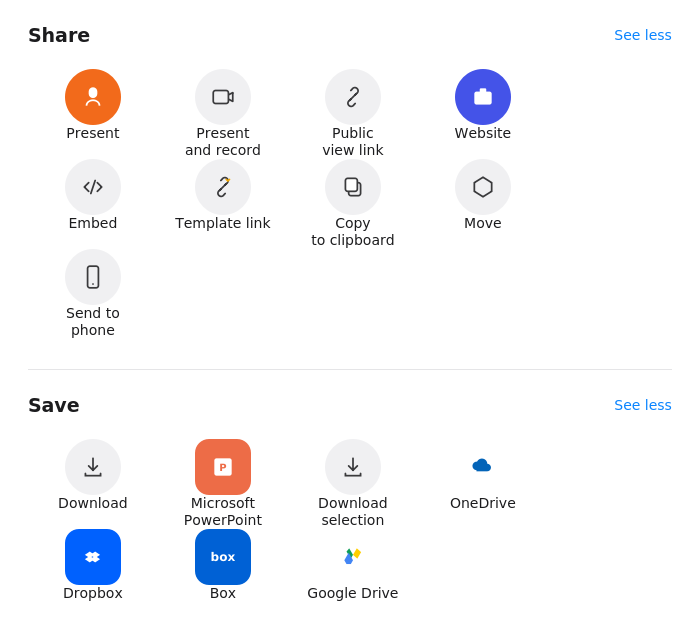
Keynote also exports to .pptx, PDF, images, GIF, and video. Its PowerPoint files stay editable, but some Apple fonts, animations, and transitions may change during conversion. For example, in a Beautiful.ai vs Gamma comparison, these details matter when a presentation has to move between different apps without creating extra work.
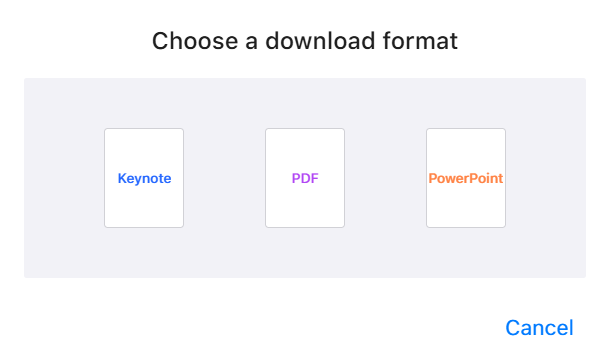
Decksy AI keeps the export process more open. Its .pptx files contain separate text boxes, shapes, and other editable elements instead of turning the whole slide into one image. The deck can then be opened in PowerPoint or moved to Google Slides for further edits, which makes more sense when a file passes between people using different presentation tools.
A Smarter Alternative: Decksy AI
If Canva leaves you fixing the story yourself and Keynote requires too much manual setup, Decksy AI fills that gap. You can start with a topic, paste an outline, or upload an existing file, then choose the number of slides and provide extra instructions.
Decksy builds the structure before it applies the design. Its Deep Research tool can also pull information from sources, cross-check key points using models such as ChatGPT, Gemini, and DeepSeek, and add citations to the deck.
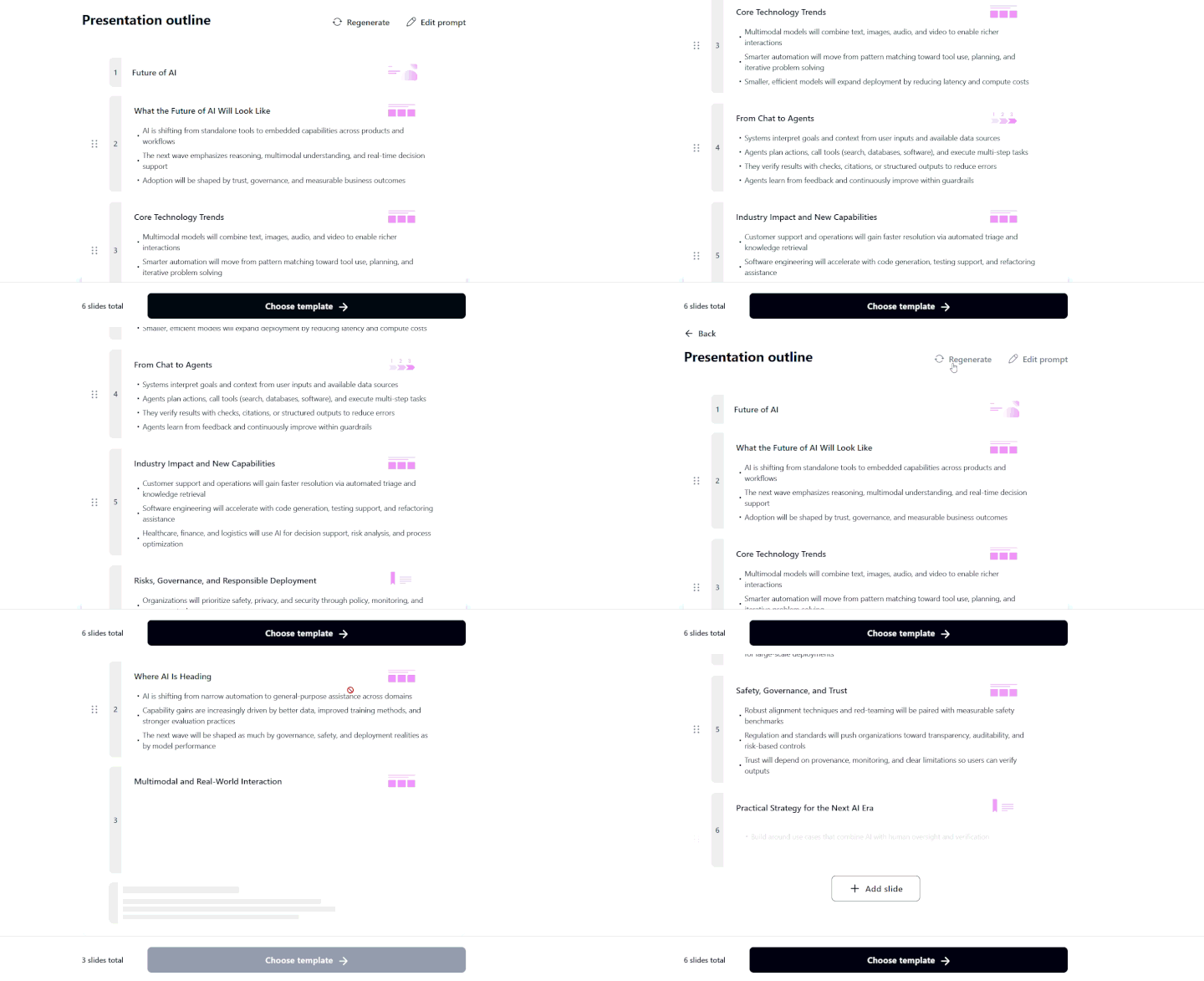
Editing is less restrictive too. If slide seven is weak, for example, you can regenerate that slide without rebuilding slides one through six. Decksy also offers hundreds of pre-made layouts and lets you export the finished deck as an editable .pptx, with text boxes, shapes, and other elements kept separate. The file can then be opened in PowerPoint or moved to Google Slides for further changes.

Sarah Michelle Carter is the Chief Human Resources Officer at Decksy, and the person most likely to remind you that a company's culture is built in the small decisions, not the mission statement on the wall. She's pragmatic about AI — not an evangelist, not a skeptic, just someone who's watched it quietly clear out the repetitive parts of the job so there's more room for judgment and attention. Known for asking better questions than she answers, she's a go-to voice on culture, leadership, and where AI genuinely helps teams versus where it gets in the way.