


















Canva vs Google Slides: Which Is Better This Year?
Creating a presentation is about more than making attractive slides. Your workflow matters just as much as the final design. The right tool can save time, simplify edits, and make teamwork easier.
The real question is not simply Canva vs Google Slides. It is about how you work. Do you need design freedom? Do you need live data? Do you need fast collaboration? Or do you need AI to build the whole story?
We compare both platforms across those exact needs. We also test where Decksy AI fits into the workflow.
| Feature | Canva | Google Slides |
| Free plan | Yes | Yes |
| Main strength | Visual design | Collaboration |
| Templates | Very large library | Smaller library |
| AI presentation tools | Yes | Gemini features vary by plan |
| Live Sheets links | Limited compared with Slides | Yes |
| Stock assets | Very extensive | Basic |
| Brand controls | Strong with Pro | Theme-based |
| PPTX export | Yes | Yes |
| PDF export | Yes | Yes |
| Real-time teamwork | Yes | Excellent |
| Best for | Creators and marketers | Teams and educators |
| Document-to-deck workflow | Available through Canva tools | More manual |
📌 Canva offers over 1.6 million templates and millions of media assets. Google Slides focuses on teamwork and Google Workspace. So, Canva suits visual variety, while Google Slides works better for connected workflows.
TL;DR: Final Verdict & Recommendations
The Canva vs Google Slides comparison becomes easier after looking beyond templates. Ask what happens before and after the slides. Do you start with a blank canvas? Do you start with a document? Do your numbers change every week? Do several people edit the deck? Those questions matter more than template counts.
☑️ Choose Canva if:
- You need strong visual design and creative freedom.
- You want a big library of templates and assets.
- You create branded, marketing, or social presentations.
- You prefer using pre-made layouts rather than designing your own slides.
☑️ Choose Google Slides if:
- You have to collaborate with your team in real time.
- You already work with Google Workspace.
- You need presentations connected to Google Sheets.
- You want several people to edit the same deck.
☑️ Choose Decksy AI if:
- You need to turn long documents into presentations quickly.
- You want AI to structure your content before you design the slides.
- You need professional decks without extensive manual formatting.
- You want to regenerate individual slides during revisions.
When deciding between Google Slides or Canva, start with your biggest bottleneck. Choose Canva for visuals, Slides for teamwork, or Decksy for document-heavy presentations and faster editing.
Ultimately, presentation software should save time. It should also preserve control after generation. That is where editable output becomes important. It is also where Decksy offers a useful middle ground. You get AI assistance without abandoning familiar editing workflows.
Pricing, Free Plans, Packages & Target Audience
Price can change the decision quickly. Both platforms offer free entry points. Their paid models work differently. Pricing is one of the first things you’ll want to look at when comparing Google Slides vs Canva.
Canva
Canva has a Free plan for individual users. It comes with a drag-and-drop editor. It also offers templates and media assets.
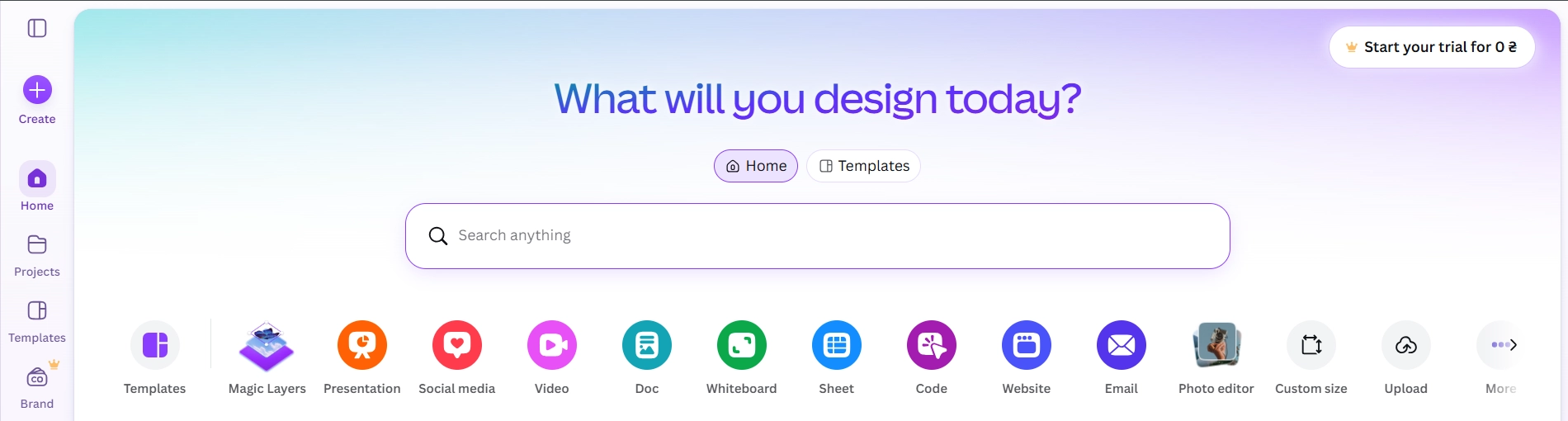
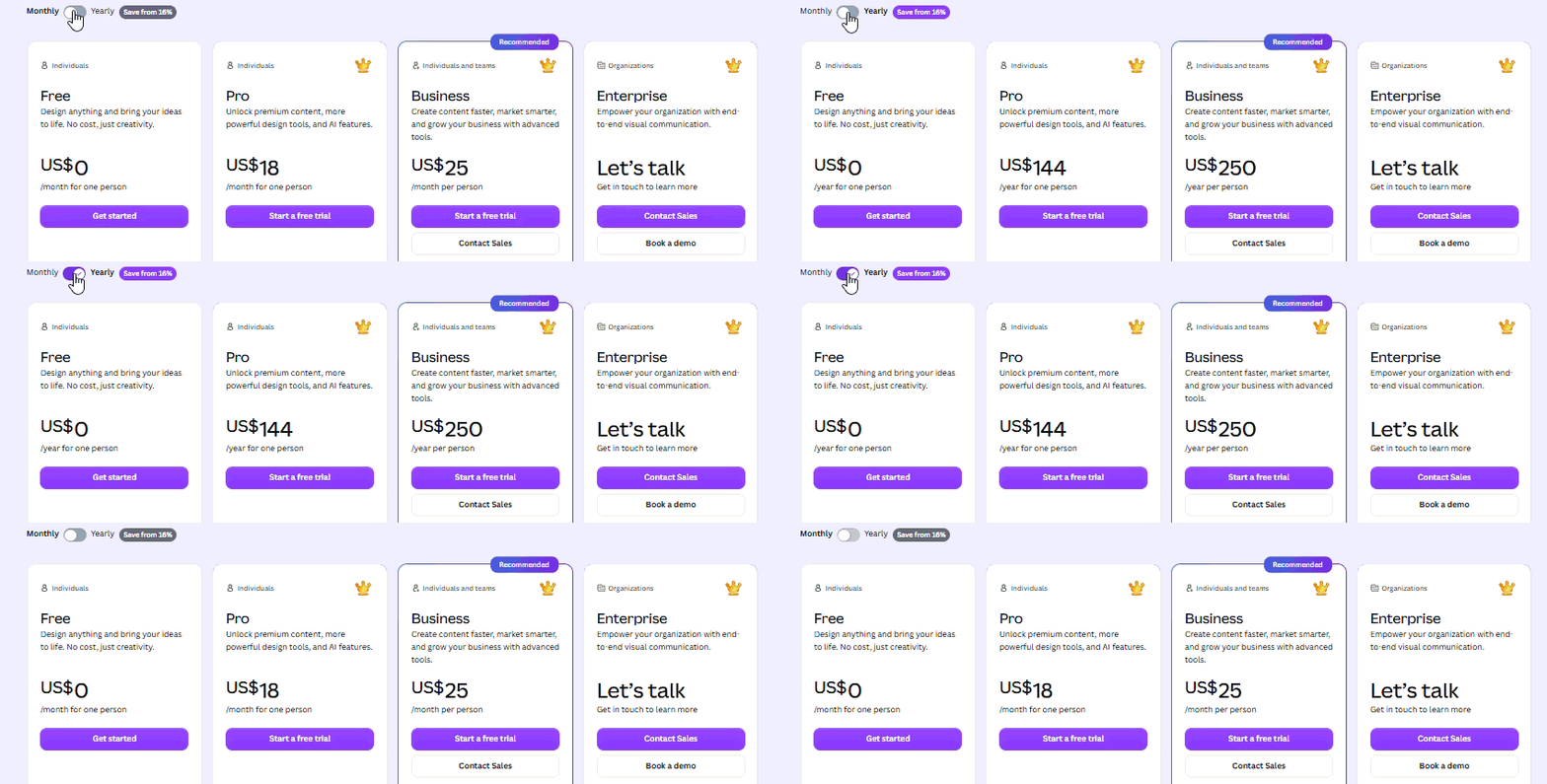
The Free plan includes 5 GB of storage, 3+ million stock assets, and 2+ million templates. It also offers limited AI use. Canva cites as many as 20 standard or premium AI uses. Canva Pro adds more premium assets. It also adds advanced AI features and brand tools. Canva currently lists Pro at $144 yearly. Pricing can vary by region and billing option.
📌 IMPORTANT: Pricing may vary by region, so please check for your area. The prices below are based on the English version of the Canva website.
The main paywall is premium content. Free users may encounter Pro assets. Those assets can require payment or an upgrade.
Canva also offers plans for schools, universities, and nonprofits.
| Plan | Best for | Main features |
| Free | Beginners | Templates, stock assets, 5 GB storage, basic AI |
| Pro | Individuals | Premium assets, Brand Kit, AI tools |
| Teams | Small teams | Collaboration, shared branding, admin tools |
| Enterprise | Large organizations | Security, SSO, integrations |
| Education | Schools | Classroom templates, LMS tools, collaboration |
| Campus | Universities | Team features and support |
| Nonprofits | Eligible nonprofits | Team features for up to 50 users |
So, Canva is good for solo creators and marketing teams. It also works well for teachers and social media teams. Its large design library helps non-designers. You can start with an existing visual system.
Google Slides
Google Slides itself can be used with a free Google account. That makes basic presentation creation accessible. Business users can also access the tool through Google Workspace.
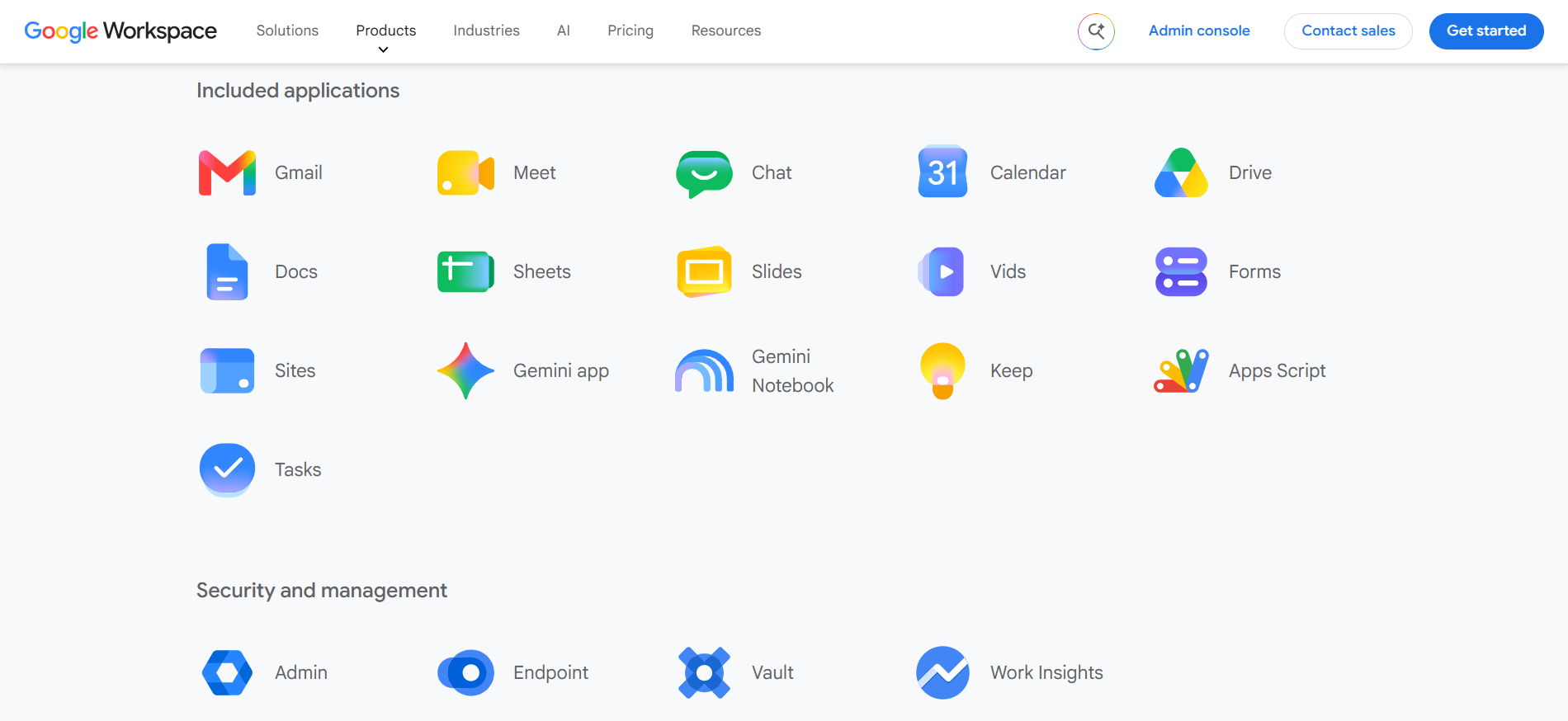
Workspace pricing depends on the selected plan. Current Workspace pricing lists Starter at $7 per user monthly. Standard is listed at $14 per user monthly.
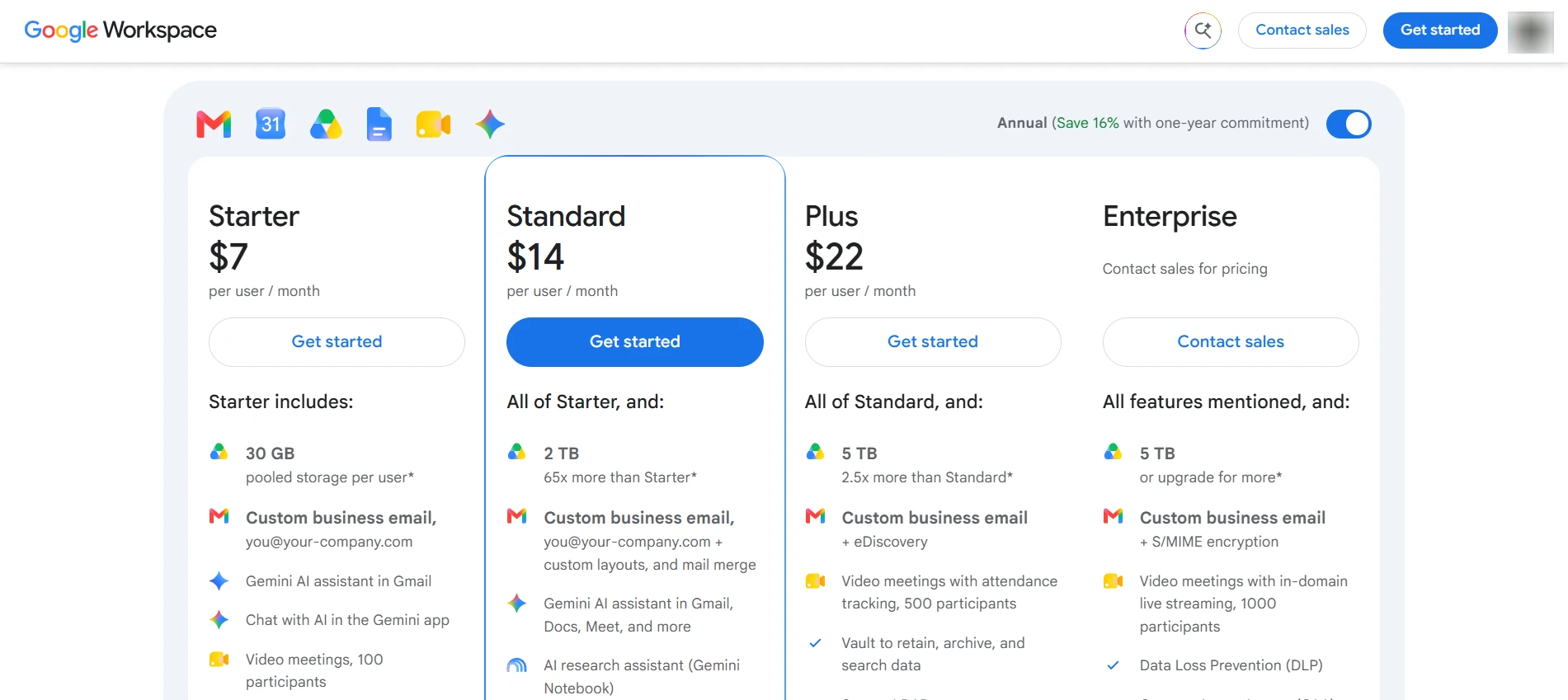
Google also offers higher Workspace plans. These add storage, security, administration, and AI access. Gemini availability depends on the Workspace plan. Some AI features are therefore not universal.
| Option | Best for | Main features |
| Free | Individuals and students | Basic visuals, Drive storage, real-time collaboration |
| Business Starter | Small teams | 30 GB storage, custom email, core Workspace tools |
| Business Standard | Growing teams | 2 TB storage, enhanced collaboration, more AI features |
| Business Plus | Larger teams | More storage, advanced security, additional admin controls |
| Enterprise | Large organizations | Enterprise security, advanced administration, custom support |
So, Google Slides works especially well for collaborative teams. If you’re trying to decide which is better Google Slides or Canva, teamwork could be the essential factor. If your goal is to turn existing content into presentation pages, there may be another workflow that suits you better.
Decksy AI presentation maker is all about making slideshows from source material, with a $2 seven-day trial and a $9.99 monthly plan. That makes it worth considering for short projects. It also targets users who need finished presentations quickly.

Many AI tools place export limits behind higher plans. Decksy focuses on editable presentation output instead.
Design Assets, Templates & Customization
This is where Canva slideshow vs Google Slides feels most different. Canva starts with visual choice, while Google Slides starts with presentation structure.
| Canva | 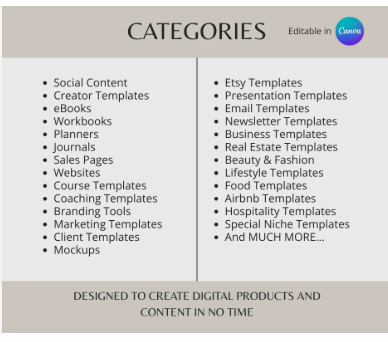 |
| Google Slides | 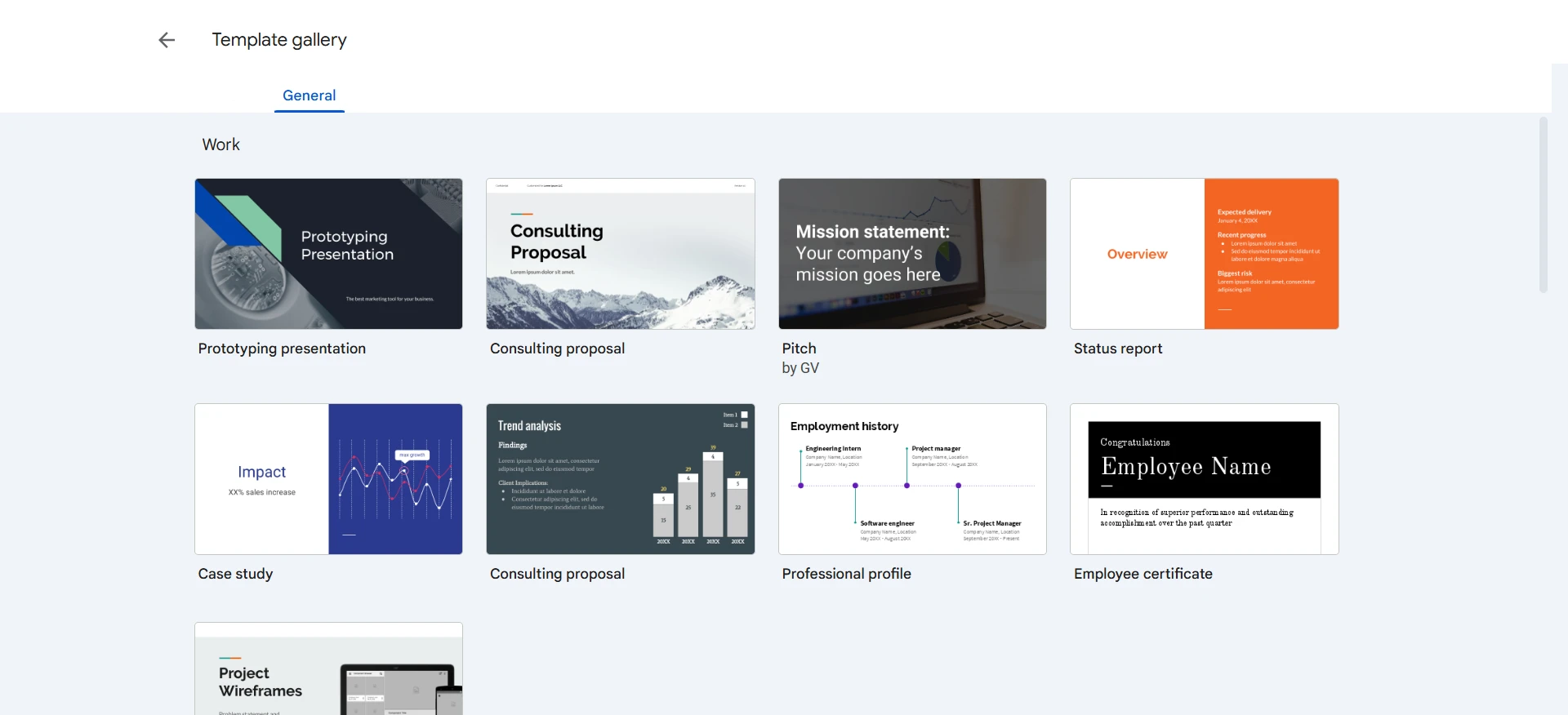 |
Canva
Canva has an enormous template ecosystem. Its presentation library covers business, education, sales, and marketing. The platform lists more than 3.6 million presentation templates. The exact availability depends on the plan.
The quality is generally varied. Some templates look highly modern; others can feel overused or dated. That variety is useful, though. You can search for a specific visual style. Canva also offers extensive stock photography. Its current pricing page lists over 141 million assets on paid plans.
Google Slides
This tool has a smaller template ecosystem. Its themes feel more restrained. That can be an advantage for corporate work. You spend less time choosing between hundreds of styles. The service also supports imported themes. Teams can build presentations around shared visual standards. Their design tools aren’t as creative as Canva’s. They still suffice for standard business decks.
📌 Canva provides flexible brand controls with Brand Kit, whereas Google Slides uses themes and master layouts. Canva gives more design freedom; Slides keeps presentations more consistent.
Data Visualization, Charts & Spreadsheet Links
Beautiful presentation pages are nice, but the numbers still need to be correct. Spreadsheet support can be a big factor if you’re wondering, “Is Google Slides or Canva better?”;
Canva offers many chart styles and data templates. It makes numbers look clean and interesting. But frequent data changes may mean more manual work.
Google Slides connects charts directly to Google Sheets. Update the spreadsheet, and the linked charts can update too. It also works with Excel charts. So, like Prezi vs Miro, the better fit depends on your workflow.
Here’s a quick look at how they compare:
| Feature | Canva | Google Slides |
| Built-in charts | ✅ | ✅ |
| Chart customization | Excellent | Good |
| Visual styles | Excellent | Moderate |
| Spreadsheet links | Basic | Excellent |
| Excel workflows | Moderate | Good |
| Best for | Visual reports | Live data presentations |
Deep 1-to-1 AI Test
Let’s see a practical comparison of Canva with Google Slides. We gave both tools the same 10-page real estate market report. It included market trends, sales figures, charts, and recommendations. Then, we looked at what each tool actually did with the content.
Narrative Logic
Canva did a good job turning the report into a visual story. It highlighted the major trends and clustered similar points together. A few visuals had the same idea though, so it took a little tweaking in the flow.
Google Slides gave us more control over the order of information. It was easy to rearrange sections and create a logical sequence. The downside was that more of this work needed to be done manually.
🏆 Winner: Canva
Layout Quality
Canva clearly got the visual polish. Most of the pages looked balanced at first glance; the charts, images, and text all worked well together. There were a couple of data-heavy slides that felt a little busy.
Google Slides was clean and simple. The layouts were good for the report, but needed more manual styling to be presentation-ready. This is worth noting when comparing tools such as Prezi vs Sway, where presentation style can also influence the overall experience.
🏆 Winner: Canva
Document Processing
Canva handled the report quite well. It picked out useful information and turned the main sections into slides. We still had to check the results against the source, especially where numbers were involved.
Google Slides was less automatic here. It worked well once the content was in the deck, but getting a long report into a finished presentation took more effort.
🏆 Winner: Canva
Editing Flexibility
You can change almost anything on a Canva slide. Moving a chart, replacing an image, or changing the layout takes little effort. The downside is that it takes more care to keep each slide consistent.
Google Slides seems easier for making small changes. Edit text and charts quickly. Team members can edit the same deck simultaneously. This makes it especially useful for collaborative projects.
🏆 Winner: Google Slides
Overall AI Performance
| Category | Canva | Google Slides |
| Story structure | ⭐⭐⭐⭐☆ | ⭐⭐⭐⭐☆ |
| Slide design | ⭐⭐⭐⭐⭐ | ⭐⭐⭐⭐☆ |
| Document processing | ⭐⭐⭐⭐☆ | ⭐⭐⭐☆☆ |
| Editing freedom | ⭐⭐⭐⭐⭐ | ⭐⭐⭐⭐⭐ |
Decksy AI’s Different Approach
The same report also shows where Decksy AI takes a different approach. Instead of jumping straight into slide design, it starts by working through the source content and presentation structure.
The presentation pages are then built around that structure. You can also regenerate one slide without changing the rest of the deck. For a long report, this can save a lot of time during revisions.
Export Options & Ecosystem Compatibility
Export sounds boring until something breaks. A beautiful deck becomes less useful if editing disappears. This matters when deciding which is better Canva or Google Slides, for professional workflows.
Canva
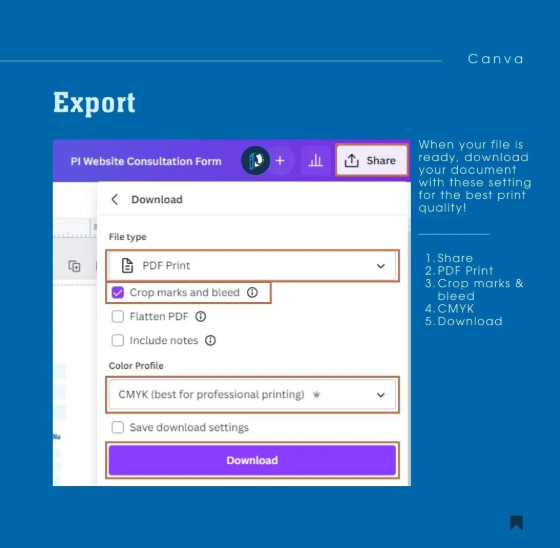
Canva supports PowerPoint export. Users can convert presentations into PPTX files. Canva also supports PDF and other output formats.
It can import presentations too. Canva supports moving presentations into Google Drive. Still, conversion can change certain elements. Complex layouts may need to be checked after export.
Fonts and special effects can also behave differently. Always inspect important PPTX files before presenting.
Google Slides
Google Slides works naturally with Google formats. It also supports PowerPoint downloads. Google confirms PPTX and PDF downloads from presentation mode.
This creates a strong ecosystem advantage. Files stay connected to Drive. Teams can share and edit them quickly.
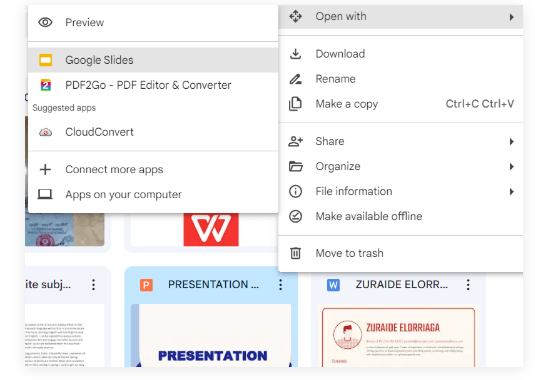
Google Slides also supports collaboration with PowerPoint users. If you’re asking “Is Canva or Google Slides better?”, the answer depends on your export needs. Here’s how the main export options compare:
| Feature | Canva | Google Slides |
| PowerPoint export | ✅ | ✅ |
| PDF export | ✅ | ✅ |
| Image export | ✅ | ❌ |
| Video export | ✅ | ❌ |
| Editable text in PPT | Usually | ✅ |
| Browser lock-in | No | No |
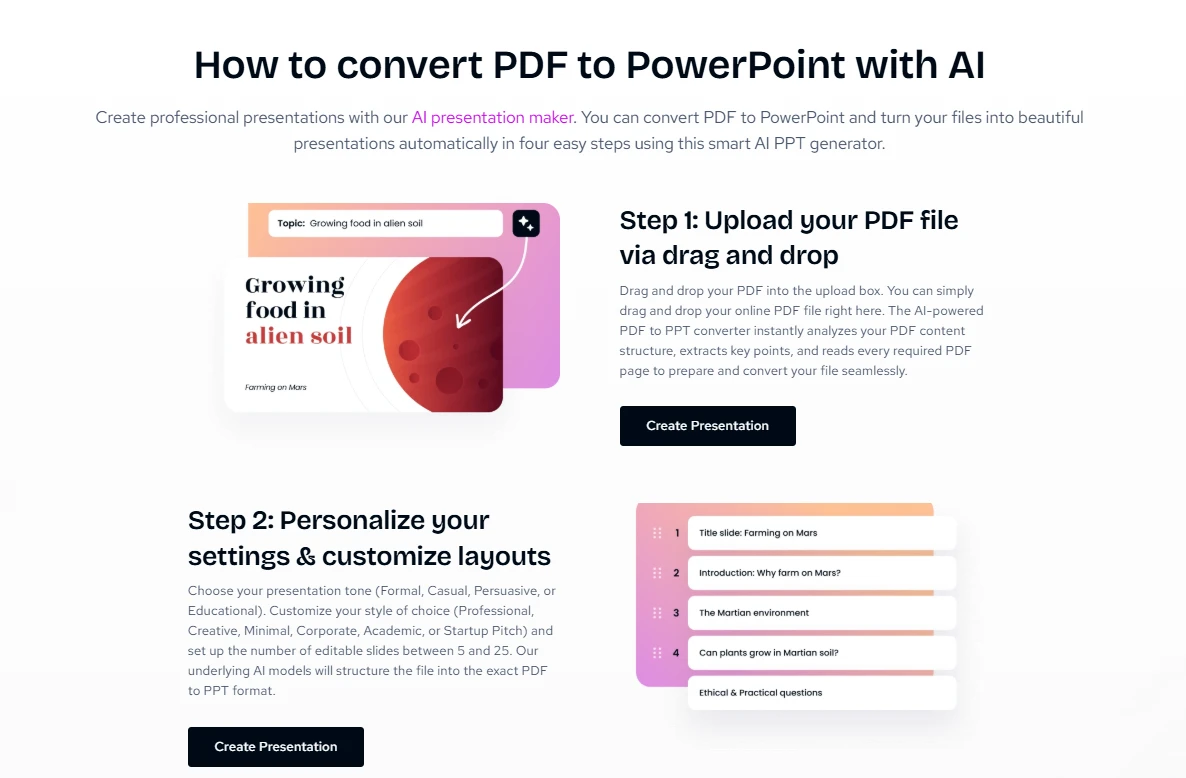
If you want more flexibility beyond these two tools, Decksy takes a similar export-first approach. This tool follows a zero-lock-in philosophy. Its goal is an editable presentation file. The output can continue inside familiar presentation software.
That matters when clients require PowerPoint. It also matters when teams use Google Slides. The result is not intended to trap users in a single browser editor.
The Smart Alternative
Sometimes neither traditional option fits. Canva may feel too design-focused. Google Slides may require too much manual formatting. Decksy AI sits between those workflows. It starts with your source material. That material can include documents, reports, and other content. The system then creates a structured presentation.
This approach also differs from tools like Plus AI vs Gamma.app design comparison, where the focus can be more design-driven. Decksy starts with the content and builds the story around it. This is different from starting with an empty slide.
See how Decksy turns source material into a structured presentation.
From documents to presentations
Imagine receiving a 30-page report. You could read it first. Then outline it and create slides. Then format every slide. That process can take hours.
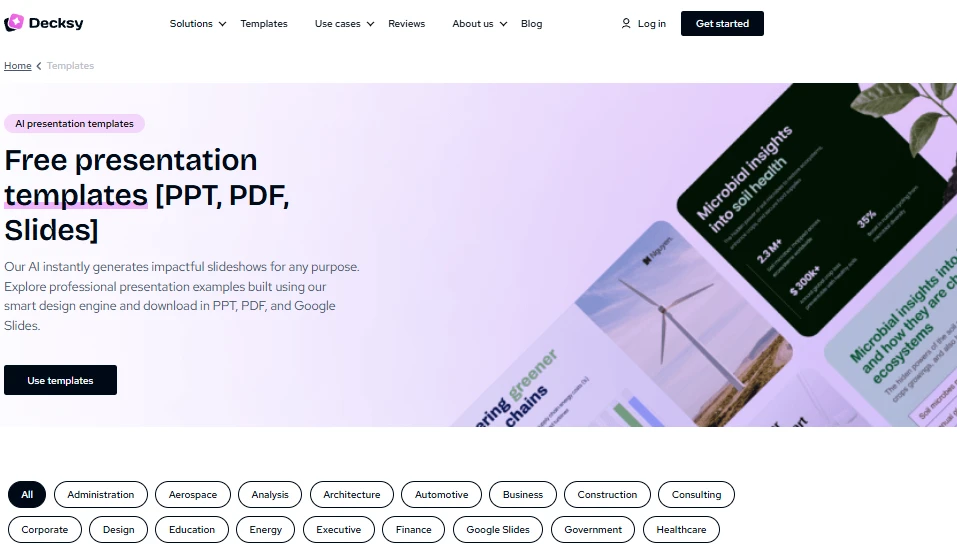
Decksy is built around shortening that workflow. Its Word-to-PPT tool promotes automated conversion. It also lists more than 100 professional presentation templates.
The important part is the sequence. First comes the information. Then comes the presentation structure. And design follows that structure.
Single-slide regeneration
Another useful feature is targeted regeneration. Suppose one slide has too much text. You should not need to rebuild the whole deck.
Decksy allows users to regenerate individual slides. This makes last-minute editing more practical. That matters during client reviews. One requested change should not destroy ten finished slides.
Editable output
Decksy also focuses on editable presentation files. This makes the workflow useful after AI generation. You can continue editing the deck in familiar presentation software. That is especially useful for teams using Google Slides.

I am Prof. Hami. Over the years, I have been professionally writing on various topics, mainly in the areas of business, entrepreneurship, patient care, and English. I always follow all the requirements that are written in the task. By hiring me you will no longer need another writer.