

















Keynote vs Google Slides: Which to Use This Year?
A presentation can look great and still take hours to finish. The tool you choose affects how quickly you build, edit, and share it.
Keynote and Google Slides have different ways of doing presentations. One fits naturally into the Apple ecosystem. The other is easy browser-based collaboration.
Your choice also depends on your daily workflow. Maybe you want more control over design, easier collaboration, or faster AI support.
This Keynote vs Google Slides guide compares both tools. It also looks at where Decksy AI can fit into the process.
| Feature | Keynote | Google Slides |
| Free access | Yes, on Apple devices and iCloud | Yes |
| Main strength | Visual presentation design | Collaboration |
| Templates | Strong collection | More limited |
| AI presentation maker | Limited compared with Slides | Gemini features |
| Spreadsheet links | Basic | Strong with Google Sheets |
| Visual effects | Excellent | Good |
| Apple integration | Excellent | Limited |
| PPTX export | Yes | Yes |
| PDF export | Yes | Yes |
| Real-time teamwork | Yes with iCloud | Excellent |
| Best for | Apple users and polished decks | Teams and browser workflows |
| Document-to-deck workflow | More manual | More manual |
📌 So, Keynote focuses on polished presentation design, whereas Google Slides focuses on access and teamwork. Your existing workflow can make one fit much better.
TL;DR
The Keynote vs Google Slides comparison becomes clearer when you don’t look beyond templates.
Ask where you work most often. Think about your team, your data, and your file formats. Those details can matter more than visual features alone.
☑️ Choose Keynote if:
- You mainly use a Mac, iPhone, or iPad.
- You want a polished presentation design.
- You care about animations and visual effects.
- You prefer detailed control over each page.
- You often make presentations from Apple devices.
☑️ Choose Google Slides if:
- You need browser-based access.
- Several people edit the same presentation.
- Your team already uses Google Workspace.
- You work with Google Sheets data.
- You need simple sharing and permissions.
☑️ Choose Decksy AI if:
- You start with reports or documents.
- You want AI to organize source material.
- You need to create presentations quickly.
- You want to regenerate individual pages.
- You still need editable presentation files.
When deciding which is better Keynote or Google Slides, start with your biggest workflow problem.
For Apple-first design, Keynote offers a strong fit. For teamwork, Google Slides has clear advantages. For document-heavy projects, Decksy offers another workflow.
Each tool suits a different way of creating presentations. The best fit depends on your devices, collaboration needs, and the type of presentation you create most often.
Pricing, Free Plans, Packages & Target Audience
Price is only part of the decision. Where and how you work matters too. That becomes important when looking at Google Slides vs Keynote.
Keynote
Keynote is available on Apple devices. It also works through iCloud on the web. Apple lets users create presentations from themes and edit them across supported devices.
Keynote does not use the same subscription model as Google Workspace. For many Apple users, the app is already part of their device ecosystem. Keynote itself is free to download and use on supported Apple devices, and there is no paid Keynote package or monthly subscription.
Keynote is also available through iCloud for users who work across devices, and paid iCloud+ plans provide extra storage for users who need more than the free iCloud storage. iCloud also syncs presentations across supported devices and safely stores them in the cloud.
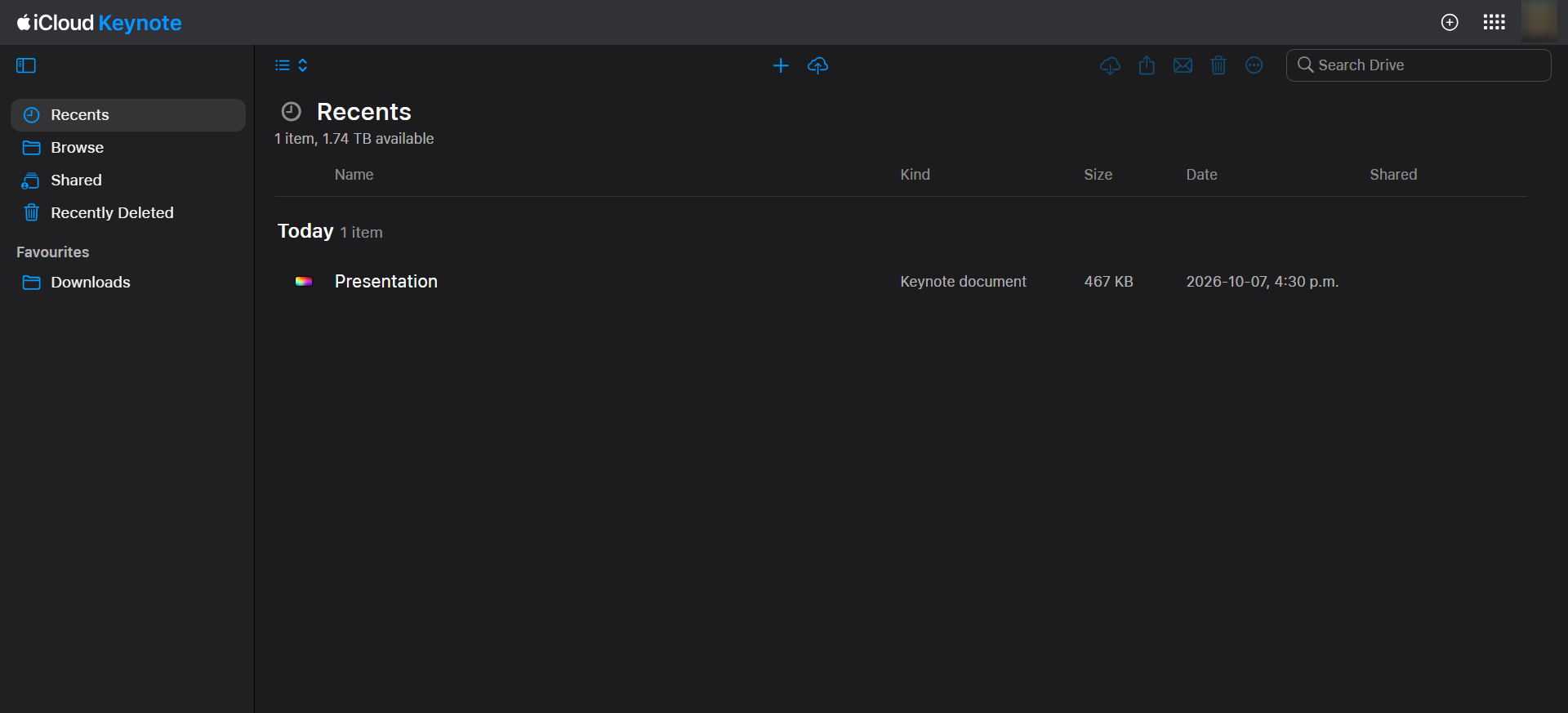
Keynote makes the most sense for those already in the Apple ecosystem. It’s also great for users who care about the polish of presentations.
| Option | Best for | Main features |
| Keynote app | Mac, iPhone, and iPad users | Themes, animations, charts, editing |
| Keynote for iCloud | Browser users | Create, edit, and share presentations |
| iCloud collaboration | Small teams | Shared editing and cloud storage |
| Apple ecosystem | Existing Apple users | Cross-device access |
Google Slides
Google Slides is a web browser application and requires no installation on your desktop. With a Google account, you get basic presentation creation.
Another thing to consider is the pricing model for users comparing Google Slides and Keynote. Business users can try Slides through Google Workspace. Current Workspace plans include Starter, Standard, Plus, and Enterprise options. Starter is currently listed at $7 per user per month. Standard is $14 per user per month.
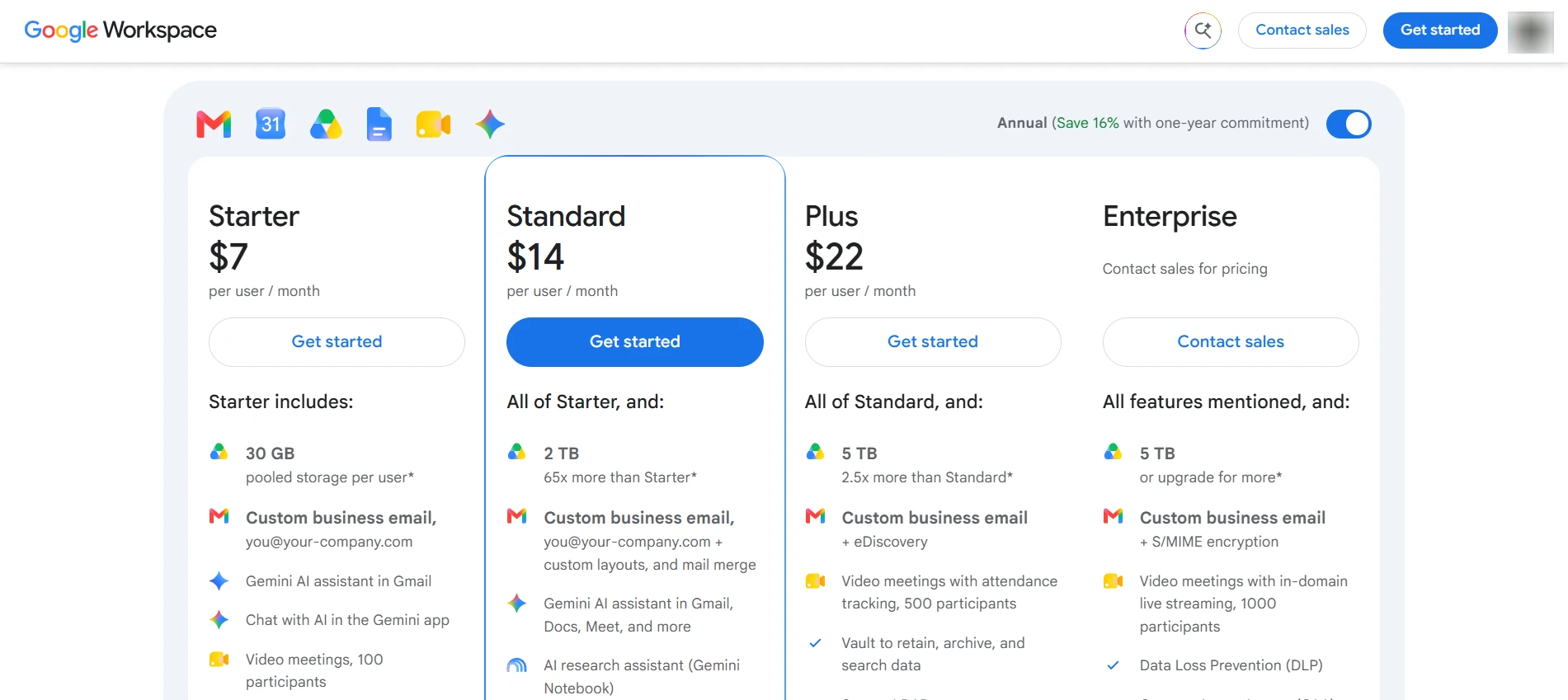
Gemini features vary by Workspace plan. Google now promotes AI features directly inside Slides. These include generating slides, creating images, and summarizing content.
| Option | Best for | Main features |
| Free | Individuals and students | Slides, Drive, sharing |
| Business Starter | Small teams | Workspace tools, 30 GB storage |
| Business Standard | Growing teams | 2 TB storage, more AI access |
| Business Plus | Larger teams | More storage and security |
| Enterprise | Large organizations | Advanced controls and administration |
So, the choice of a presentation maker depends partly on your ecosystem. Apple users may prefer local integration, whereas teams may value browser access more.
Design Assets, Templates & Customization
This is where the Keynote slideshow vs Google Slides experience feels noticeably different. Keynote is more geared towards polished presentation design.
| Keynote | 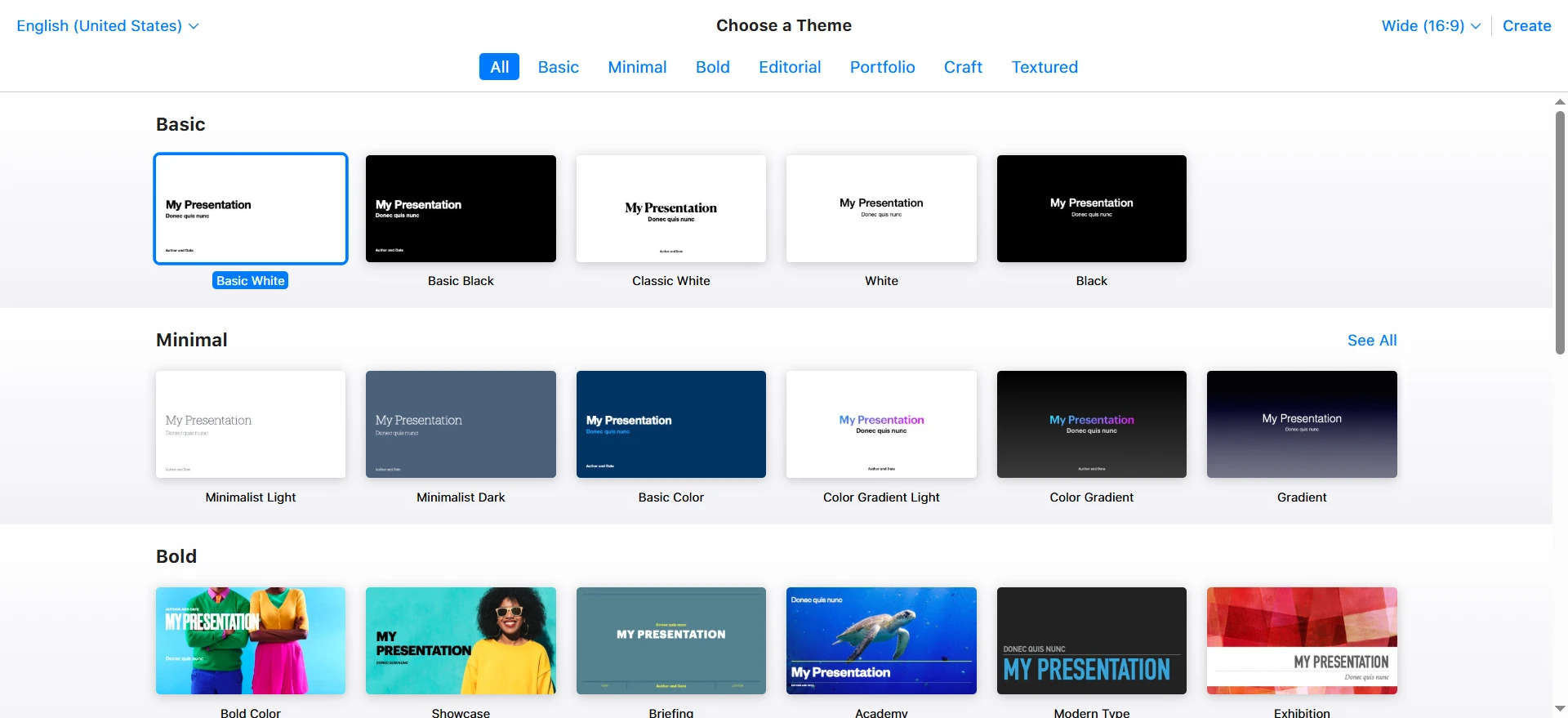 |
| Google Slides | 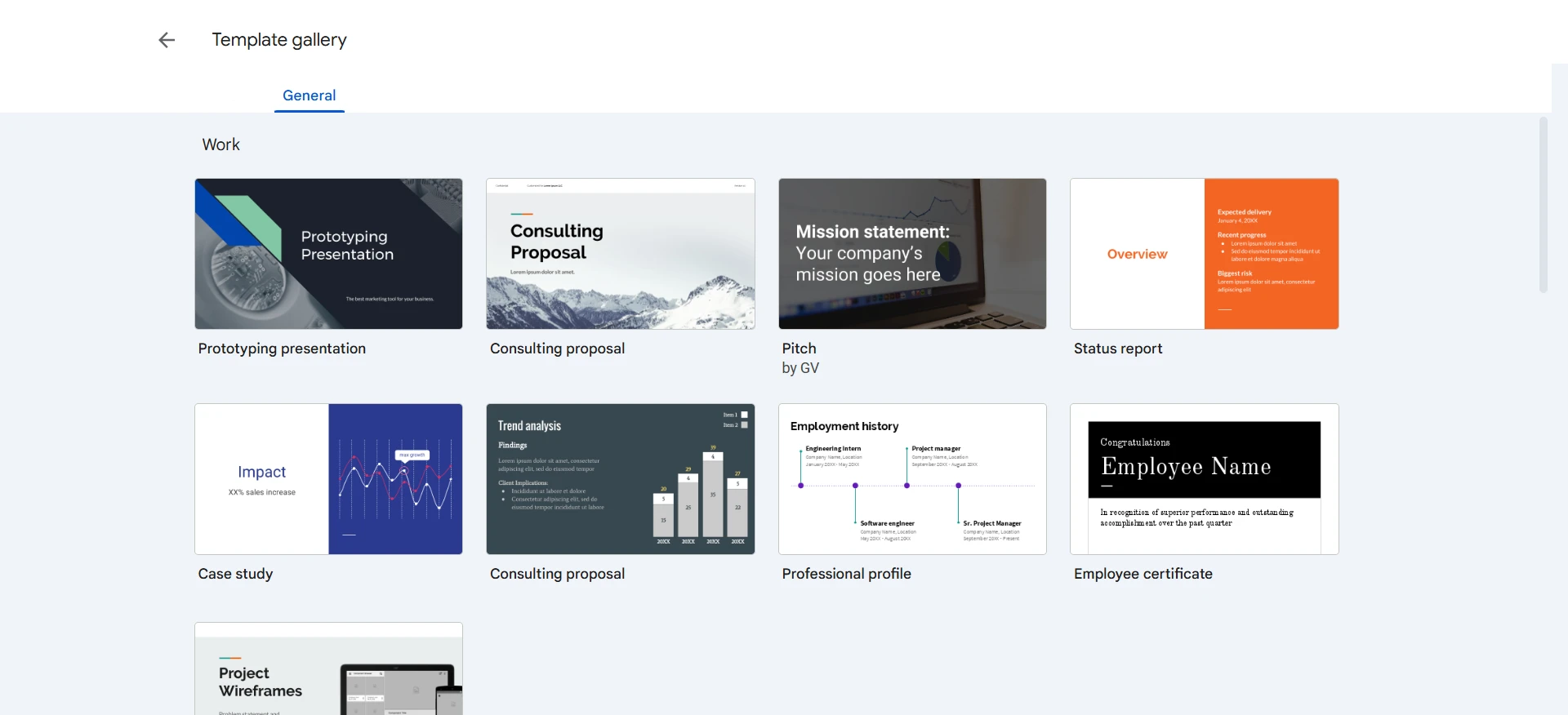 |
Keynote
Keynote starts with professionally designed themes. These provide layouts, typography, and visual styles from the beginning. You can also create custom themes. Apple lets users save their own layouts and reuse them later.
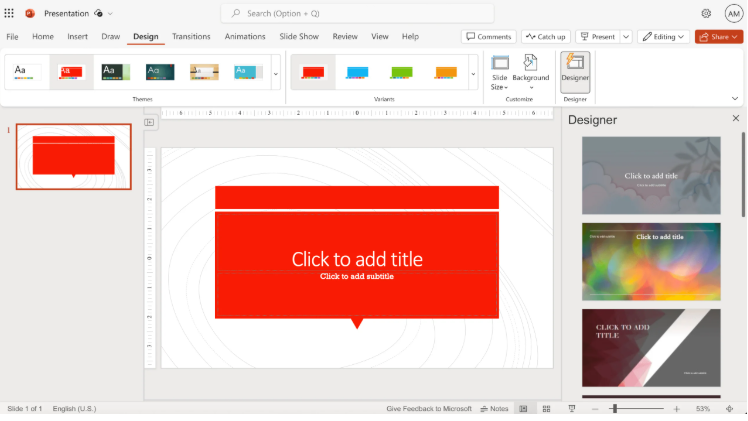
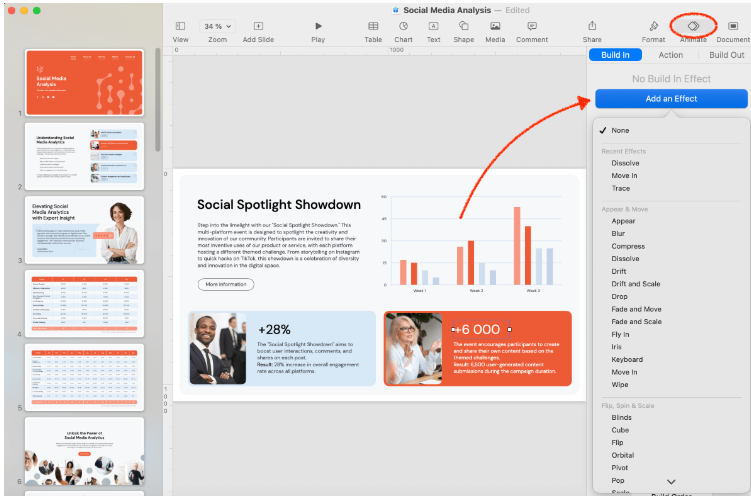
Animations are another big plus. Keynote has more presentation motion effects than Google Slides. This can be useful if you want a deck to be more dynamic.
The downside is the lack of flexibility outside the Apple ecosystem. Some workflows feel less convenient when your team uses other platforms.
Google Slides
Google Slides uses themes rather than a huge visual marketplace. That keeps the starting point fairly simple.
You can change layouts, colors, fonts, images, shapes, and backgrounds. You can also import themes and build reusable presentation styles. This tool has fewer built-in design options than Keynote. Still, that can make it easier to standardize business presentations.
For users comparing Figma Make vs Canva Magic Design, the same question applies here. How much creative control do you want from the start?
Data Visualization, Charts & Spreadsheet Links
A presentation can look great and still contain weak data. Spreadsheet support matters when numbers change often.
Keynote supports charts and tables directly inside presentations. You can change their look and feel, customize colors and styles, and change the data behind them.
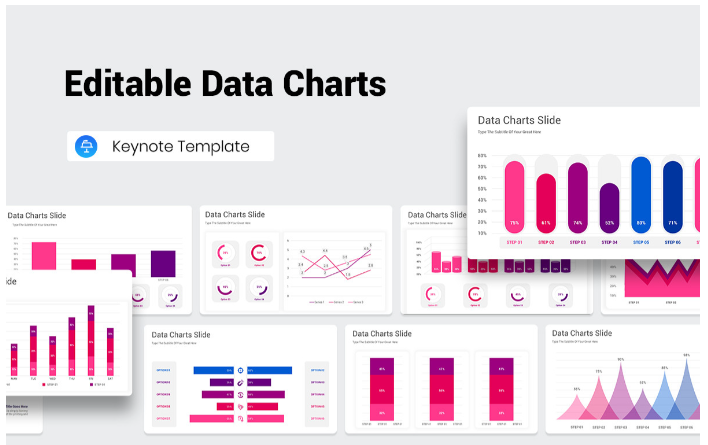
Charts can be updated as the numbers they are based on change. This is a major advantage for presentations processing data in the Apple ecosystem.
Google Slides is more integrated with Google Sheets. You can also paste charts from a spreadsheet, and they’ll remain linked to the original data. If the spreadsheet changes, the chart can be updated in the presentation rather than rebuilt.
This makes Google Slides useful for reports and presentations that rely on regularly updated data.
That makes the answer to “Is Keynote or Google Slides better?” partly dependent on your data workflow.
Here’s a quick comparison:
| Feature | Keynote | Google Slides |
| Built-in charts | ✅ | ✅ |
| Chart customization | Excellent | Good |
| Visual presentation | Excellent | Good |
| Google Sheets links | ❌ | Excellent |
| Excel workflows | Good | Good |
| Tables | Excellent | Good |
| Best for | Designed reports | Live data presentations |
📌 If your numbers change every week, linked Sheets data can save time. Keynote works well when visual control is more important.
Deep 1-to-1 Presentation Test
We gave both tools the same 10-page product launch brief. It covered product features, customer research, launch goals, pricing, and a proposed marketing plan. Let’s look at how each tool turned the same information into a presentation.
Narrative Logic
The AI Keynote presentation maker put a professional structure on the outline. Thematic sections made it easy to organize the product, audience, strategy, and launch plan. But we had to do some manual work to make the story natural.
In Google Slides, it was easy to drag and drop sections and try different sequences. The editing process was good at putting the information in a logical order. But more of the overall story needed to be planned and built by hand.
🏆 Winner: Keynote
Layout Quality
Keynote made the presentation more polished-looking. The typography, spacing, and transitions made visuals look finished, so there was less cleanup before sharing the presentation.
Google Slides looked clean and professional but felt more basic by comparison. Layouts worked well for business and marketing content. Still, a bit more styling was needed to give the deck a stronger visual identity.
🏆 Winner: Keynote
Document Processing
We divided the launch brief into presentation sections, and the Keynote worked well. We could control how each element looked and where it was placed. The downside was that it took more manual prep to translate the original document into a full deck.
Google Slides also needed some preparation before the brief could become a finished presentation. Gemini can help generate pages from prompts and content stored in Drive, giving users another way to work with existing material. This is a different approach to the workflows discussed in a Tome vs Gamma AI comparison, where the tools take a different approach to AI-generated presentations.
🏆 Winner: Google Slides
Editing Flexibility
Keynote is a tool that makes visual editing simple and thorough. You can edit text, images, charts, shapes, and animations.
Google Slides is great when many people need to edit the same presentation. During review, team members can make changes and set access permissions. That makes it workable for decks that go through a few rounds of feedback.
🏆 Winner: Google Slides
Overall Presentation Performance
| Category | Keynote | Google Slides |
| Story structure | ⭐⭐⭐⭐☆ | ⭐⭐⭐⭐☆ |
| Slide design | ⭐⭐⭐⭐⭐ | ⭐⭐⭐⭐☆ |
| Document processing | ⭐⭐⭐☆☆ | ⭐⭐⭐⭐☆ |
| Editing freedom | ⭐⭐⭐⭐⭐ | ⭐⭐⭐⭐⭐ |
| Team collaboration | ⭐⭐⭐⭐☆ | ⭐⭐⭐⭐⭐ |
Decksy AI’s Different Approach
Decksy AI takes a different approach to the same product launch brief. Rather than building the presentation slide by slide, it turns existing content into a structured deck with a clear visual hierarchy.
Users can then make changes to individual slides without reworking the entire presentation. For anyone comparing which is better Google Slides or Keynote, this offers another way to handle content-heavy presentations.
Export Options & Ecosystem Compatibility
Export becomes important when other people need your file. The best design means little if the final format causes problems.
Keynote
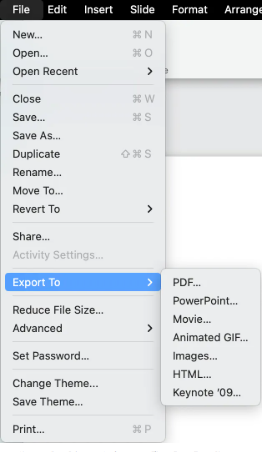
Keynote can export presentations to PowerPoint and PDF. It also supports several other formats for different presentation needs.
The main advantage is control over the original Keynote file. Apple users can continue editing the source presentation across supported devices.
PowerPoint conversion still deserves a final check. Fonts, animations, and layouts may not behave exactly the same elsewhere.
Google Slides
Google Slides supports downloading in PowerPoint and PDF formats. It also works naturally with Google Drive. That makes sharing simple for teams. Users can send a link instead of passing presentation files around. If you wonder is Google Slides or Keynote better, easy sharing can be an important factor.
Google also provides detailed sharing permissions. People can be given viewing, commenting, or editing access.
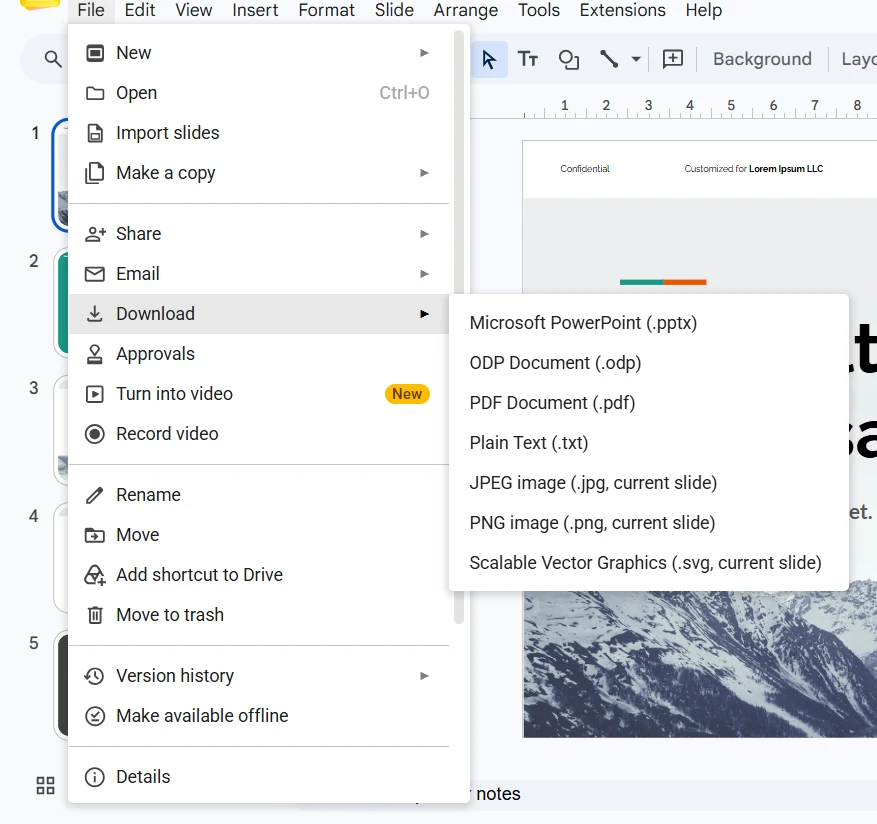
Here’s how the main export options compare:
| Feature | Keynote | Google Slides |
| PowerPoint export | ✅ | ✅ |
| PDF export | ✅ | ✅ |
| Image export | ✅ | Limited |
| Video export | ✅ | Limited |
| Editable text in PPT | Usually | Usually |
| Browser access | Yes through iCloud | Yes |
| Cloud collaboration | Yes | Excellent |
📌 If you regularly exchange files with Windows users, test exports first. Compatibility can matter more than the original editor.
The Smart Alternative
Sometimes neither of the traditional ways feels right. While Keynote may appear to integrate with Apple workflows, Google Slides may require more manual design work. Decksy AI works differently. It doesn’t start from a blank slide; instead, it takes your existing source material and turns it into a structured presentation.
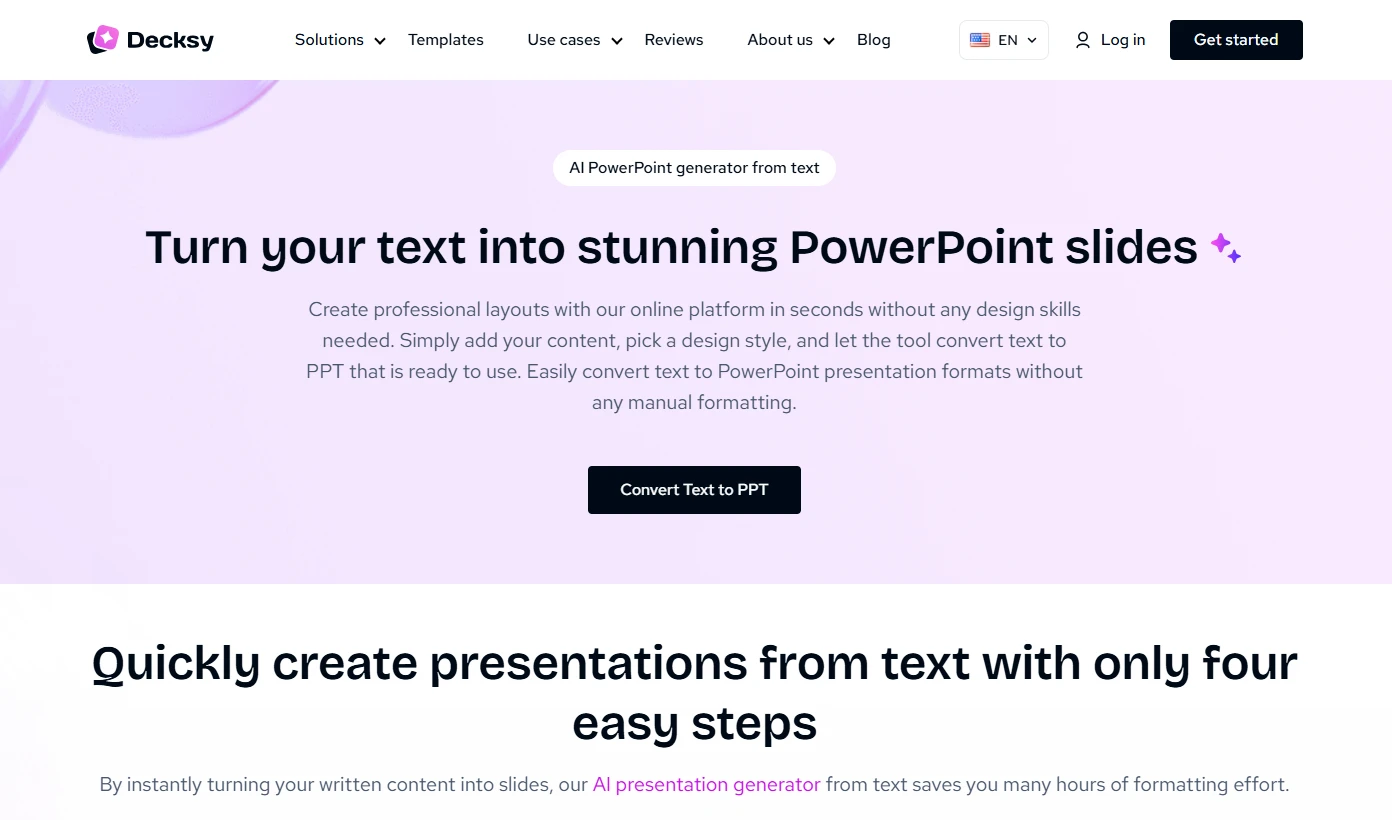
This method also sets it apart from Gamma AI vs Beautiful.ai, Tome, and Plus AI, each of which has its own way of creating AI-generated presentations. Decksy focuses on turning documents and existing notes into editable decks.
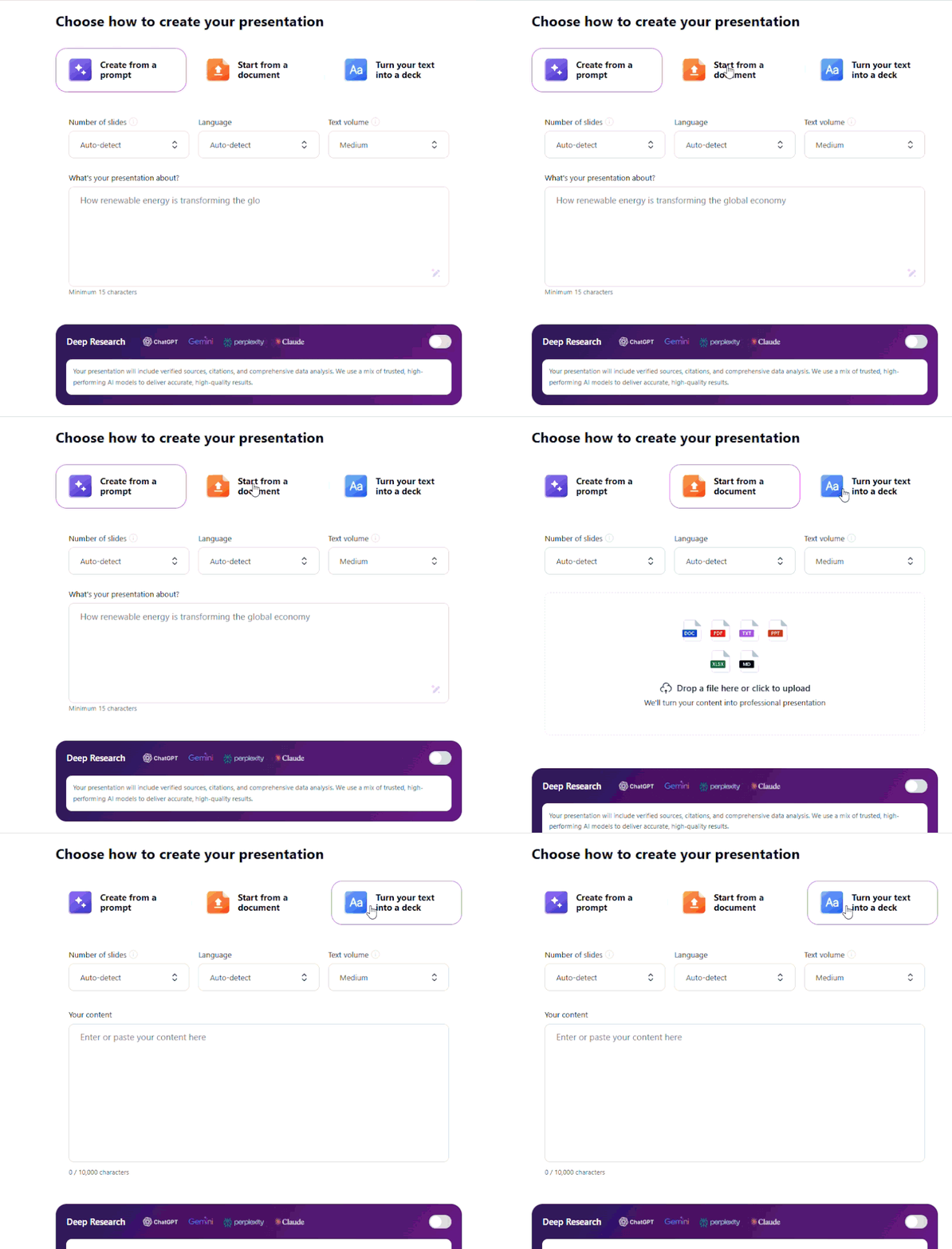
This can be beneficial if you already know the information but want a clear presentation-ready format.
From Documents to Presentations
Imagine starting with a 30-page report. You could read it first and create an outline. Then, you could build each presentation page manually. That process takes time. Decksy is designed to shorten that workflow.
It can work with source files and create a structured presentation. It also supports Word-to-PPT conversion. This is useful when your starting point is a document rather than a blank deck.
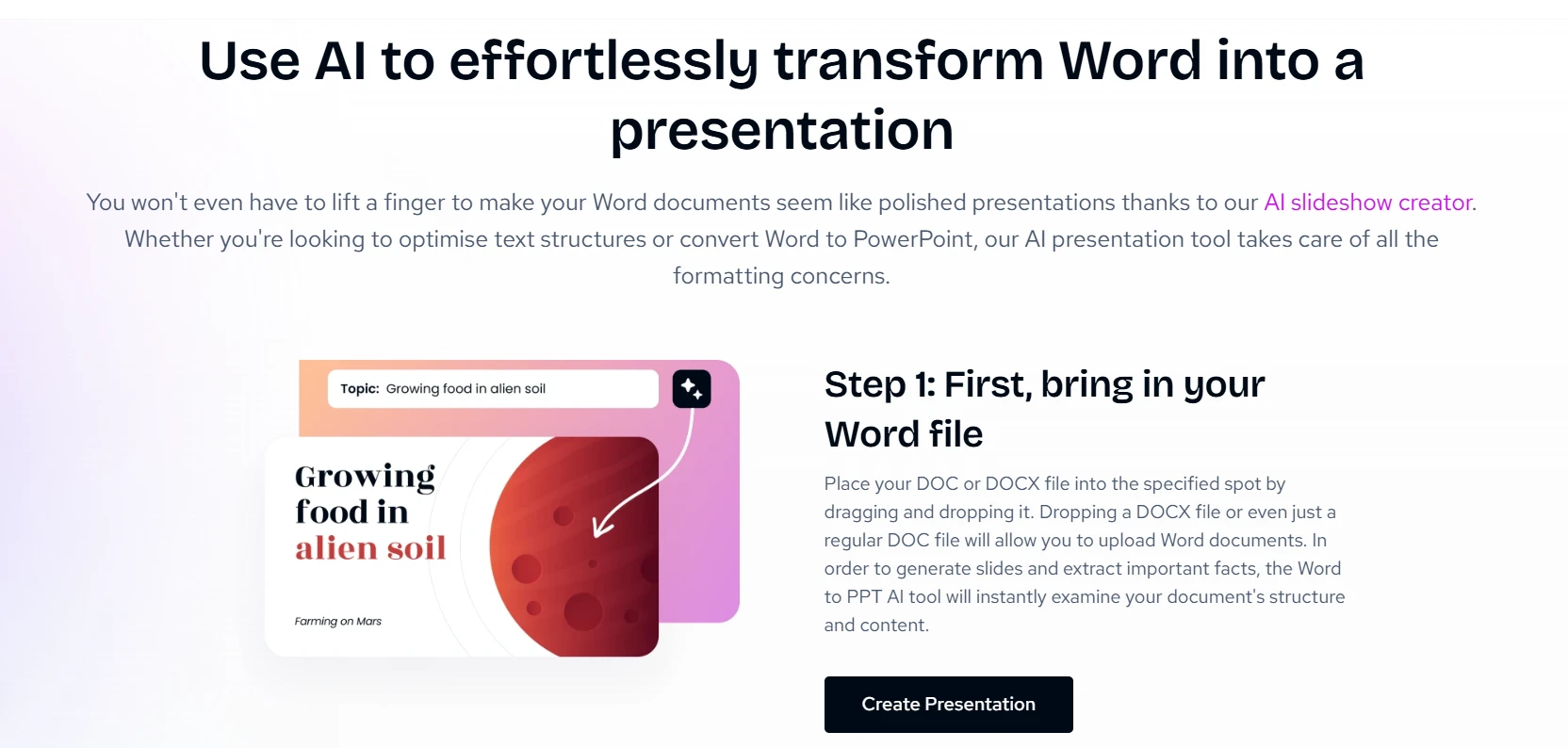
The same idea applies to workflows like Markdown to PPT. The goal is to transform structured information into usable presentation content.
Single-Slide Regeneration
AI-generated decks still need editing. One page may contain too much text. Another may need a different visual approach.
Decksy lets users regenerate individual pages. You do not need to rebuild the entire presentation.
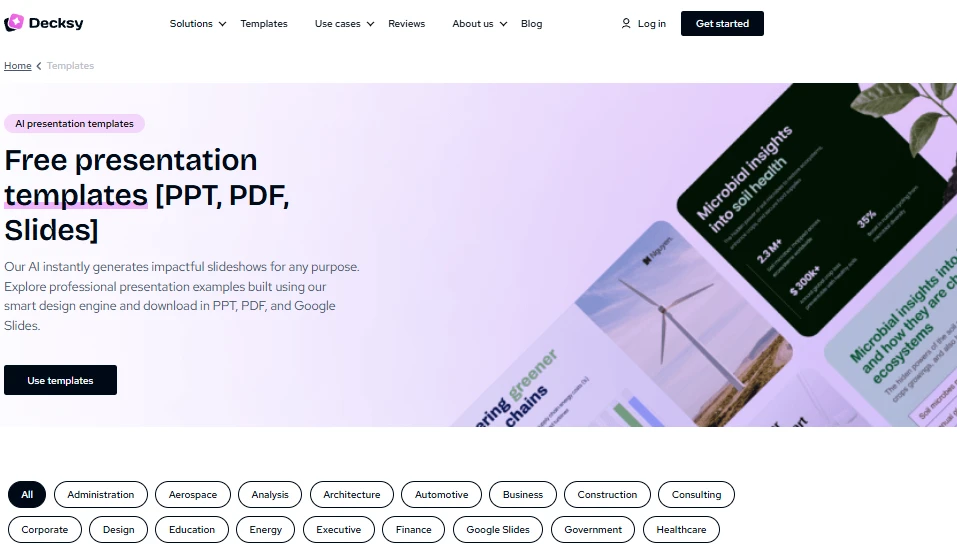
That can make client revisions much easier. One requested change stays limited to one part of the deck.
Editable Output
Decksy also focuses on editable presentation files. You can continue working after generation.
That matters when a client requests a PowerPoint file. It also helps teams that prefer familiar presentation software.
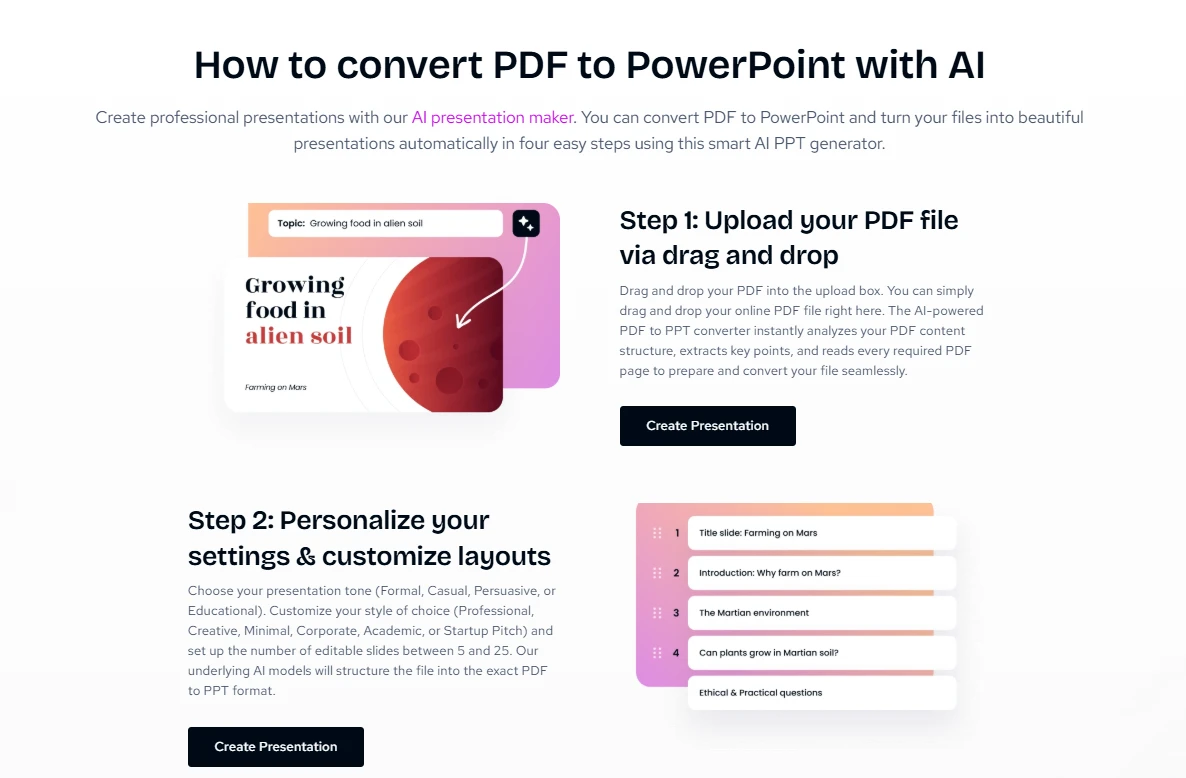
For spreadsheet-heavy work, the same principle can apply to an Excel to PowerPoint workflow. The aim is to reduce repetitive formatting before the final edit.
AI Presentation Creation
Decksy also fits users looking for a Keynote alternative. Instead of focusing only on visual effects, it starts with the information.
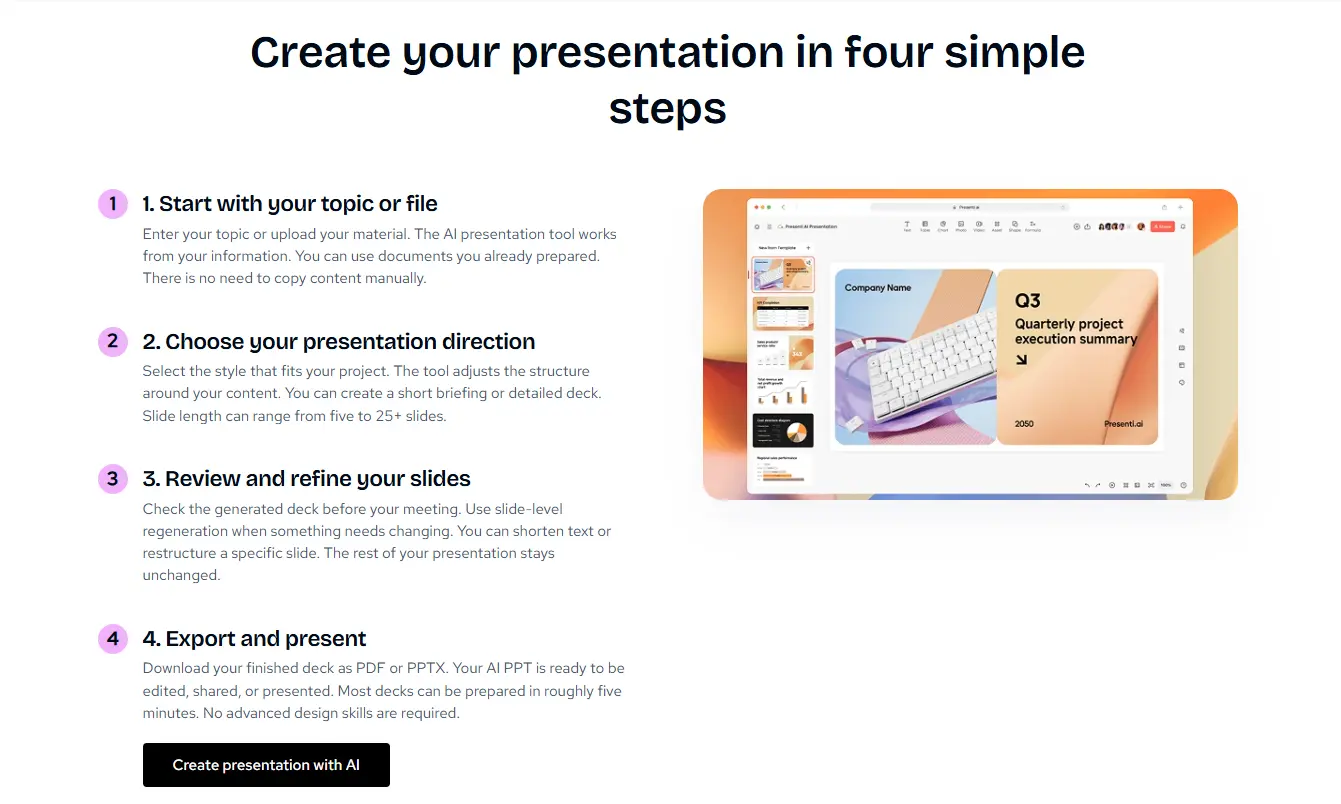
That makes the workflow useful for reports, research, and business presentations. You can refine the result after the initial generation.

I am Prof. Hami. Over the years, I have been professionally writing on various topics, mainly in the areas of business, entrepreneurship, patient care, and English. I always follow all the requirements that are written in the task. By hiring me you will no longer need another writer.