Figma Slides vs. Google Slides: Which Is the Best for You?
- So, which is better, Figma Slides or Google Slides? It depends on your priorities.
- Choose Figma if: You want design freedom and consistent branding.
- Choose Google Slides if: You prefer collaboration and easy editing.
- Choose Decksy AI if: You want to edit decks out of long documents.
Ever spent too much time making decks look right? The right tool can make that job easier!
Some people want more design options and creative freedom. Others just need clean visual pages they can share quickly. This Figma Slides vs Google Slides guide helps you choose. We look at pricing, design, visualizing data, AI features, and exports.
We will also make a practical comparison of the two tools.
| Feature | Figma Slides | Google Slides |
| Best for | Presentations focused on design | Everyday presentations |
| Design | Flexible layouts and reusable components | Themes and slide templates |
| Cooperation | Collaborative design processes | Editing browser in real time |
| AI features | AI-powered design tools | Gemini available on eligible plans |
| Open access | Basic plan with restrictions | Free individual account |
| Export options | PDF files and presentation files | PPTX, PDF, and images |
| Best audience | Designers and creative teams | Students, teachers, and businesses |
Pricing, Free Plans & Target Audiences
Pricing matters when you choose between Google Slides vs Figma Slides.
Figma
Figma has a free Starter plan that offers limited access. You get templates, drafts, and a monthly allowance of AI credits. Paid Professional seats start at $16/mo. Enterprise and Organization plans cost more.
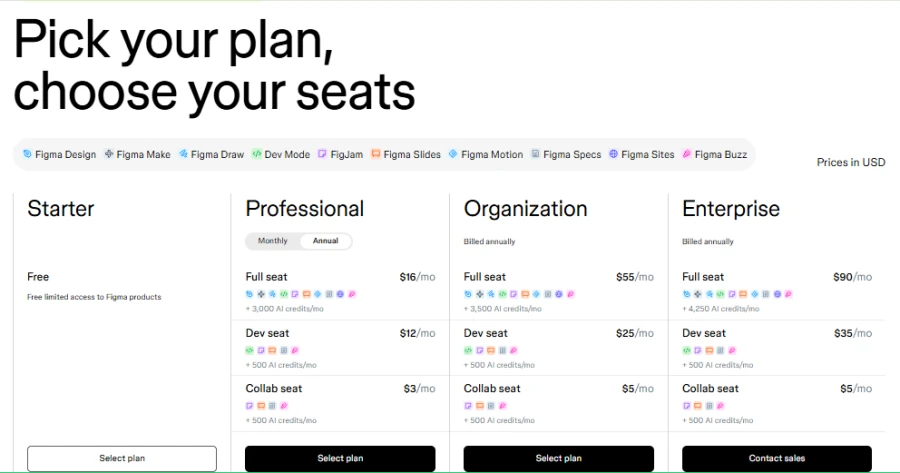
This tool is good for creative teams that need branded presentations. It’s an AI presentation maker for education that supports engaging lessons and reusable design components. However, beginners may need time to learn its controls.
Google Slides
This tool is available for free with a personal Google account. Paid Google Workspace plans add business features and administration. Some Gemini tools are only available on qualifying plans or as add-ons.
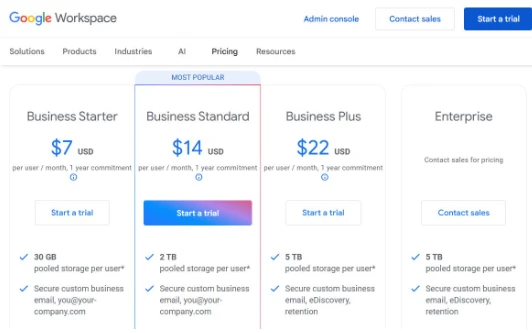
The platform is great for students, teachers, and business teams. A familiar interface makes everyday editing easy. Links are also helpful for group projects.
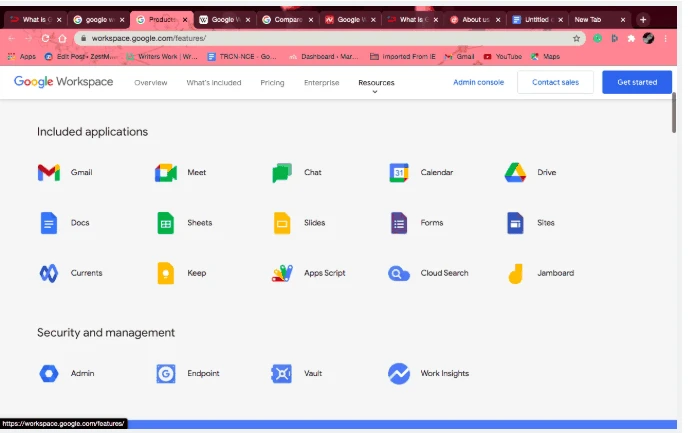
If you’re weighing up Figma Slides vs. Google Slides for business, consider how your team works. Figma has better design system integration. Google Slides makes it easy to share and make routine edits.
You can also check out Decksy AI presentation generator for editable decks. Some tools reserve native exports for costly business plans. Decksy offers a $2 trial and a simple $10 monthly plan. Both options include full export rights.
Design Assets, Templates & Customization
A big template library doesn’t always mean better designs. When we compare Figma Slides and Google Slides, we pay attention to variety, quality, and control. We also check photos and fonts.
| Figma | 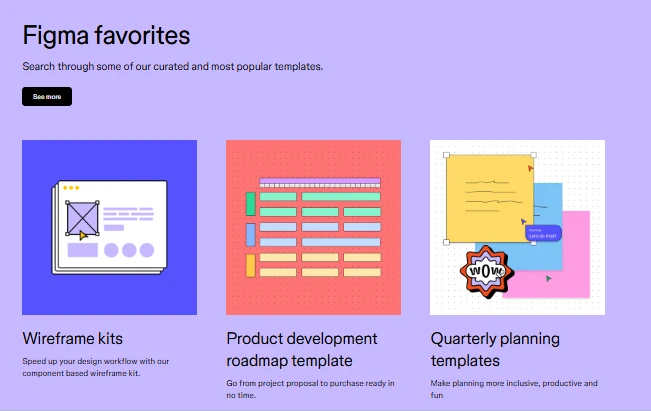 |
| Google Slides | 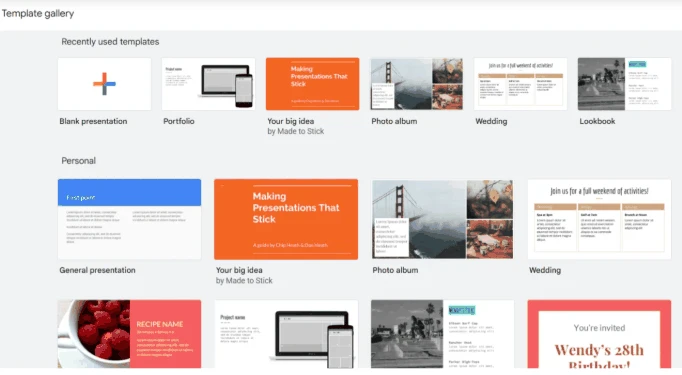 |
Figma
Figma offers 8 featured presentation templates. These include startup pitches, product reviews, and marketing strategies. Or you can also look at community templates for more choices. You can combine layouts from various templates and have more freedom to create a look that is all your own.
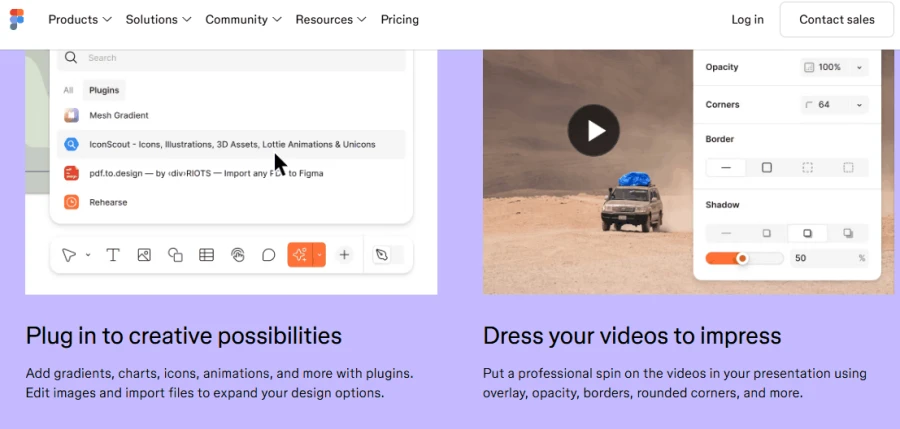
This is great for product launches and client pitches. The results can be very custom and modern-looking. However, you may need to build each layout in extra time. Figma doesn’t have the same embedded experience for stock photos as dedicated design platforms. External image libraries may be needed by teams.
Google Slides
This platform has themes, layouts, shapes, and image support. It offers ready-made themes for business pitches, project reports, and lesson plans. Google introduced a refreshed collection of professionally designed themes. The designs work, though some are a little basic.
You can add photos and change fonts from the options available. Unfortunately, font choices and branding controls are less flexible.
If we consider Prezi vs. Google Slides, the second tool is great for familiar, simple workflows. It is good for team updates and reports.
Which Design Approach Is Best?
The Figma Slides vs. PPT decisions usually come down to customization.
- Figma gives you more control over layouts and design systems.
- Google makes it easier to start with a simple theme.
- Neither tool guarantees modern, polished results automatically.
Your images, fonts, and content still make a difference.
Data Visualization, Charts & Spreadsheet Links
Complex data is more difficult to interpret than simple charts. The two platforms work differently in terms of data.
You can add charts, tables and other visuals in Figma. Besides, you can change colors, fonts and layouts. Reusable components also help keep your visuals consistent. However, you might have to edit it manually for the numbers.
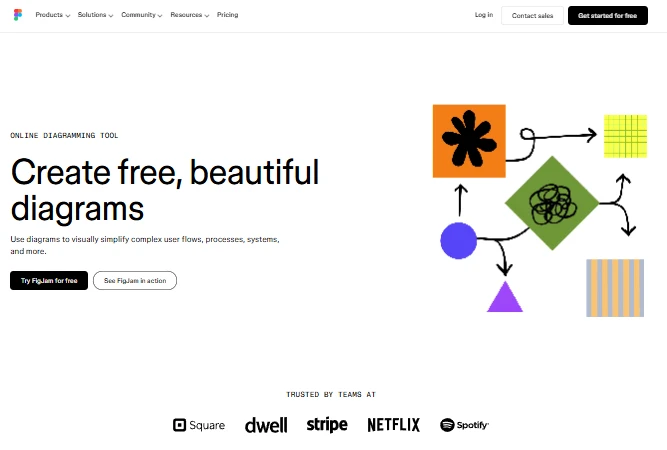
Spreadsheet links count in Google Slides vs Figma Slides. The first now directly integrates with Google Sheets. Link charts to auto-refresh when your spreadsheet data changes. This is excellent for budgets, sales reports, and monthly updates. You can also insert charts with no links.
Both tools need to be checked thoroughly before they are presented. You might need to adjust the labels, numbering and chart formatting. Our test indicates Figma is best for custom visuals. On the other hand, Google is better for live spreadsheet updates.
Deep 1-to-1 Test
We used a product launch brief for this Figma Slides vs. Google Slides comparison. It was a new reusable water bottle.
The brief included its features, target customers, price and launch plan. We requested 8 slides for a brief team meeting. The deck needed a concise summary, budget and next steps.
Story Structure
With Figma, we had space to organize the content visually. We could create a strong opening and group related ideas together. But the story still required manual decisions to arrange.
With Google, it was easy to build a familiar sequence. There was not much setup; the outline went with the launch brief. However, it needed further editing to make it more original.
🏆 Winner: Google Slides
Design
Figma was more flexible around layouts and brand elements. Spacing, typography and reusable components could be fine-tuned. This helped build a consistent product launch deck. The detailed styling took ages!
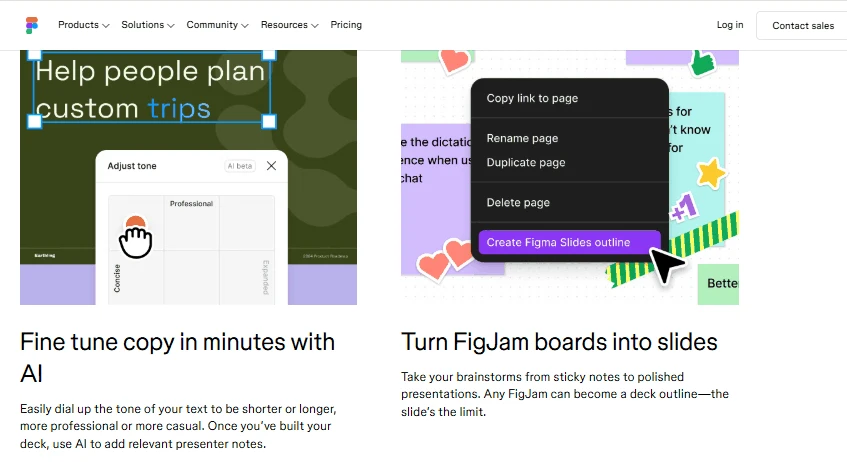
Google made a snazzy, usable presentation. And its themes kept the visual pages rolling. Other layouts were more traditional, but only with more customisation.
🏆 Winner: Figma
Document Control
Using Figma, we could craft the deck around the brief. We used its design tools to layout features and release info. But we had to move the source content and get it organized. That’s where an AI PDF to PowerPoint tool could step in, transforming existing documents into editable slides.
Some content preparation by hand was also needed for Google. The familiar editing tools made it simple to change the text. The brief still needed a bit of careful summarizing before the pages could be made.
🏆 Winner: Google Slides
Editing Flexibility
Figma was good for tweaking individual elements. Reusable components helped keep the design consistent. But some of the bigger edits needed careful checking of the layout.
Google is better for easy text edits and team feedback. A given deck could be reviewed by any number of people. But for detailed visual changes, more manual formatting was needed.
🏆 Winner: Google Slides
Now, it is worth mentioning that Decksy prioritizes the story first and then adds design, rather than starting with blank layouts like other tools. The logic-first approach keeps ideas clear and connected.
Some AI tools will have to regenerate the entire deck for major changes. With Decksy, you can regenerate one page in seconds. This provides for rapid revisions without having to re-create the complete presentation.
Test Summary
| Category | Figma Slides | Google Slides |
| Story structure | ⭐⭐⭐⭐☆ | ⭐⭐⭐⭐⭐ |
| Slide design | ⭐⭐⭐⭐⭐ | ⭐⭐⭐⭐☆ |
| Document handling | ⭐⭐⭐⭐☆ | ⭐⭐⭐⭐☆ |
| Brand consistency | ⭐⭐⭐⭐⭐ | ⭐⭐⭐⭐☆ |
| Editing and teamwork | ⭐⭐⭐⭐☆ | ⭐⭐⭐⭐⭐ |
Export Options & Ecosystem Compatibility
File compatibility is important when you share work with clients. You can import and export PowerPoint to Figma, but the formatting may change. You can also export Google Slides to PPTX, PDF and image formats. Another option for creating editable presentations is an AI text to PowerPoint tool.
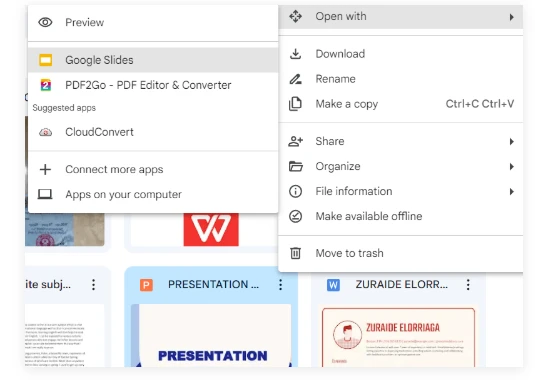
Decksy follows a zero lock-in philosophy. It exports fully editable, ungrouped .pptx files. They can be opened in Microsoft PowerPoint and Google. You retain control of your content but aren’t locked into one platform.
The Smart Alternative
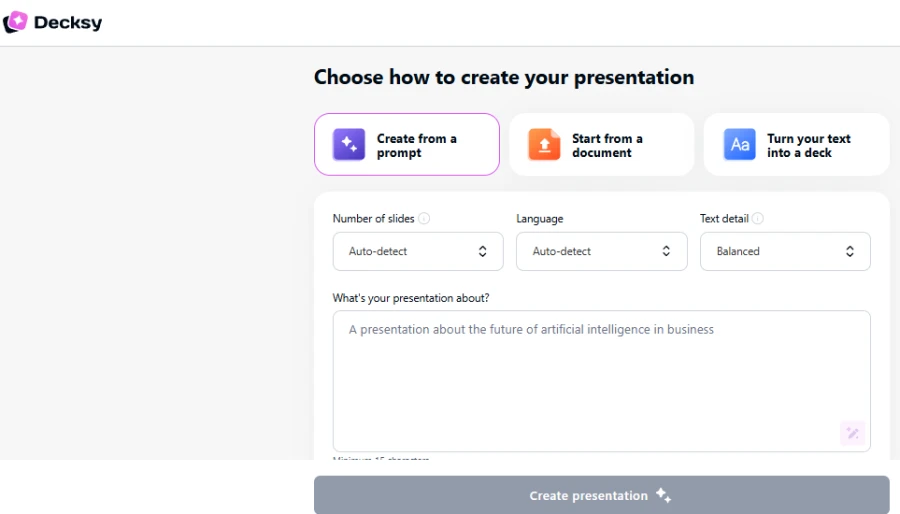
Decksy AI offers an alternative to Figma Slides and Google Slides. It starts with reports, Word files, PDFs, spreadsheets, or prompts. Then it structures your content into presentation-ready elements.
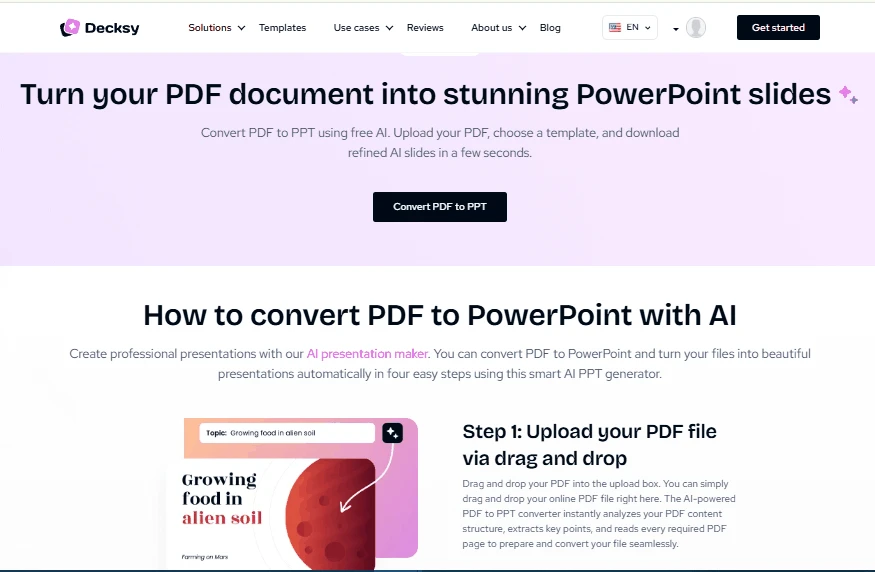
It creates the story before visual design. You can change individual pages without having to rebuild the whole presentation. It’s a great benefit if you only need to edit one section!
The workflow is good for reports, business plans and meeting notes.
The Genially vs Prezi comparison is about interactive elements and visual storytelling, Decksy is about content structure.
The tool also supports editable Google presentations. That makes it useful when source material matters more than animations. Teams can change content, but the structure remains the same.
Other Presentation Platforms
PowerPoint is still a good choice for traditional slide workflows. It has excellent formatting features and familiar editing tools.
The Slidebean vs Beautiful.ai comparison is for users who prefer dedicated pitch deck tools. Both are geared to business presentations with slick layouts.

On decksyai.com, where people come looking for clarity wrapped in a bit of personality, Julia leans into the details that make a message land: the pause between two ideas, the subtle shift in spacing, the moment a visual finally clicks.