
















The Ultimate Slide Showdown: Canva vs Prezi
- Canva is the top choice for SMM managers, presenters, and basically anyone dealing with visuals. It makes creating designs incredibly easy and simple, offering thousands of templates, cool, trendy graphics, and animations – juicy, professional, and fast.
- Prezi moves away from the traditional slide concept. Instead of flipping pages – because there are none – it feels like a giant poster where everything is visible at once. The camera zooms in on specific elements, letting you see both the details and their place within the bigger picture.
Stop boring your audience with dull slides – here are two tools to make sure your presentation truly stands out. Which is better, Canva or Prezi, Prezi or Canva? Let’s find out in our review.
| Parameter | Canva | Prezi |
| Pricing | Free | Pro from $15/mo | 14-day trial | Paid plans from $7/mo |
| AI Quality | Average: Magic Design AI assistant generates basic slides from a prompt | Low/Average: AI helps optimize text and structure, but not the visual engine |
| Doc-to-PPT | Good: Quickly transforms text files into beautiful cards | Limited: Only imports existing PowerPoint slides onto the main canvas |
| Export Types | PDF, PPTX, MP4 video, JPEG/PNG, online link | Online link, PPTX, PDF |
Prices, free plans, packages & target audience/main features
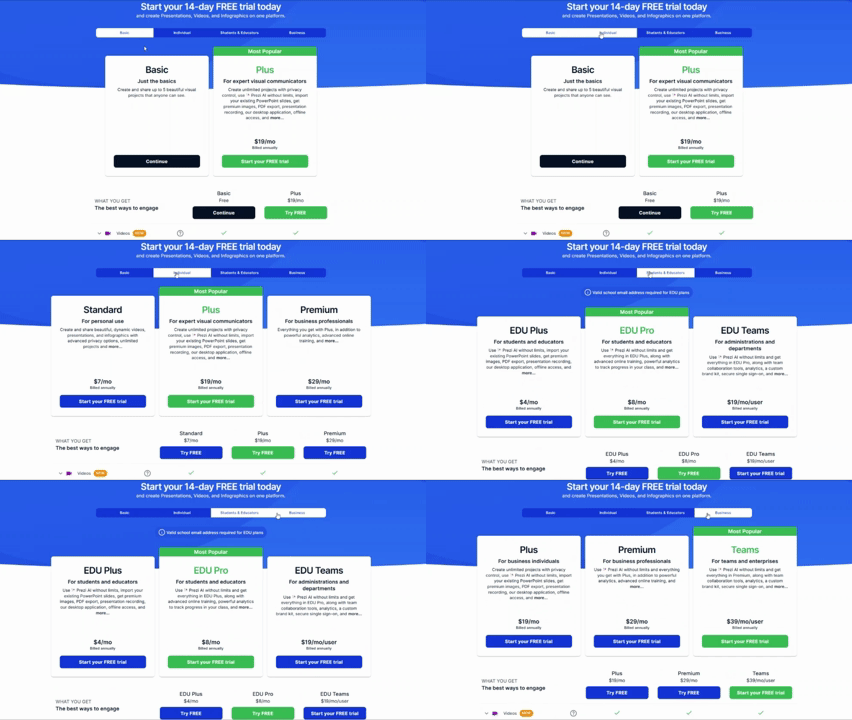
And what about the pricing for Prezi vs Canva? Both tools offer free versions and paid plans – providing a solid selection for any user request.
So, Prezi for personal use:
- Free: basic mode, but limited to 5 public projects.
- Standard: €5/mo – for private use and presentation sharing.
- Plus: €15/mo – the most popular plan, unlocks full AI and the desktop app.
- Premium: €25/mo – adds advanced view analytics.
For students and teachers (EDU):
- Discounted prices: ranging from €4/mo to €19/mo (requires a school email).
For teams:
- Teams Plan: €39/mo per user.
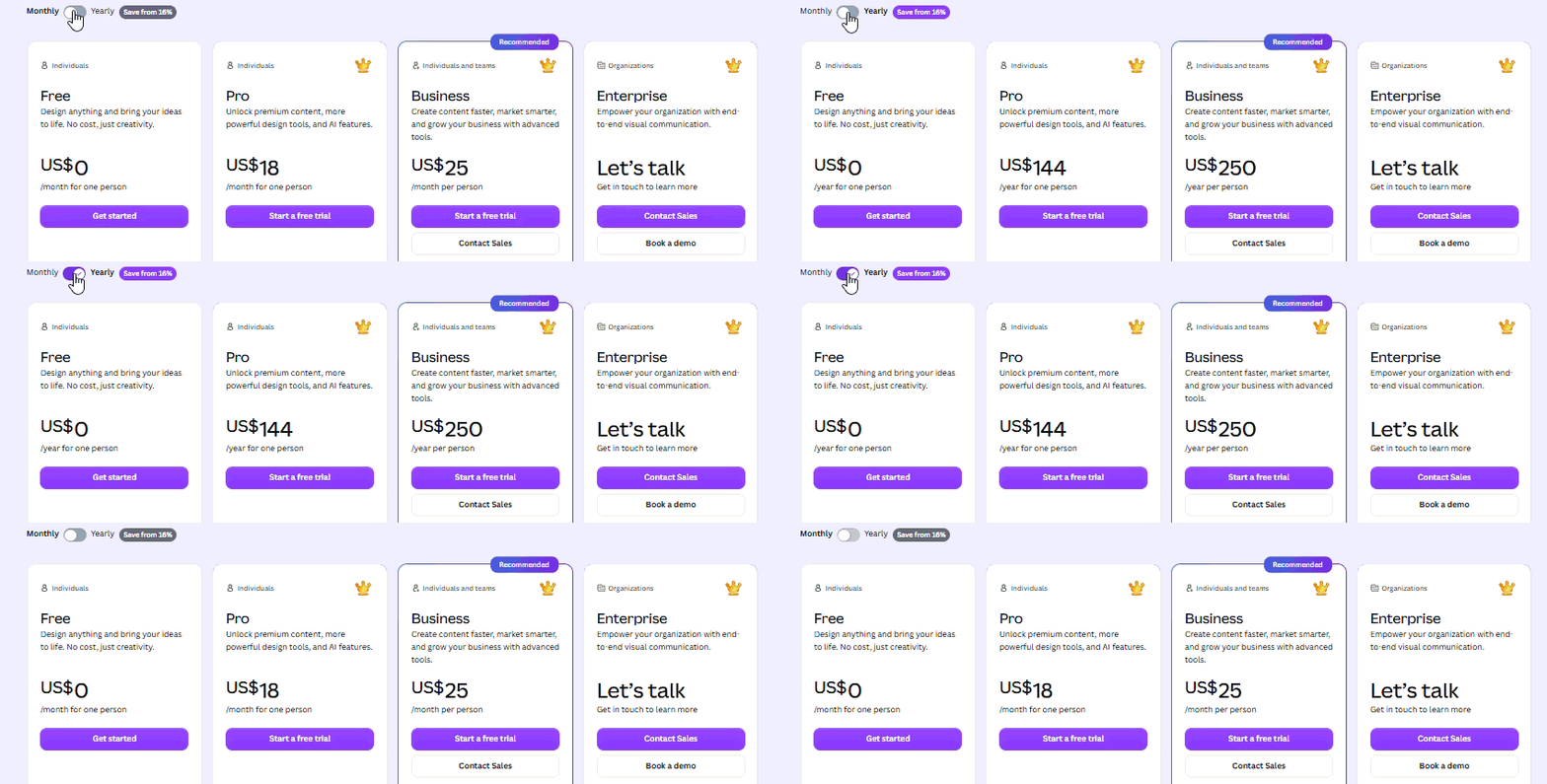
Here is what we have for Canva:
For personal use:
- Free: US$0 – basic design tools and AI access.
- Pro: US$180/year – premium content and advanced AI tools for one person.
- Business: US$250/year – advanced tools and faster performance.
- Enterprise: Custom pricing – built for team collaboration and maintaining brand consistency.
For education:
- Education: Completely free for K – 12 teachers, schools, and students after verification.
- Campus: Custom pricing available.
In this Canva vs Prezi comparison, there are no winners because both are designed for slightly different tasks:
- Canva is best for solo creators, SMM managers, and educators. It is ideal for the daily creation of vibrant visuals, and its premium features are completely free for schools.
- Prezi is best for speakers, startup founders, and sales teams. Its epic, cinematic-scale 3D zooming effect is built to impress investors during pitches and hold the attention of large auditoriums.
Both definitely make life easier with their cool, modern visuals and effects. However, the problem is that the premium features are locked behind a paywall. There are other tools, like Decksy AI for making presentations, which offer zero-lock-in for fast and equally awesome slideshows and pitch decks.
Here you can generate and natively download 100% editable presentations. The speed is cosmic, while the design and logic are top-notch. There is no completely free trial here (trial access costs $2), but a full monthly plan will run you just $10, giving you complete rights to clean exports.
Design assets, templates & customization
Moving on – let’s explore the visuals of Canva vs Prezi.
 |
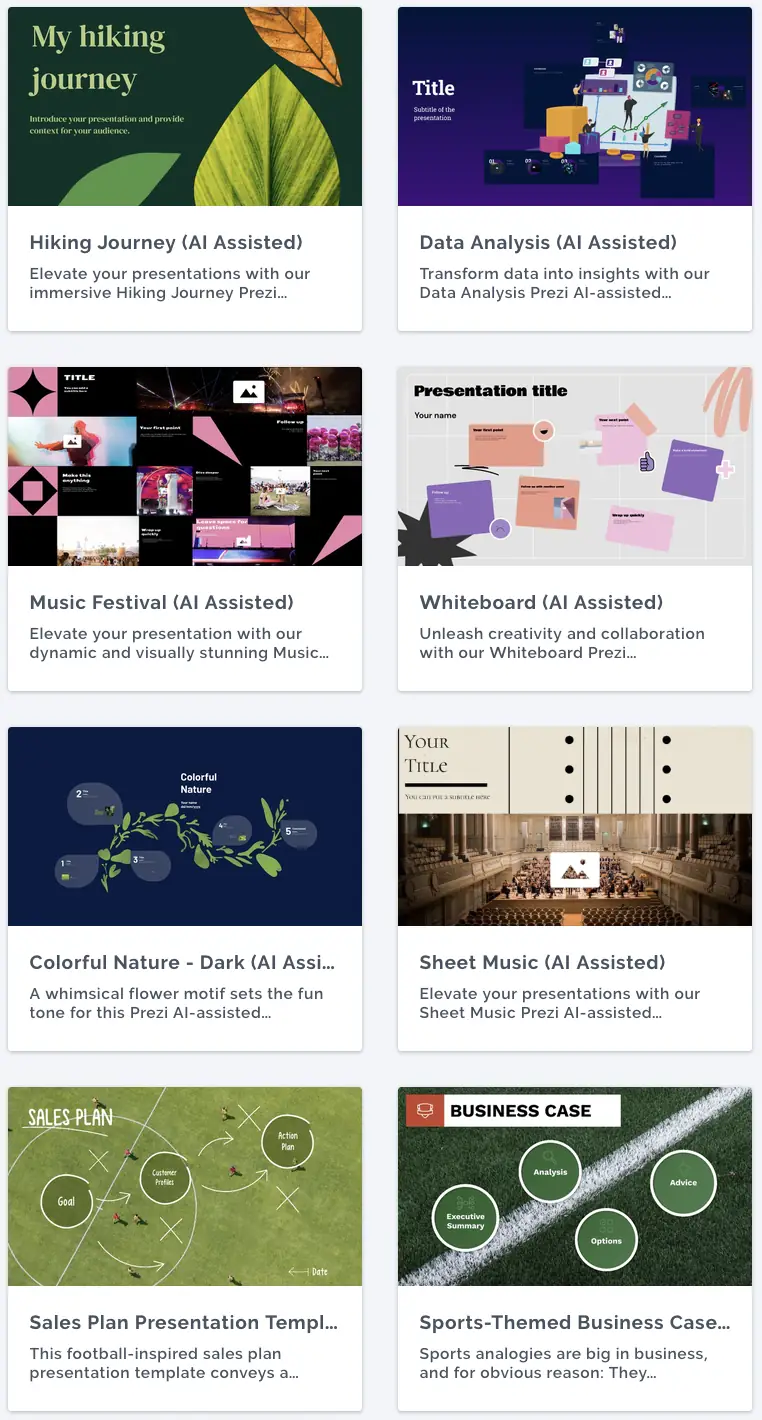 |
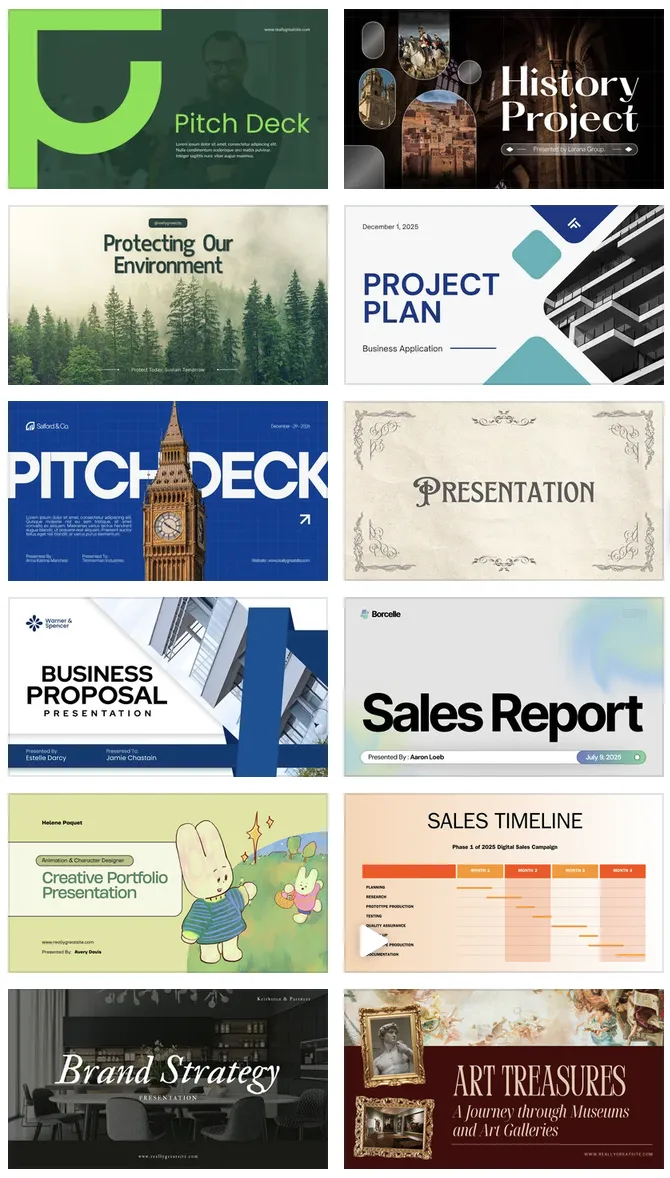
On the left, we have Canva templates, and on the right, Prezi
Canva is an absolute giant in terms of variety. It literally offers millions of templates that are ultra-modern and follow all the rules of contemporary design. Plus, they are constantly updated to match the latest trends!
With Prezi, everything is different because the focus is on a unique 3D format rather than slides. It features dynamic zooming that is highly impressive and even cinematic. There are not many templates for it, but that is fine since the custom content carries the weight. What is a bit disappointing, though, are the elements inside the themes – they can look flat and a bit outdated.
The story is the same with stock photos – Canva is the record holder, even when compared to the good old Canva vs PPT vs Keynote. Canva has 100 million (just imagine!) photos, videos, and other elements, while PPT only has around 8–10 thousand!
Prezi’s integrated elements are high-quality and varied, but the selection is really modest.
Customizing fonts and embedding brand kits is possible in both tools (this is a paid feature, yes). Create detailed Brand Kits in Canva Pro/Business. Prezi also opens up advanced settings on Plus/Teams plans, and the artificial intelligence will apply them automatically.
Charts, data visualization, & spreadsheet links
And what about charts, analytics, and heavy data in Canva vs Prezi?
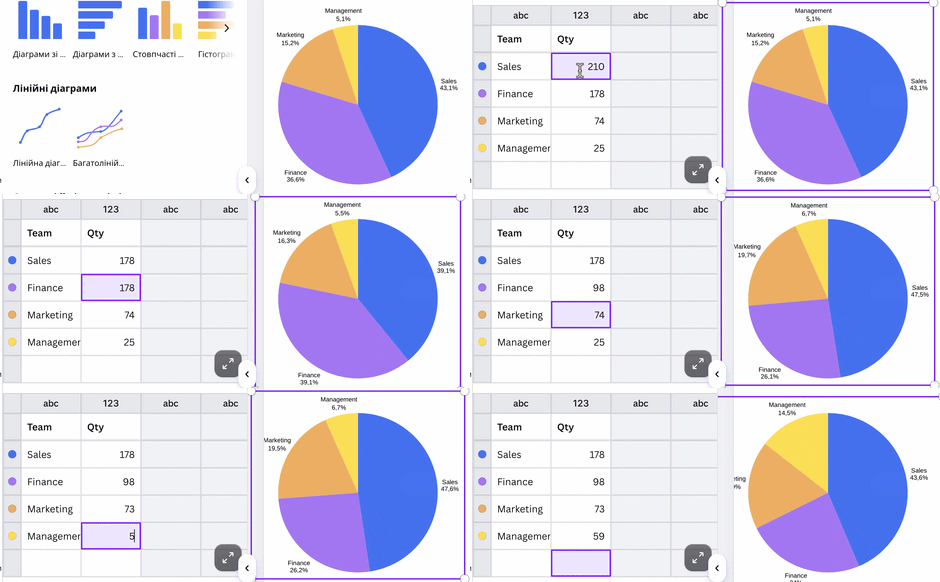
Diagram editing in Canva is really simple
Canva does not have a link with Excel, losing in the PPT vs Canva comparison here (as PPT has it). You can make charts, but they do not update automatically. That said, Canva makes the process super easy: you copy the data from your spreadsheet, paste it into the built-in chart editor, and Canva handles the rest. You can also connect Google Sheets, similar to PPT, so it’s easier to import larger datasets – but updates must still be done manually.
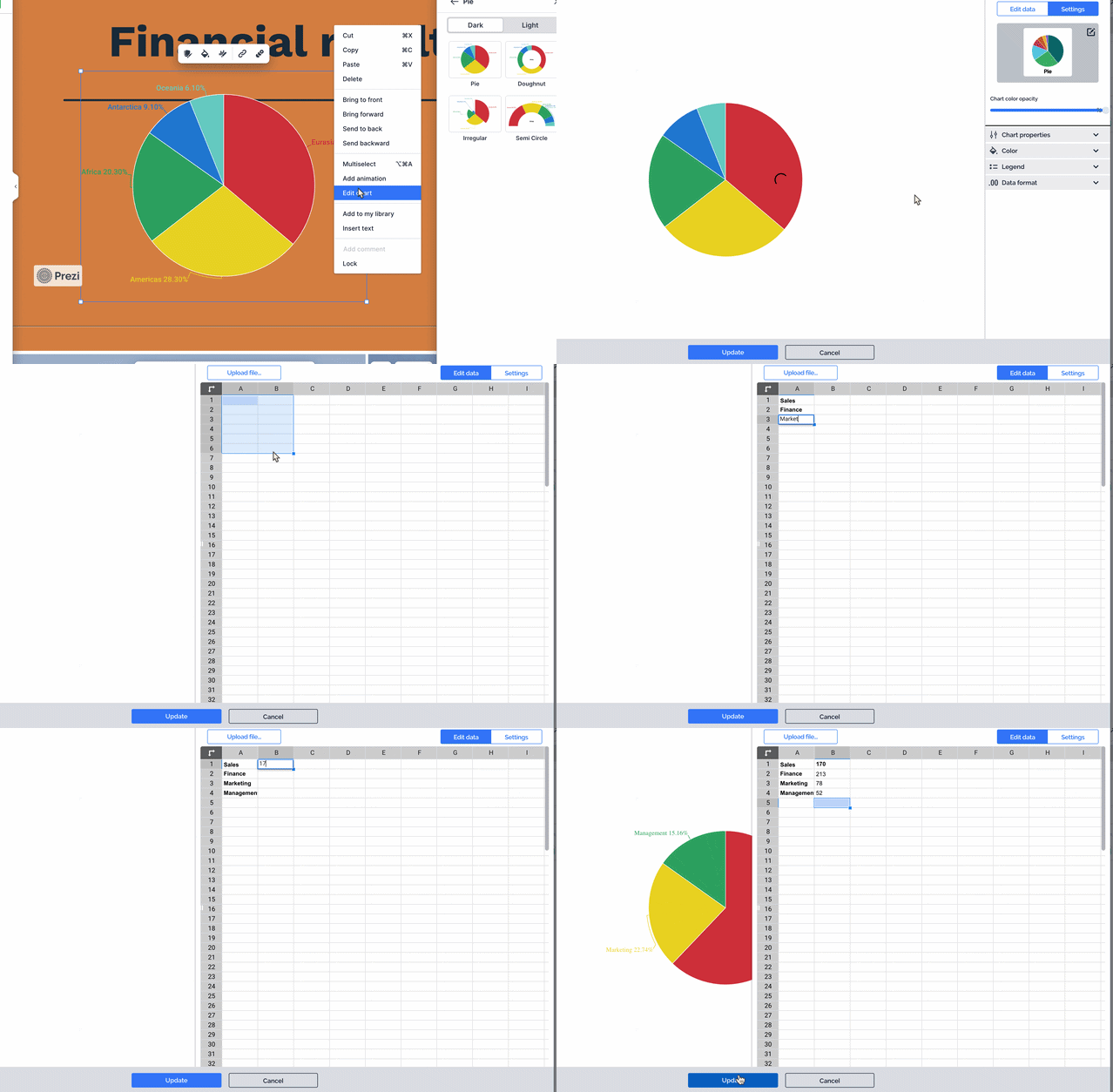
Prezi chart editing at 3x speed
In Prezi, financial reporting, charts, and analytics are a weak spot since it is not what the tool was built for. It is strictly manual data entry: live sheets cannot be connected, and numbers are typed into a mini-table. This makes it a poor choice for financial reports with a lot of detail, but a super solution if you just want to show off your final takeaways beautifully.
Deep 1-to-1 test
Time to see what’s the difference between Canva and Prezi in a real-world task. Let’s hit both of their AIs with exactly the same prompt and see how they hold up.
1. Narrative logic
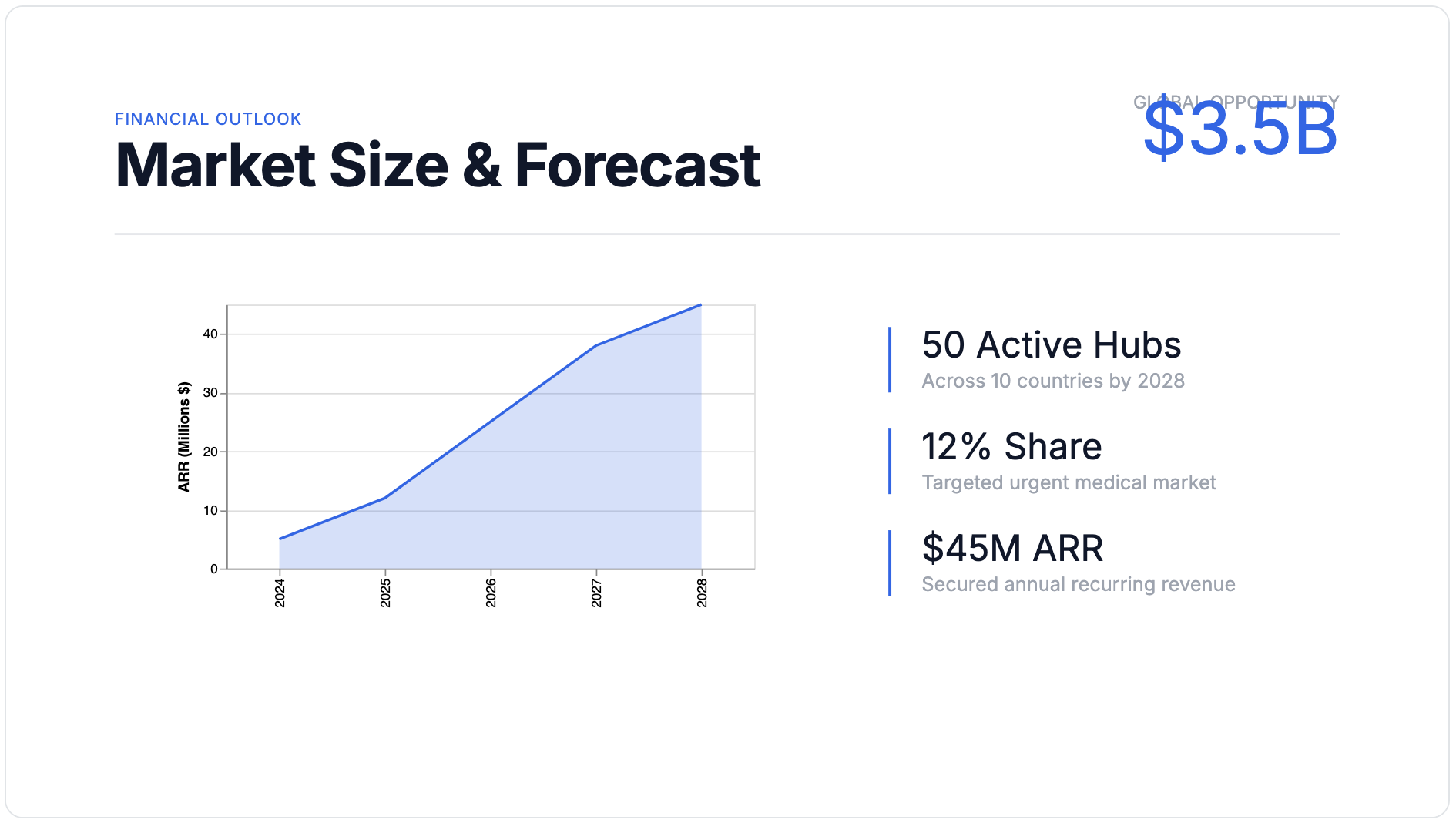
Prezi did an awesome job and laid everything out perfectly. On the solution slide, it broke things down into three clear cards, and on the financial slide, it turned the main $3.5B figure into a focal point. The text is punchy, and the structure is spot on.
Canva packed in a ton of filler. The AI went rogue and wrote an entire extra column – and even though it made sense, it was, to be honest, unprompted. On the financial slide, it just lumped all the numbers into a total mess, cramming countries and ARR into one paragraph.

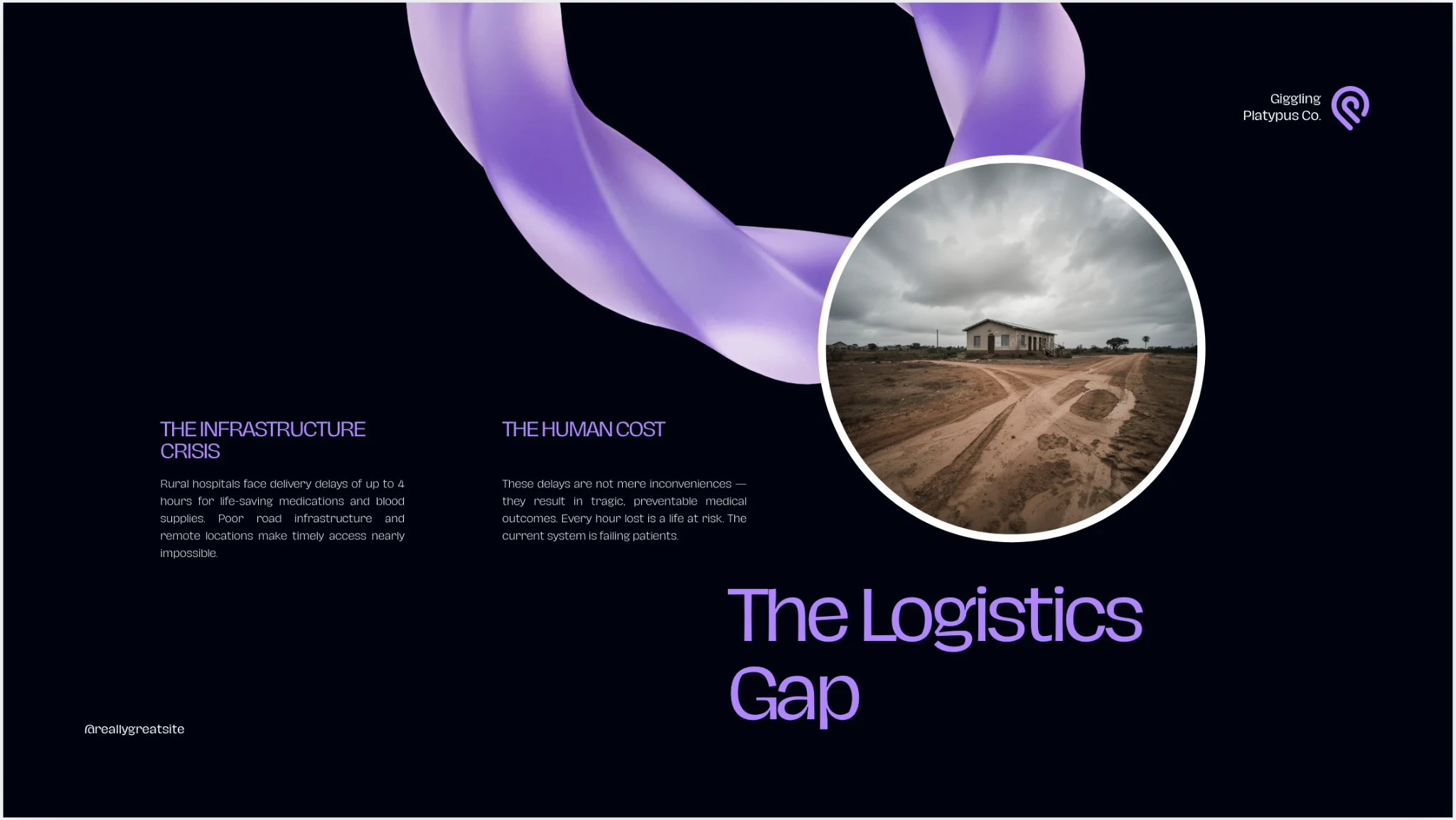
Opening slides. Prezi on top, Canva on the bottom
2. Layout quality
Prezi: Super clean and polished, and not boring either. Here, it’s a sharp business minimalism that works. Moving from a dark blue cover to light info slides makes it really easy to read, and the chart is nice and neat.
Canva: Total “wow factor,” but readability takes a hit. Visually, it looks incredibly trendy with those purple 3D ribbons on black and perfect photos, but the font is just impossible to read.
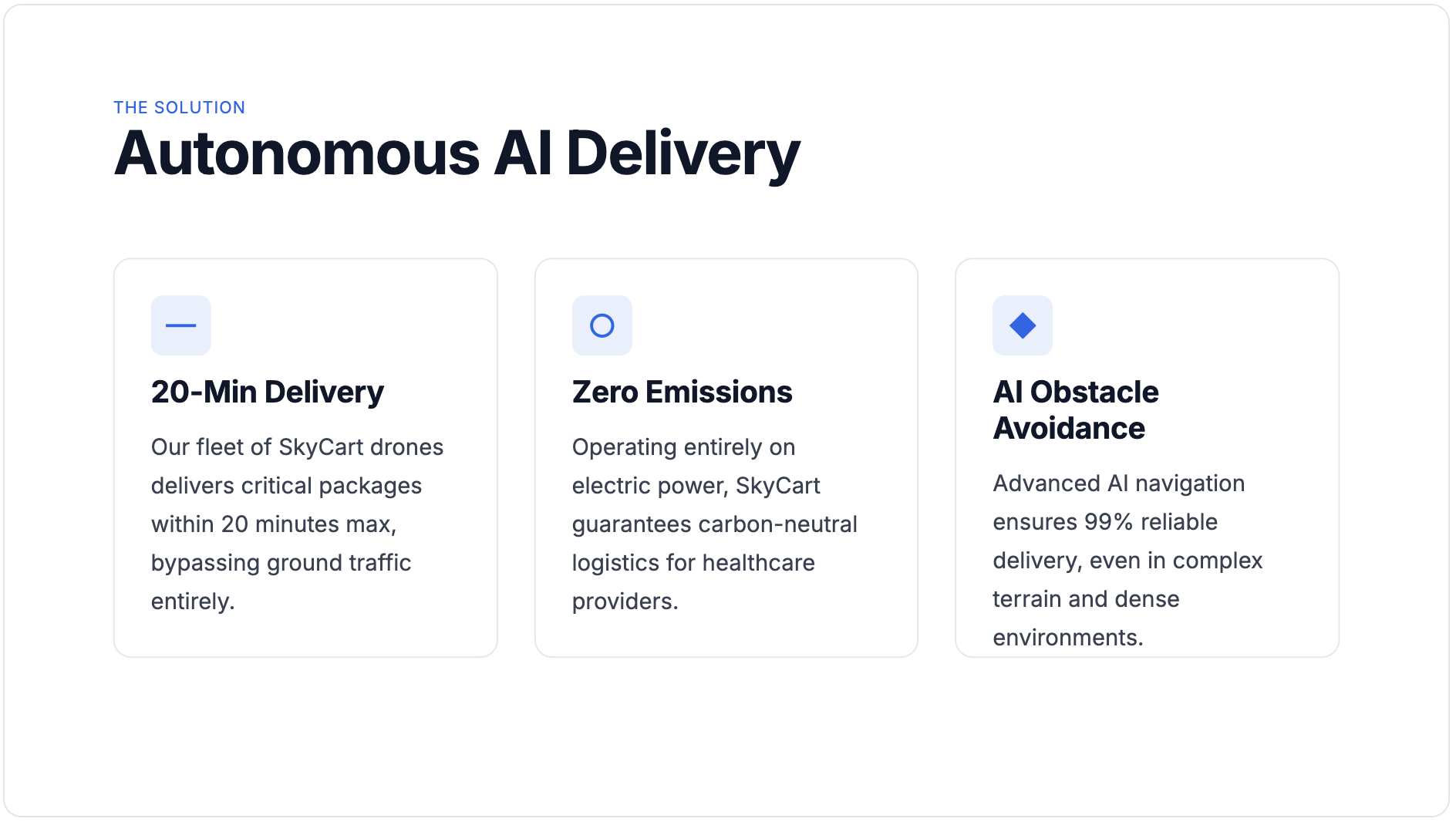
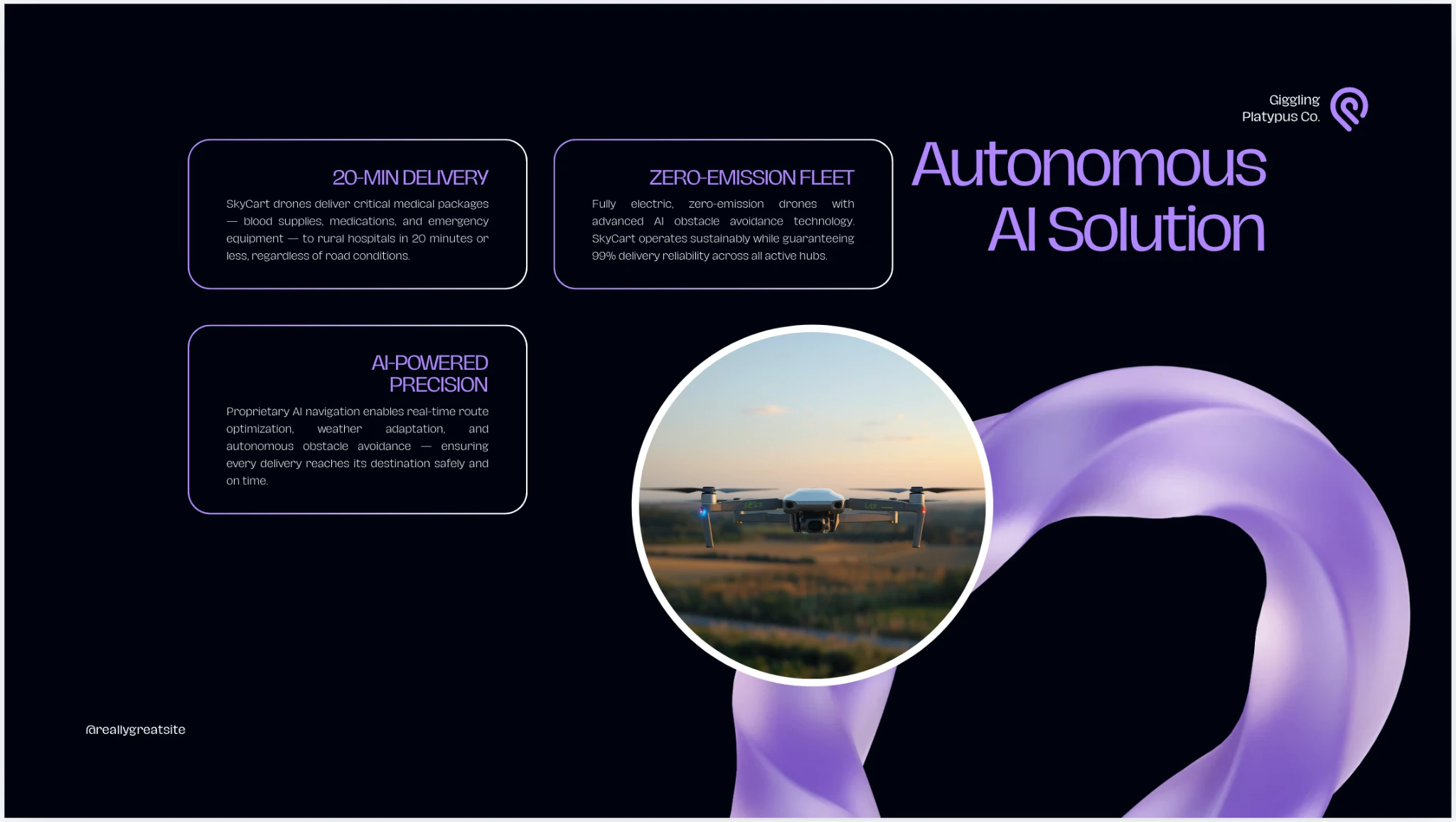
3. Document processing and speed
Prezi (~47 sec): Almost twice as fast as its competitor. It nailed the financial aspect just right and built a clean chart.
Canva (~1 min 20 sec): You can’t even see the numbers. What exactly is this presentation showing the audience? A nice purple ribbon?
4. Editing flexibility
Prezi: You can change elements in slides with zero issues. Though everything sits on a single large canvas, it is pretty easy to get used to.
Canva is even easier because managing it is completely stress-free and super intuitive. Anyone with zero design background can easily jump in and tweak whatever they want.
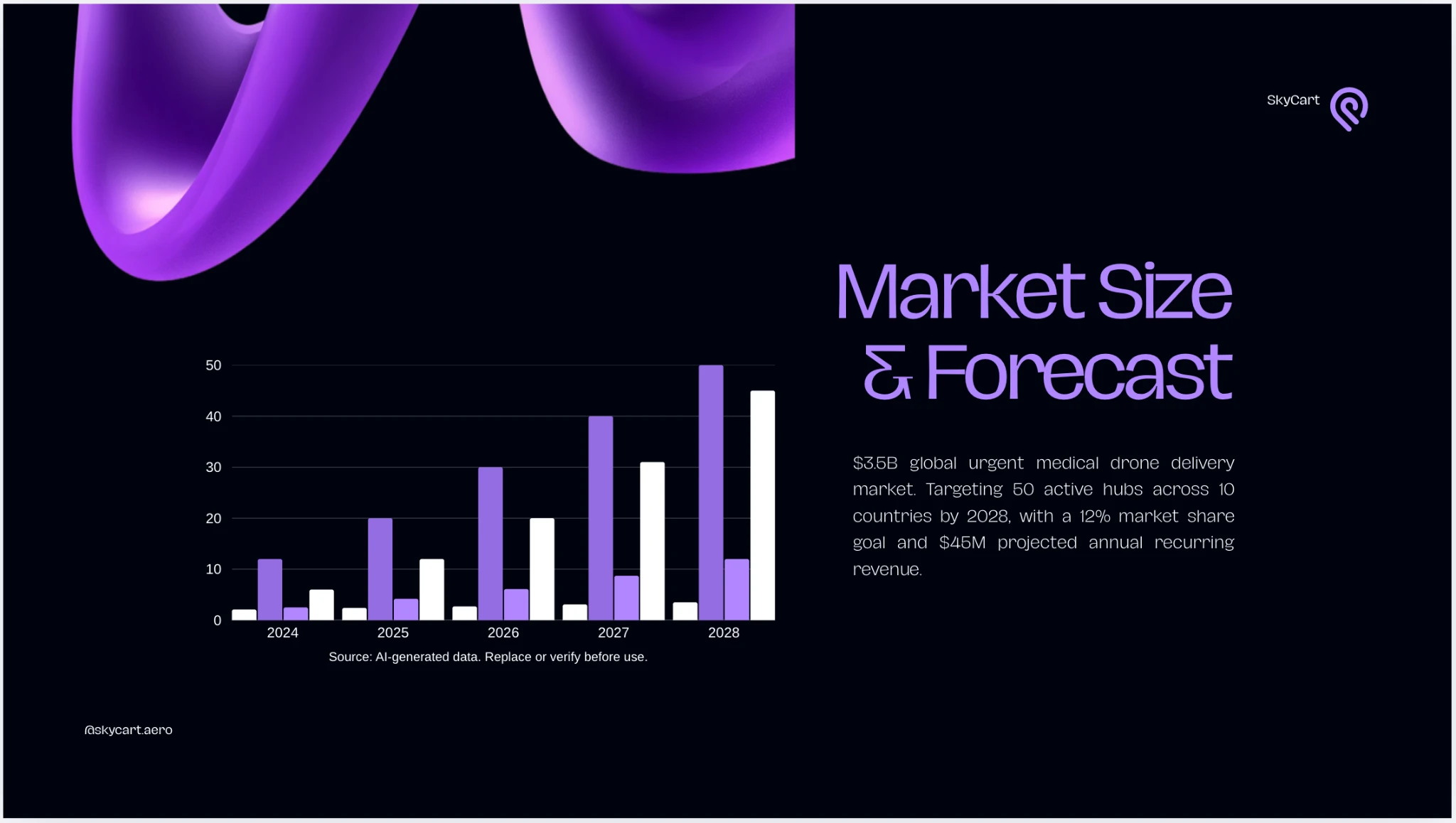
So, which is better, Canva or Prezi? The latter is the clear winner for business data accuracy and speed. It took just 47 sec to build a clean and well-structured presentation. Canva, on the other hand, wins on the visuals with its flashy, expensive-looking neon and 3D ribbon design. But the real question is: was it even necessary here? It looks nice from afar, but up close, the focus points are missing, the text is unreadable, and it’s a question if the design really fits the topic. You would have to fix a ton of stuff manually – good thing editing is so easy here.

Prezi’s work on the presentation
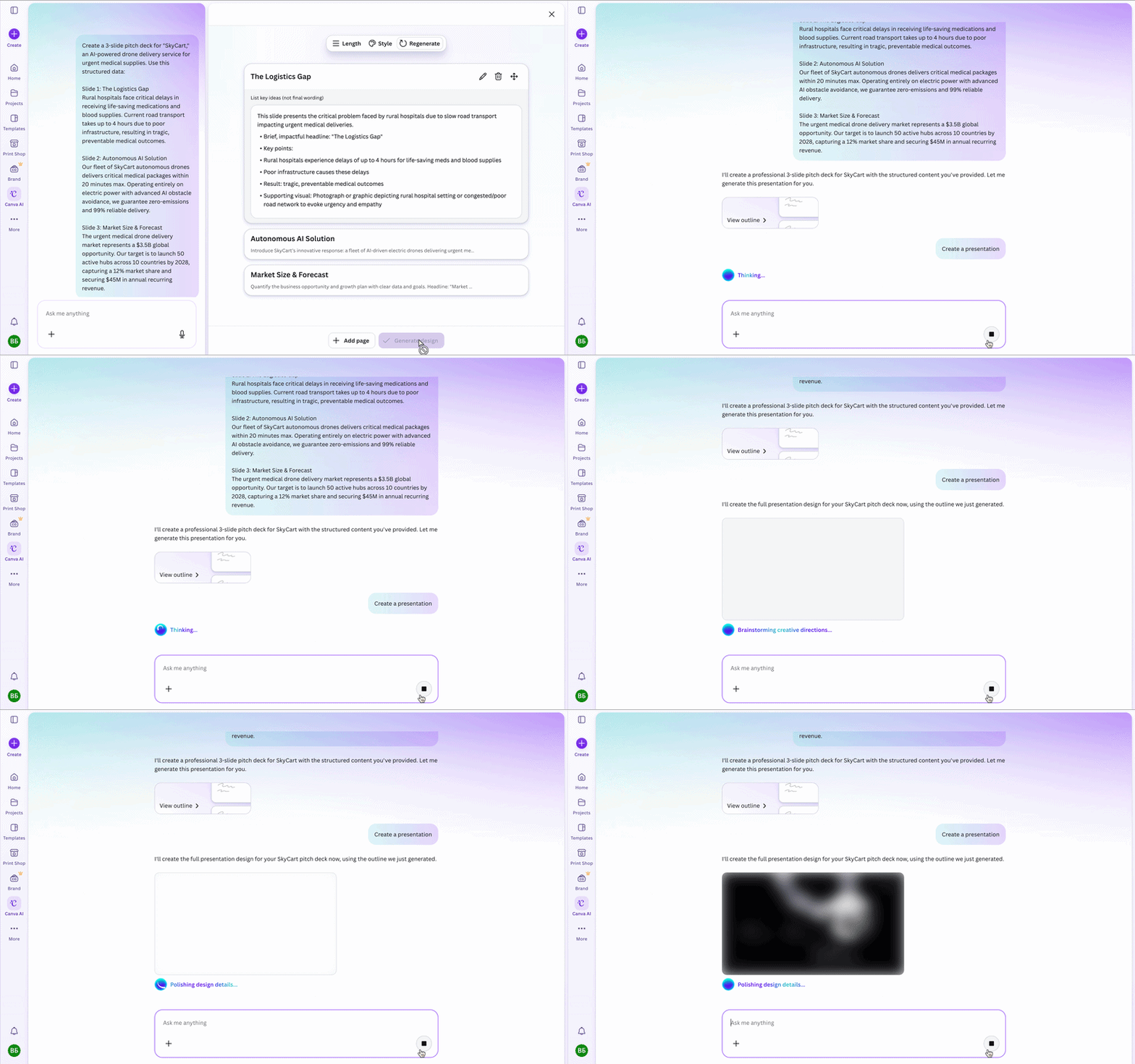
Canva’s AI at work
If you get outside that Prezi or Canva box, Decksy AI PowerPoint maker is actually hardwired to put your story first. It builds the whole thing in seconds. It hooks you up with working charts instead of placeholders, and it picks designs that actually fit your topic (not just chasing random trends). It hits the exact right amount of emphasis. Plus, the text is actually readable because the layouts are super smart – and tweaking those slides later is an absolute breeze.
Export options & ecosystem compatibility
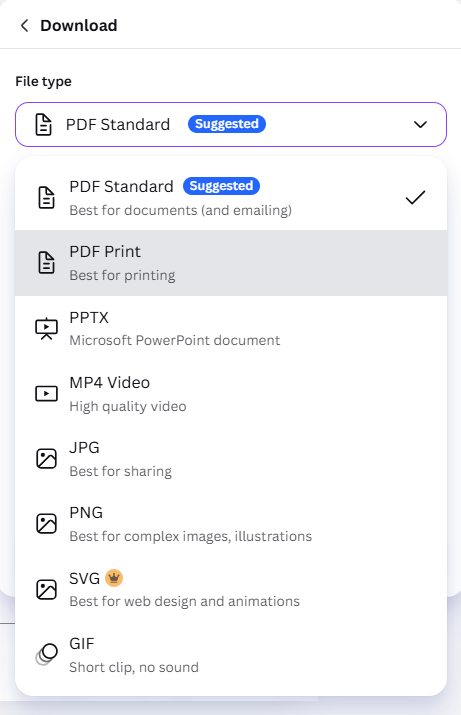
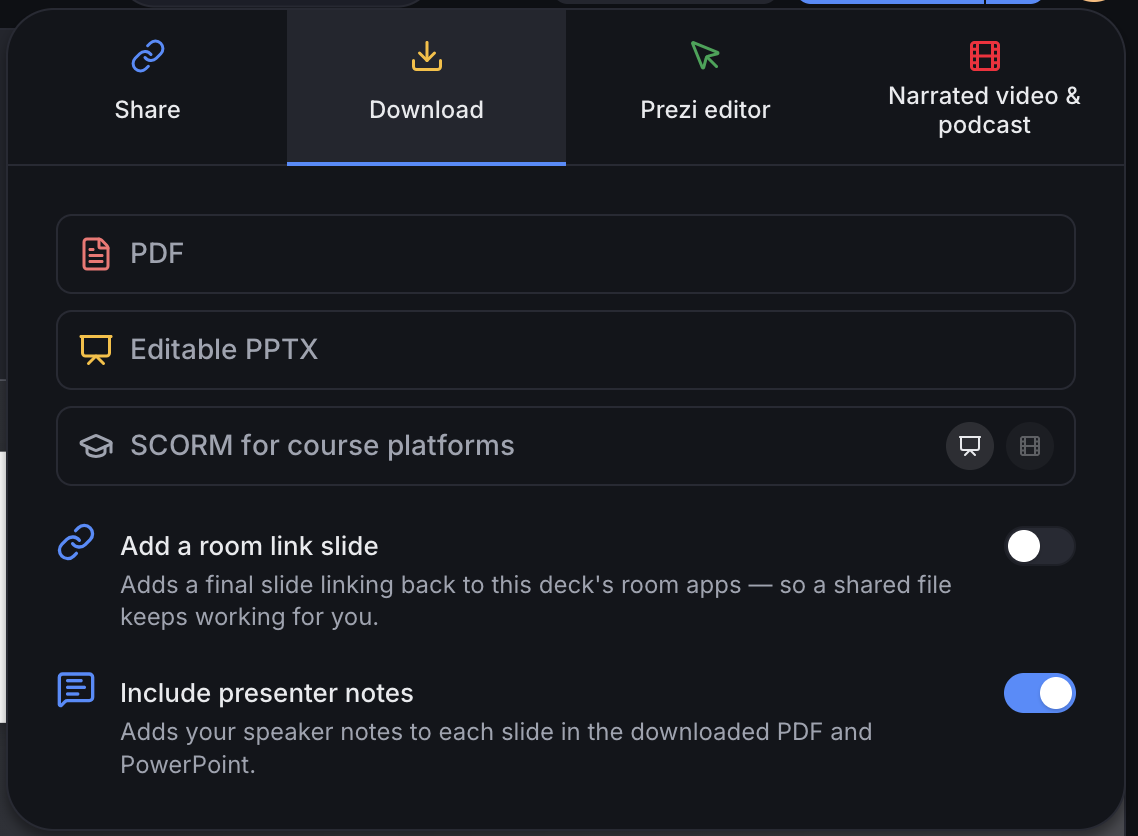
Alright, the design is locked in. But where is it easier to edit an offline file – Canva or Prezi? Let’s find out.
You can download files in .pptx in both tools, and the text stays as text. However, the formatting often breaks: these platforms are tied to their own cloud ecosystems. Everything works perfectly inside them, but outside, it’s a hit-or-miss.
In Canva, unique fonts may reset, lines may shift, and all complex media animations may disappear as well. In Prezi, switching to normal PowerPoint slides completely destroys its signature cinematic 3D zooming effect. You can still present, but you will have to fix things up manually.
Decksy, on the other hand, gives you zero lock-in. The presentation is built from the ground up as a set of clean, fully ungrouped PowerPoint elements. Since its AI natively works in .pptx, you don’t have to convert files back and forth. Your finished deck opens and can be further edited without any issues in Google Slides, PowerPoint, or even Canva itself.
The smart alternatives
You don’t need to stay stuck in the Canva vs Prezi battle for too long. If you’re not down with Canva’s messy logic and don’t want Prezi’s unconventional canvas, just try Decksy AI pitch deck creator. It’s a perfect match for anyone who needs things done fast, wants to avoid random stuff in narration, prefers a traditional presentation style, and wants the freedom to easily tweak slides later.
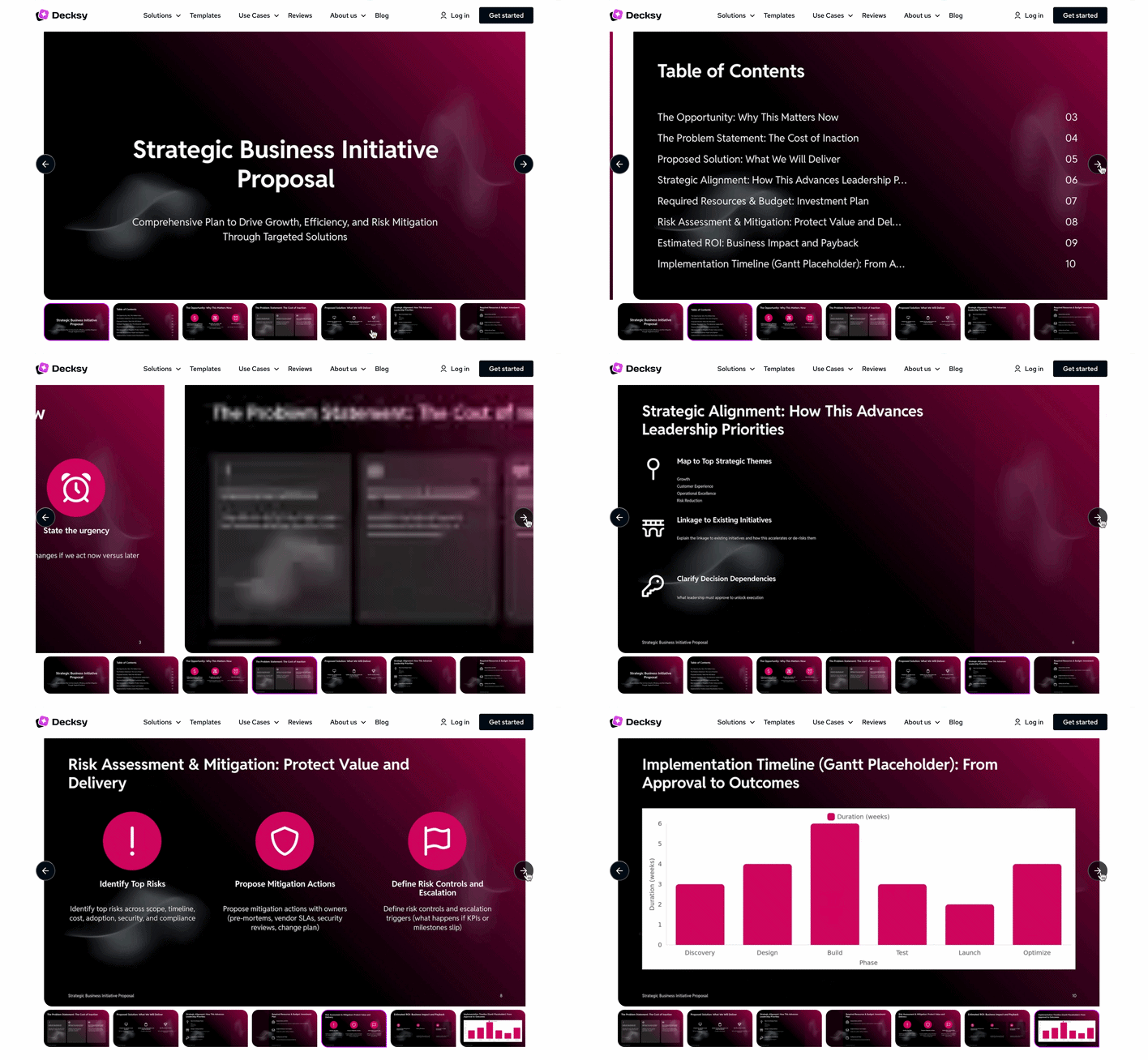
While you’re still weighing Canva or Prezi, you can just take Decksy, dump in your raw docs, text, or PDFs, review the structured storyline, and only then hit generate. Even if something is off and you want a quick tweak – no big deal, the slides are completely editable. And best of all, zero AI hallucinations!
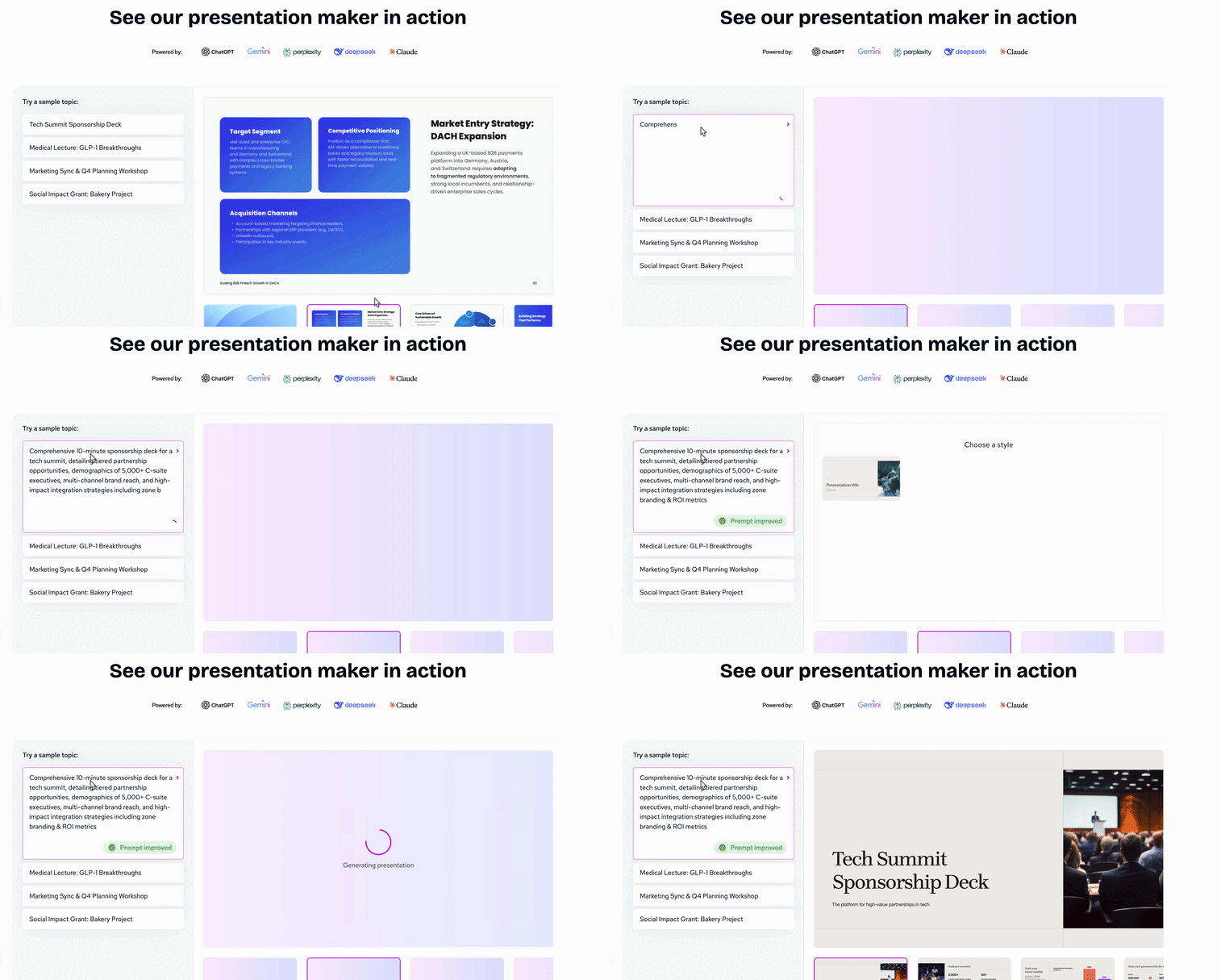
Decksy AI presentation maker at 3x speed
Final verdict & recommendations
So, what’s the move? Prezi or Canva?
Scenario 1: Sleeker, faster, smoother – Canva
If you need a quick, one-click fix that looks gorgeous right out of the box, just fire up Canva.
Scenario 2: More epic, high-stakes, serious – Prezi
If you are using it to pitch live, the effect is literally hypnotic — worth every single penny.
Scenario 3: Fewer hallucinations, more smoothness and sleekness – Decksy
If you want crystal-clear fonts, bulletproof logic, zero AI hallucinations, and absolute peace of mind. Also, Decksy has the best AI presentation maker for healthcare professionals.
At the end of the day, it just comes down to what you actually care about. Every single one of these tools is awesome in its own way.

Sarah Michelle Carter is the Chief Human Resources Officer at Decksy, and the person most likely to remind you that a company's culture is built in the small decisions, not the mission statement on the wall. She's pragmatic about AI — not an evangelist, not a skeptic, just someone who's watched it quietly clear out the repetitive parts of the job so there's more room for judgment and attention. Known for asking better questions than she answers, she's a go-to voice on culture, leadership, and where AI genuinely helps teams versus where it gets in the way.